

Roles and permissions
What each built-in role can do in the Footer365 portal, and how to create a custom role of your own.
A role is a named bundle of permissions. Every person or group with portal access has one role, which decides which parts of the portal they can see and what they can change. Footer365 comes with five built-in roles, and you can create your own.
To view or change roles you need the Manage portal access permission.
The permissions
Each area of the portal has a View permission and, where there is something to change, a Manage permission. Giving someone Manage in an area also lets them view it. In the role editor you do not pick these directly: you switch on pages, and a role holds an area's permission when any page of the area is switched on (see "Choose the pages a role reaches" below). The names below are what the role then holds, and what a person's own permissions are called on Access > Users.
| Area | Permission | What it allows |
|---|---|---|
| Signatures | View signatures | See templates, signature rules, campaigns, brand kits and the image library, the list on Account > Message keywords, and Account > Add-in settings. |
| Manage signatures | Create and change templates, signature rules, campaigns, brand kits and library images. See Brand kits and the image library. | |
| Approve and publish | Approve or reject a change sent for approval, on the Approvals page. Nobody approves their own change. See Drafts, publishing and approval. | |
| View a rule's plain-text email | See the Plain-text email setting at the bottom of a signature rule. | |
| Manage a rule's plain-text email | Change that setting on a rule, for someone who can also manage signatures. | |
| View a rule's mail app sign-offs | See the Mail app sign-offs setting at the bottom of a signature rule. | |
| Manage a rule's mail app sign-offs | Change that setting on a rule, for someone who can also manage signatures. | |
| Directory | View directory | See users and groups, attribute mapping, user details and sources, though not a source's credential or full address. |
| Manage directory | Run a sync, change attribute mapping, import user details, and add, change, run and delete sources. See Keep details up to date from a file. | |
| Out of office | View out of office | See every mailbox's automatic reply and the reply templates on Directory > Out of office. |
| Manage out of office | Set, change and turn off people's automatic replies, and add, change and delete reply templates. Turning Out of office on or off is for Super Admins only. See Set automatic replies for your people. | |
| Insights | View insights | See analytics and the audit log. See The audit log. Have the reports emailed to yourself: see Have reports emailed to you. Losing it stops those emails. |
| Billing | View billing | See invoices. |
| Manage billing | Add or change the payment card, as well as everything View billing allows. | |
| Settings | Manage settings | See and change the company details on Account > Settings, add, change or delete keywords on Account > Message keywords, and change who the Outlook add-in's settings are for on Account > Add-in settings, including who may choose their default signature. See Choose how the Outlook add-in behaves for your people. |
| Manage plain-text email | See and change the organisation's setting on Account > Plain-text email. | |
| Manage mail app sign-offs | See and change the organisation's setting on Account > Mail app sign-offs. | |
| Developers | View developers | See the list of API keys on Developers > API keys, by prefix only, the endpoints on Developers > Webhooks, and how the HubSpot connection stands on Developers > Integrations. |
| Manage developers | Create and revoke API keys, and add, change and delete webhook endpoints. A key can only be given what the person making it can do themselves. | |
| Portal access | Manage portal access | Add and remove portal users and groups, and manage roles and scopes. Someone who holds it always sees the whole organisation. |
A few things are kept for Super Admins only, whatever other permissions someone holds:
- cancelling the subscription
- switching automatic access for Exchange Administrators on or off
- letting your reseller work in your portal
- turning Out of office on or off
- changing the Default compose font on Account > Add-in settings, because it is written into people's mailboxes. See Set the default compose font
- turning the audit log on or off
- connecting, testing and disconnecting HubSpot on Developers > Integrations, because it sends your click records to another company
On a signature rule, someone with neither the View nor the Manage permission for a setting does not see that setting at all, and saving the rule leaves it as it was.
In the role editor, a rule's two settings go with the organisation's page of the same name. Switching on Plain-text email under Account also lets the role see and change the plain-text email setting on each signature rule it can change, and Mail app sign-offs does the same for sign-offs. A role without the page does not see the setting on a rule.
Folders with their own access
The Signatures permissions cover every template, signature rule, campaign and disclaimer that is in no folder, or in a folder that follows the area. A folder can instead have its own list of people and groups, each with View or Manage, set on the Folders page by someone with Manage portal access. That list decides who can open the folder, whatever their role says:
- someone on the list can view or manage the folder even if their role holds no Signatures permission at all, and sees the Signatures lists holding something in it;
- someone not on the list cannot open the folder, even with Manage signatures;
- Super Admins always see and manage every folder, and anyone with Manage portal access can always see every folder.
So the least-privilege way to give a team its own corner is a role without Signatures and Manage on that team's folder. See Folders and who can use them.
When someone can see an area but not change it, the portal tells them: "You have view-only access to this area, so the actions on this page are unavailable."
Limit a role to part of the organisation
A role says what someone can do. A scope says for which people. A portal user or group given a scope on Access > Users sees and changes only the people in it, such as one subsidiary or one department, whatever their role holds. The pages about the whole organisation, such as Analytics, the Audit log, Account settings and Billing, are not open to someone with a scope, even if their role holds the permission.
Super Admins, and any role that holds Manage portal access, are never limited by a scope, because they could otherwise widen their own. A custom role for a subsidiary's administrator therefore leaves Manage portal access out. See Limit an administrator to part of the organisation.
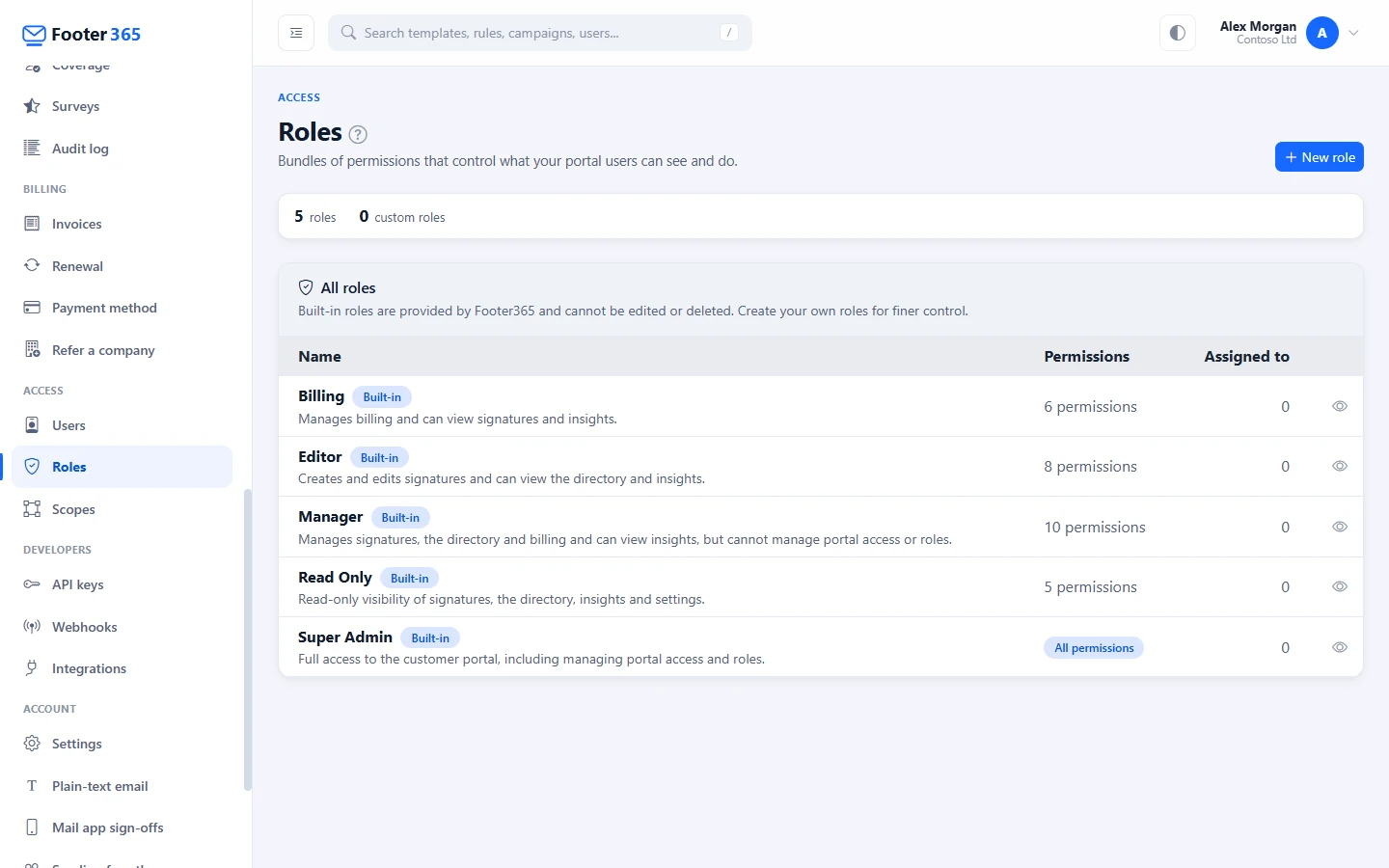
The built-in roles
| Role | Signatures | Directory | Out of office | Insights | Billing | Developers | Settings | Portal access |
|---|---|---|---|---|---|---|---|---|
| Super Admin | Manage | Manage | Manage | View | Manage | Manage | Manage | Manage |
| Manager | Manage | Manage | - | View | View | - | - | - |
| Editor | Manage | View | - | View | - | - | - | - |
| Billing | View | - | - | View | Manage | - | - | - |
| Read Only | View | View | - | View | - | - | - | - |
No built-in role but Super Admin holds Approve and publish, can see or make API keys, or can see or set people's automatic replies, so nobody gains any of these powers without a decision. To let someone else manage keys, give them a custom role with Manage developers. See Create and revoke API keys. To let HR set automatic replies, give them a custom role with Manage out of office.
In the table, Signatures includes a rule's plain-text email and mail app sign-offs at the same level, and Settings includes the two Account pages of those names.
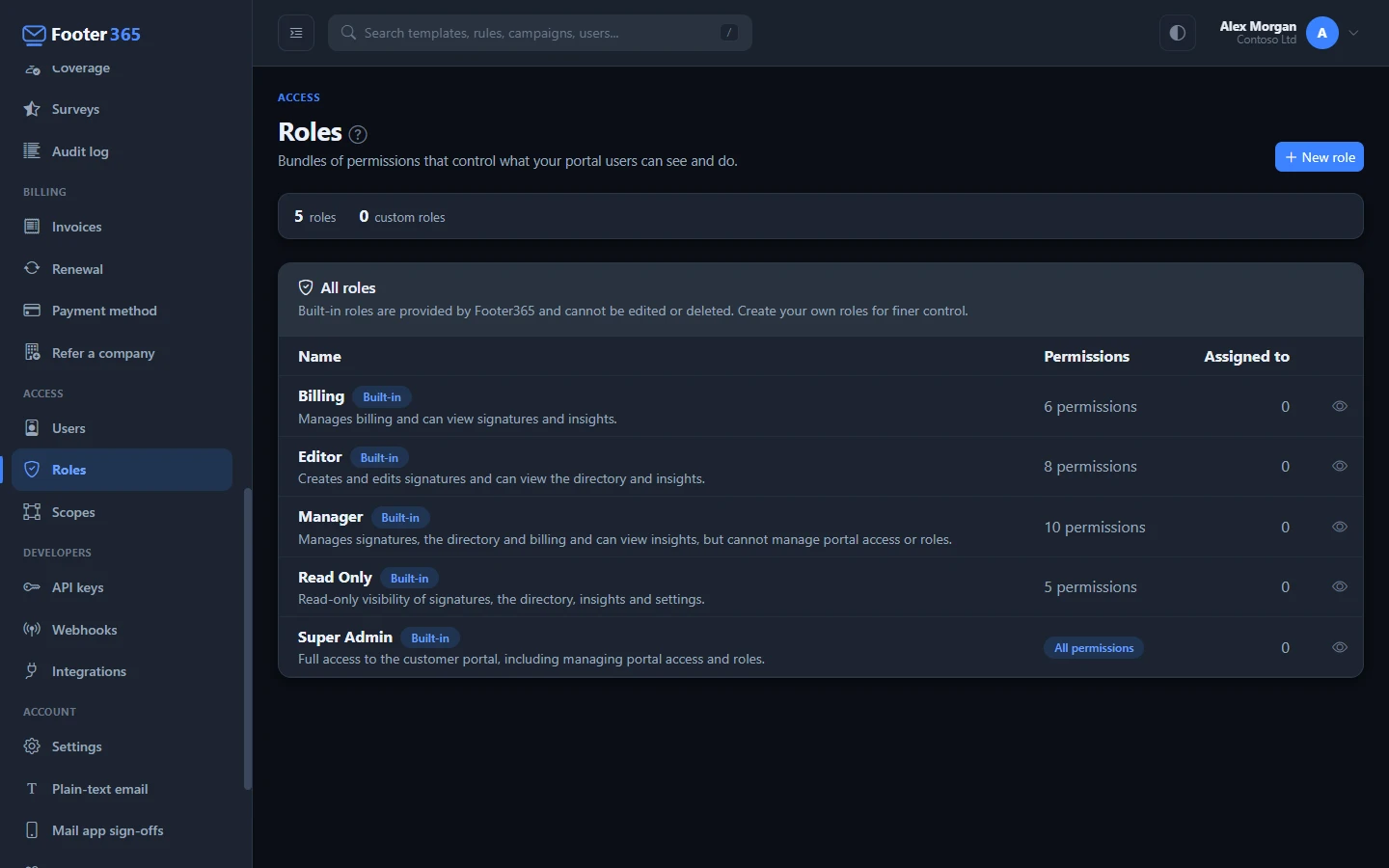
Built-in roles are provided by Footer365 and cannot be edited or deleted. Click one on the Roles page to see exactly what it allows.
Microsoft 365 Global Administrators, and Exchange Administrators who are let in automatically, are always Super Admins.
Create a custom role
If none of the built-in roles fits, make your own. For example, a "Marketing" role that can manage signatures and view insights but cannot touch the directory.
- Go to Access > Roles (open it).
- Select New role.
- Enter a Role name and, if you like, a Description saying what it is for.
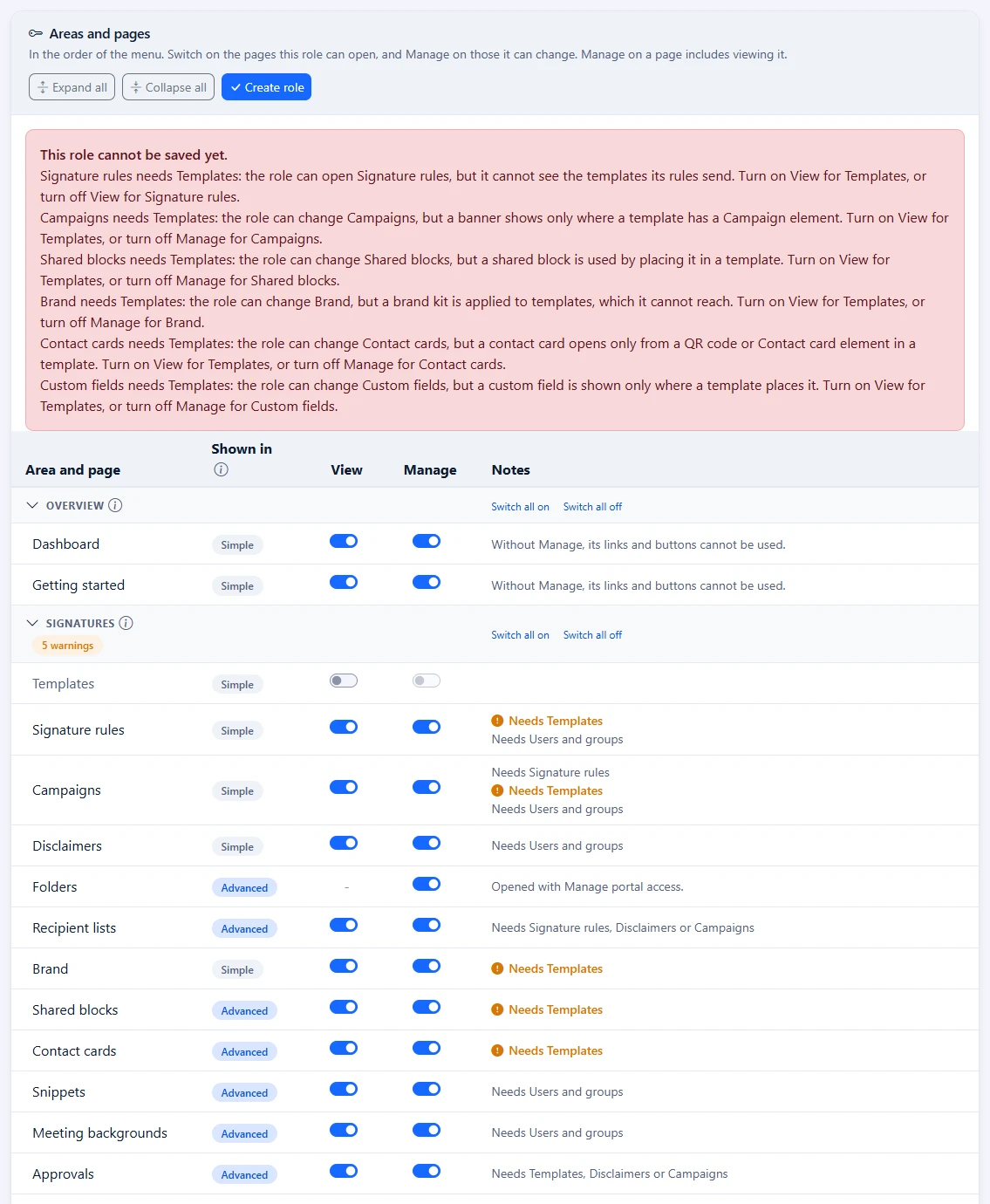
- Under Areas and pages, switch on View for each page the role should open, and Manage for each it should change. Switch all on on a group's heading switches on every page in the group at once.
- Select Create role.
The new role now appears in the Role box when you add or change someone's access. See Give colleagues access.
Choose the pages a role reaches
The Areas and pages card lists the portal in the order of its menu, under the menu's own headings: Overview, Signatures, Directory, Insights, Billing, Access, Developers and Account. A heading only folds its group away; point at the "i" beside it to read what the group holds. Every page has its own View and Manage switches. For example, a role can manage signatures but never touch Campaigns.
- A page with View off is hidden from the menu and the search, and anyone holding only this role cannot open it. Its Manage switch goes off with it.
- A page with View on and Manage off can be opened, but nothing on it can be changed. Manage on a page includes viewing it.
- The role holds an area's permission while any page of the area is on. Switching on Templates alone, for example, gives View signatures, and every other Signatures page stays off.
- A page with one level, such as Settings or Payment method, has its one switch in the Manage column, because opening it is changing it.
- A few pages are opened or changed with a permission from another area, and the Notes column says which. Message keywords and Add-in settings, for example, are opened with View signatures and changed with Manage settings.
- Dashboard, Getting started and Agreements are on for every new role. With View on and Manage off, the page opens but none of its links or buttons can be used. With the Dashboard off, the portal's home page shows its heading and nothing else. With Agreements off, its menu item and the banner about changes to the agreements are hidden.
- The Dashboard shows a part only when the role gives the page it comes from: the template and rule figures need Templates and Signature rules, the user count Users and groups, the email figures and chart Analytics, and the setup progress and Microsoft 365 connection Getting started.
- Cancel subscription has no switch: it is for Super Admins only.
- Switch all on and Switch all off on a heading set every page in the group at once.
The Shown in column says which portal view first shows each page in the menu: Simple, Advanced or Developer. A view only changes what someone's menu offers, never what they may do; that is the role. See Choose how much of the portal you see.
Select a heading to fold its group away, or use Expand all and Collapse all. A folded group that holds a warning says so on its heading, and saving opens it. The table's column headings stay in view as you scroll down.
- Someone in several groups gets a page if any of their roles gives it.
- Super Admins always have every page your organisation has.
- A page Footer365 has not made available to your organisation has no row here, and nobody can be given it. Whatever a role already says about it is kept, and applies if the page is made available later. Opening its address shows Page not found.
Roles made before pages had their own switches keep every page in their areas on, so nobody's access changed.
Pages that need another page
Some pages only work with another. Signature rules, for example, send templates, so a role that can open Signature rules needs View on Templates. The Notes column says "Needs Templates" beside such a page. When the page it needs is off for the role, the note turns amber with an alert icon: point at the icon to see what will not work and which switch to change.
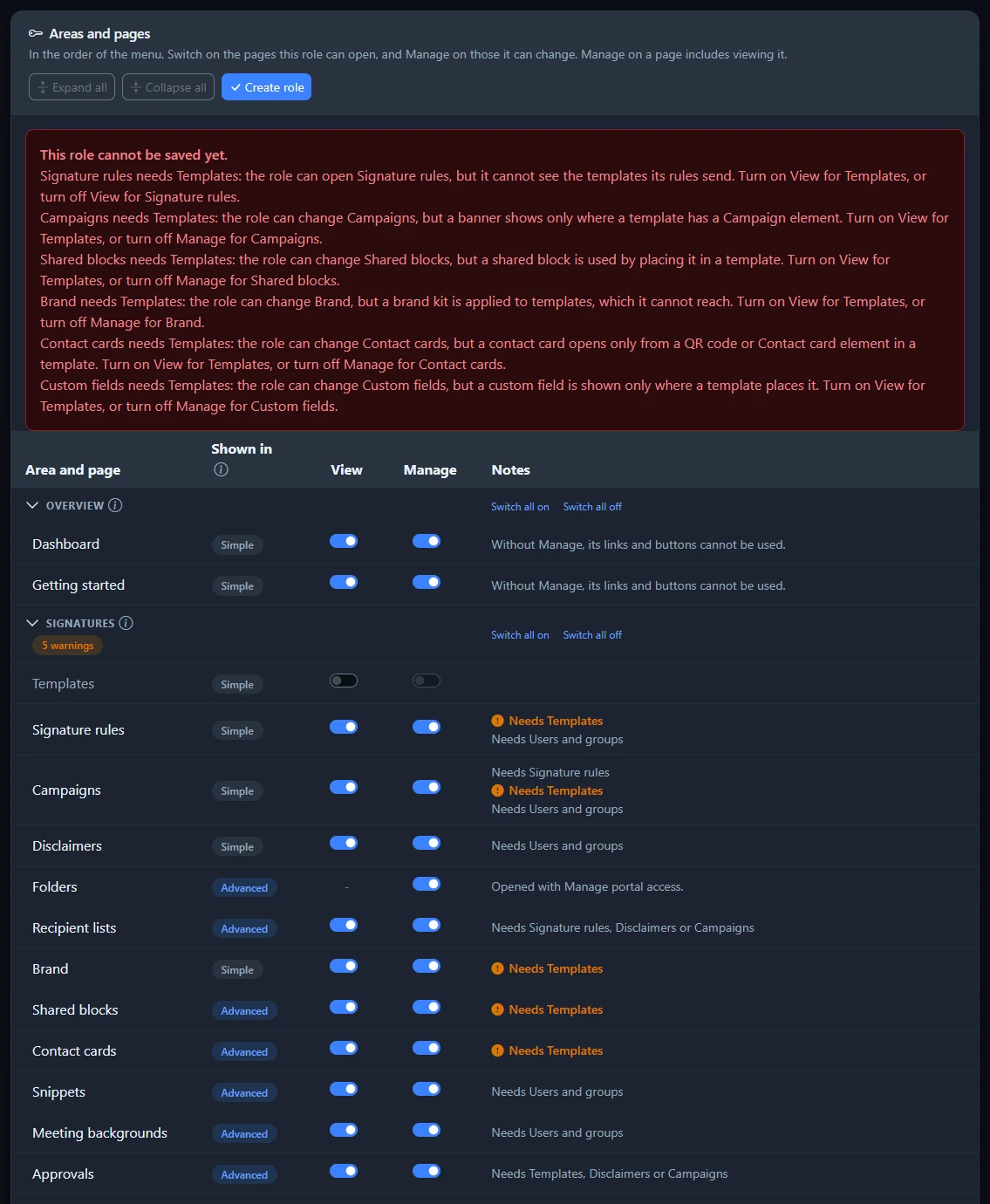
A role cannot be saved while any page lacks what it needs. Selecting Create role or Save changes shows "This role cannot be saved yet." above the table, with one line for each page to put right: turn on View for the page it needs, or turn the page off.
Change or delete a custom role
- To change a custom role, click it on the Roles page, make your changes and select Save changes. Everyone who holds the role picks up the change.
- To delete a custom role, select the bin button on its row, then Delete in the window that opens. This cannot be undone.
The Assigned to column shows how many people and groups hold each role. A role that is still assigned to anyone cannot be deleted: give those people and groups a different role first.
Safeguards
- A role cannot grant a permission you do not hold yourself.
- You cannot edit a role that grants permissions you do not hold.
- You cannot take permissions away from a role if somebody holding it has access you do not.
- You cannot add Manage portal access to a role that people or groups limited to a scope hold, because it would lift their limit. The message names them: give them another role, or the whole organisation, first.
These rules stop anyone using roles to give themselves, or someone else, more access than they have.
Related articles
Still stuck?
Tell us what you were trying to do and what you saw. Include the sender, a recipient and roughly when a message was sent, and we can trace it.