

Use your own domain for tracked links
Put every tracked banner, signature and survey link on an address of your own, such as links.contoso.com, through your own forwarder or set up by Footer365, with the steps for each way of hosting it.
Every tracked link in your mail, in campaign banners, counted signature links and survey answers, normally uses Footer365's own tracking address. You can put them on an address of your own instead, such as links.contoso.com, so recipients and their mail filters see your domain. This article explains the two ways to set it up and gives the exact steps for each way of hosting a forwarder.
New links use your domain only once Footer365 has checked it works. Until then, and whenever it fails, they use Footer365's own address, so no link is ever broken by a domain that is half set up.
Before you start
- You need the Manage settings permission. Super Admins have it. Asking Footer365 to set the domain up adds a monthly charge, so it needs Manage billing as well.
- The domain must be a subdomain of one of your verified Microsoft 365 domains, such as links.contoso.com under contoso.com. That is how Footer365 knows it is yours. A subdomain of your onmicrosoft.com domain cannot be used, because its DNS is Microsoft's.
- Your organisation has one link domain at a time.
Choose how it reaches Footer365
Go to Account > Settings (open it) and find the Your own link domain card. Under How it reaches Footer365 there are two choices:
- Your own forwarder (Included): you host a small forwarding site for the domain, with your own certificate, that redirects every request to Footer365's tracking address. It costs nothing extra.
- Set up by Footer365 (Monthly charge per domain): you add one DNS record, and Footer365 hosts the domain on its own servers and issues and renews its certificate. The card shows the charge before you start. It is added to your normal invoice from the day the domain is first used, by the day. If you buy through a reseller, they invoice you for it.
Enter the name in Link domain and select Add link domain.
Set it up step by step
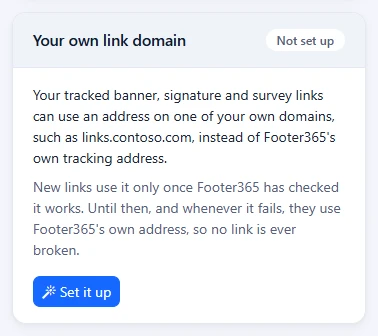
Footer365 is making a step-by-step way in available to organisations gradually, so your card may not show it yet. See Early access pages and features. Where it does, the card shows Set it up in place of the form, and four steps:
- How it reaches Footer365: the same two choices as above.
- The address: type the Name, such as
links, and pick Your domain from your verified Microsoft 365 domains. The card shows the address your links will read. - The record to add: for Set up by Footer365, the
CNAMErecord to add at your DNS provider; for Your own forwarder, the address to redirect every request to. Add it, then select I have added it. Nothing is saved before then, so Back changes any earlier step. - Checking: the steps of the check, described below. Footer365 checks the domain again every day, so you can leave the page and come back, or select Check now.
Your own forwarder
Your forwarder answers every request to your domain with a 302 (temporary) redirect to the address shown under Redirect every request to, keeping the path and the query string exactly as they are. In the examples below that address is https://t.footer365.net.
https://links.contoso.com/Xk3pQ7?s=9f2c
- A recipient clicks a link on your domain, such as https://links.contoso.com/Xk3pQ7?s=9f2c.
- Your forwarder redirects the browser to the same path and query on Footer365's tracking address.
- Footer365 counts the click from the recipient's own browser and sends them on to your website.
Use a redirect, not a proxy: Footer365 then sees the recipient's own browser, so clicks are counted and scanners are filtered as they always are. Use a 302 rather than a 301, so no browser or mail filter remembers the redirect for good. Both the path and the query string must survive: the query carries which message a click came from.
Which ways of hosting it work
| Where you host it | Keeps the path | Keeps the query | Notes |
|---|---|---|---|
| Cloudflare redirect rule, on your own Cloudflare account | Yes | Yes | No code. Tick "Preserve query string", which is off by default. |
| Cloudflare Worker, on your own account | Yes | Yes | For an organisation that already runs Workers. |
| IIS with URL Rewrite, on any Windows server or Azure App Service | Yes | Yes | One rule. |
| nginx or Apache, on any Linux server | Yes | Yes | One line or one rule. |
| Azure Function | Yes | Yes | Works, but more to deploy than a redirect rule. |
| Azure Static Web Apps, configuration file only | No | No | Its route redirect has a fixed destination, so it keeps neither the path nor the query. Not suitable without a function behind it. |
Cloudflare redirect rule
- In your own Cloudflare dashboard, open the zone for your domain and go to DNS. Add an
AAAArecord namedlinkswith the address100::, and leave it Proxied (the orange cloud).100::is the address Cloudflare documents for a name with no server behind it; the redirect rule answers every request. - Go to Rules and create a redirect rule. Match requests where the hostname equals
links.contoso.com. - Set the redirect to a Dynamic URL with the expression
concat("https://t.footer365.net", http.request.uri.path), the status code 302, and tick Preserve query string. - Save. Cloudflare issues the certificate for the name itself.
Cloudflare Worker
Create a Worker with this code, and add links.contoso.com to it as a custom domain:
export default {
  async fetch(request) {
    const url = new URL(request.url);
    return Response.redirect("https://t.footer365.net" + url.pathname + url.search, 302);
  }
};
IIS with URL Rewrite
On a Windows server with the URL Rewrite module, or on Azure App Service, create a site for links.contoso.com and put this web.config in its root:
<?xml version="1.0" encoding="utf-8"?>
<configuration>
  <system.webServer>
    <rewrite>
      <rules>
        <rule name="Footer365 links" stopProcessing="true">
          <match url=".*" />
          <action type="Redirect" url="https://t.footer365.net/{R:0}" appendQueryString="true" redirectType="Found" />
        </rule>
      </rules>
    </rewrite>
  </system.webServer>
</configuration>
redirectType="Found" is a 302. Issue a certificate for the name, for example with win-acme and Let's Encrypt, and bind it to the site on port 443. On Azure App Service, add the name as a custom domain with a managed certificate.
nginx
server {
    listen 443 ssl;
    server_name links.contoso.com;
    ssl_certificate     /etc/letsencrypt/live/links.contoso.com/fullchain.pem;
    ssl_certificate_key /etc/letsencrypt/live/links.contoso.com/privkey.pem;
    return 302 https://t.footer365.net$request_uri;
}
$request_uri carries both the path and the query string. Issue the certificate with certbot.
Apache
With mod_rewrite and mod_ssl enabled:
<VirtualHost *:443>
    ServerName links.contoso.com
    SSLEngine on
    SSLCertificateFile    /etc/letsencrypt/live/links.contoso.com/fullchain.pem
    SSLCertificateKeyFile /etc/letsencrypt/live/links.contoso.com/privkey.pem
    RewriteEngine On
    RewriteRule ^ https://t.footer365.net%{REQUEST_URI} [R=302,L]
</VirtualHost>
The rule passes the query string on unchanged. Issue the certificate with certbot.
Azure Function
A JavaScript HTTP function that answers every route:
const { app } = require('@azure/functions');

app.http('forward', {
  methods: ['GET', 'HEAD'],
  authLevel: 'anonymous',
  route: '{*path}',
  handler: async (request) => {
    const url = new URL(request.url);
    return { status: 302, headers: { Location: 'https://t.footer365.net' + url.pathname + url.search } };
  }
});
In host.json, set "extensions": { "http": { "routePrefix": "" } } so the function answers at the root rather than under /api. Add links.contoso.com as a custom domain with a certificate.
How Footer365 checks it
Once the domain is added, and again whenever you select Check now, Footer365 requests a random address on it, such as https://links.contoso.com/.well-known/footer365/... with a random query string. The check passes when the answer is a temporary redirect to Footer365's tracking address with both the path and the query intact. The card shows each step:
- Domain belongs to your organisation
- https://links.contoso.com answers with a valid certificate
- A test link reached Footer365 with its path and query intact
- New links use links.contoso.com
The card's heading shows Not set up before a domain is added, Checking until a forwarder first passes, and Being set up while Footer365 sets a domain up for you.
When a step fails, the card says what the check found, for example that the test link arrived without its query string, and what to change. Fix it and select Check now.
Footer365 will not check a domain whose name points at a private or internal network address.
Set up by Footer365
- Choose Set up by Footer365, enter the name and select Add link domain.
- Under Add this record at your DNS provider, the card shows a
CNAMErecord: the name, such aslinks, pointing at the address Footer365 gives. Add it at your DNS provider. If your DNS is on Cloudflare, leave the record DNS only (the grey cloud), not proxied. - The card shows DNS record found once Footer365 sees the record. Footer365's team then adds the domain to its tracking servers and issues a Let's Encrypt certificate for it; the card shows that step as Running until it is done. There is nothing for you to do.
- The domain is then checked, and new links use it once it passes: Checked, then new links use it.
The monthly charge starts the day the domain is first used, and stops the day you remove it. It is charged by the day, and if your subscription ends first it stops on the last day of your subscription: nothing is charged for any day after that.
While it is in use
The card's heading shows In use. Footer365 checks the domain again every day:
- One failed check shows Last check failed, and new links still use your domain.
- Two failed checks in a row put new links back on Footer365's own address. The heading shows Not in use, the card says when the domain stopped forwarding correctly, and your technical contact is emailed once, or the account owner when there is no technical contact.
- Links in mail sent while the domain was in use go through your domain, so they work again once it is fixed. Mail sent while it is out of use carries Footer365's own address and works throughout.
- When the domain passes again, at the next daily check or when you select Check now, new links use it again.
Remove it
Select Remove and confirm in Remove your link domain. New links use Footer365's own address from then on. Links in mail already sent go through your domain, so they keep working only while it still redirects to Footer365. For a domain set up by Footer365, the monthly charge stops that day.
Good to know
- Footer365's own tracking address asks search engines not to index it, for every organisation, so neither address appears in search results because of your links.
- The Tracked as column on a campaign's Tracked links card shows each link on Footer365's address. Sent mail carries the same link on your domain while it is in use.
- Test messages sent from the portal carry no tracked links, so they show your links going straight to their addresses.
- Every change to the link domain, every check you ask for, and each time it goes into or out of use, is recorded in your audit log.
Related
Still stuck?
Tell us what you were trying to do and what you saw. Include the sender, a recipient and roughly when a message was sent, and we can trace it.