

A/B test two banners
Send two versions of a campaign banner, split per sender, per email, per recipient domain or at random, see which gets more clicks, and keep the better one.
An A/B test sends two versions of a campaign's banner at the same time, banner A and banner B, and shows which one people click more. When you have seen enough, you keep the better banner and the other one is switched off.
How the test is split
When you start a test you choose, from the A/B test list, how the two banners are shared out. About half the emails carry each banner whichever you choose; what differs is who sees which.
| Split | Who sees which banner | Suits |
|---|---|---|
| Per sender | Each person always sends the same banner for the whole test, so the people they write to see one consistent banner. | Most tests. |
| Per email | Each email gets a banner of its own, and keeps it however many times its signature is rebuilt while it is being written. One person's emails carry both banners over time. | The most even split, when consistency per sender does not matter. |
| Per recipient domain | Everyone at one receiving organisation sees the same banner, whoever writes to them. It is decided by the first recipient outside your organisation. | Account-based marketing. |
| Random | A banner is picked at random each time a signature is built, so even one email can change banner if its signature is rebuilt before it is sent. | Plain rotation between the two. |
The split is fixed for the whole test and cannot be changed once it has started, because the results compare the two groups of emails it made. To try a different split, create a new campaign. The results page says which split the test uses.
With Per recipient domain, an email has one banner, so an email to several outside organisations shows the banner of the first of them. An email with no recipient outside your organisation is split by its sender instead.
Everything else about the campaign is shared by both banners: the name, the target rules, the schedule, the status and the website analytics tagging. The test only runs while the campaign itself is active.
A campaign has one A/B test. To test another idea afterwards, create a new campaign, or select ... on the campaign's row of the Campaigns list, then Duplicate, and choose a split to make the copy an A/B campaign. A copy of a campaign whose test is still running tests the same two banners again. See "Duplicate a campaign" in Create a banner campaign.
Start a test
You can start a test when you create a campaign, or later on a campaign that has not had one.
- Go to Signatures > Campaigns (open it), and create a campaign or open one.
- In the A/B test list, beside Status, choose how to split the banners. It shows None to begin with, which means no test. Hover over a choice to see what it does.
- Select Save. The campaign is saved and the test starts. Banner B starts as a copy of the banner you have just saved, and opens in the editor.
- Change what you want to test in banner B, such as the wording, the colours or the button, and select Save.
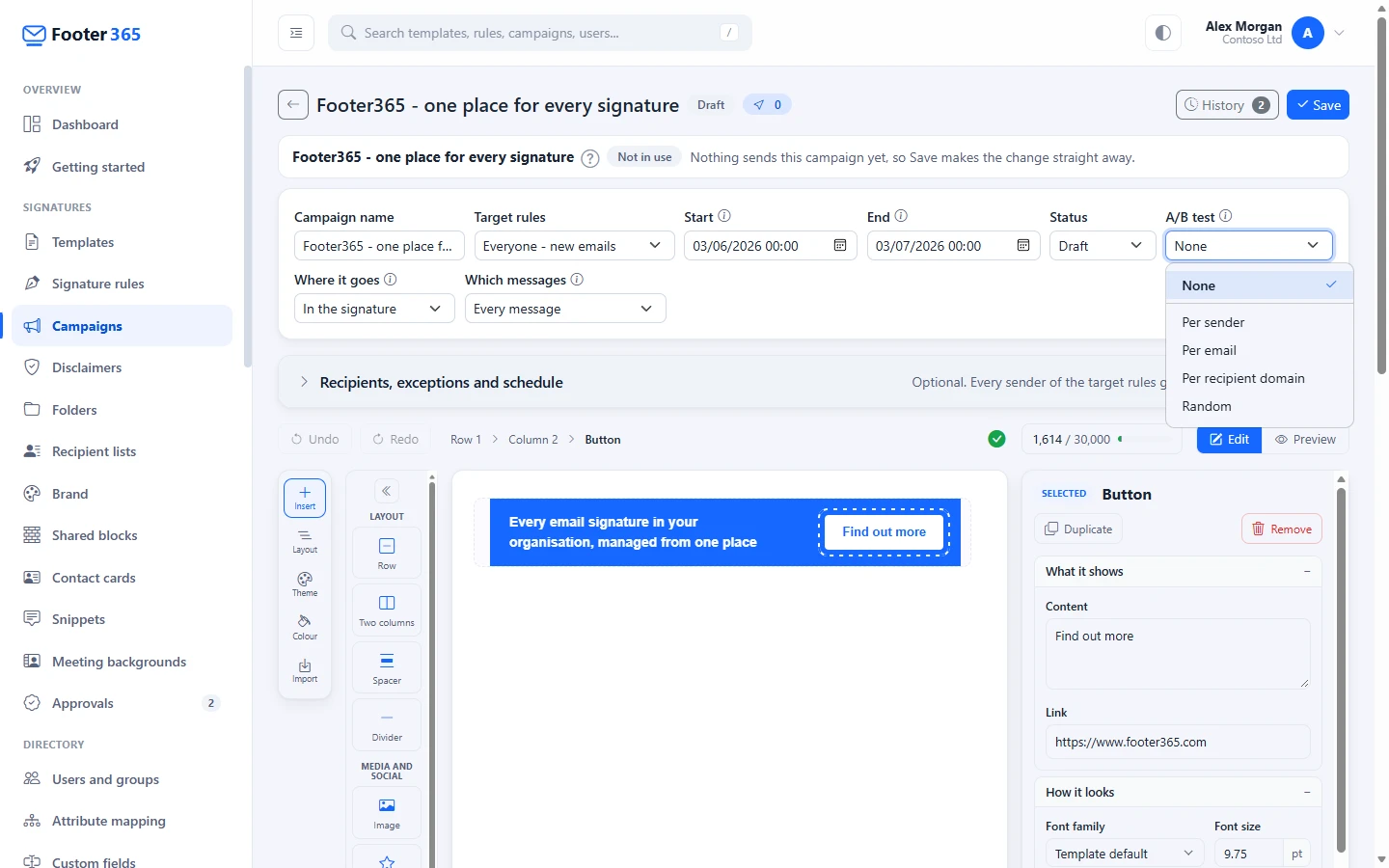
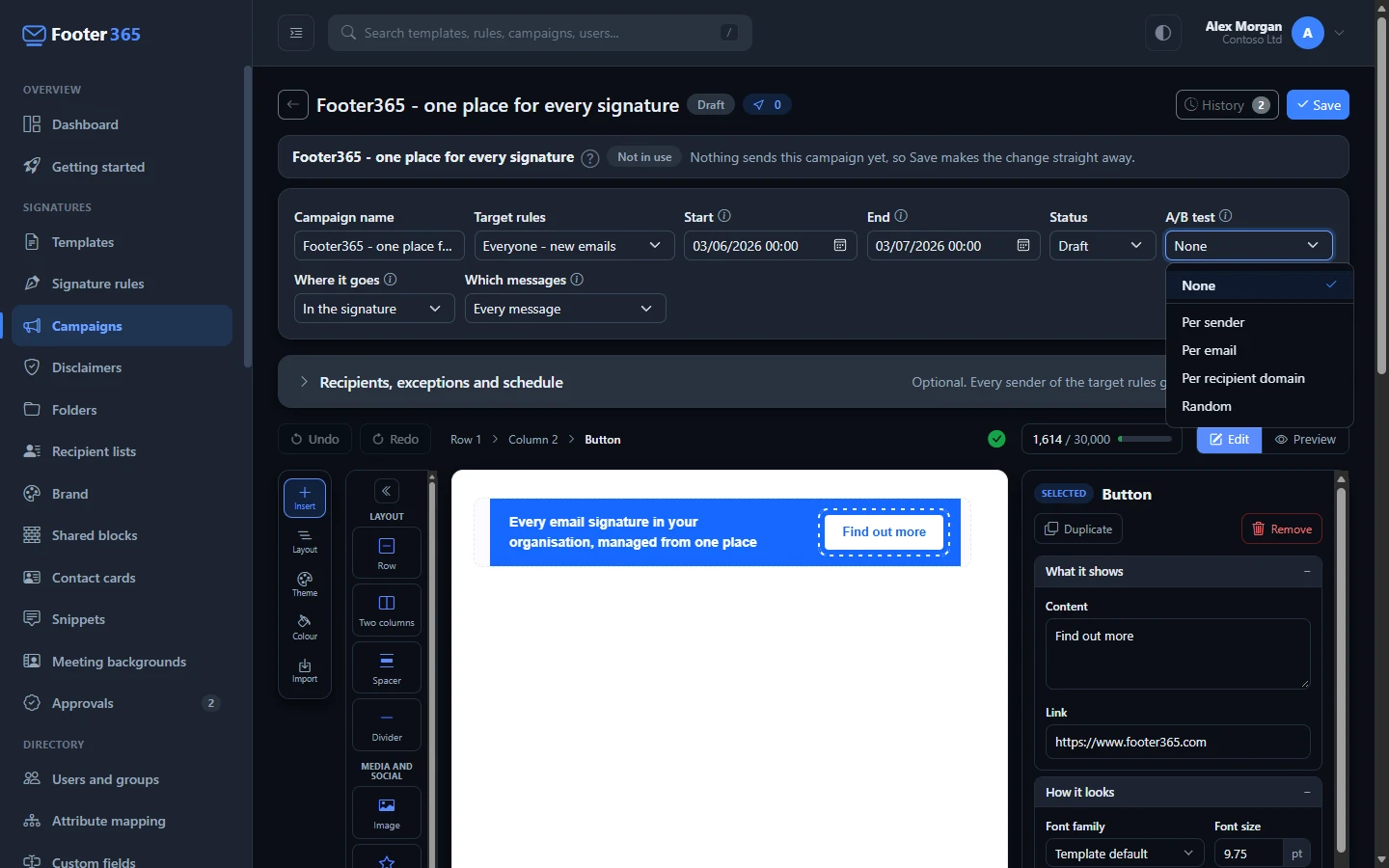
Until you save with a split chosen, you can change your mind or set the list back to None. Once the test has started, the list shows the split it uses and cannot be changed.
Change one thing at a time where you can. If banner B has new wording and a new colour and a new picture, the result tells you which banner did better but not why.
Edit either banner
While a test runs, the bar above the canvas has Banner A and Banner B beside Edit and Preview. The one highlighted is the banner on the canvas. Select the other to switch to it. If you are previewing one banner, the other opens in Preview as well, so you can compare them.
To compare them without leaving the banner you are editing, use the Banner list in Preview: it shows the other banner in the preview, with the Outlook Add-In size measured for it, while the canvas stays as it is. In a template's preview, the Campaign list offers both banners of the test, as "(banner A)" and "(banner B)".


- Banner A is the campaign's own banner. Opening the campaign from the Campaigns list shows it.
- Banner B is the second banner. It is the same editor, with the same checks: one link per banner, the size of the banner image, and every link checked with Google before it is saved.
- Each banner is saved on its own. Select Save before switching, and after saving you stay on the same banner. If you switch without saving, the editor keeps your changes and offers them back when you return to that banner.
- The campaign's name, target rules, dates, status and website analytics tagging are shared by both banners, so they are changed on Banner A.
- Each banner keeps its own last five versions. History in the top bar shows the history of the banner on the canvas. See Banner history.
Under the campaign's details, the A/B test box says how the test is split and has A/B test results.


The results page also has Edit campaign, which opens banner A, and Edit banner B.
A link in either banner is tracked and checked in the same way as any campaign link. See Tracked links and safety checks.
Where changes need approval, banner B of a running test cannot be changed, because it would go out without approval. End the test, or change banner A through its draft. See Drafts, publishing and approval.
Read the results
Select A/B test results on the campaign page, or the split-banner icon beside the campaign's status on the Campaigns list. Hovering over that icon says whether the test is running and how it is split. For each banner the page shows:
| Figure | What it counts |
|---|---|
| Messages | Emails that carried the banner. |
| Senders | Different people whose emails carried it. With any split other than Per sender, one person can be counted under both banners. |
| Clicks | Clicks on the banner by people. Clicks by link scanners at the recipient's organisation are left out, as everywhere else in Footer365. |
| Click-through | Clicks per message, as a percentage. This is the figure the banners are compared on. |
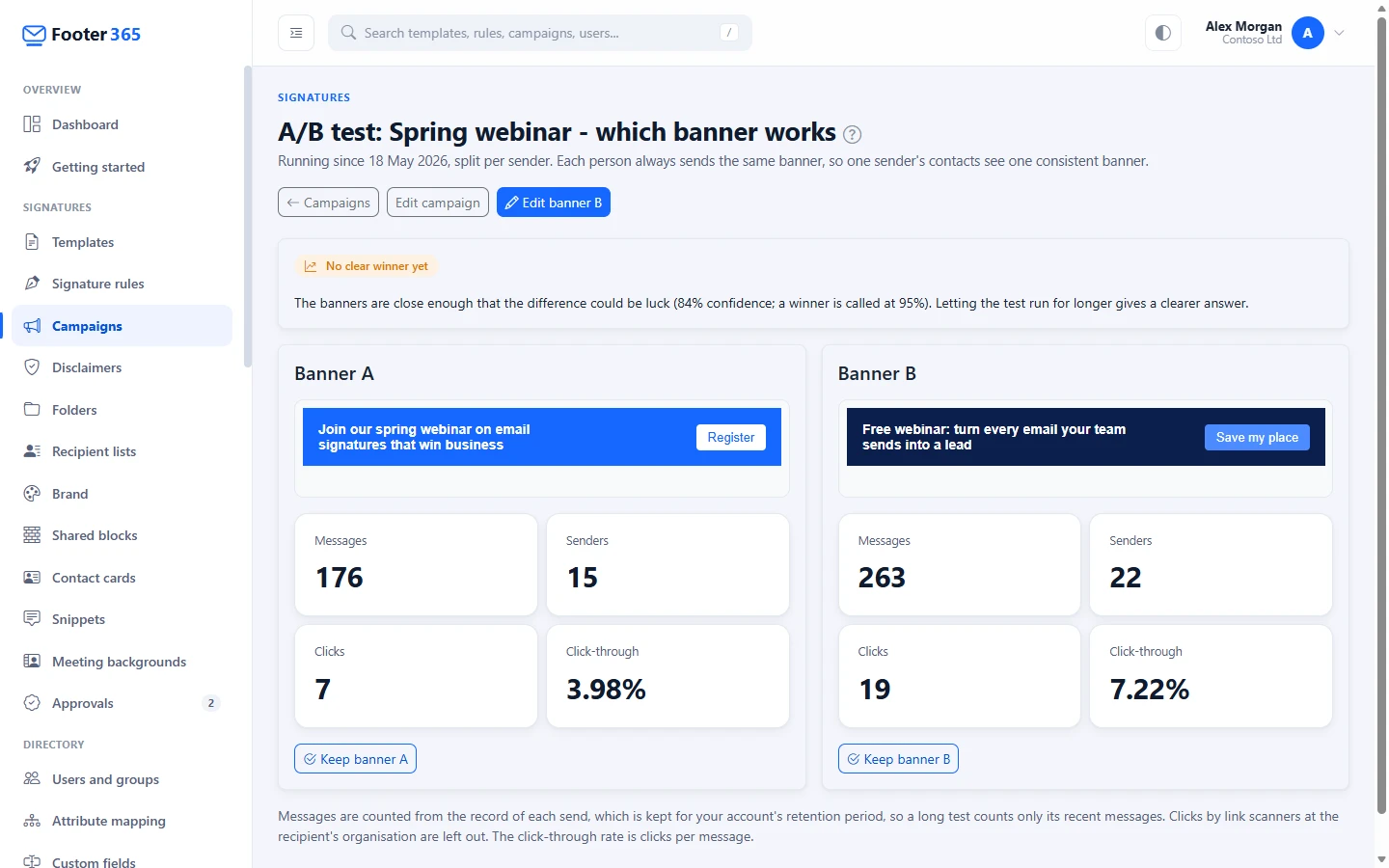
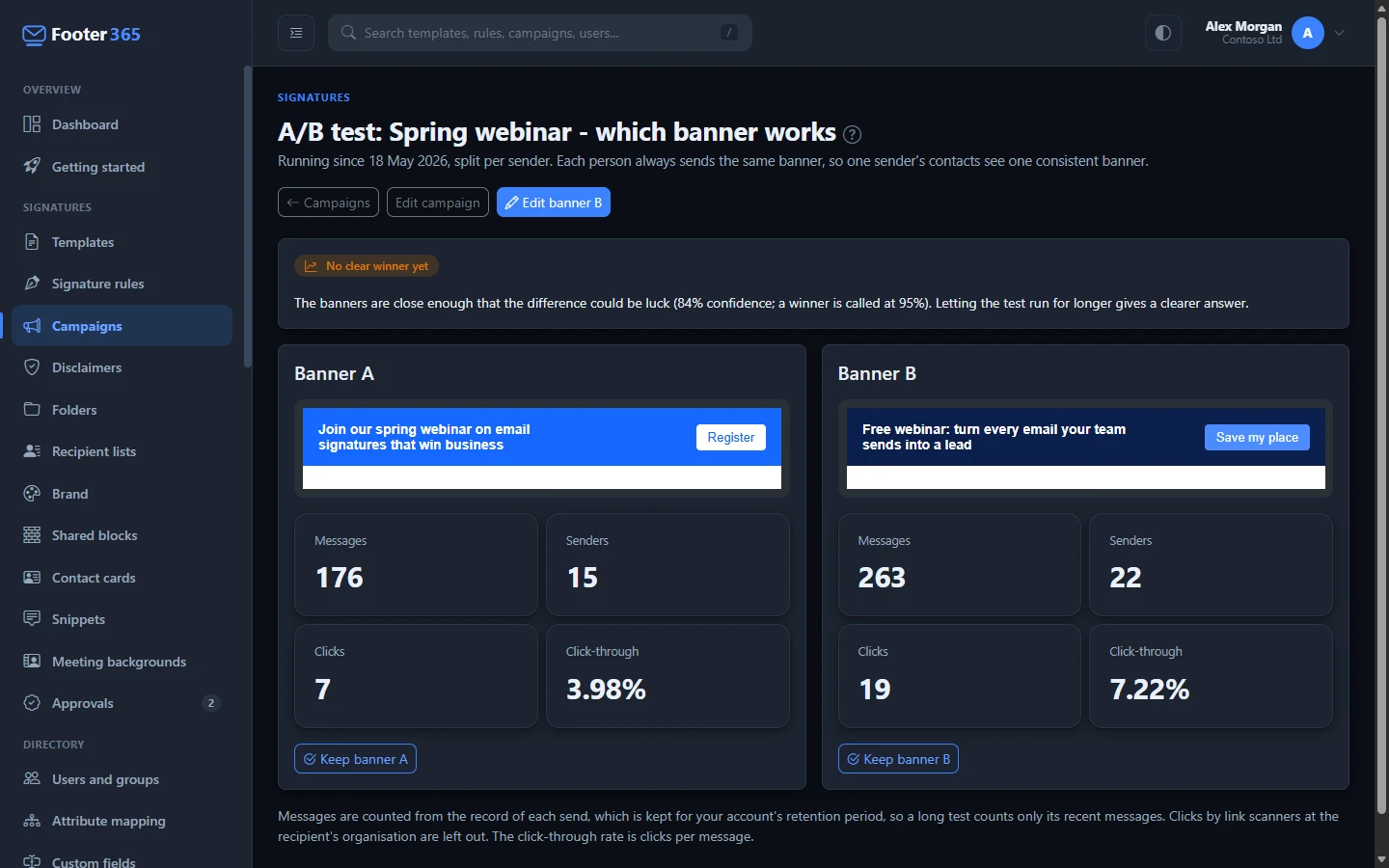
At the top, the page says what the figures can tell you so far:
- Not enough data yet. A winner is only called once each banner has been sent in at least 100 emails and the two have at least 10 clicks between them, so a handful of early clicks cannot decide it.
- No clear winner yet. One banner is ahead, but not by enough to rule out luck. The page shows how confident the comparison is. Letting the test run for longer gives a clearer answer.
- Banner A is ahead or Banner B is ahead. The difference is big enough that there is at least a 95% chance it is real. The page says how much higher the leading banner's click-through rate is, and marks it Ahead.
The page recommends. It never switches a banner off by itself, however clear the result.
Keep one banner and end the test
- On the results page, select Keep banner A or Keep banner B.
- Confirm with End test and keep this banner.
The banner you keep becomes the campaign's banner, and every sender sends it from then on. The other banner is marked Stopped. The results stay on the page, with both banners shown as they were, and the one you chose marked Kept.
Links that only the stopped banner had keep working in emails already sent, and keep counting clicks, exactly like a link taken out of a banner.
See the banner you did not keep
Ending a test does not delete the other banner. Its design, its figures and its clicks stay with the campaign, and you can look at it again at any time from the results page.
To get back to the results page after the test has ended:
- On the Campaigns list, select the grey split-banner icon beside the campaign's status. Hovering over it says Ended.
- Or open the campaign and select A/B test results in the A/B test box under the campaign's details.
The page shows both banners side by side, as they were when the test ended, with their messages, senders, clicks and click-through rate. The one you kept is marked Kept and the other Stopped, and the top of the page says when the test ended, how it was split and which banner was kept.
A stopped banner can be looked at but not edited or sent again: the campaign now has only the banner you kept, which is the one on the campaign page. To try the other idea again, start a new campaign or duplicate this one as an A/B campaign, and rebuild the stopped banner as its banner B.
Good to know
- With Per sender, a person who sends from more than one address, such as an alias, may send a different banner from each address.
- Messages are counted from the record of each send, which is kept for your account's retention period. On a very long test the figures cover the most recent messages.
- The test covers email signed by the Footer365 relay and by the Outlook add-in alike. Both pick the banner the same way, and each send is counted under the banner it actually carried.
- The Outlook add-in picks the banner while the email is being written, and picks again when the recipients change. With Per recipient domain, the banner follows the recipients as they are when the email is sent.
- Only one campaign banner goes into each email. If another campaign reaches the same sender, see Schedule and target a campaign.
- A campaign in a rotation cannot start an A/B test, and a campaign running one cannot be added to a rotation. A rotation already shares email between banners, and weighting one banner of a test against the other would make the result meaningless. While a campaign is in a rotation the A/B test list cannot be opened. To test a banner that is in a rotation, remove it from its rotations first. See Rotate several banners.
- A test names its winner from the clicks on each banner, so it needs clicks to be counted. While a test runs, the campaign's own Count clicks switch stays on and cannot be turned off; end the test first. A test cannot be started on a campaign whose clicks are not counted: the campaign is saved and no test starts. If your organisation turns click tracking off on Account > Settings, nothing is counted for either banner until it is turned on again, so a test cannot name a winner meanwhile; the confirmation lists the campaigns running a test. See Click data and privacy.
- Viewing the results needs the View signatures permission. Starting, editing and ending a test needs Manage signatures.
- Starting, editing and ending a test are recorded in the audit log.
Related
Still stuck?
Tell us what you were trying to do and what you saw. Include the sender, a recipient and roughly when a message was sent, and we can trace it.