

Fill in details Microsoft 365 does not hold
Add signature details that are empty in Microsoft 365, such as a distribution group's phone number, or correct ones it holds, from a spreadsheet.
Your Microsoft 365 directory is the record for everybody's details, and Footer365 uses what it holds unless you choose otherwise. Some fields can be empty there, though, most often for distribution groups, which cannot carry as many details in Entra as a mailbox can, and some may be wrong where you cannot change them. User details lets you fill in or correct those fields for signatures, from a spreadsheet, and choose for each field whether a value entered here replaces the one Microsoft 365 holds.
To correct one person, it is quicker to use Edit details on Users and groups. See Fix wrong or missing details. If you would rather people correct their own details, see Let staff edit their own details. If your HR system can publish a file at a web address, a source can keep these details up to date on a schedule instead of a spreadsheet, as described in Keep details up to date from a file.
Choose when a value entered here wins
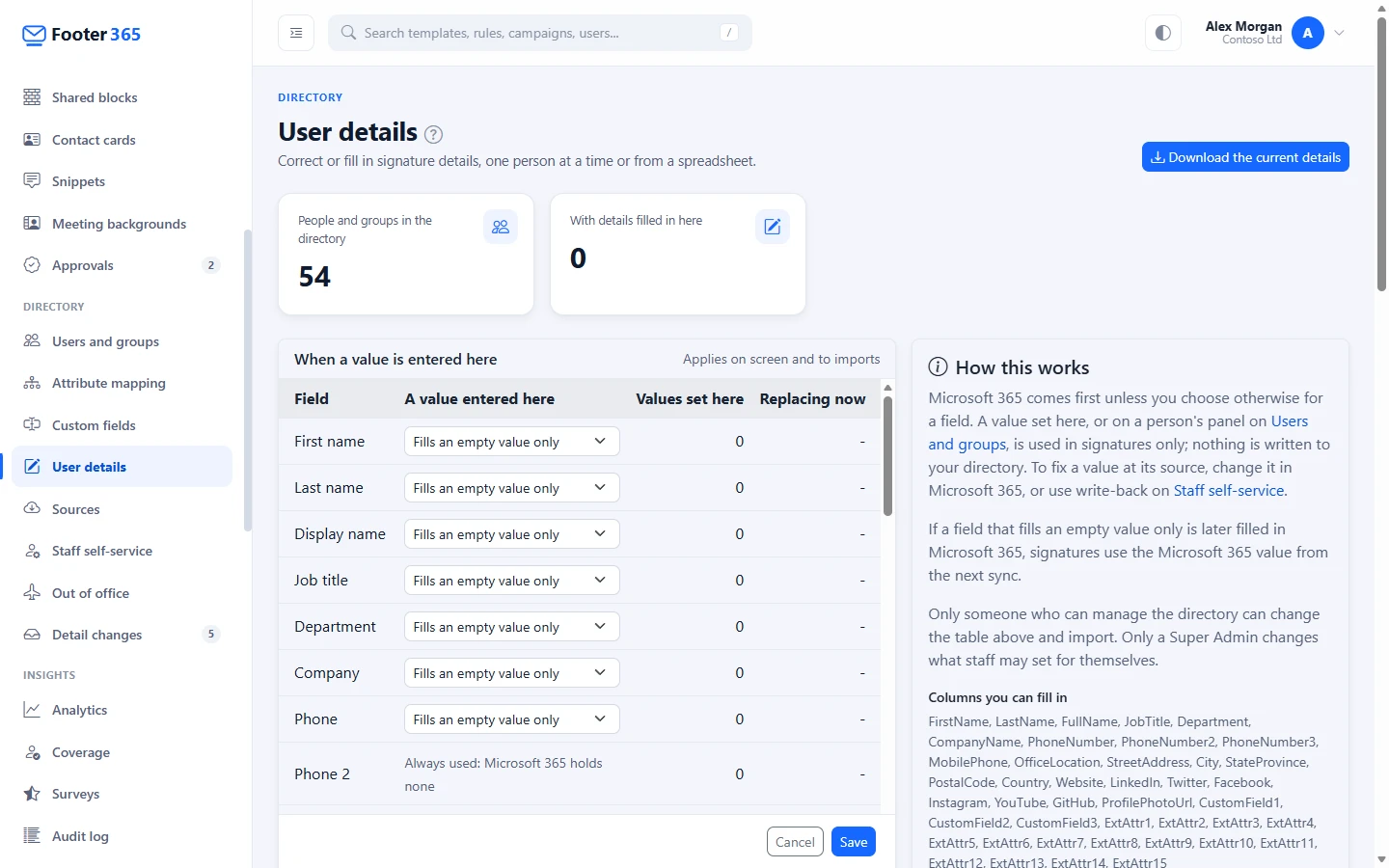
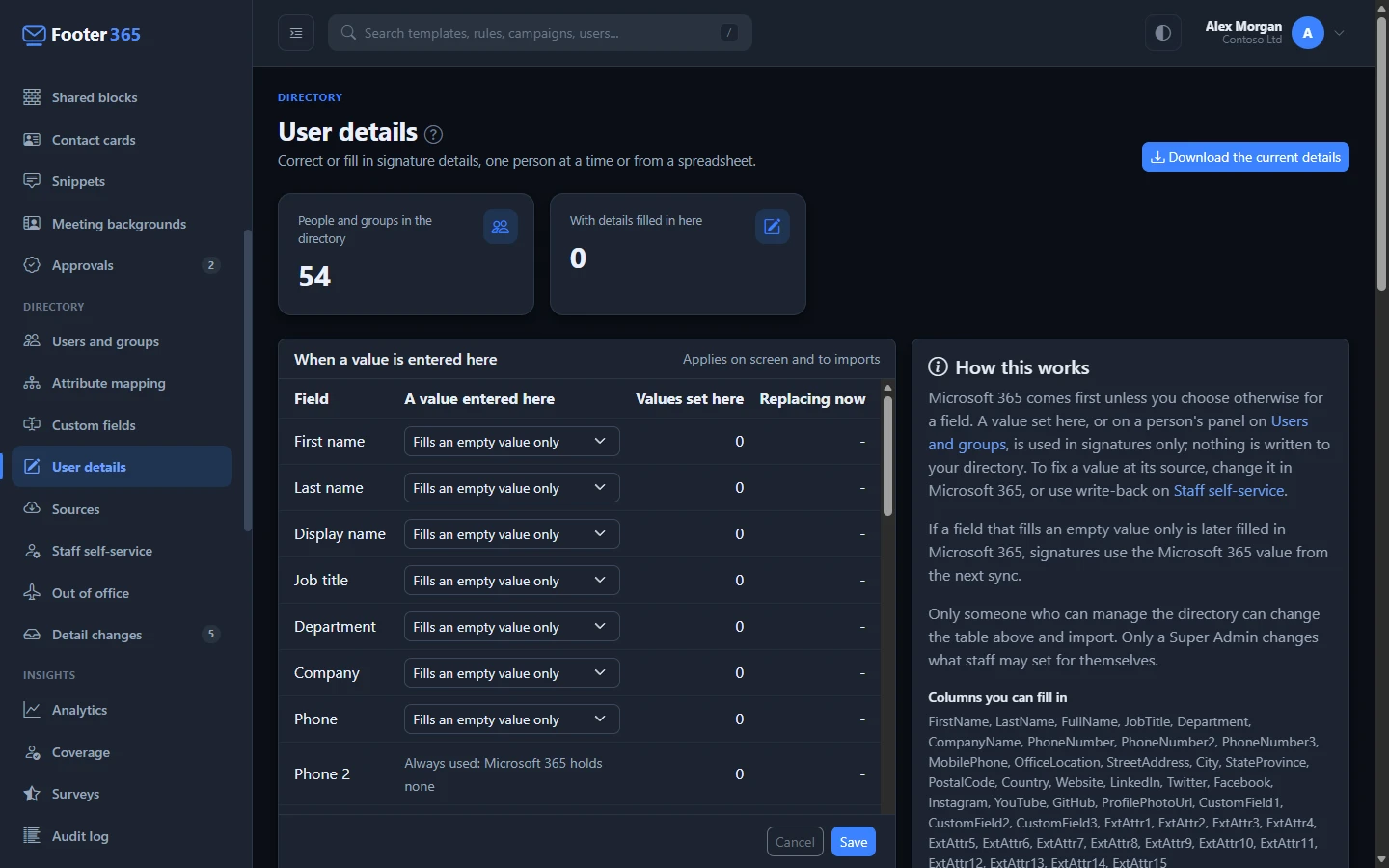
The When a value is entered here card lists every field you can fill in, with one setting each. It Applies on screen and to imports: the same setting governs a value entered on Users and groups and a value from a spreadsheet.
- Fills an empty value only, where every field starts: a value entered here is used only while Microsoft 365 holds nothing for the field.
- Replaces the directory value: a value entered here is used in signatures in place of what Microsoft 365 holds.
Phone 2 and Phone 3, a person's second and third business phone numbers, have no setting. Microsoft 365 holds only one business number, so they say Always used: Microsoft 365 holds none.
Values set here counts the people and groups with a value entered for the field, on screen or by import. Replacing now counts those whose signatures use it in place of a different Microsoft 365 value. Change a setting and select Save. Before you save, the page tells you how many signatures the change moves; the values entered here are kept either way, so changing back restores them. Changing the setting needs the Manage directory permission.
A value a person set for themselves through Staff self-service is not affected by this card. It follows the setting on Staff self-service, which only a Super Admin can change.
Fill in details
- Go to Directory > User details (open it).
- Select Download the current details. You get a CSV file listing every person and group in your directory, with a column for every field you can fill in. A cell that already has a value shows the value signatures use now: what Microsoft 365 holds, or a value entered here. A profile photo held in Microsoft 365 shows as (photo from Microsoft 365).
- Open the file in Excel or another spreadsheet program. Fill in the cells you want to set, and change the ones you want to correct in a field set to Replaces the directory value. Leave the Email column as it is, because that is how Footer365 knows whose row it is.
- Save the file as CSV.
- Back on User details, under Import from a spreadsheet, choose your file.
- Decide whether to tick An empty cell clears a value filled in here (see below).
- Select Import.
A message tells you how many users or groups were updated, and lists anything you should know about, such as columns that were skipped, addresses that are not in your directory, or values that were not used because Microsoft 365 already holds that field and the field fills an empty value only.
Check the changes before they are saved
Footer365 is making the import a check-first process for organisations gradually, so your portal may not have it yet. See Early access pages and features. Where it does, Import from a spreadsheet is set out in three steps, and nothing changes until you select Apply:
- Step 1 of 3: Get the file. Select Download the current details, change what you need, and save it as a CSV file.
- Step 2 of 3: Upload it. Choose the file, decide whether to tick An empty cell clears a value filled in here, and select Upload and check.
- Step 3 of 3: Check and apply. The page says how many people will change and lists each person, each field, and the value before and after, with anything you should know about underneath. Nothing has changed yet. Select Apply to save exactly those changes, or Cancel to leave everything as it is.
If someone changes one of those values between your check and Apply, for example on Users and groups, Footer365 keeps their value rather than overwriting it, and the message names it so you can upload the file again to check it. A check can be applied for 30 minutes, and only by the person who made it.
When Microsoft 365 already holds a value
- For a field set to Replaces the directory value, a cell that differs from Microsoft 365 is used in signatures. A cell holding the Microsoft 365 value removes any value entered here, so the signature goes back to Microsoft 365.
- For a field set to Fills an empty value only, a different value in the file is not used. The message names the person and the field, so you can pass the change to whoever manages your directory, or change the field's setting.
- Sending the downloaded file back unchanged is fine. The values are recognised and left alone.
- If a field that fills an empty value only is later filled in Microsoft 365, signatures use the Microsoft 365 value from the next sync. A value imported for it is removed the next time you import a file; one entered on Users and groups is kept, unused, until you remove it there.
- A value a person set for themselves through Staff self-service is left exactly as they set it: an import neither changes nor removes it. To take it out, use Undo on Detail changes.
Empty cells
- Leave the box unticked for a first import. A cell you did not fill in changes nothing.
- Tick the box when you are sending back a file you downloaded and edited, and you mean the blanks. An empty cell then removes a value filled in here, and the signature uses what Microsoft 365 holds, or leaves the field empty if it holds nothing. It never changes a value held in Microsoft 365.
The columns
The Columns you can fill in list on the page shows every field. They include name fields, job title, department, company name, phone numbers (including a second and third business number, in the PhoneNumber2 and PhoneNumber3 columns straight after PhoneNumber), address fields, website and social links, the profile photo address, Custom field 1 to 3, and the Exchange custom attributes (ExtAttr1 to ExtAttr15). The email address cannot be filled in, because every person and group already has one.
Each field on Directory > Custom fields whose values are entered in Footer365 has a column of its own, headed with the field's name. A cell must fit the field's type: a number for a Number field, one of the field's choices for a Choice field, and an address starting https:// for a Link field. For a Several choices field, separate the choices with semicolons, such as English; Welsh. A cell that does not fit is not used, and the message names the person, the field and the reason. A field that reads its values from an Exchange custom attribute or an Entra ID directory extension has no column, and a column for one is skipped and named in the message. See Add your own signature fields.
The column for the email address can be headed Email, Mail, UserPrincipalName or PrimarySmtpAddress. Common ways of writing a heading, such as Job title or Title, or Phone 2 for the second business number, are understood too. A file saved before the PhoneNumber2 and PhoneNumber3 columns existed imports as it did. A column Footer365 cannot use is skipped and named in the message, and the rest of the file is still imported.
A value in the downloaded file that starts with =, +, - or @, such as a phone number written +44, has an apostrophe in front of it, so a spreadsheet shows it as text rather than running it as a formula. Leave the apostrophe in place: Footer365 takes it off again when the file comes back.
The file must be no larger than 20 MB. The Name (for reference only) and Type (for reference only) columns in the downloaded file help you find people and groups, and are not imported.
Good to know
- The two cards at the top show People and groups in the directory and how many of them have at least one field filled in here (With details filled in here).
- Nothing you fill in here is written to your directory.
- An address in the file that is not in your directory is skipped and listed in the message. If someone is new, wait for the next sync or select Sync now on Users and groups first.
- Viewing this page and downloading the file needs the View directory permission. Importing and changing the field settings need Manage directory.
- Every import and every change to a field's setting is recorded in the audit log, with the values before and after.
- On Users and groups, a value from a spreadsheet is marked Imported in the person's panel, with who imported it and when. A value a source set is marked From and the source's name instead.
- Someone limited to a scope holds only the people in it: the downloaded file lists them alone, and a row for anyone else is not applied. The message says "rows were not applied", names each row and address, and gives how many other rows were applied. The settings under When a value is entered here are the organisation's, so they can be seen but not changed, and the counts are for the people in the scope. See Limit an administrator to part of the organisation.
- When a source is on, a note at the top of this page names it and the details it keeps up to date, with a link, Open the source. A value you import for one of those details is replaced at the source's next run if the file holds a different value, because the latest value wins.
Related articles
Still stuck?
Tell us what you were trying to do and what you saw. Include the sender, a recipient and roughly when a message was sent, and we can trace it.