

Create a banner campaign
Design a time-limited banner that goes out with your staff signatures, starting from a blank canvas or a ready-made layout.
A campaign is a banner that goes out with your signatures for a set time: an offer, an event, an announcement. This article shows you how to create one and design the banner.
Start a new campaign
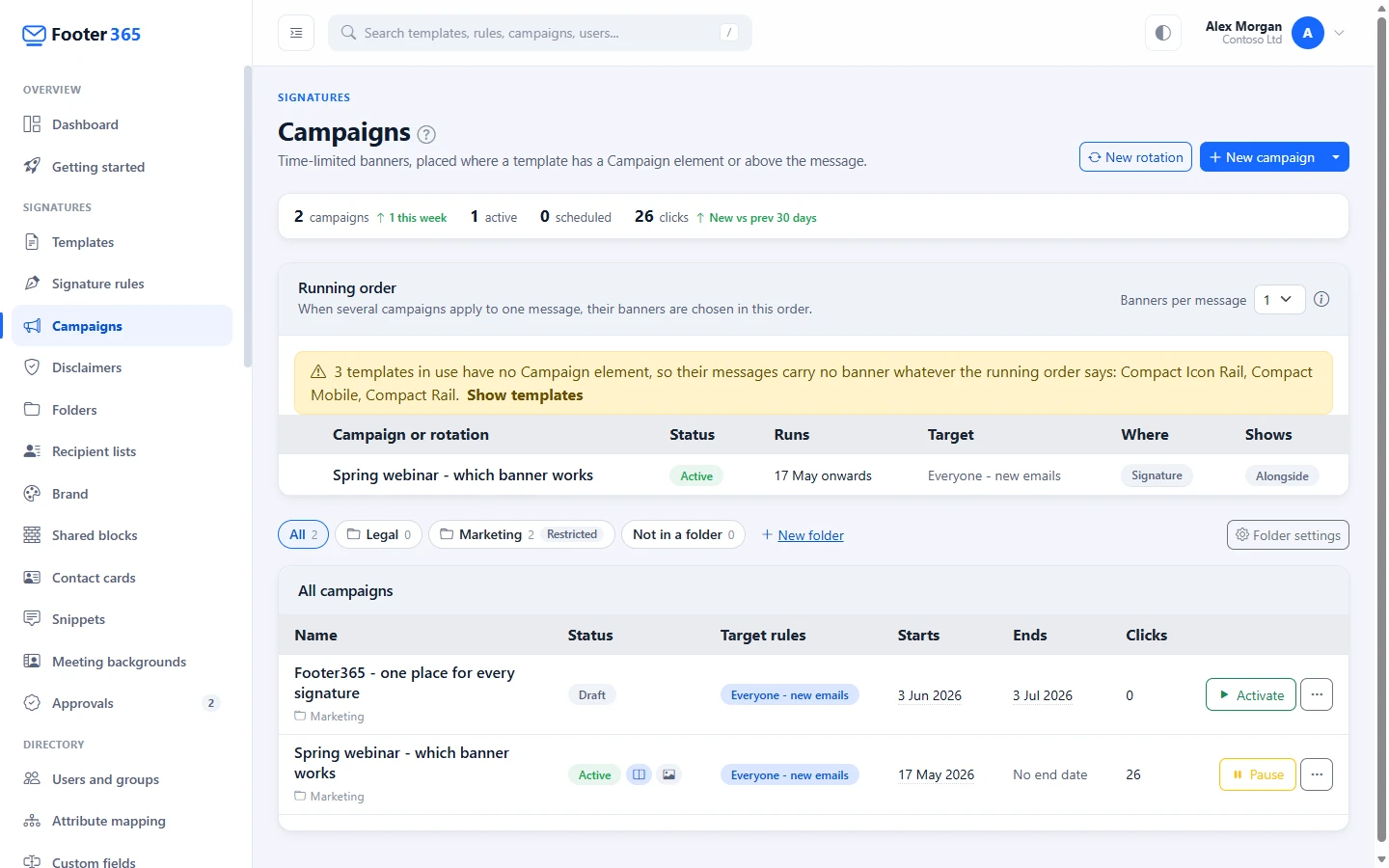
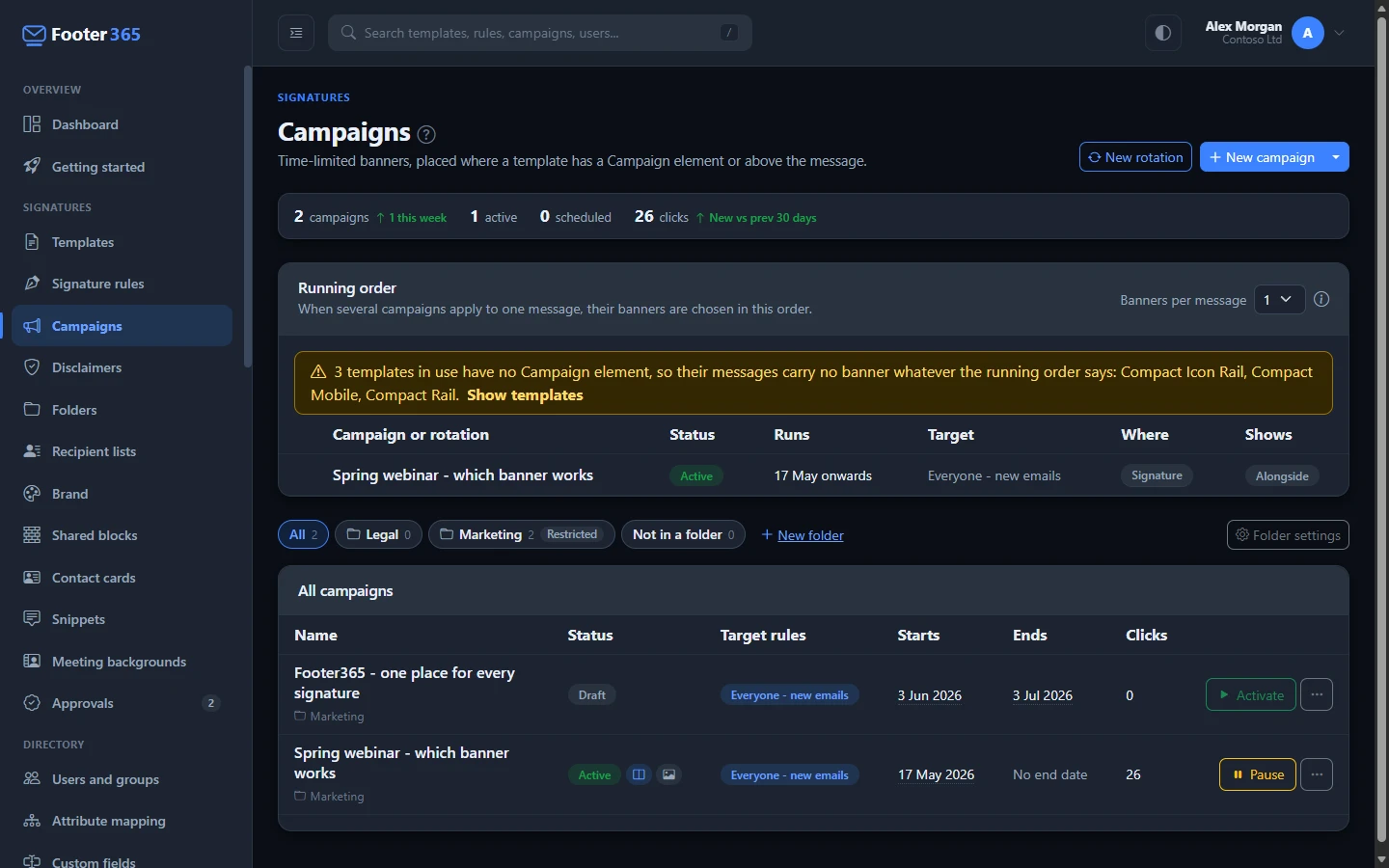
- Go to Signatures > Campaigns, or open Campaigns.
- Choose how to start:
- Select New campaign for a blank canvas. Where Footer365 has given your organisation the campaign wizard, New campaign opens the wizard instead, and Start blank in the editor, in the list under the arrow beside it, opens the blank canvas. See Build a campaign with the wizard.
- Or select the arrow beside it and pick a layout under Start from: Blank, Announcement, Offer, Event, Image and button or Notice. The canvas opens with that design, ready to change.
- Or select the arrow and then Browse all designs to see every ready-made banner with a preview, and select Use this design on the one you want. See below.
- Enter a Campaign name. Each campaign needs a different name.
- Design the banner on the canvas. See below.
- Set the schedule, and tick the signature rules whose email carries the banner under Target rules. With none ticked the campaign goes out with no signature. See Schedule and target a campaign.
- Beside A/B test, choose Where it goes, In the signature or Above the message, and Which messages of a conversation it goes on. See below.
- To test two versions of the banner against each other, choose how to split them in the A/B test list. Leave it on None for one banner. See A/B test two banners.
- Select Save at the top of the page.
A new campaign can be saved as Draft or Scheduled. Nothing goes out until it is active.
If a campaign name is too long for its box, hover over the box to see it in full.
Browse the banner designs
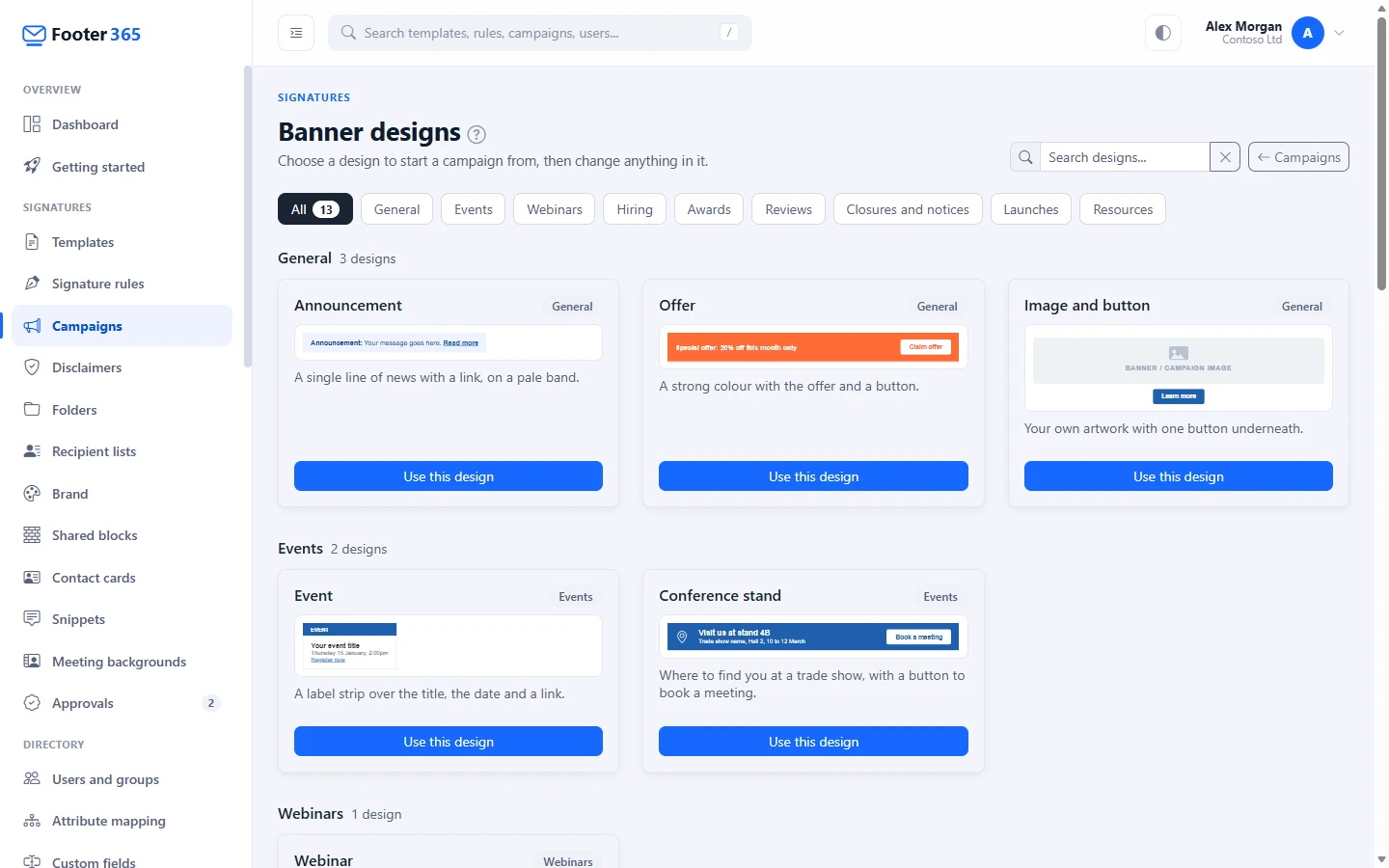
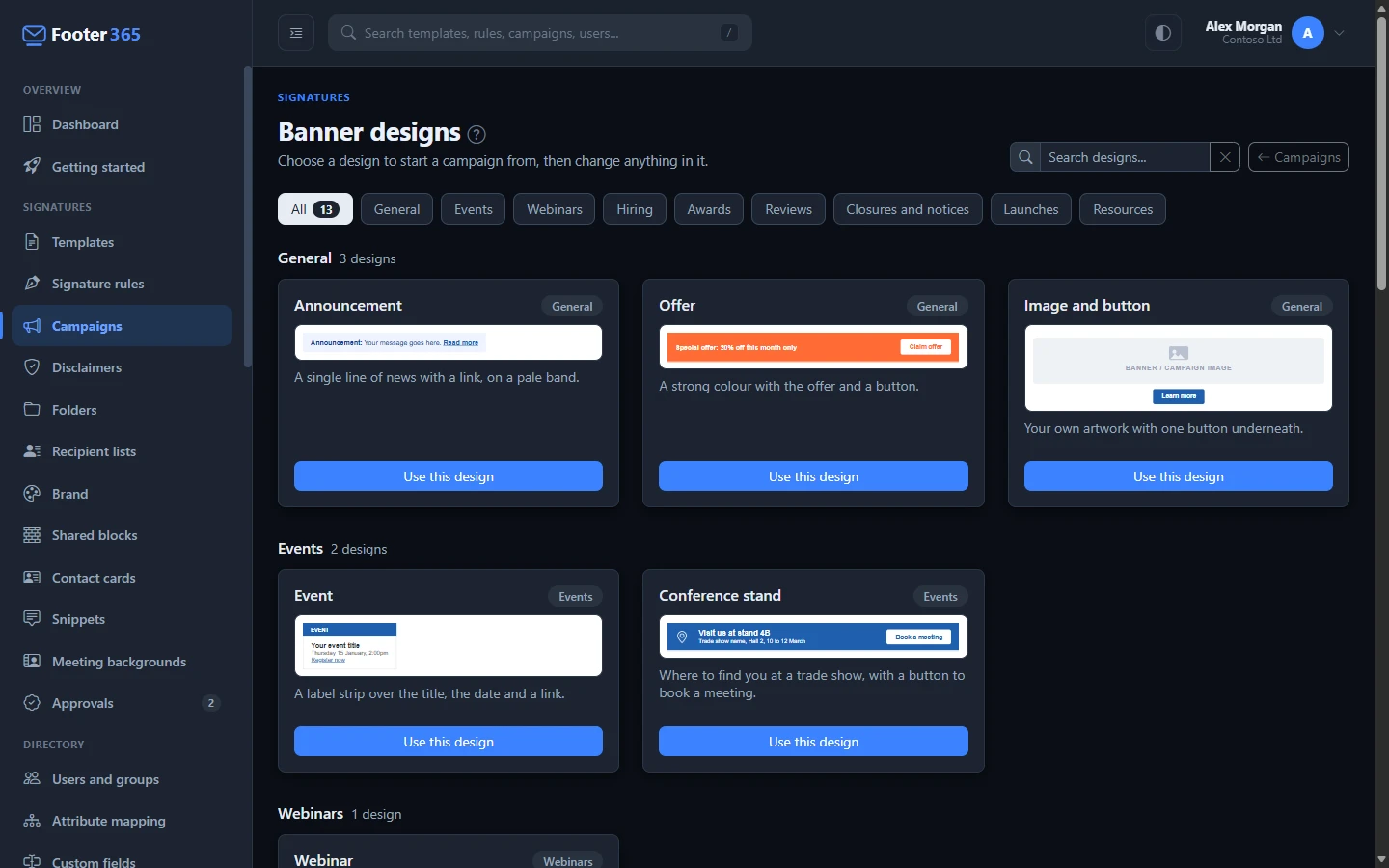
Browse all designs, at the foot of the Start from list, opens the Banner designs page. It shows 13 ready-made banners, each with a preview, its purpose and a line saying what it is for, grouped under these purposes:
- General: Announcement, Offer, and Image and button.
- Events: Event, and Conference stand, for where to find you at a trade show.
- Webinars: Webinar, with the title and time of a live session.
- Hiring: We are hiring.
- Awards: Award winner.
- Reviews: Leave a review, with a button to your own review page.
- Closures and notices: Notice, and Holiday closure, for when you are closed and who to contact meanwhile.
- Launches: New product, with a picture beside the wording.
- Resources: Free guide, with a button to download a guide, a whitepaper or a checklist.
Select a purpose to see only its designs, or All to see them all again; the number on All is how many match your search. Type in Search designs... to find a design by its name, purpose or description. If nothing matches, select Show all designs.
Select Use this design, or the preview itself, to open the campaign editor on that design, exactly as a layout under Start from does. Nothing is saved until you select Save. Every part of the design is made of ordinary banner elements, so you can change, move or delete any of it. The wording is an example to replace, every link goes to https://example.com until you set your own (the campaign page warns about one left in: see Checks on the banner), and a picture shows a grey placeholder until you upload or choose yours. A banner made in another tool, such as Canva, can be brought in as a picture: download it as a PNG, JPEG or GIF and upload it to an Image element.
Colleagues who can view signatures but not manage them can open the page and look at the designs, without the button that uses one.
Change a running campaign
A campaign that is running or paused keeps its banner going out while you change it: Save draft keeps the new banner as a draft, compared with the live one on Compare with live, until it is published, and approved where your organisation requires it. The name, dates, targeting and status still save straight away. See Drafts, publishing and approval.
Folders
Campaigns can be grouped in folders, with the folder bar above the list to show one folder at a time and the figures counting the campaigns it shows. A campaign you create while a folder is chosen goes into that folder, and Move to folder, in the ... menu on a row, moves one to another folder. A folder can give a team its own campaigns with its own access. See Folders and who can use them.
Duplicate a campaign
To start from a campaign you already have, such as last year's offer or a banner for another team, copy it rather than building it again.
- On the Campaigns list, select ... on the campaign's row, then Duplicate.
- In Name of the copy, keep the name offered or type another. Each campaign needs a different name.
- In A/B test, leave None for a plain copy, or choose how to split the banners to make the copy an A/B campaign. The text under the list says what each choice does.
- Select Duplicate. The copy opens in the editor.
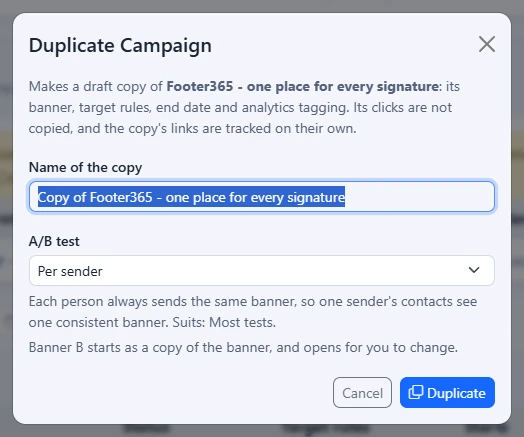
The copy has the banner, target rules, recipients, exceptions and schedule, where it goes and which messages, end date, website analytics tagging and folder of the original. It is always saved as Draft, so nothing goes out until you turn it on. It starts at the next whole hour, or at the original's start date if that is later. The end date is only kept if it is after the start.
Clicks are not copied. The copy's links are tracked under codes of their own, so its report counts only its own clicks, and they are checked with Google before the copy can go live.
If you copy as an A/B campaign:
- From a campaign with one banner, banner B starts as a copy of the banner and opens for you to change.
- From a campaign running an A/B test, the copy tests the same two banners again, split the way you choose. Choose None to copy banner A only.
A campaign stopped because its link is listed as unsafe cannot be copied until the link has been replaced.
Design the banner
The banner editor is the same drag-and-drop canvas used for signature templates, with the elements a banner needs: layout rows and columns, spacers, dividers, text, images, icons and buttons. See Using the editor.
Keep these points in mind:
- One link only. A banner can carry a single link, of any kind. Put it on the button, the image or the wording, but not on more than one. A banner with two or more links cannot be saved. See How the banner is sent.
- No personal details. The same banner goes out under everyone's signature, so there are no name, job title or other directory fields to add.
- Keep it light. The How this banner will be sent card below the canvas shows the banner's size as you work. Large photographs and full-width gradients use the most space.
A good layout is short and wide, with one clear call to action, such as "Book your place".
Checks on the banner
When you open a campaign, and each time you save one, Footer365 looks over the banner for four things that are easy to miss. Anything it finds is listed under Check this banner at the top of the campaign page, and after a save that goes back to the campaign list, in a note there. These are warnings only: none of them stops the campaign from being saved, scheduled or running, because each can be what you meant.
- No link: nothing in the banner can be clicked. That is fine for a notice that is only there to be read; otherwise add an address to a button, a picture or the wording.
- Button with no address: a button has no address of its own. If the banner has no other link, pressing the button does nothing. If it has one, the note names it, because pressing the button opens that link.
- Example link still in place: a link still goes to https://example.com, the example address the ready-made designs link to. Change it to your own page.
- Date after the end: the wording mentions a date after the day the campaign ends, such as an event on 24 December in a campaign that ends on 23 December. Check the date in the banner, or the end date.
How dates are read:
- The forms recognised are a day and a month written out, with or without a year (24 December, 24th Dec 2026), the month first (December 24, 2026), a month and a year (December 2026, read as the 1st), 2026-12-24, and numbers with a four-digit year (24/12/2026, 24-12-2026, 24.12.2026). A date with a two-digit year, such as 24/12/26, is not read.
- Phone numbers, prices, times, percentages, version numbers such as 1.2.2026, and addresses inside links are never read as dates.
- A date written in numbers that could be read either way round, such as 03/04/2027, is read the way your organisation writes dates: month first if your billing or registered address is in the United States or another country that writes dates that way, and day first everywhere else. One that can only be read one way, such as 12/25/2026, is read that way.
- A date with no year is taken in the year nearest the campaign's run, so "we reopen on 2 January" in a campaign that ends before Christmas is next January.
- The end day is the day in the Signature time zone (see Company settings) when one is chosen, and otherwise in your own time zone, the one the End box shows. A date on the end day itself is not after it.
- A campaign with no end date has no date check. A campaign in a rotation is checked against the rotation's dates.
The checks look at the banner open on the canvas when the page opens, so a change you make is checked again when you save. Campaigns saved before the checks existed are not changed; they are checked when you next open them.
Use your brand kit in a banner
The banner editor has the same Theme panel as the template editor, so a banner can follow one of your brand kits for its colours, font and size, and take its logo and other pictures from the image library with From the library. A campaign started from one of the banner designs, from Start from or from the Banner designs page, starts on your default kit when you have one. It opens in the kit's font and size, and whatever the design draws in the brand colour, such as a band, an icon badge, a button or a label, opens in the kit's colour. The rest stays as designed: neutral greys, the set colours of Announcement, Offer, Event and Notice, and the colours that mean something, such as the amber of Holiday closure, the gold of Award winner and the yellow of the stars in Leave a review. A blank campaign does not start on your default kit: choose one under Brand kit in Theme if you want the banner to follow it.
When a kit changes or a library image is replaced, a campaign that follows it is not changed for you. It is listed as Open and save to redraw, because the banner is drawn as an image in your browser when the campaign is saved. Open the campaign from the Still to do card on Signatures and then Brand, and select Save. See Brand kits and the image library.
Where the banner appears in the signature
A banner goes only where a signature template has a Campaign element, exactly where that element sits. In the template editor, add it from the elements list. When no campaign is running, that row is left out, so there is no gap.
A template with no Campaign element never carries a banner, whether the email is signed by the Outlook add-in or on its way out through Microsoft 365. Its email is not counted as a send in the campaign report either. To put a campaign into those signatures, add the element to the template.
In the Target rules list on the campaign page, rules whose template has the element carry a Campaign element pill, and rules whose template does not carry a No Campaign element pill.
Where it goes: in the signature or above the message
Where it goes, in the row of choices beside A/B test at the top of the campaign page, has two choices. Hover over each in the list to see what it does.
- In the signature, the usual place: where the template's Campaign element is, with any other banners. You decide where in the signature the banner sits by where you put that element in the template editor. See "Where the banner appears in the signature" above. This is where every campaign goes unless you choose otherwise.
- Above the message: at the top of the email, before what the sender writes. Use it for a notice that matters more than an offer, such as an office closure, a service notice or an event. It does not need a Campaign element in the template, because it is not part of the signature.
A campaign above the message:
- Is kept short: a line of text or a slim image, no taller than 120 pixels. While Above the message is chosen, a dashed line on the canvas shows the limit, and a banner drawn taller cannot be saved until it is shorter or placed in the signature.
- Has a place of its own. At most one campaign goes above an email, the first in the running order that applies, and it does not take one of the Banners per message under the signature. If it is set to Show alone, the email carries no banner under the signature while it applies. See Run several campaigns on one email.
- Uses the same target rules, recipients, exceptions, schedule, A/B test, tracked link and report as any other campaign.
- Goes out on its own, never in a rotation. A campaign in a rotation stays in the signature, and a campaign above the message is not offered when you add campaigns to a rotation.
- Reaches plain-text email as a line of text at the top, then a blank line: the banner's description and its tracked link.
How each kind of email gets it, including email signed by the Outlook add-in, is in How the campaign banner is sent.
Which messages
Which messages, beside Where it goes, decides which messages of a conversation the campaign goes on:
- New messages only: the first message of a conversation, so a thread does not collect one banner per reply. Replies and forwards go without it.
- New messages and replies: everything but forwards.
- Every message: new messages, replies and forwards.
A new campaign starts on Every message in the signature, and on New messages only when you choose Above the message, until you pick for yourself. Campaigns made before this choice existed go on every message, as they always have. Whether a message is new, a reply or a forward is decided exactly as it is for signature rules; see "New messages, replies and forwards" in Which messages get a signature.
When a campaign does not go on a message, the next campaign for its rule in the running order is tried, as when its schedule rules it out. In a rotation, each campaign's own choice is kept, so on a reply the rotation shares only the banners set to go on one.
Which messages decides whether a reply gets a banner of its own. The banners of the earlier messages quoted beneath a reply are a separate matter: by default Footer365 takes your organisation's own out of the quoted part, whatever each campaign's choice. See Earlier signatures and banners in long conversations.
Let recipients stop banners
The Opt-out link card, under Tracked links, adds one small line under the banner that lets a recipient stop your banners. Turn on Offer recipients a way to stop banners and keep or change the Link wording. It is off until you turn it on, it applies to both banners of an A/B test, and it is decided as each message is sent, so it needs mail flow. The card also says how many addresses have opted out so far. How it works, and what is kept, is in Letting recipients stop banners.
Preview the banner in a signature
If any of your templates has a Campaign element, switch to the preview and use Preview inside to choose a signature. The banner is drawn in its real position, around a sample person's details. Choose The banner on its own to see just the banner.
With Above the message chosen, the preview shows the banner at the top of an email instead, above a line of message text and the signature picked under Preview inside.
On a narrow screen, Preview inside and Banner show an icon in place of their names, and a long signature name is cut short, with the full name shown when you hover over it. With less room again, Preview inside moves to a line of its own. The other buttons above the canvas and the preview show their icons only in the same way: see "On a smaller screen" in Using the signature editor.
Write the HTML yourself
If you have banner HTML from elsewhere, open Advanced: edit HTML below the canvas, paste it in, and tick Use this HTML instead of the visual editor. This detaches the banner from the canvas: the HTML is saved as it is, less anything a signature cannot carry, which a warning lists after the save. It is checked first against the same rules as Import, and HTML that would be refused there is refused here, with the reason. See "What is checked when you save" in Edit the HTML. To go back to the canvas, design the banner above and untick the box.
Good to know
- Before a campaign is saved, every web link in the banner is checked with Google Web Risk. A campaign whose link is listed as unsafe is not saved. See Tracked links and safety checks.
- Each save that changes the banner keeps it as a version. Select History to see the last five and put one back. See Banner history.
- Deleting a campaign also removes all its click records. This cannot be undone. Banner versions that went out in email are kept out of sight as a record of what that email carried.
- To open a campaign, click its name or anywhere on its row that is not a button. Colleagues who can view signatures but not manage them can open a campaign to look at it, and do not see the buttons that change it.
- Someone limited to a scope changes a campaign only when its banner reaches nobody outside the scope, which means every rule it is aimed at, and every rule of a rotation it is in, is aimed wholly inside it. They can aim a campaign only at rules like that. The other campaigns are listed read only, without their click figures, and rotations are managed by someone who is not limited.
- A campaign a limited administrator saves carries their scope, and its banner goes out only on messages from senders inside it, checked each time a message is sent. So someone outside the scope who later joins a department or group its rules name is never given the banner. The page says "What you save here applies only to senders inside" their scope, and a Limited to pill with the scope's name shows beside the campaign in the list. Someone who sees the whole organisation who opens it reads "This campaign is limited to" the scope, and "Saving it here, as someone who sees the whole organisation, removes the limit." Pausing, resuming or ending the campaign, and dragging it in the running order, leave the limit as it is. See Limit an administrator to part of the organisation.
Related
Still stuck?
Tell us what you were trying to do and what you saw. Include the sender, a recipient and roughly when a message was sent, and we can trace it.