

Send campaign clicks to HubSpot
Connect HubSpot so each human click on a campaign banner is written as a note on the company the message went to, by the recipient's organisation domain, never their address, and what to do when a domain is not matched or the connection is lost.
When someone at a customer or prospect clicks the offer in a campaign banner, your salesperson wants to know. With HubSpot connected, Footer365 writes each human click as a note on the HubSpot company the message went to, matched by the recipient's email domain, so the click appears on the company's timeline beside the rest of your dealings with it.
Footer365 makes the Integrations page available to organisations gradually, so it may not be in your portal yet. See Early access pages and features.
Footer365 never sends a recipient's email address or the clicker's IP address. A click is tied to a message and its sender, never to a named person, so it is matched to an organisation rather than a contact.
What is sent, and what never is
| Sent to HubSpot | Never sent |
|---|---|
| The recipient's organisation domain, used to find the company | A recipient's email address |
| The campaign and the link clicked | The clicker's IP address or browser |
| Who sent the message, and when it was clicked | Clicks by mail scanners, and the other clicks left out of your figures |
A note reads like this, dated at the time of the click so the company's timeline stays in order:
Clicked "contoso.com/book-a-demo" in the Spring offer campaign, in Jo Patel's signature. 21 Oct 2026, 14:02 UTC.
A campaign banner is sent as one image, so a link has no words of its own: the note names it by where it goes, without its query string. When a message went to more than one outside organisation, a note is written on each of their companies, and the note says the message went to that many organisations, so the click may have come from any of them. Your own organisation's domains are never sent.
Only clicks made by people count. A click that Footer365 recognises as a mail security scanner following the link is never sent, as it is never counted on the campaign report, and nor is a click your own settings leave out: one from your offices, or one within seconds of sending. See Why some clicks are left out.
Who can see and change it
Integrations is in the Developers group of the menu, beside API keys and Webhooks. Below the HubSpot card is the Web feed card, which holds the source of the Social feed element that shows your latest posts in signatures. It is described in Show your latest posts in signatures.
- View developers shows the page and how the connection stands.
- Connecting, sending a test note and disconnecting are for your organisation's own Super Admins only, because a connection sends your click records to another company. Everyone else, and anyone working in your portal through your reseller, sees the page read only, with the line "Only a Super Admin of your organisation can connect a CRM, because it sends your click records to another company."
In HubSpot, the person who connects needs to be allowed to install apps: HubSpot asks for a Super Admin, or someone with the HubSpot Marketplace Access permission.
Connect HubSpot
- Go to Developers > Integrations (open it).
- On the HubSpot card, select Connect HubSpot.
- Read Connect HubSpot?, tick Send campaign clicks to HubSpot, then select Continue to HubSpot.
- Sign in to HubSpot if asked, choose the HubSpot account, and allow Footer365. HubSpot asks to let Footer365 read and change companies: Footer365 finds a company by its domains and writes notes on it, and never changes a company's own details or creates a company or contact.
- HubSpot sends you back to the Integrations page, which says it is connected to your HubSpot portal.
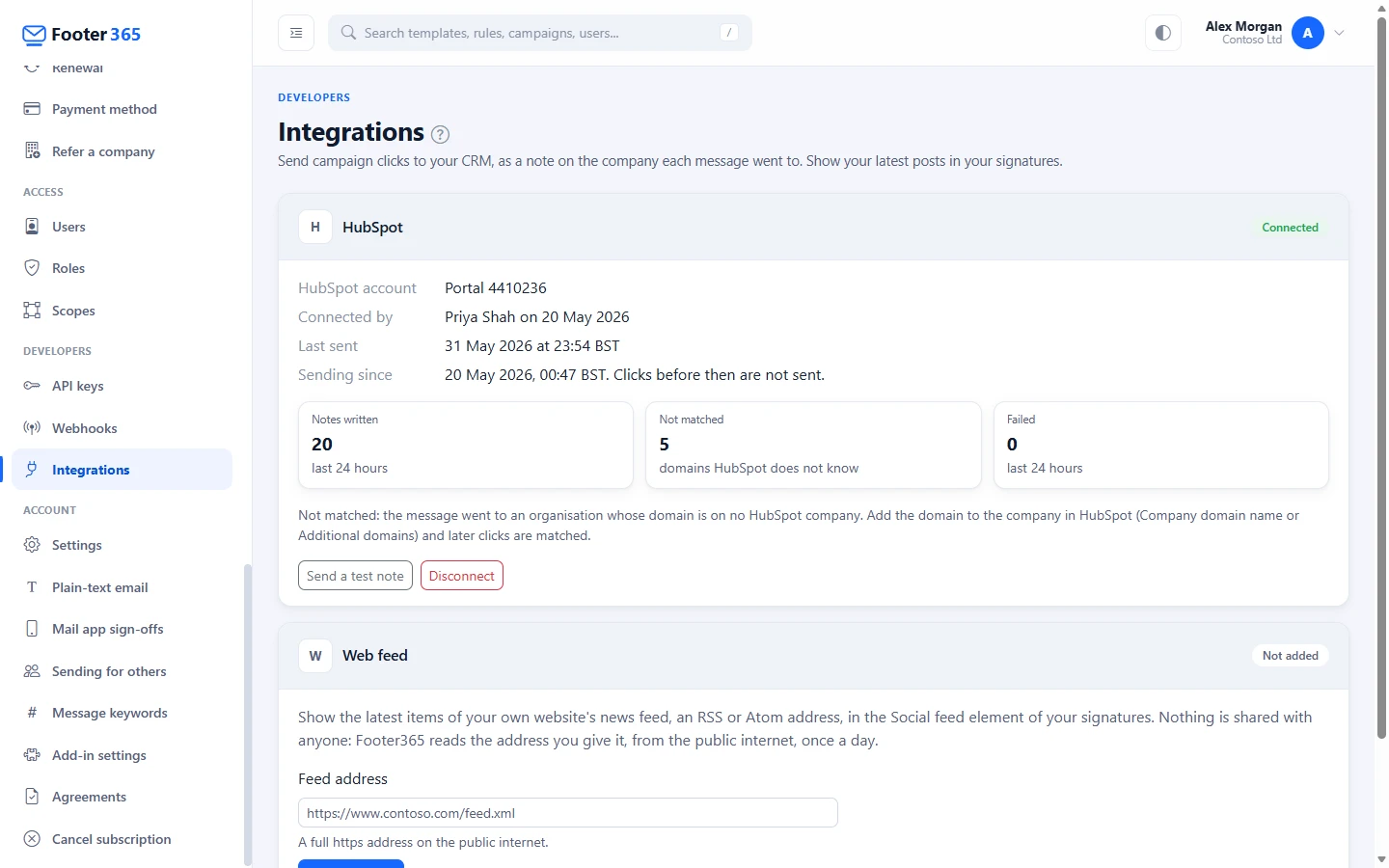
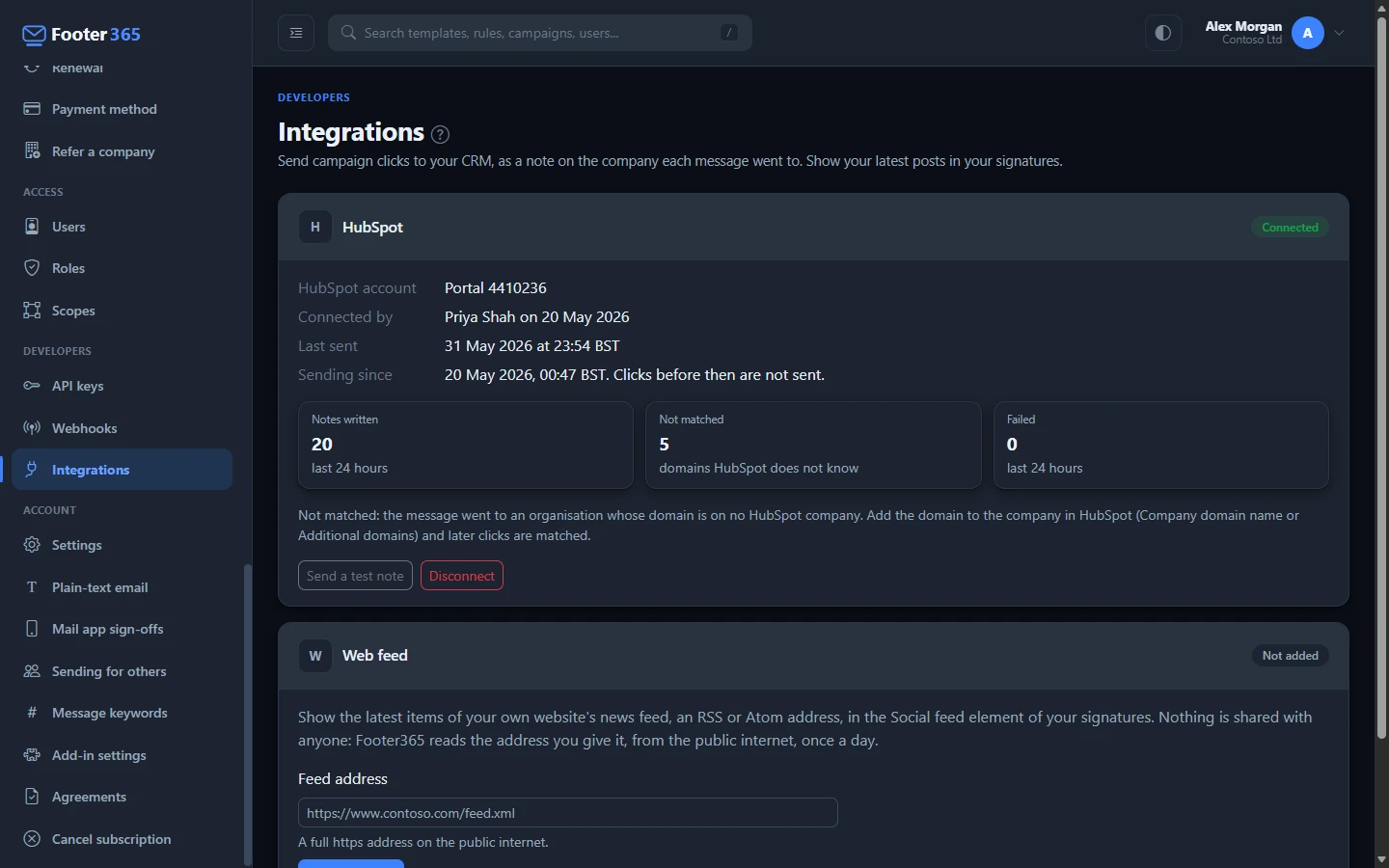
Only clicks from the moment you connect are sent. The card shows Sending since with that moment. Clicks made before it are never sent, and neither are clicks made while the connection was lost or disconnected.
Clicks are sent in batches every 15 minutes, so a note appears in HubSpot up to about a quarter of an hour after the click.
Connecting is included in every plan.
Check it works
Select Send a test note. Footer365 writes a test note on the HubSpot company that has your own organisation's domain, and the page says which. If HubSpot has no company with your domain, the page says so: add your domain to your own company in HubSpot, or wait for the first click.
The card
The pill on the HubSpot card shows Not connected, Connected, Some notes failed or Connection lost. Once connected, the card shows:
- HubSpot account: the portal number of the HubSpot account connected.
- Connected by: the Super Admin who connected it, and when.
- Last sent: when a note was last written.
- Sending since: the moment it was connected, from which clicks are sent.
Below them, three figures cover the last 24 hours:
- Notes written: the notes written on companies.
- Not matched: how many organisations' domains are on no HubSpot company. The domains themselves are never listed.
- Failed: the notes HubSpot did not accept, which are tried again.
When a domain is not matched
Footer365 looks for the company by the recipient's domain in the company's Company domain name and in its Additional domains. A recipient at a subdomain, such as uk.fabrikam.com, is matched to the company on fabrikam.com when no company has the subdomain itself.
A domain on no company is skipped and counted under Not matched. If two or more companies have the same domain, Footer365 does not guess which one the click came from, and counts it as not matched too. Nothing is ever created in HubSpot.
To have later clicks matched, add the domain to the right company in HubSpot, under Company domain name or Additional domains, and make sure only one company has it. Footer365 remembers what HubSpot answered about a domain for up to a day, so the change applies to clicks within a day. Clicks already counted as not matched are not sent again.
Some notes failed
If HubSpot refuses a note or cannot be reached, the pill shows Some notes failed, and the card says how many notes could not be written in the last 24 hours and what HubSpot answered, such as "429 Too many requests". Footer365 tries each one again at every run until a day after its click.
Connection lost
If HubSpot refuses Footer365's access, the pill shows Connection lost and nothing more is sent. The card says when it happened. This happens when the Footer365 app is uninstalled in HubSpot or the person who connected it loses access there. Footer365 deletes the access HubSpot no longer accepts.
A Super Admin can select Connect again and go through HubSpot's sign-in again. Clicks made while it was lost are not sent.
Disconnect HubSpot
- Select Disconnect on the HubSpot card.
- Read Disconnect HubSpot? and select Disconnect to confirm.
Footer365 stops sending clicks and asks HubSpot to revoke its access, then deletes its copy. Notes already written stay in HubSpot. You can connect again at any time; clicks made while it is disconnected are not sent. Uninstalling the Footer365 app in HubSpot disconnects it as well, and the card then shows Connection lost.
Other CRMs
While your organisation has click tracking off, on Account > Settings, no click is recorded, so none is sent to HubSpot or to a webhook, and this page says so. See Click data and privacy.
HubSpot is the only CRM Footer365 connects to directly. To send clicks to any other CRM, such as Salesforce or Dynamics 365, or to an automation tool such as Power Automate or Zapier, add the campaign.clicked event to an endpoint on the Webhooks page. It carries the same facts as a note. See Send events to your systems with webhooks.
What Footer365 keeps
The HubSpot access is stored encrypted, never in plain text, and is deleted when you disconnect, when the connection is lost, or with your account. For each click sent, Footer365 keeps the organisation's domain and whether a note was written, so a click is never written twice and the card has its figures. Those records are deleted with the click's other details once the click passes your click retention period, under Campaign click privacy in Click data and privacy.
HubSpot is your organisation's own supplier, chosen and connected by you: what it does with the notes is between you and HubSpot. See Data and privacy.
In the audit log
Connecting and disconnecting HubSpot, sending a test note, a connection that could not be made, and a lost connection are all recorded in the audit log, with who did it. A run that could not write every note is recorded too, at most once an hour. Notes written are counted on the card rather than recorded one by one. See The audit log.
Related articles
Still stuck?
Tell us what you were trying to do and what you saw. Include the sender, a recipient and roughly when a message was sent, and we can trace it.