

Send events to your systems with webhooks
Add an address Footer365 posts to when a person's details change, a template is published, a campaign starts or ends or someone clicks a campaign banner, check each post came from Footer365, and follow its deliveries.
A webhook is an address of one of your own systems that Footer365 posts to as soon as something changes, so an HR system, a CRM or an automation tool hears about it straight away instead of asking the Footer365 API again and again.
Footer365 makes the Webhooks page available to organisations gradually, so it may not be in your portal yet. See Early access pages and features.
What Footer365 can tell you about
| Event | Sent when |
|---|---|
user.changed |
A person's details changed: by a sync from Microsoft 365, an import, the portal, the API, a staff request approved, or the Outlook add-in. |
template.published |
A template's live version changed: it was saved while not in use, a draft was published (at once, on approval or at its set time), or an earlier version was restored. Saving a draft of a template in use does not raise it. |
campaign.started |
A campaign started running, on its start date or when it was turned on or resumed. |
campaign.ended |
A campaign ended, on its end date or when it was ended. |
campaign.clicked |
Someone clicked a link in a campaign banner. Sent every 15 minutes for the clicks made since the last run, one post per click. Clicks by mail scanners, and the clicks from your offices or within seconds of sending that your settings leave out, are not sent, and nothing is sent for a campaign whose clicks are not counted or while your organisation has click tracking off. |
Each post names what changed, never the values: a person's id and address and the names of the fields that changed, for example. Your system then reads the values through the API with its own key, so a post that reached the wrong place gives nobody's details away.
The one exception is campaign.clicked, which carries what there is no API to read back: the campaign and the link clicked, when it was clicked, who sent the message, and the organisations the message went to, as their email domains. It never carries a recipient's email address, the clicker's IP address or their browser, and your own domains are never listed. With it you can send campaign clicks to a CRM Footer365 does not connect to itself, through your own system or a tool such as Power Automate. For HubSpot, Footer365 can write each click on the company directly: see Send campaign clicks to HubSpot.
Who can see and change webhooks
Webhooks are in the Developers group of the menu, beside API keys and Integrations, and take the same two permissions:
- View developers shows the page, each endpoint and its deliveries.
- Manage developers also lets someone add, change, test, turn off and delete endpoints.
If you work in this portal through your reseller, you can see the endpoints, send test events, and turn them off or delete them, but cannot add one, change its address or see its secret.
Add an endpoint
- Go to Developers > Webhooks (open it).
- Select Add endpoint.
- Enter the Address: the public https address your system receives posts at.
- Optionally, add a Description that says what it is, such as HR sync listener.
- Under Events, tick what it should be sent.
- Select Add endpoint.
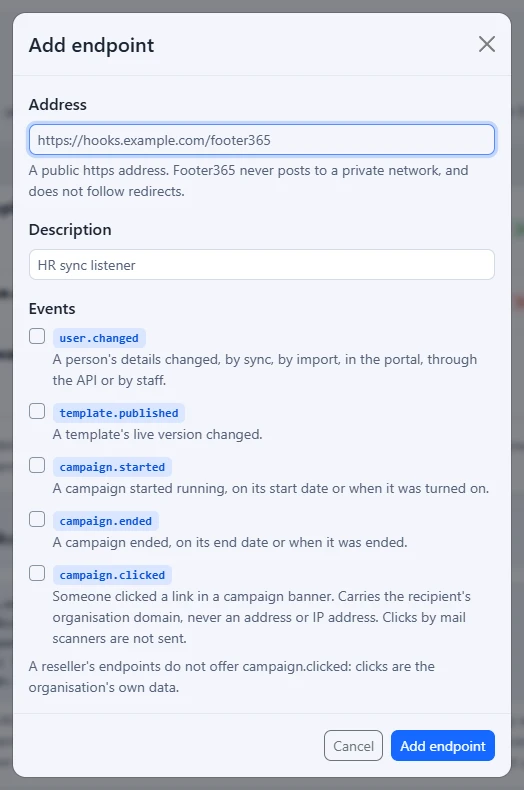
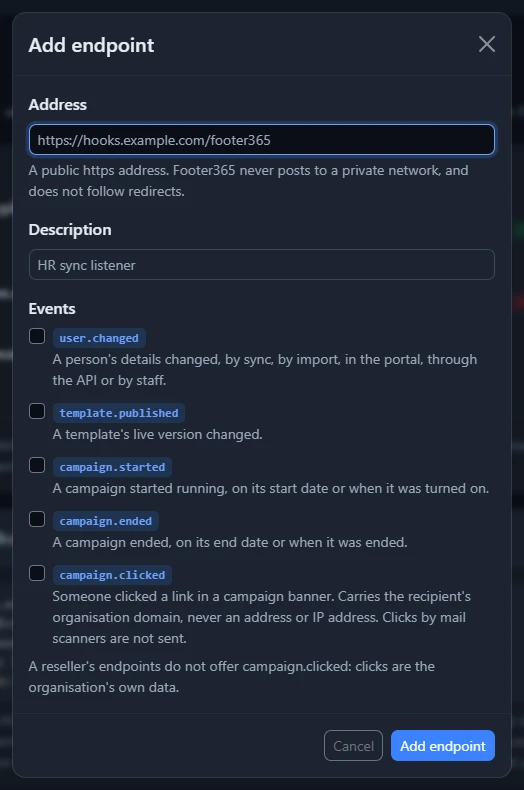
The Copy the signing secret now window shows the endpoint's signing secret once. You will not see this secret again. Select Copy secret, give it to the system at that address, then select I have stored it. If it is lost, roll the secret to make another.
Footer365 posts only to a public https address. An address on a private network, or a name that leads to one, is refused with "That address is on a private network, which Footer365 cannot post to. Use a public https address." It is checked again before every delivery. Redirects are not followed. An organisation can have up to 10 endpoints.
Check each post came from Footer365
Every post carries a Footer365-Signature header, made with the endpoint's signing secret and the time it was sent. Your system should check it before trusting the post, and refuse a post more than five minutes old. How to check it, with code to copy, is on the developer pages.
The list of endpoints
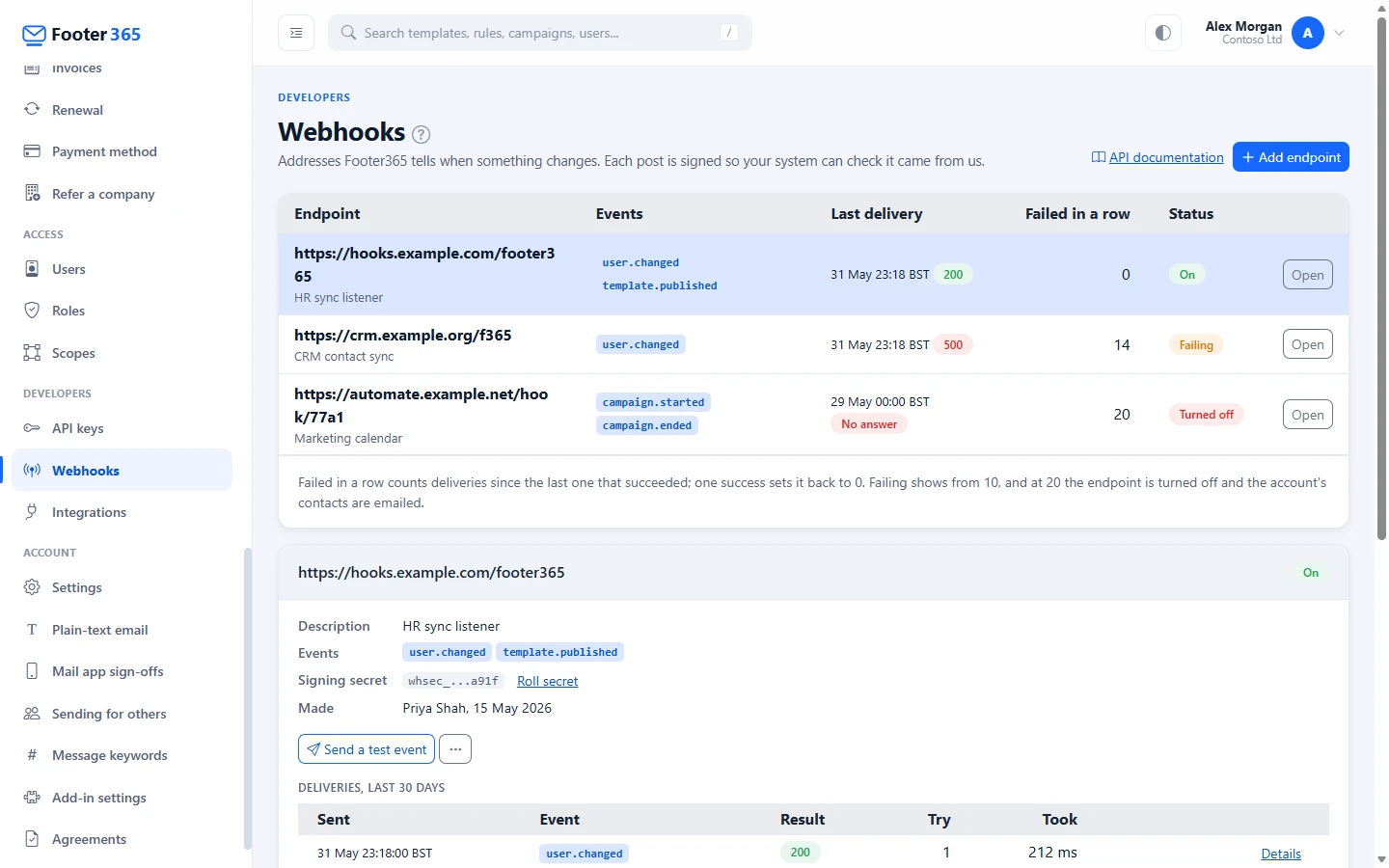
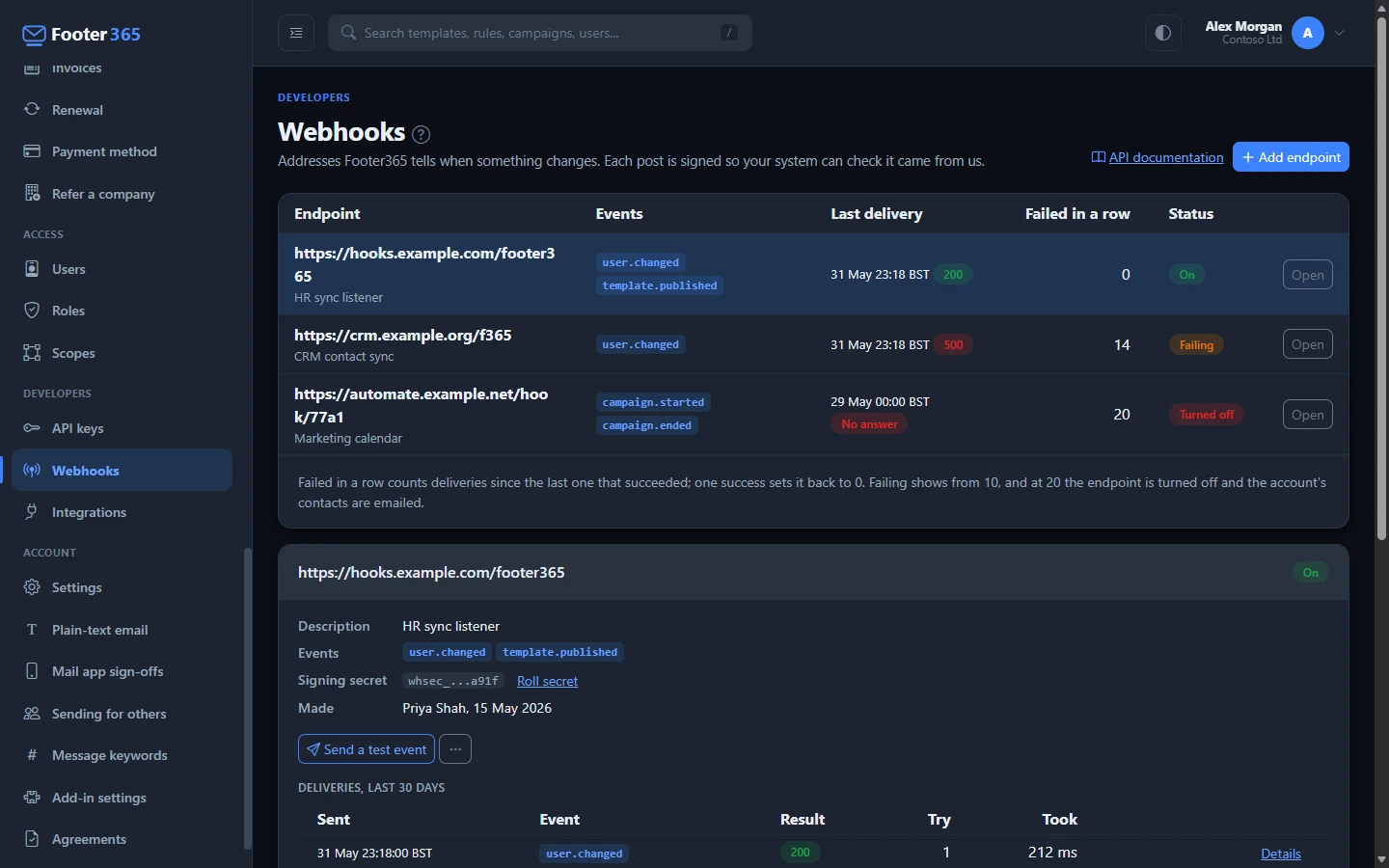
Each endpoint shows its address and description, its events, when the last delivery was made and how it was answered, and Failed in a row: how many deliveries have failed since the last one that succeeded. One success sets it back to 0. The status shows On, Failing from 10 failures in a row, or Turned off.
Select Open to see an endpoint's details: its events, the last four characters of its Signing secret, who added it and when, and its deliveries for the last 30 days.
Deliveries and retries
Each delivery shows when it was sent, the event, the result, which try it was and how long it took. Details shows the body that was sent. Your system's reply is not stored.
- A delivery succeeds when your system answers with a 2xx status within 10 seconds.
- A failed delivery is tried again after 1 minute, 5 minutes, 30 minutes and 2 hours, five tries in all. Each try counts towards the failures in a row.
- Resend on a failed delivery sends its event again, as a new delivery.
- Send a test event sends a
webhook.testevent, whatever events the endpoint takes, to check your system receives and verifies posts.
When an endpoint is turned off
After 20 failed deliveries in a row, Footer365 turns the endpoint off and emails your account owner and technical contact. The endpoint's page says when it was turned off and why. Events raised while an endpoint is off are not sent to it later.
Once your system is answering again, open the endpoint and select Turn on again. Failed in a row starts again from 0.
You can also turn an endpoint off yourself with Turn off, in the ... menu beside Send a test event, and on again with Turn on, which takes the place of Send a test event while the endpoint is off.
Change, roll or delete an endpoint
Open the endpoint, then:
- Edit, in the ... menu, changes its address, description or events.
- Roll secret, beside the signing secret, makes a new signing secret and shows it once. Every post from then on is signed with the new one, so give it to your system straight away.
- Delete, in the ... menu, removes the endpoint and its delivery log. Select Delete endpoint to confirm. This cannot be undone.
In the audit log
Adding, changing, turning off, turning on and deleting an endpoint, rolling its secret, sending a test event and resending a delivery are all recorded in the audit log, with who did it. An endpoint turned off after 20 failures is recorded as a warning. The secret itself is never recorded. See The audit log.
Related articles
Still stuck?
Tell us what you were trying to do and what you saw. Include the sender, a recipient and roughly when a message was sent, and we can trace it.