

How directory sync works
What Footer365 reads from your Microsoft 365 directory, how often it checks for changes, and how to run a sync yourself.
Footer365 builds each person's signature from the details held in your Microsoft 365 directory (Entra ID). This article explains what is copied across, how often it is refreshed, and how to pick up a change straight away.
What Footer365 reads
Once a Global Administrator has approved Footer365 for your organisation, Footer365 reads your users and groups from Microsoft 365. For each user it keeps:
- name, first name, last name and email address
- job title, department, office and company name
- business phone and mobile phone
- street address, city, state or province, postal code and country
- the Exchange custom attributes 1 to 15, used by attribute mapping and by custom fields
- the Entra ID directory extensions your custom fields read, and no others
- the profile photo, if the person has one, unless you have chosen not to use Microsoft 365 photos (see Upload signature photos)
- whether the account has a mailbox of its own, which decides whether it counts as a seat (see Shared mailboxes and seats)
For each group it keeps the name, email address, type and list of members, so signature rules can target a group.
The sync only reads your directory. Footer365 changes nothing in Microsoft 365 unless you turn on write-back to Entra ID for staff self-service, which writes the details staff change, for the fields and people you choose. The next sync then reads those values back unchanged. See Let staff edit their own details.
How often it syncs
- The first sync runs as soon as your administrator approves Footer365 during setup, so your users appear within a few minutes of connecting.
- Every four hours Footer365 checks your directory for changes and copies across anything new or changed.
- Changes to users are also picked up sooner. Footer365 asks Microsoft 365 to let it know when a user is added, changed or removed, and starts a sync when it hears about one.
When someone leaves and their account is deleted in Microsoft 365, the next sync removes them from the Footer365 list and deletes every photo Footer365 holds for them, including one uploaded in Footer365.
Unless you choose otherwise under Sync settings, every user in Microsoft 365 is synced, and someone new is signed from their first message by the first signature rule they fit. If they send before the sync has found them, Footer365 looks them up as their message passes, so even their first message is signed.
Choose who is synced
You can limit Footer365 to the members of groups you choose, which also keeps test, service and old accounts out of every list and unsigned.
The scope does not change what you pay. A seat is a user mailbox in your Microsoft 365 tenant, so every user mailbox is a seat, whether it is inside the sync scope or not and whether its owner is approved or waiting for approval. The scope only decides who is synced and signed. For someone Footer365 no longer keeps any details of, only the number is kept, to count the seat. Shared mailboxes and seats
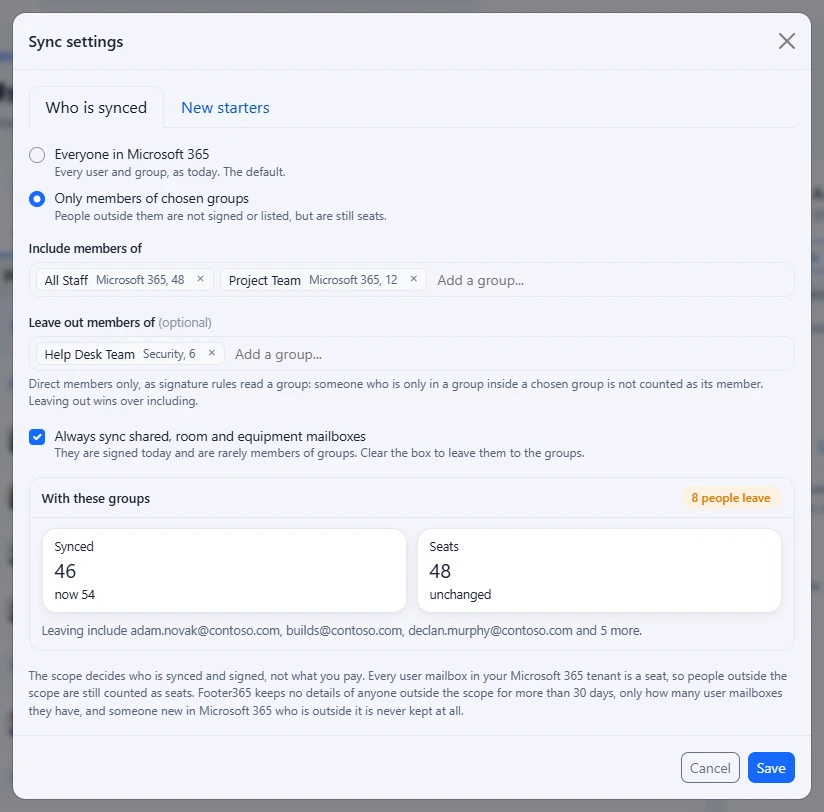
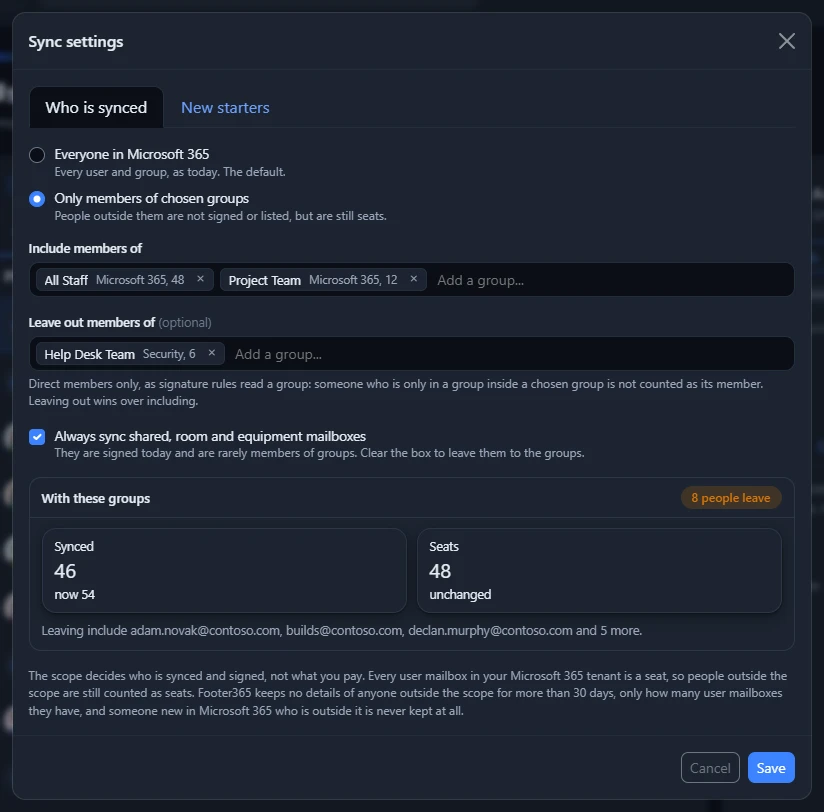
- On Directory > Users and groups (open it), select More at the top right, then Sync settings.
- On the Who is synced tab, choose Only members of chosen groups.
- Under Include members of, type part of a group's name and choose it from the list. Add as many groups as you need.
- Optionally, under Leave out members of, add groups whose members are never synced, such as a group of service accounts.
- Leave Always sync shared, room and equipment mailboxes ticked to keep signing those, as they are rarely members of groups. Clear it to leave them to the groups too.
- The window shows what the groups would do: how many people would be synced and how many would leave, beside your seats, which stay the same whichever groups you choose. Select Save.
- If anyone would leave, Footer365 asks you to confirm with a box to tick, then Sync only these groups.
A full sync is queued at once to apply the scope, and until it runs everyone stays as they were.
Saving Sync settings for the first time ticks Choose who is synced on the Getting started page, even when you keep Everyone in Microsoft 365, because keeping everyone is a choice too. The Getting started page
How the scope reads your groups:
- Direct members only. Someone who is only in a group inside a chosen group is not counted as its member, which is how signature rules read a group too.
- Leaving out wins over including. Someone in a group to include and a group to leave out is not synced.
- A group with nobody in it is refused, because nobody would be synced. So is a scope that would sync nobody at all.
Someone outside the scope is out at once: they are not signed, they are not in the list of users, in rule and access pickers or in the Footer365 API's list of users. Their user mailbox is still counted as a seat, because every user mailbox in your Microsoft 365 tenant is one. Their mail goes out without a signature, and Coverage shows it as Outside the sync scope. For 30 days they are kept with what Footer365 holds for them, such as an uploaded photo or approved detail changes, so widening the scope brings them back as they were. Select the outside the sync scope figure above the list to see who is outside it and the date each is deleted.
After 30 days Footer365 deletes them, with everything it holds for them, and keeps no details of them at all. Only the number of user mailboxes outside the scope is kept, counted again at each sync from the licence data Microsoft 365 already gives Footer365, so they are still counted as seats. If that count cannot be read at a sync, the last number is kept, so your seats never drop because of a failed read. Someone who comes back into the scope after that is synced afresh, as a new person: what was entered for them before has gone, and a rule that named them needs them added again.
Someone new in Microsoft 365 who is outside the scope from the start is never kept at all. The sync reads the scope's groups first and passes them by, so no record is made and no photo or other detail is read about them, and their mail goes out without a signature.
To go back to everyone, choose Everyone in Microsoft 365 and select Save.
When the scope is not applied
- More than half would leave. A sync that would take more than half the synced people out of the scope at once changes nothing, and Users and groups says so. This usually means a group was emptied or replaced in Microsoft 365. Select Change the groups, or Apply anyway if it is what you meant. The first sync after you save a scope is never held, because you have just confirmed it.
- A group was deleted in Microsoft 365. The sync keeps everyone already synced where they were, and changes nobody's scope until you select Change the groups and choose another group. Someone new is still placed by the groups that remain, and one outside them is not kept.
- The groups could not be read. If Microsoft 365 does not answer for one of the scope's groups, the sync adds nobody new, so that nothing is read about anyone the scope may leave out. Everyone already synced is kept up to date, and the next sync tries again.
Approve new starters before they are signed
By default someone new in Microsoft 365 is signed straight away. If you would rather check each new person first, turn on Approve new starters before they are signed on the New starters tab of Sync settings and select Save. It covers the whole organisation.
- Someone who first appears in Microsoft 365 after it is turned on is synced but not signed. People already synced are not affected.
- A new starter waiting for approval is still counted as a seat, as every user mailbox in your Microsoft 365 tenant is.
- While they wait, their mail goes out without a signature, Coverage shows Waiting for approval, and the Outlook add-in adds nothing and says the signature is waiting.
- The waiting for approval figure above the list, and the number beside Users and groups in the menu, say how many are waiting. Select the figure to list them, tick the people to approve and select Approve selected, or select Approve in a person's panel. Signature rules then decide their signature from their next message.
- The daily email about detail changes waiting also lists them, to the Super Admins and everyone who can manage the directory.
Turning it off while people wait asks first, in Stop approving new starters?, naming how many people will be signed. Confirming approves them all, and they are signed from their next message.
While approval is off, the tab shows your fallback rule, a rule for All users at the bottom of Signature rules, so nobody new goes out without a signature. If you have none, it recommends adding one. See The fallback rule.
Who can change these settings
Everyone who can view the directory sees the scope and who is waiting. Super Admins and anyone whose role has Manage directory, such as the built-in Manager role, can change the scope and the switch and approve new starters. Someone limited to a scope can approve only the people in it, and cannot change Sync settings, which cover the whole organisation. Every change is recorded in the audit log with what it was before and after.
Run a sync yourself
If you have just changed someone's details in Microsoft 365 and do not want to wait:
- Go to Directory > Users and groups (open it).
- Select Sync now at the top right.
- You will see "Directory sync has been queued and will run shortly." Give it a minute or two, then refresh the page.
Sync now reads your whole directory again rather than just the changes, so it is the one to use if something looks out of date. You need the Manage directory permission to see the button. Someone limited to a scope is not offered it, because a sync covers the whole organisation.
Reading the page
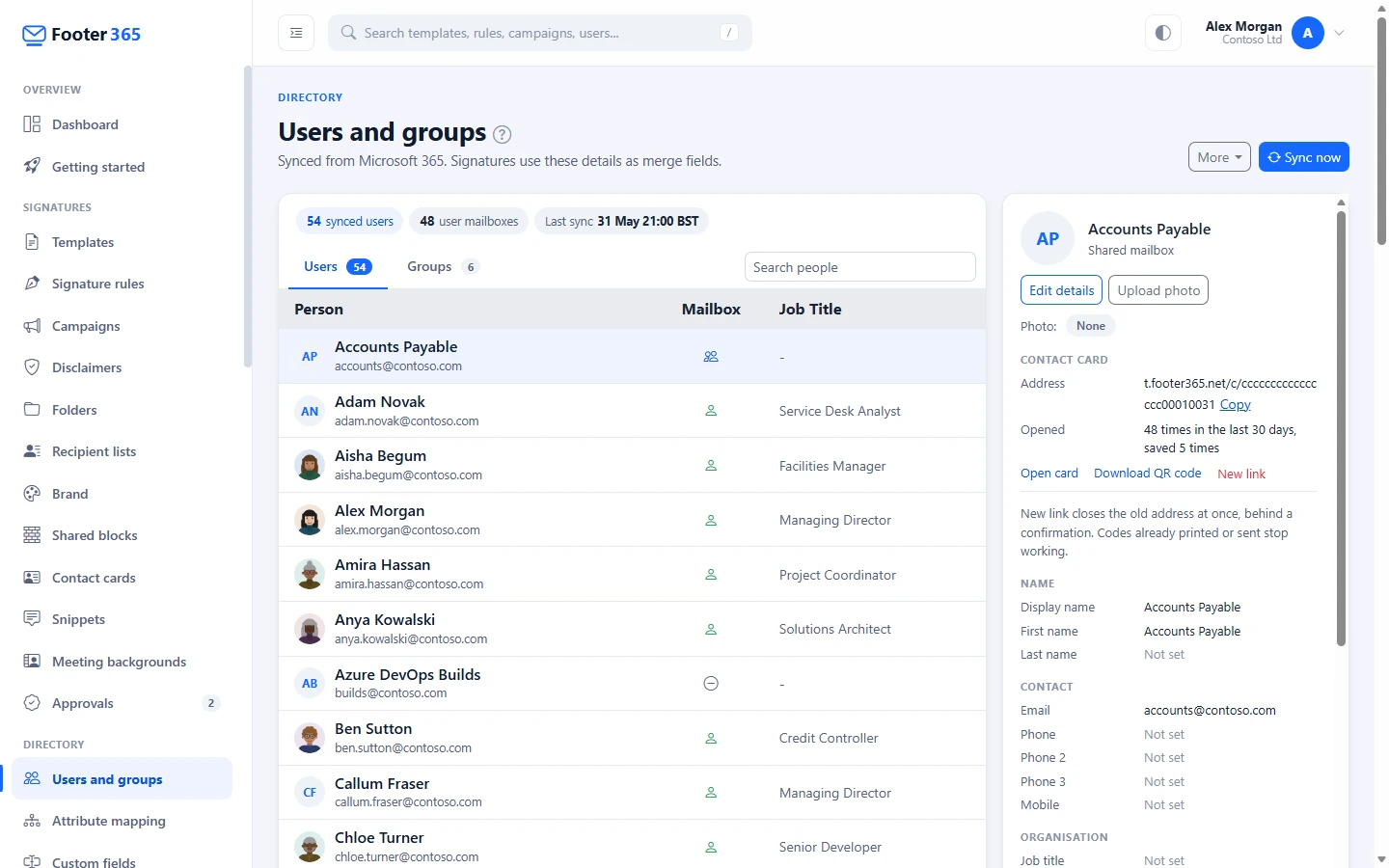
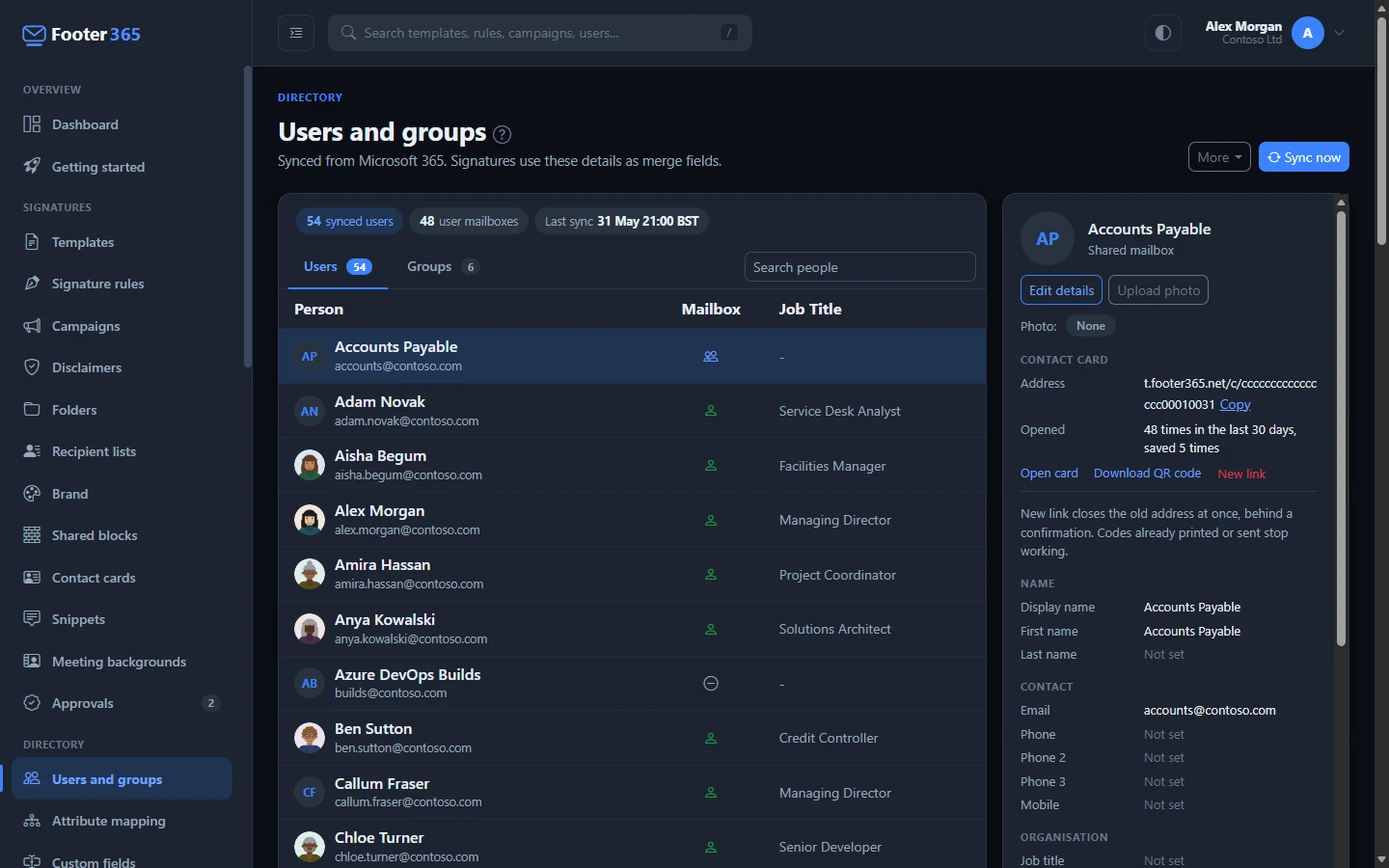
The figures above the list tell you:
| Figure | What it shows |
|---|---|
| synced users | Every account copied from your directory, inside the sync scope if you have one. Select it to list them all. |
| user mailboxes | The accounts that are one person's own licensed mailbox, including people outside the sync scope if you have one, as every user mailbox is a seat. This is the figure your subscription is based on. Select it to list the ones inside the scope. |
| waiting for approval | New starters waiting for approval before they are signed. Shown only while anyone waits. Select it to list them. |
| outside the sync scope | People who left your sync scope in the last 30 days. Shown only when there are any. Select it to see who, and when each is deleted from Footer365. |
| new this week | How many accounts were created in the last week. Shown only when there are any. |
| Last sync | The date and time the last sync finished. |
The Users and Groups tabs list everything that was copied, with the number in each beside its name. Type in Search people beside the tabs to find someone by name, email address, job title or department, then press Enter.
Select a person in the list to see, in the panel beside it, every value a signature fills in for them: name, contact details, organisation, address, social links and custom fields. A field Microsoft 365 holds no value for shows Not set, so a gap is easy to spot. A value entered in Footer365 rather than synced is marked by where it came from: Set here on this page with Edit details, Imported from a spreadsheet on the User details page, Staff by the person themselves, or From and a name when a source keeps it up to date from a file. A sync never changes a value entered in Footer365. On a phone the panel is below the list. See Fix wrong or missing details.
The panel also says where the person's signature photo comes from, beside Photo:, and is where you upload a different one. Photos, under More at the top of the page, holds the setting for where photos come from and the upload of many photos at once. See Upload signature photos.
Under Contact card, the panel shows the person's contact card address, how often their card was opened and saved, and the buttons to open it, download their QR code and give the card a new link. Export QR codes, under More at the top of the page, downloads many people's QR codes at once, for business cards. See Contact cards.
On the Groups tab, select a group to see its members in the panel, or hover over a member count to see them in the list.
Someone limited to a scope sees a Limited to pill beside the title, and the figures and both tabs count only the people in the scope and the groups whose every member is in it. A line under the list says how many groups with a member outside it are not listed, so a group that is missing is not taken for a sync fault. See Limit an administrator to part of the organisation.
The sync runs in the background, so the list does not change while you watch it. Refresh the page once Last sync shows a newer time. A large directory takes longer to read than a small one.
Good to know
- Directory sync is paused if Footer365 loses its approval in your Microsoft 365 organisation, for example if someone removes Footer365 from your Enterprise Applications. You will see Action needed: reconnect Footer365 to Microsoft 365 at the top of every portal page. A Global Administrator can fix it in about two minutes. See Reconnect banner.
- If Microsoft 365 is not connected yet, Users and groups shows Connect Microsoft 365 instead of your users.
- When a custom field starts reading a different directory extension, the next sync reads every user again rather than only the changes, because Microsoft 365 reports changes only for the properties a sync began with. If an extension a field reads has been deleted from Entra ID, the sync carries on without it and marks the field on Custom fields. See Add your own signature fields.
- Values filled in under User details are only used for fields that are empty in Microsoft 365. When a sync brings a value for one of those fields, the signature uses the Microsoft 365 value from then on. See Fill in details Microsoft 365 does not hold.
Related articles
Still stuck?
Tell us what you were trying to do and what you saw. Include the sender, a recipient and roughly when a message was sent, and we can trace it.