

Delegates, Send As and Send on Behalf
Choose whose signature goes on email that someone sends from a shared mailbox or another person's mailbox, for Send As and Send on Behalf, for the whole organisation or for particular mailboxes.
In Microsoft 365, a person can be allowed to send from a mailbox that is not their own: a colleague answering the shared info@ mailbox, or an assistant writing from their manager's mailbox. Footer365 lets you choose whose signature those messages get.
Footer365 makes the Sending for others page available to organisations gradually, so it may not be in your portal yet. See Early access pages and features.
There are two ways Microsoft 365 lets someone send for a mailbox, and recipients see them differently:
- Send As: the message is from the mailbox, and nothing on it says who wrote it.
- Send on Behalf: the message is from the mailbox, and Outlook shows who sent it, such as "Sam Reeves on behalf of Info".
Because the two are used for different reasons, you choose for each separately.
The choices
| Choice | What the recipient sees |
|---|---|
| Sign as the mailbox | The mailbox's own signature, as though the mailbox had sent the message itself |
| The mailbox's signature, naming who sent it | The mailbox's signature, with a line naming the person who sent it, from the template's Sent by fields |
| Sign as the person sending | The sender's own signature, as though they had sent the message from their own mailbox |
Unless you change them, Footer365 follows how Outlook presents each kind of sending:
- Sent as another mailbox (Send As) is set to Sign as the mailbox.
- Sent on behalf of a mailbox is set to The mailbox's signature, naming who sent it.
Change the organisation's choice
- Go to Account > Sending for others in the portal, or open Sending for others.
- Under Organisation setting, choose for Sent as another mailbox (Send As) and for Sent on behalf of a mailbox.
- The preview shows what a recipient sees when a colleague, Sam Reeves, sends on behalf of a shared mailbox with your Send on Behalf choice.
- Select Save.
The settings apply to email sent from then on. Opening the page needs the permission to manage the account settings.
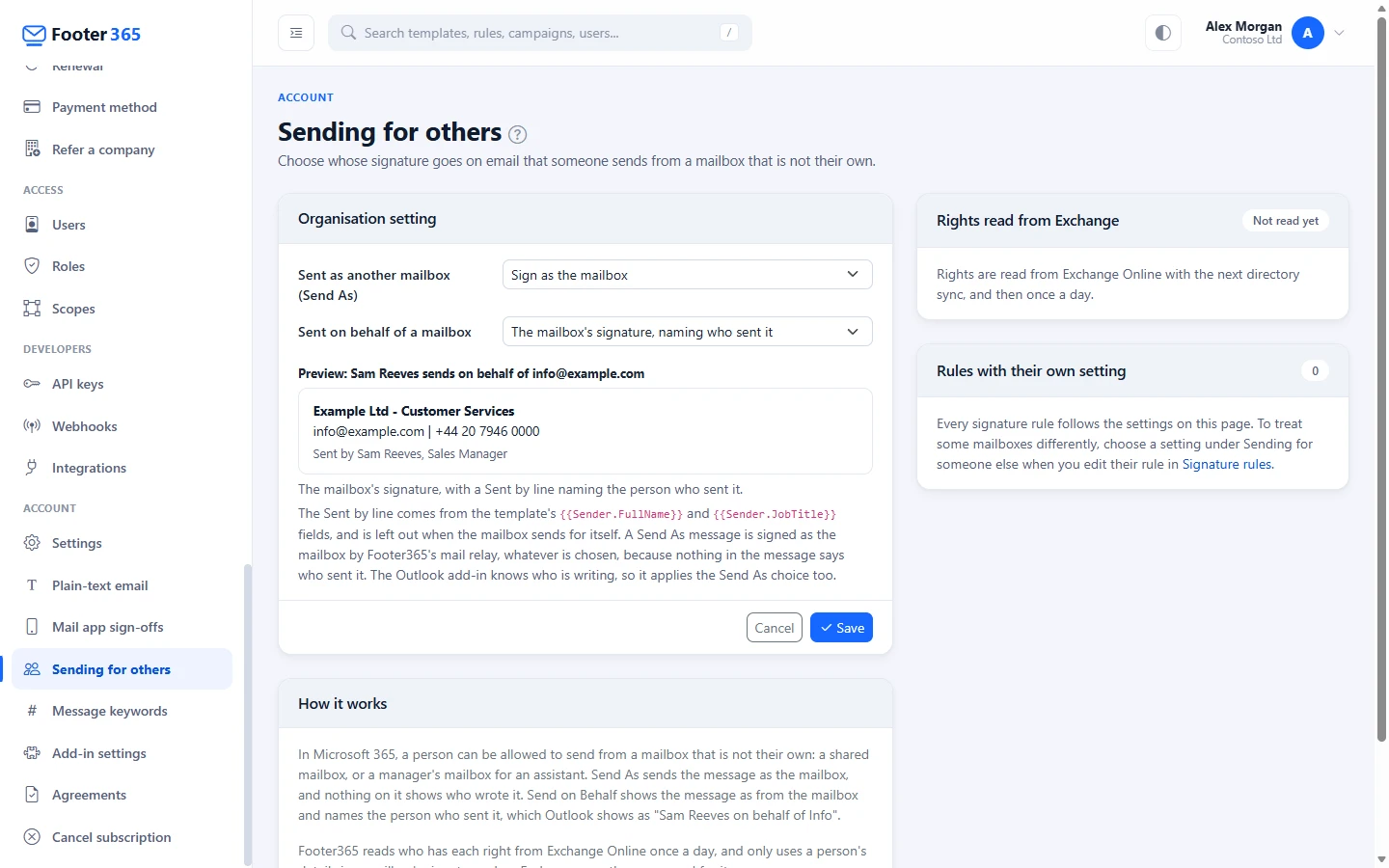
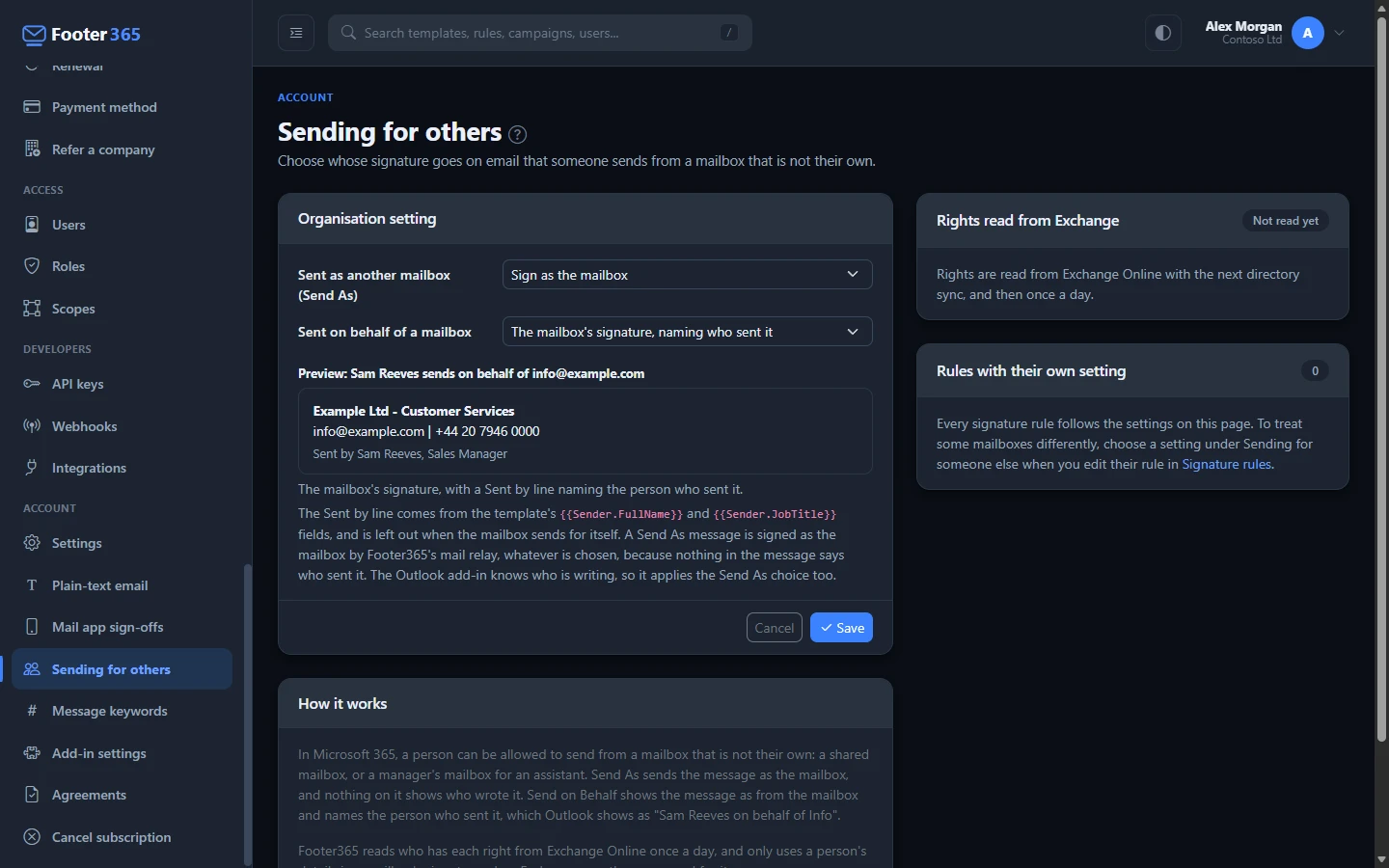
Show who sent it in the signature
The choice The mailbox's signature, naming who sent it fills in the template's Sent by fields with the person who sent the message. For the line to appear, the template the mailbox's rule uses needs those fields:
- Open the mailbox's template in the signature editor.
- Add a Text element where the line should go, such as under the mailbox's name.
- Type the words you want, such as "Sent by", then type
{{and pick from the Sent by group, such as the sender's full name and job title. - Save and publish the template.
The Sent by fields are empty whenever the mailbox sends for itself, and an empty field is left out with the words beside it, so the line only appears on messages someone sent on the mailbox's behalf. See Merge fields and empty fields.
A different choice for particular mailboxes
A signature rule can make its own choice, which wins over the organisation's for the mailboxes it matches:
- Go to Signatures > Signature rules and edit the rule that covers the mailbox.
- Under Sending for someone else, choose for Sent as another mailbox (Send As) and Sent on behalf of a mailbox. Follow the organisation setting uses the choice on the Sending for others page.
- Select Save rule.
The Rules with their own setting card on Sending for others lists every rule that makes its own choice. When the choice is Sign as the person sending, the rules are matched again as though the person had sent the message from their own mailbox, so they get the signature they would get for any other message.
Where Footer365 learns who may send for whom
Footer365 reads who has Send As and Send on Behalf rights on each mailbox from Exchange Online once a day, with the directory sync, once mail flow is set up. The Rights read from Exchange card shows when that last happened and how many rights were found. A right given to a group counts for each member of the group. A right given in Microsoft 365 today is used from the next day's read.
Footer365 only uses one person's details in another mailbox's signature when Exchange says they may send for it. Until a right has been read, a message from a shared mailbox is treated as Send As, and someone writing from another person's own mailbox gets their own signature.
If your organisation uses the Outlook add-in only, Footer365 does not read these rights, because it reads Exchange Online only with mail flow. An organisation that had mail flow before keeps the rights last read, and the add-in goes on using them. With none read, a message from a shared mailbox is treated as Send As, and someone writing from another person's own mailbox gets their own signature. Using the Outlook add-in only
Outlook add-in and mail relay
- The Outlook add-in knows who is writing. When someone changes the From field to a mailbox they have rights on, it applies your choice for Send As or Send on Behalf, depending on the right Exchange gave them. A person holding both is treated as Send As, as Exchange does.
- Footer365's mail relay, which signs messages on their way out when your organisation uses mail flow, sees a Send on Behalf message name the person who sent it, so it applies your Send on Behalf choice. A Send As message names only the mailbox, so the relay always signs it as the mailbox, whatever the Send As choice is.
Related
Still stuck?
Tell us what you were trying to do and what you saw. Include the sender, a recipient and roughly when a message was sent, and we can trace it.