

Schedule and target a campaign
Set when a campaign runs, understand its status, choose which signature rules carry the banner, and narrow it by recipient, sender and time of day.
Every campaign has a start, an optional end, a status and an audience. It can also be narrowed to certain recipients, leave certain senders out, and run only at certain times. This article explains each of them, so your banner goes out to the right people at the right time.
Set the dates
On the campaign page:
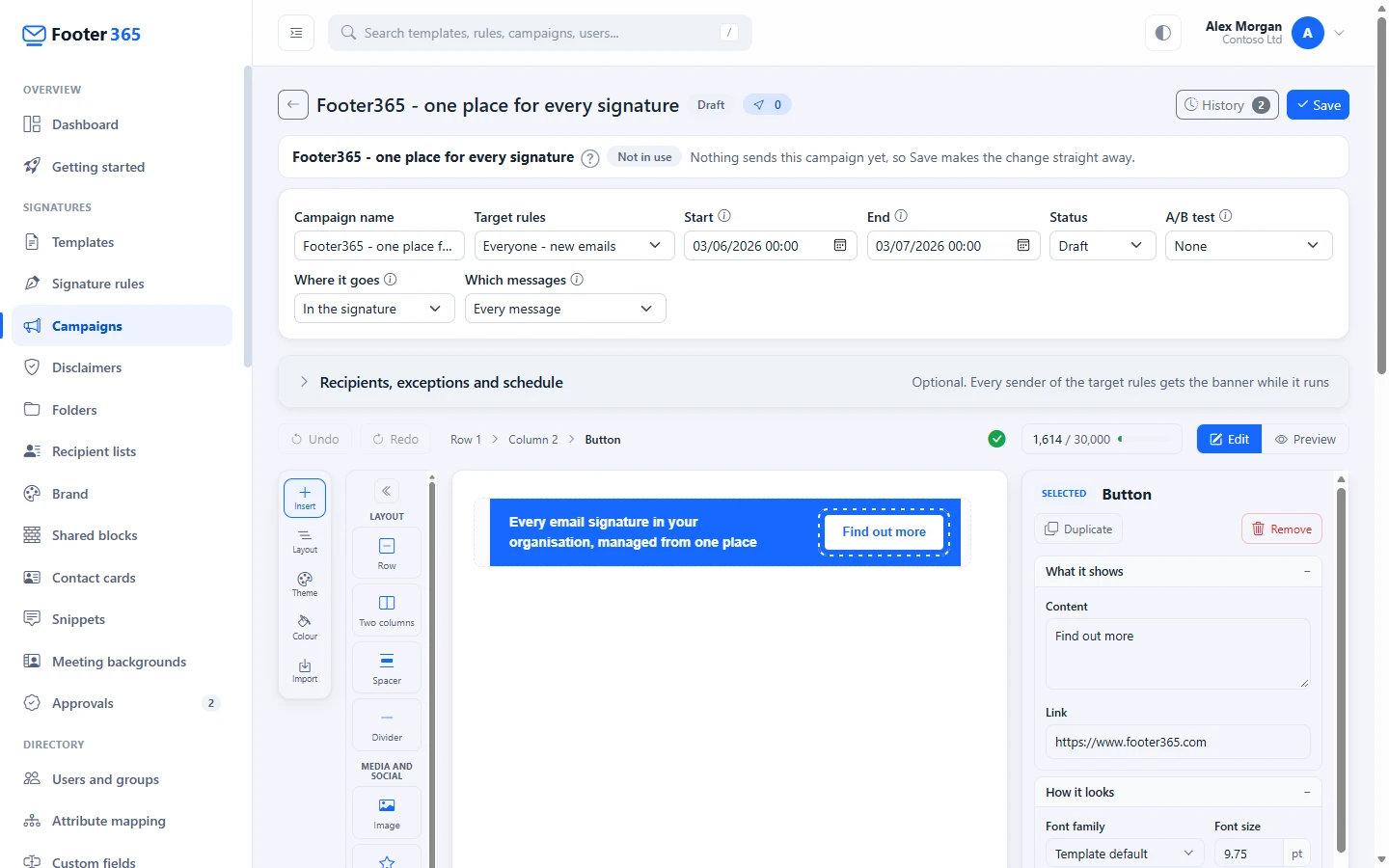
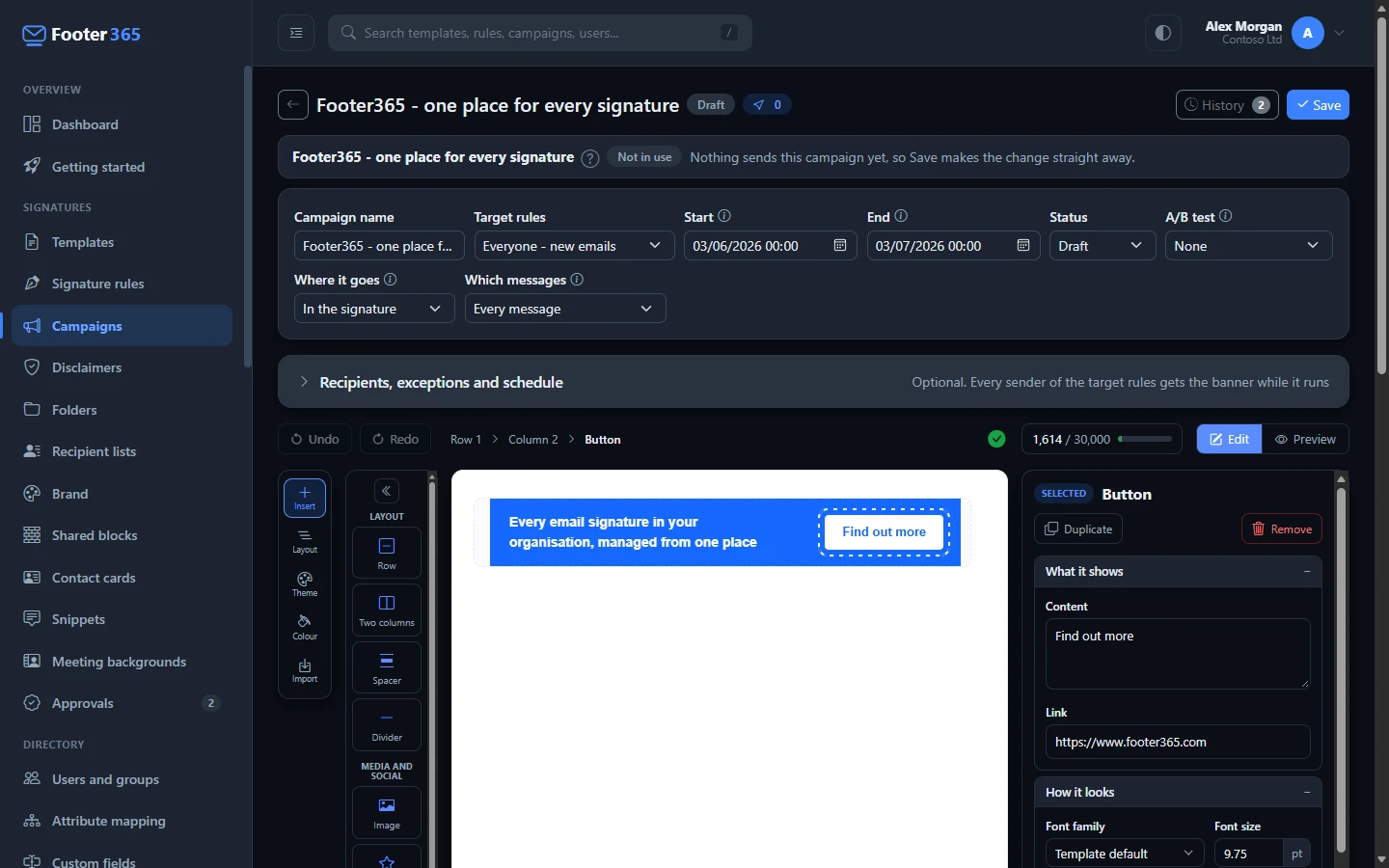
- In Start, enter when the banner should start going out. A new campaign starts at the next whole hour by default.
- In End, enter when it should stop, or leave it blank for no end date. Hover over the "i" beside End for a reminder.
- Select Save.
Both times are in your own time zone, which the "i" beside Start names, such as Europe/London. The clocks changing is allowed for: a campaign set to start at 09:00 on a day in July starts at 09:00 British Summer Time, and one set for a day in December at 09:00 GMT. Colleagues in another time zone see the same moment in their own time. The end must be after the start.
The dates are checked as each email is signed, so the banner starts going out at the minute you set for Start and stops at the minute you set for End. The Status shown on the Campaigns list catches up once an hour: a scheduled campaign is shown as Active, and an active campaign with an end date as Ended, up to an hour after the time you set.
Campaign statuses
| Status | What it means |
|---|---|
| Draft | Saved but not scheduled. Nothing goes out. |
| Scheduled | Waiting for its start date. It goes live automatically once that arrives. |
| Active | The banner is going out with signatures. |
| Paused | Stopped for now. It stays paused until you turn it back on. |
| Ended | Finished, either at its end date or because you ended it. |
When you create a campaign, the Status list offers Draft or Scheduled. After that it offers all five. Hover over a status in the list to see what it means.
The Campaigns list also has a quick button at the end of each row, for the change the campaign's status calls for, and a ... menu beside it for the rest:
- Activate (a play icon) turns a draft or scheduled campaign on straight away, whatever its start date. On a paused campaign the same button is Resume.
- Pause (a pause icon) stops an active campaign.
- End, in the ... menu of an active campaign, finishes it.
Click anywhere else on a row to open the campaign. The list shows each campaign's start and end date; hover over a date to see the time as well.
Before a campaign goes live through Activate, its link is checked with Google again if it has not been checked in the last day. See Tracked links and safety checks.
When a campaign cannot run
A campaign shows a lock icon, named Locked, in place of Activate when it may not run:
- Its link is listed by Google Web Risk as unsafe. Replace the link and save before turning it on.
- Campaigns are suspended on your account after repeated unsafe links.
While locked, Scheduled and Active cannot be chosen, and a locked campaign that was scheduled does not go live on its own. If you save one as scheduled or active, it is saved as paused and a message explains why.
Choose who gets the banner
The Target rules list sets which senders carry the banner. It lists your signature rules, each with the template it uses. While a campaign is in a rotation, the rotation's target rules and dates are used instead of the campaign's own, and the campaign page says so. Its Target rules, Start and End cannot be changed there until it leaves every rotation, and what was saved before it joined is kept for when it does.
- Tick one or more rules to send it on mail that matches one of those rules. To send it with every signature, tick every rule.
- With nothing ticked the campaign takes part in no signature, and the list reads None. A new campaign starts with nothing ticked, so it goes nowhere until you choose its rules. On the Campaigns list its target rules read None in amber.
A campaign whose only rule is deleted is left with nothing ticked, so it stops going out rather than spreading to every sender.
A campaign follows the rule that matched the email. For example, if you have a short rule for replies and aim the campaign only at your main rule, replies do not carry the banner. See How signature rules work.
Disabled rules are shown with a Disabled pill. Nothing matches them until they are switched back on.
A banner only goes into a signature whose template has a Campaign element. Rules whose template has none are shown with a No Campaign element pill: their email carries no banner, even when you tick them, until the element is added to the template. See "Where the banner appears in the signature" in Create a banner campaign.
Narrow it by recipient, sender and time
Under the campaign's fields, Recipients, exceptions and schedule holds the same choices a signature rule has for who it goes to and when. It is closed until you open it, and stays open on a campaign that uses it. Everything in it is optional and only narrows the target rules: a sender still has to match one of the campaign's rules to get the banner.
- Except these senders leaves out people, groups, departments or sending domains. Choose the kind, choose or type the sender, and select Add. A sender named here never gets this banner, whatever their rule says.
- Recipient type limits the banner to, for example, Any external recipient, so it is not added to mail between colleagues.
- Only when recipients include adds the banner only when the email goes to an address, a domain (which covers its subdomains) or a wildcard such as
*.deon the list. With more than one recipient, choose Any recipient is enough or Every recipient must match. - Except when recipients include stops the banner when any recipient is on that list.
Either box also takes one of your saved recipient lists as a single entry, so the same customers or competitors need not be typed into every campaign. See Keep lists of recipients to reuse.
The other choices:
- Runs is Always by default. Choose On a schedule to run the banner only between two dates, on chosen days of the week, every year on the same dates, or between two times of day, in the time zone you pick. A new schedule starts in your own time zone, and hours that run past midnight, such as 22:00 to 06:00, mean overnight.
- When other campaigns also apply is Show alongside them by default. Choose Show alone to keep any other banner off an email this one goes out on. See below.
The schedule works inside the campaign's Start and End: the banner goes out only when both say so. Like the dates, it is checked as each email is signed, to the minute.
These choices are worded and work exactly as they do on a rule, so see Rules for particular recipients and Schedule a rule for more examples.
On the Campaigns list, a campaign that uses any of them shows a funnel icon beside its status, or a clock icon when it has a schedule. Hover over it to read its To, Except and When lines.
While a campaign is in a rotation, these choices are not used and cannot be changed, as its target rules and dates are not. They are kept for when it leaves. They are copied when you duplicate a campaign, and kept in a signature backup.
In Outlook with the add-in
The Outlook add-in reads only the domains of the recipients while an email is being written, so it decides domain and wildcard entries while you write. When a campaign that could go out with the sender's rule names a single address, such as [email protected], or a recipient list that holds addresses, in either recipient box, the add-in leaves the email for the mail relay, which sees every address and adds the signature and the right banner as the email is sent. See Can't see the signature while writing.
With the Outlook add-in only there is no relay to choose the campaign, so such an email is signed without any campaign banner rather than left without a signature. Use domain and wildcard-domain entries where you can. Using the Outlook add-in only
When several campaigns apply
By default each email carries one campaign banner. If more than one active campaign is aimed at the sender's signature rule at the same time, the first in the Running order on the Campaigns page is used. A campaign whose recipients, exceptions or schedule rule the email out is passed over, and the next one is used instead.
To let one email carry up to three banners, stacked in the running order, raise Banners per message on the same card. To keep a notice off any email that carries another banner, choose Show alone under When other campaigns also apply, at the end of Recipients, exceptions and schedule. See Run several campaigns on one email.
The email counts as a send for each campaign whose banner it carried, in its report and in any A/B test.
To share one place on the email between several banners, so each email carries one of them, put them in a rotation, which shares the email between them evenly or by weight. A rotation takes one place in the running order, and a campaign in a rotation goes out on the rotation's target rules and dates rather than its own. See Rotate several banners. To keep campaigns apart instead, aim them at different rules so they do not overlap.
A rotation can also let the people it reaches choose one of its banners as their own, in the Outlook add-in. Tick People may choose on the banners they may pick. A person's choice is used on their email while the banner is ticked and sharing, and the rotation picks by weight for everyone else, and for them once their banner can no longer be chosen. The running order, the banners per message and Show alone work exactly as before: the choice only decides which of the rotation's banners fills its place. See "Let people choose their own banner" in Rotate several banners.
Good to know
- The line of figures at the top of the Campaigns page counts the campaigns scheduled to start. If any campaign has link problems, the line also counts those with link issues; select that figure to list them.
- A paused or ended campaign's links stop working in mail already sent: anyone who clicks sees a "Link not available" page. Keep a campaign active for as long as its banner should stay clickable.
- A signature written by the Outlook add-in picks up the banner when the email is written, so an email started while a campaign is active and sent after it ends, or after its scheduled hours, still carries the banner.
Related
Still stuck?
Tell us what you were trying to do and what you saw. Include the sender, a recipient and roughly when a message was sent, and we can trace it.