

Create and revoke API keys
Make a key that lets your own systems, such as an HR system or a script, use the Footer365 API, choose what it may do, and revoke it when it is no longer needed.
An API key lets one of your own systems use the Footer365 API on your organisation's behalf: an HR system keeping people's details up to date, an intranet page showing each person's signature, or a script. Each key belongs to your organisation alone, can do only what you choose for it, and can be revoked at any time.
Footer365 makes the API keys page available to organisations gradually, so it may not be in your portal yet. See Early access pages and features.
How to call the API with a key, and what it can do, is in The Footer365 API.
Who can see and make keys
API keys are in the Developers group of the menu. Two permissions on Access > Roles decide who can use the page:
- View developers shows the page and the list of keys. Only the start of each key, its prefix, is ever shown.
- Manage developers also lets someone create and revoke keys.
Super Admins hold both. No other built-in role holds either, so nobody can make keys until a Super Admin decides they should. See Roles and permissions.
A key can never do more than the person who makes it. The areas a key can be given are offered only to someone who holds the matching permission themselves:
| Area | Read needs | Change needs |
|---|---|---|
| People and their details | View directory | Manage directory |
| Templates and signature HTML | View signatures | Manage signatures |
| Signature rules | View signatures | Manage signatures |
| Campaigns | View signatures | Manage signatures |
| Recipient lists | None: there is no Read | Manage signatures |
If you work in this portal through your reseller, you can see your organisation's keys but cannot make one: a reseller uses a key of its own.
Keys limited to part of the organisation
This page calls what a key may do its Permissions, so the word scope always means a part of the organisation, as it does on Access > Scopes. The API reference and the API itself keep the word scope for the same permissions, such as rules.read.
An administrator limited to part of the organisation by a scope sees only the keys that carry their scope, and a key they make carries it. The page says "Limited to" and the scope's name above the list. Someone who sees the whole organisation sees every key, and once any key carries a scope a Limited to column names it: the scope's name, or Whole organisation for a key made by someone who sees all of it. Until then the list has no such column. See Limit an administrator to part of the organisation.
- A key that carries a scope reaches only the people in it. It can read every rule and campaign, but turn a rule on or off, or pause or resume a campaign, only when it is aimed wholly inside the scope, and it is given no click figures for a campaign aimed beyond it.
- Turning a rule on or off, or pausing or resuming a campaign, through a key is the same as flipping its switch in the portal. It never changes the scope the rule or campaign was saved under, and a key cannot create or edit one.
- A key that carries a scope cannot change a recipient list, because a list belongs to the whole organisation and is shared by every rule that uses it. The change is refused.
- A limited administrator revokes only the keys that carry their scope.
- A limited administrator whose access is made of more than one scope, or of a scope that no longer exists, cannot make a key, because a key carries a single scope. The page says so, and a Super Admin can make the key.
- A scope that is given to a key that has not been revoked or expired cannot be deleted.
- A key made by a Super Admin, or by anyone who sees the whole organisation, reaches the whole organisation as before.
Create a key
- Go to Developers > API keys (open it).
- Select Create key.
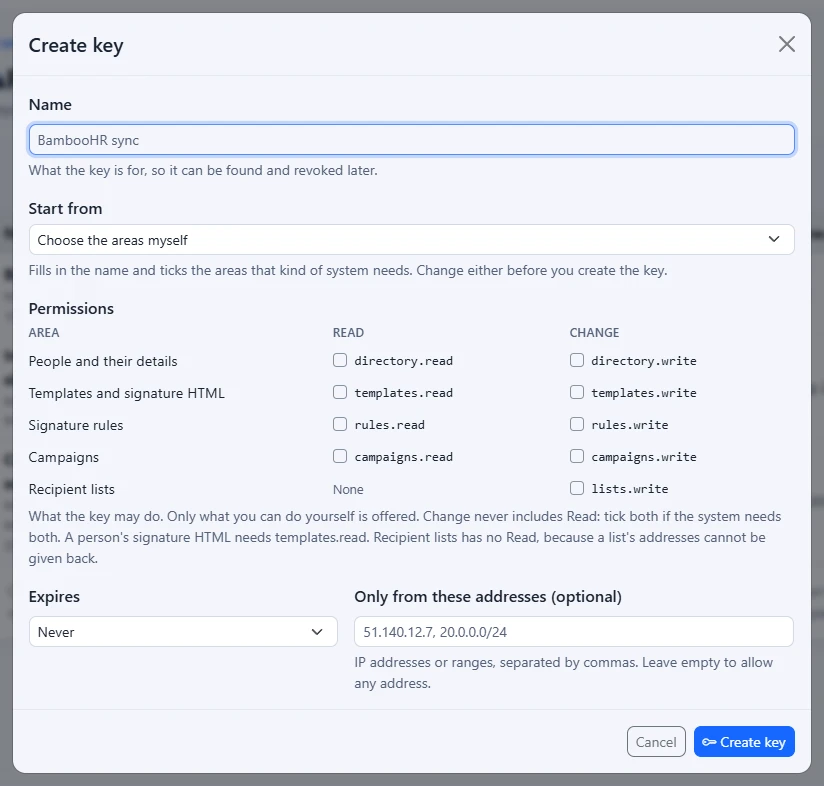
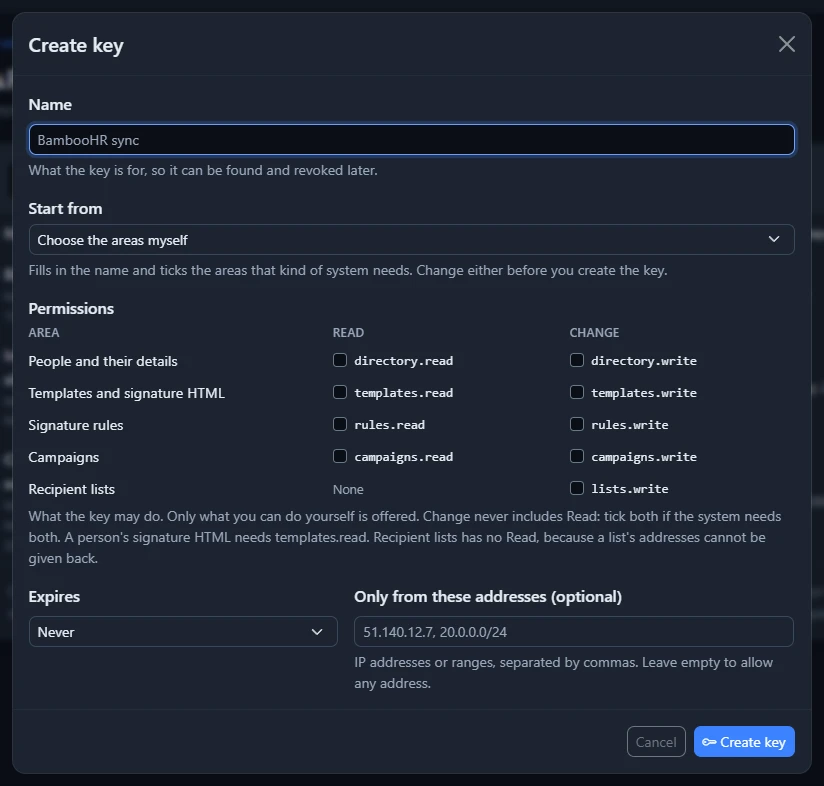
- Type a Name that says what the key is for, such as BambooHR sync, so it can be found and revoked later.
- Under Permissions, tick what the system needs. Read and Change are separate: a system that only sends details in needs only Change, and one that reads them back needs Read as well. Reading a person's signature needs templates.read. Recipient lists has only Change, lists.write, because a list keeps each address as a one-way code and cannot give it back.
- Choose when the key Expires: never, or in 30 days, 90 days, 6 months or 1 year.
- Optionally, under Only from these addresses (optional), list the IP addresses or ranges the system calls from, separated by commas, such as
51.140.12.7, 20.0.0.0/24. The key is then refused from anywhere else. Leave it empty to allow any address. - Select Create key.
The Copy your key now window shows the whole key once. You will not see this key again. Select Copy key, put it straight into your system's secret store, then select I have stored it. Footer365 keeps only a scrambled form of the key that cannot be turned back into it, so if the key is lost it cannot be shown again: revoke it and create another.
The API reads and changes people's details, reads a person's signature, reads your templates, rules and campaigns, turns rules on and off, pauses and resumes campaigns, and replaces the entries of a recipient list. See The Footer365 API for each call.
An organisation can hold up to 25 keys that are not revoked or expired.
Start from a common kind of system
Footer365 is making starter content available to organisations gradually, so this may not be in your portal yet. Where it is, the Create key window opens with Start from above Permissions. Choosing one fills in the key's Name and ticks the permissions that kind of system needs:
| Start from | Ticks |
|---|---|
| HR system keeps details up to date | directory.read, directory.write |
| Intranet shows people's signatures | directory.read, templates.read |
| Marketing tool runs campaigns | campaigns.read, campaigns.write, lists.write |
| Reporting, read only | directory.read, templates.read, rules.read, campaigns.read |
Choose the areas myself ticks nothing, as before. Only the ones you can give a key yourself are listed. Choosing one makes nothing: change the name and the ticks as you need, then select Create key. A name you typed yourself is kept.
The list of keys
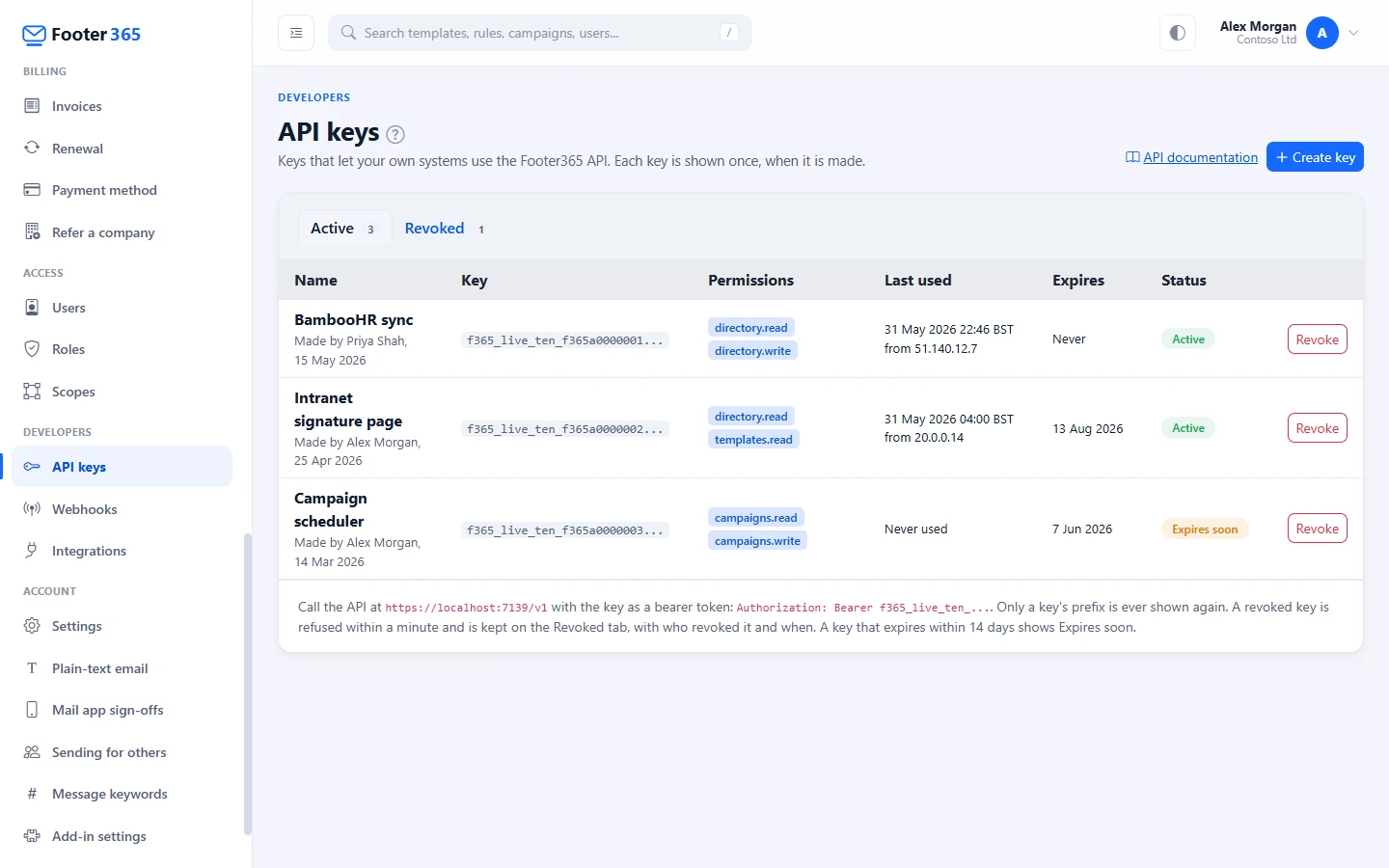
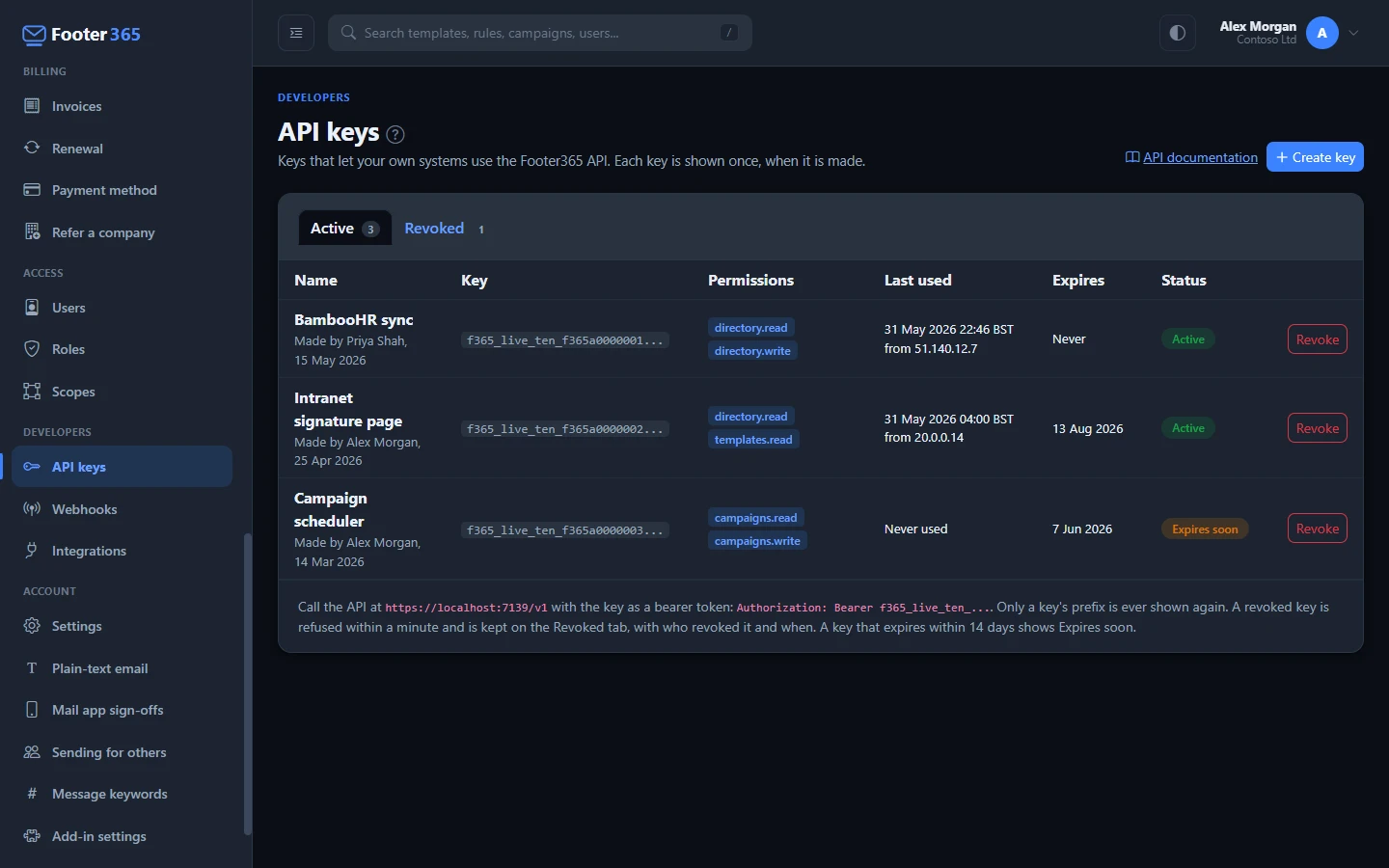
The Active tab lists every key that has not been revoked, with:
- its name, who made it and when
- its prefix, such as
f365_live_ten_9f2c81a4bd07..., which is enough to recognise the key in your own system without revealing it - its Permissions, which are what it may do
- once any key carries a scope, the part of the organisation it is limited to, in Limited to
- when it was last used and from which address, or Never used
- when it expires
The status shows Active, Expires soon once the key expires within 14 days, or Expired. Maker's access changed shows when the person who made the key can no longer do everything the key can, for example because their role changed. The key keeps working until it is revoked, so decide whether it should.
The Revoked tab keeps every revoked key, with who revoked it and when, so the audit log always has something to point at.
Revoke a key
Revoke a key when the system that used it is retired, when someone who knew it leaves, or whenever you think it may have been seen by someone it should not have been.
- On the Active tab, select Revoke on the key's row.
- Check the name, then select Revoke key.
Anything using the key is refused within a minute. This cannot be undone: to start again, create a new key.
In the audit log
Making a key and revoking one are both recorded in the audit log, with who did it. So is every change a key makes to people's details, under the key's name and prefix. The key itself is never recorded anywhere. See The audit log.
Related articles
Still stuck?
Tell us what you were trying to do and what you saw. Include the sender, a recipient and roughly when a message was sent, and we can trace it.