

Edit the HTML
Use the Advanced HTML box to save hand-written signature HTML instead of the drag-and-drop design, and understand what detaching a template from the visual editor means.
Most signatures never need any HTML: the drag-and-drop editor builds it for you. If you have a signature written by hand, or need something the editor cannot do, you can save your own HTML instead. This is an advanced option, and it changes how the template works from then on.
Advanced: edit HTML is shown in the Advanced and Developer views of the portal. In the Simple view it is hidden, except on a template or banner that is already saved as HTML, where it is the only way to change it. To switch view, select your name at the top right and choose under Portal view. See Choose how much of the portal you see.
Save your own HTML
- Open the template in the editor.
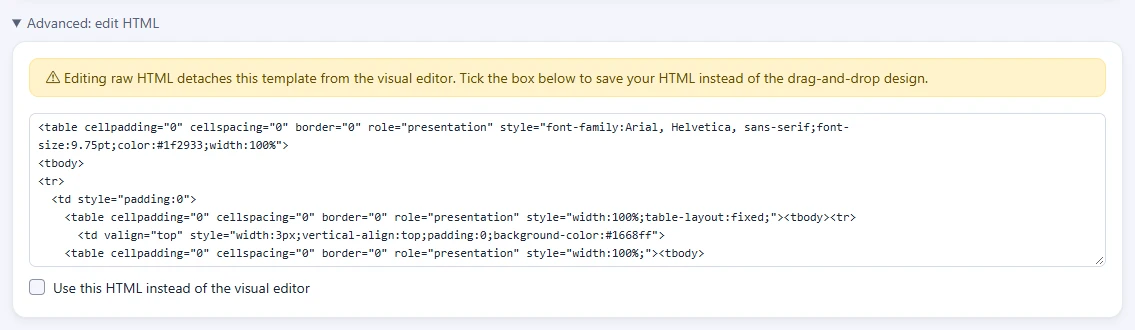
- Below the editor, select Advanced: edit HTML to open the box. It shows the HTML of the template as last saved.
- Edit the HTML in the box, or replace it with your own.
- Tick Use this HTML instead of the visual editor.
- Select Save.
If you do not tick the box, the box is ignored and the design on the canvas is saved as usual.
What detaching means
Saving your own HTML detaches the template from the visual editor. The warning above the box says so. From that point:
- The HTML is the template. It is saved as you wrote it, less anything a signature cannot carry (see below), and the drag-and-drop design is not kept with that version.
- The canvas opens empty. The editor has no design to show, so when you open the template again the canvas is blank, while the Advanced: edit HTML box holds your HTML.
- Empty fields are no longer hidden for you. The automatic hiding of empty fields is added by the visual editor. In your own HTML, only the conditions you write yourself apply (see below).
When you open a detached template again, Use this HTML instead of the visual editor is already ticked, so Save keeps your HTML. Only untick it if you mean to replace your HTML with a design built on the canvas. If a save ever does replace it by mistake, restore the previous version from History.
What is checked when you save
Your HTML is checked when you select Save, against the same rules as the editor's Import, so the box is not a way round them. If it fails, nothing is saved, and the page says why, the same reason Import would give. See "Why an import can be refused" in Import HTML into the editor.
HTML that passes is cleaned the way an import is, and the cleaned HTML is what is saved. Anything removed is listed in a warning after the save, such as a positioning style or a link to an incomplete address. Everything the visual editor writes is kept, so HTML copied from a design comes through unchanged:
- Outlook backgrounds. The section written only for Outlook that gives a row or column its background colour, gradient or image in Outlook for Windows is kept, as long as it is exactly what the editor writes. Any other section written only for Outlook is removed, because Outlook for Windows shows what is inside one and the rest of your signature cannot be checked against it.
- Background styles. Background gradients and images set in styles, which the editor writes for rows and columns, are kept when they use a full web address.
- Conditions between table rows.
{{IF ...}}and{{ENDIF}}written between two rows of a table stay where they are, and so do the versions of a row,{{CHOOSE}},{{WHEN ...}},{{OTHERWISE}}and{{ENDCHOOSE}}. - Placeholder images. The editor's stand-in for a logo, banner or badge not yet chosen is kept.
Outlook for Windows shows what is inside every section written only for Outlook, so the contents of each one are checked against the same rules as the rest of your HTML before anything is removed.
HTML that only an attack would carry, such as a script, an event handler, a form or a disguised link, counts against your organisation as an attempt to import it would. Repeated attempts turn Import off for your organisation until Footer365 or your reseller turns it back on.
Merge fields in your own HTML
Write a merge field as its name in double curly brackets, for example {{FullName}}, {{JobTitle}}, {{PhoneNumber}}, {{MobilePhone}}, {{Email}}, {{CompanyName}} or {{Year}}. Names are not case-sensitive. A field with no value for a person is replaced with nothing.
Pick a field as you type
You do not have to remember the names. Type {{ in the box and a list of fields opens under it, the same list a Text element offers on the canvas: Person, Contact, Company, Date, Message, Manager, Sent by, Custom fields when your organisation has fields of its own, and Custom attributes. The fields in the Message group are marked At send, because they are filled in from the email as it is sent.
- Keep typing to narrow the list. It matches the field's name and the words it is shown with, so
{{postand{{job titleboth find what they name. - Use the up and down arrow keys to move through the list, and Enter or Tab to put the highlighted field in. Or click a field.
- The field is written out in full where you typed the brackets, for example
{{JobTitle}}, and you carry on typing after it. Nothing else in the box changes, and Ctrl+Z takes the field back out. - Press Escape to close the list and go on typing, for example to write a condition such as
{{IF PhoneNumber}}. If nothing matches what you typed, the list says No placeholder matches that. and Enter starts a new line as usual.
To leave out a whole part when a field is empty, wrap it in a condition:
{{IF PhoneNumber}}T {{PhoneNumber}}{{ENDIF}}shows the line only when there is a phone number.{{IFNOT PhoneNumber}}...{{ENDIF}}shows something only when the field is empty.{{IF PhoneNumber AND MobilePhone}}...{{ENDIF}}needs both.
Formatting and versions in the HTML
Formatting chosen in the editor is written inside the field's brackets, after a bar, in the order it is applied. For example {{Department | title}} writes the department in title case, and {{Department | title | replace:.26,and | default:Head.20office}} also replaces "&" with "and" and shows "Head office" when there is no department. Joined fields are listed with commas, as in {{JobTitle,Department | join:.20.7C.20}}. The operations are upper, lower, title, replace, default, join and phone.
Anything you typed, such as the text to find or a value to compare, is written with each character other than a letter or a digit as a full stop and two hexadecimal digits: .20 is a space, .26 is "&" and .7C is "|". This keeps the HTML free of characters that could be mistaken for markup.
Versions of a row are written as a block: {{CHOOSE}}, then {{WHEN ...}} before each version's rows, {{OTHERWISE}} before the rows everyone else gets, and {{ENDCHOOSE}}. The first version whose condition holds is kept. A condition reads as all or any, then each test after a slash, such as {{WHEN all/Department:equals:Sales}}. An image with other pictures for some senders is written the same way around its pictures.
The simplest way to see the exact field names, conditions and formatting is to look at the HTML of a template built in the visual editor: open it, expand Advanced: edit HTML, and read it without ticking the box. To build versions and formatting, use the editor rather than writing them by hand. See Show different content to different people.
Going back to the visual editor
A detached template does not turn back into a design. You have two options:
- Restore an earlier version from History that was saved before you detached it. Versions saved in the visual editor keep their design. See Version history.
- Rebuild it on the canvas, or start again from the template library, and save without ticking the box.
- Import its HTML. Copy the HTML out of Advanced: edit HTML, then paste it into Import on the editor's rail with In place of the design. It is converted into rows and elements, and the panel lists anything to check. See Import HTML into the editor.
Good to know
- Imported signatures are designs. A signature brought across from another provider is converted into the editor's rows and elements, so it opens on the canvas like any other. One imported before conversion was added is saved as HTML, so everything on this page applies to it. See Import a signature from another provider.
- Test in real mail programs. Hand-written HTML is not checked for how email programs will draw it. The editor's Preview shows the canvas design, so it has nothing to show for a detached template; the template's card on the Templates page shows the saved HTML instead. For the real check, tick the box, select Send a test in the top bar and open the email in the mail programs your recipients use. It sends the HTML in the box, unsaved changes included.
Related articles
Still stuck?
Tell us what you were trying to do and what you saw. Include the sender, a recipient and roughly when a message was sent, and we can trace it.