

Tag campaign links for your web analytics (UTM)
Add UTM tags to a campaign's links so visits from signature banners show up as a campaign in Google Analytics or your own web analytics, including when Footer365 is not counting the campaign's clicks.
Footer365 counts the click on a banner. What the visitor does next happens on your own website. UTM tags carry the story across: they tell your web analytics that the visit came from an email signature campaign, rather than counting it as direct traffic, so you can follow it through to an enquiry or an order. This article shows you how to switch them on.
Switch tagging on
- Open the campaign from Campaigns.
- Below the canvas, open Website analytics tagging (UTM).
- Turn on Tag this campaign's links.
- Leave the boxes empty to use the defaults, or fill in the ones you want to change.
- Select Save.
You can also reach this from the campaign report: in the In your own analytics card, select Set up tagging.
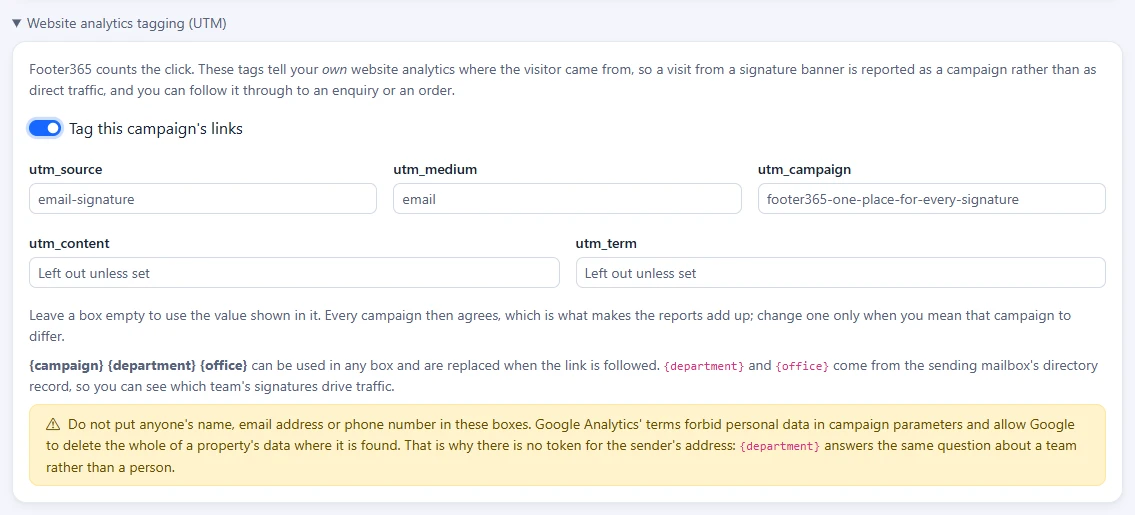
The boxes and their defaults
| Box | Used when left empty |
|---|---|
| utm_source | email-signature |
| utm_medium | |
| utm_campaign | The campaign name, in lower case with words joined by hyphens. For example, "Summer promotion" becomes summer-promotion. |
| utm_content | Left out. |
| utm_term | Left out. |
Each box takes up to 100 characters. The value that will be used is shown faintly in each empty box.
Leaving a box empty is the recommended choice. Every campaign then uses the same source and medium, so your analytics reports add up. Change a value only when you mean that campaign to be reported differently.
Tokens
You can put these tokens in any box. They are filled in when the link is clicked, or, while the campaign's clicks are not counted, for each sender as the signature is made:
| Token | Replaced with |
|---|---|
| {campaign} | The campaign name, in the same lower-case hyphenated form. |
| {department} | The department of the person who sent the email, from your directory. |
| {office} | The office of the person who sent the email, from your directory. |
Department and office are also written in lower case with words joined by hyphens, so "Customer Service" arrives as customer-service. For example, putting {department} in utm_content lets you see which team's signatures drive the most visits. If the department or office is not known for a click, a box holding only that token is left out.
Keep personal data out
Do not put anyone's name, email address or phone number in these boxes. Google Analytics' terms forbid personal data in campaign parameters and allow Google to delete all of a property's data where it is found.
That is why there is no token for the sender's address. {department} and {office} answer the same question about a team rather than a person.
Good to know
- While Footer365 counts a campaign's clicks, tags are added at the moment of the click, not written into the email. Your saved link stays exactly as you typed it, and a change to the tags applies to the next click, including clicks on emails already sent.
- If your link already has a UTM parameter of its own, yours is kept and Footer365 does not overwrite it.
- Tags go before any # part of the address, so a link to a section of a page still works.
- The In your own analytics card on the campaign report shows one of your links as it arrives at your website, with the tags filled in using example values. In Google Analytics, look under Traffic acquisition for that source and medium.
When clicks are not counted
A campaign's clicks are not counted when its own Count clicks switch is off, in the heading of its links card, or when your organisation has turned click tracking off on Account > Settings. Its links then go straight to their destination, and Footer365 does not see who follows them, so these tags are your only record of visits from the banner.
While clicks are not counted:
- The tags are written into each link as the signature is made, so a reader can see them when hovering over a link. The links card on the campaign is called Links, and its Sent as column shows each link with its tags.
- {department} and {office} are filled in for each sender as the signature is made.
- A change to the tags applies to messages sent after you save. Messages already sent keep the tags they were sent with.
- The Website analytics tagging (UTM) section opens by itself, as a reminder that the tags are now how you see the visits.
See Click data and privacy for turning click tracking off for the whole organisation.
Related
Still stuck?
Tell us what you were trying to do and what you saw. Include the sender, a recipient and roughly when a message was sent, and we can trace it.