

Keep details up to date from a file
Have Footer365 read a CSV or JSON file at a web address on a schedule, such as your HR system's report, and keep people's signature details up to date.
Your HR system or database may hold details that Microsoft 365 does not, or holds them more up to date: a new mobile number, a changed job title, a move to another department. A source is a file that system publishes, a CSV or JSON file at an https address, which Footer365 reads on a schedule and uses to fill in the details you choose. It does the work of the spreadsheet import without anyone downloading, editing and uploading a file.
Footer365 makes the Sources page available to organisations gradually, so it may not be in your portal yet. See Early access pages and features.
Footer365 only reads the file. It changes nothing in your HR system and nothing in Microsoft 365. If your HR system can call an API, it can send changes to the Footer365 API instead.
What you need
- A file at an https address that Footer365 can reach over the public internet. A CSV has its column headings in the first row and a row for each person, separated by commas, semicolons or tabs. A JSON file is a list of people, or an object with a property that holds the list, such as
{"employees": [ ... ]}. Each person is an object with named properties, and a property inside another becomes a column named by its path, such asmanager.email. - One column that says who each row is about: the person's email address, or their user principal name (UPN).
- Other columns holding the details to keep up to date, such as a mobile number, a job title or one of your own custom fields.
- The Manage directory permission to add, change, run or delete a source. View directory lets someone see the page without the credential or the full address.
The file can be up to 20 MB, and Footer365 waits up to 60 seconds for the server to send it. An organisation can have up to five sources.
Where the file should be
The address must start with https:// and lead to a server on the public internet. Footer365 refuses an address on a private network, an address with a user name or password written into it, and, while it reads the file, a redirect to a different host.
The file holds your people's details, so protect it. Use an address that carries its own token, which some file hosting services can make, or choose a credential: a Bearer token, or a User name and password. If you choose None, the page warns that anyone who knows the address can read the file.
An address that opens a web page is not a file. Many sharing links, such as those for SharePoint and OneDrive, open a page in a browser, and Footer365 stops with a message saying so. Use a link that downloads the file itself. Whether a particular link works depends on how its server answers, so use Fetch and preview to find out before you turn the source on.
Add a source
- Go to Directory > Sources (open it) and select Add a source. While you have no sources the page says No sources yet and offers the same button.
- In Where it is, step 1 of 3, fill in:
- Name: shown beside each value the source sets, as From and this name. Each source needs a name of its own.
- Format: CSV or JSON.
- Address: the https address of the file.
- Credential: None, Bearer token or User name and password. Type the token, or the user name and password, in the box that appears. It is encrypted and never shown again, and Footer365 sends it only to the host of the address it was saved with.
- Fetch every: 4, 12 or 24 hours.
- Identify people by: Email address or User principal name (UPN).
- Select Fetch and preview. Footer365 reads the file now. If it cannot, the page says why and nothing is saved.
- In Match the columns, step 2 of 3, the table shows each Column in the file with its First value and a list under Detail in Footer365. Choose Identifies the person for the column that holds the email address or UPN, and the detail each other column holds. A column left as Not used is ignored. Footer365 suggests a detail for each column whose heading names one, such as Job title or Mobile phone, so you only correct what is wrong. Select Preview.
- The preview, step 3 of 3, shows what the first run would do and changes nothing. It counts Rows in the file, People matched, Would change and Not matched. The Would change tab lists the first 20 people, with the value each detail has now and the value from the source. The Not matched tab lists the rows that named nobody in your directory, and why.
- Select Turn on to apply the preview at once and then read the file on the schedule you chose, or Save, turned off to keep the source without reading it.
The details a column can fill
A column can fill any detail the spreadsheet import fills, other than the profile photo: names, job title, department, company name, phone numbers, office and address, website and social links, Custom field 1 to 3, and the Exchange custom attributes, held in Footer365. Each of your own custom fields whose values are entered in Footer365 is in the list too, marked (custom field). A custom field that reads its values from an Exchange attribute or an Entra ID extension is not, because its values come from Microsoft 365.
A value from a file is held to the rules for a value typed on Users and groups: one line of plain text up to 200 characters without the characters < and >, a web address that starts https://, and for a custom field a value that suits its type. For a Several choices field, separate the choices with semicolons, such as English; Welsh. A JSON list of plain values becomes one value separated by semicolons. A value that does not fit is not used, and the preview and the source's page say how many.
What a run does
- Footer365 reads the file from the address, with the credential if you chose one.
- It finds each person by the email address or UPN in the identifying column, whatever the case. A row that names nobody in your directory is counted under Not matched and skipped.
- It applies each value in a column you matched the way the spreadsheet import does. Whether a value fills a gap or replaces what Microsoft 365 holds follows that detail's setting on User details: Fills an empty value only, or Replaces the directory value.
- It removes the values the source set that the file no longer holds. See below.
- It records the run on the source's page and in the audit log.
Which value wins
A source follows the rules every other way of entering a detail follows. The setting for each detail decides whether a value entered in Footer365 fills a gap or replaces Microsoft 365's, and between the ways of entering a value, the latest one wins.
- The file is applied again at every run. If you change by hand, or import from a spreadsheet, a detail that the file also holds, the next run puts the file's value back when it differs. To manage a detail by hand, leave its column as Not used.
- A value a person set for themselves on Staff self-service is never changed by a source.
- A value entered another way for a detail the file leaves empty is left alone.
- Users and groups marks a value a source set with From and the source's name, such as From HR system, in the person's panel. Point at it to see when the value was set.
- User details shows a note for each source that is on, with the details it keeps up to date, so nobody is surprised when a value they entered there is replaced.
When something leaves the file
A value the source set is removed at the next run when it disappears from the file: its cell is empty, you stopped matching its column, or the person is no longer in the file. The signature then uses what Microsoft 365 holds, or a value entered another way, or leaves the field out if there is none.
Only values the source itself set are removed. A value entered on screen, imported from a spreadsheet or set by staff is never touched. A value in the file that does not fit its detail counts as still being there, so the value the source set before is kept until the file is put right.
The safety stop
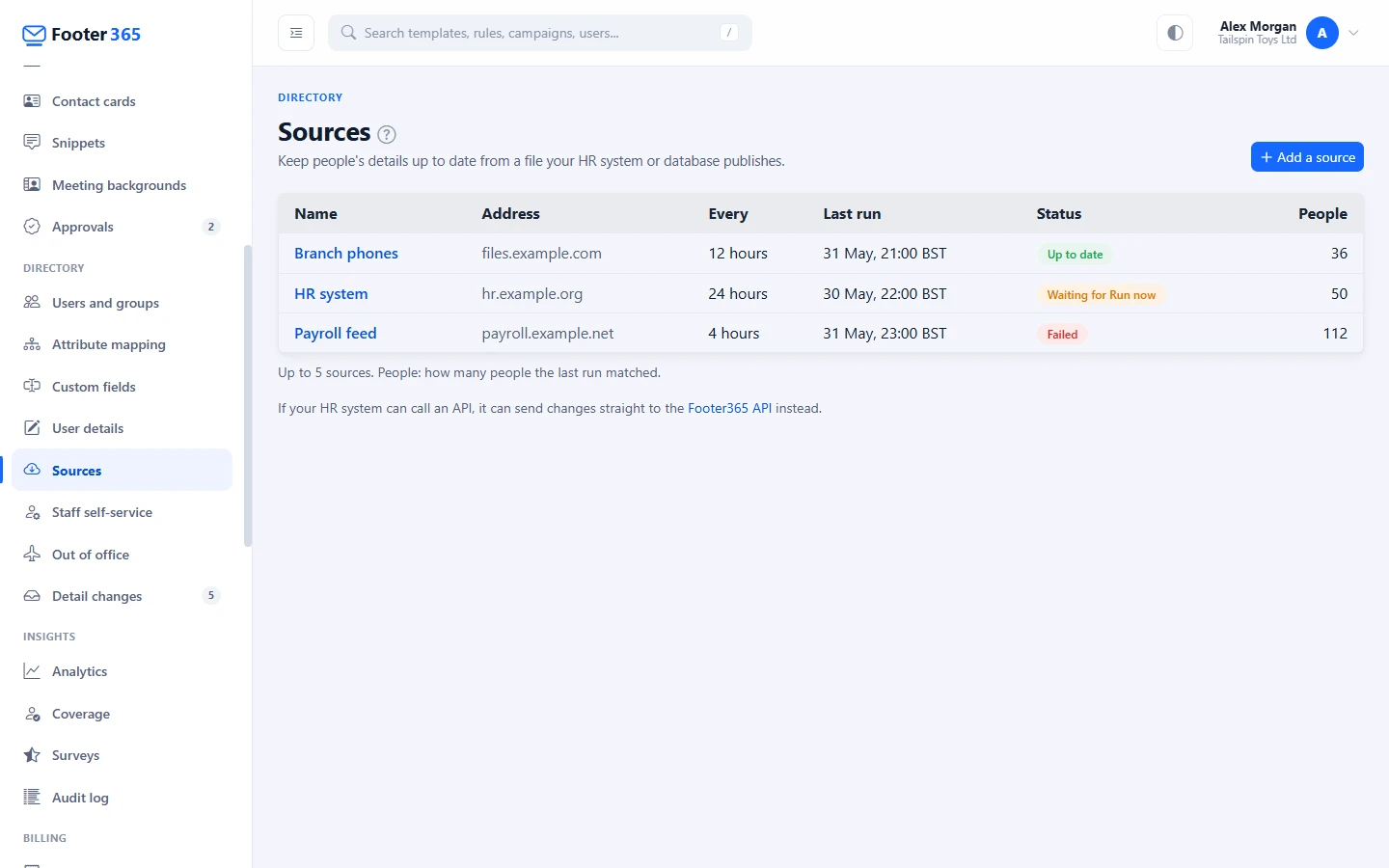
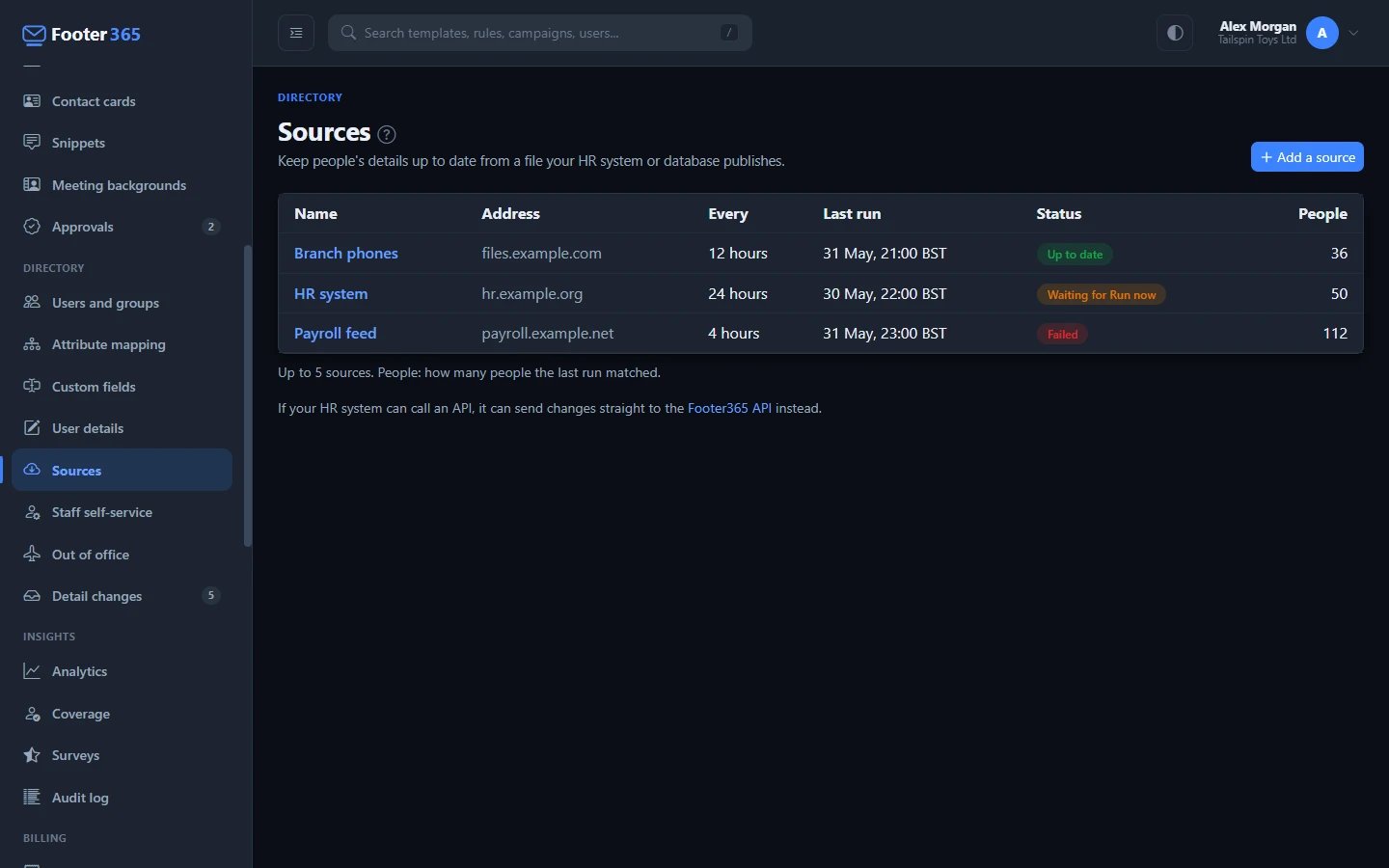
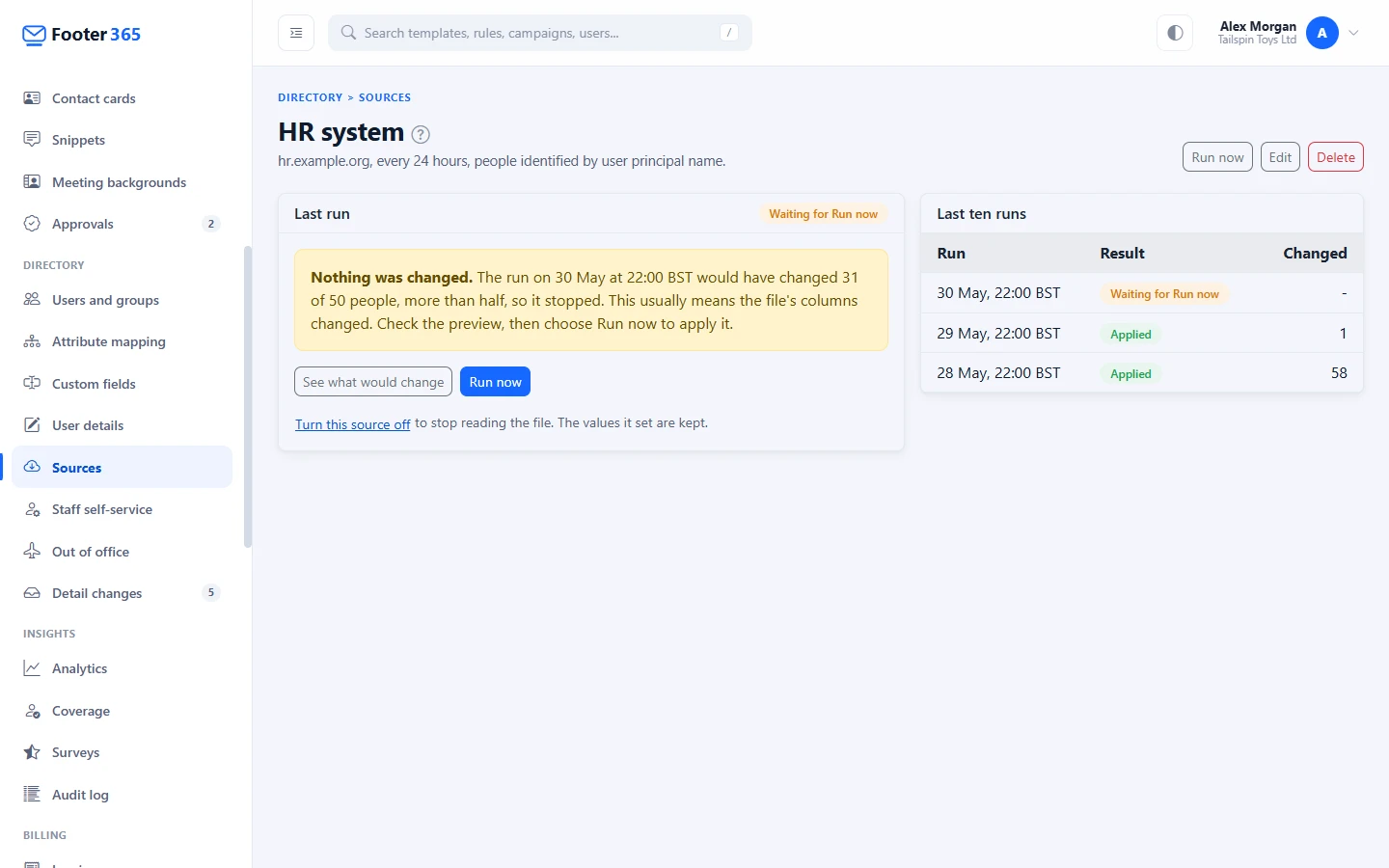
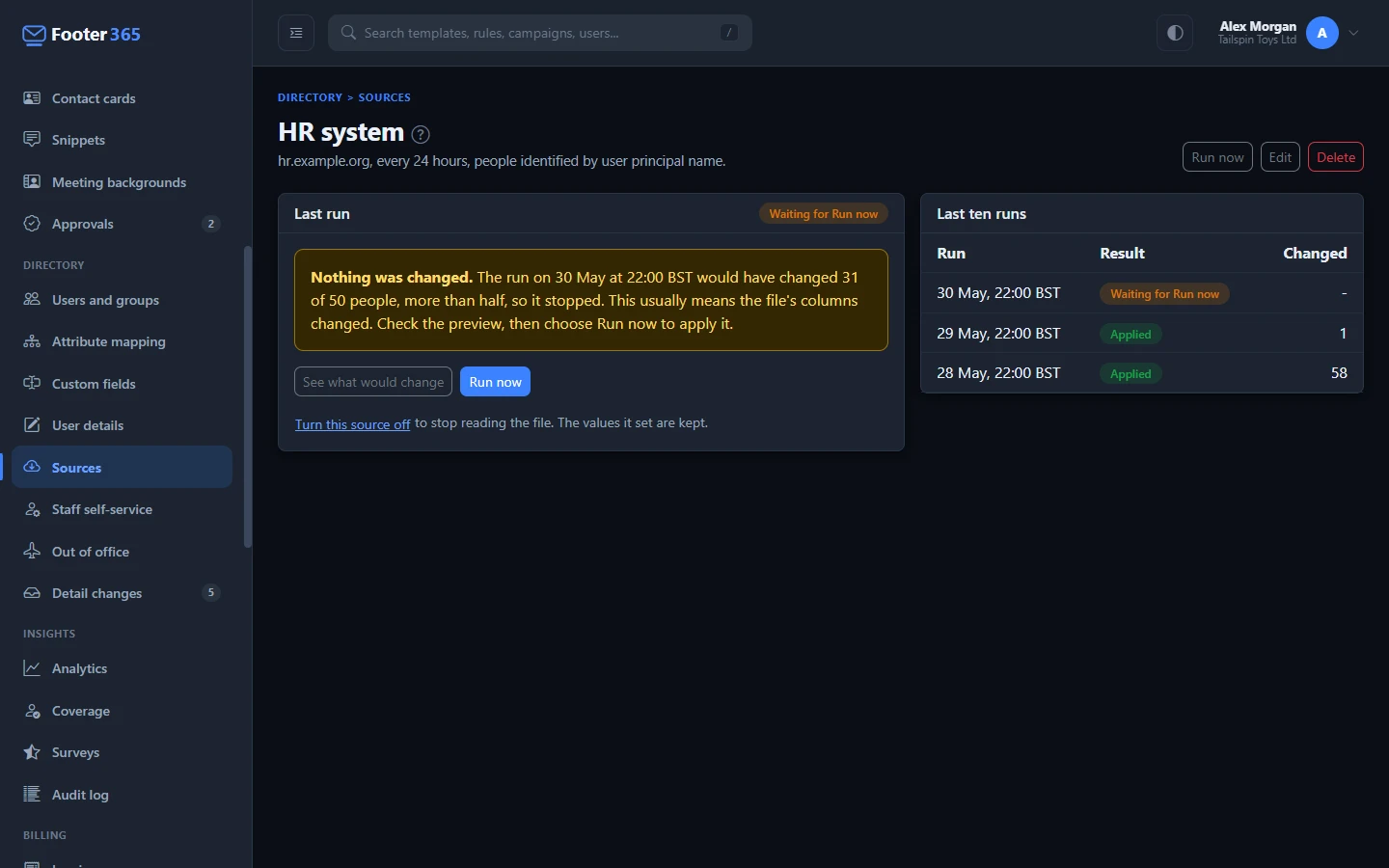
A file whose columns change can put the wrong value against everybody at once. So a scheduled run that would change more than half the people it matched stops and changes nothing. The source shows Waiting for Run now, and its page says how many people the run would have changed.
- Select See what would change to look at the run.
- If the change is meant, select Run now.
The source is not read on its schedule again until you do. Run now and Turn on never stop for this reason.
The source's page
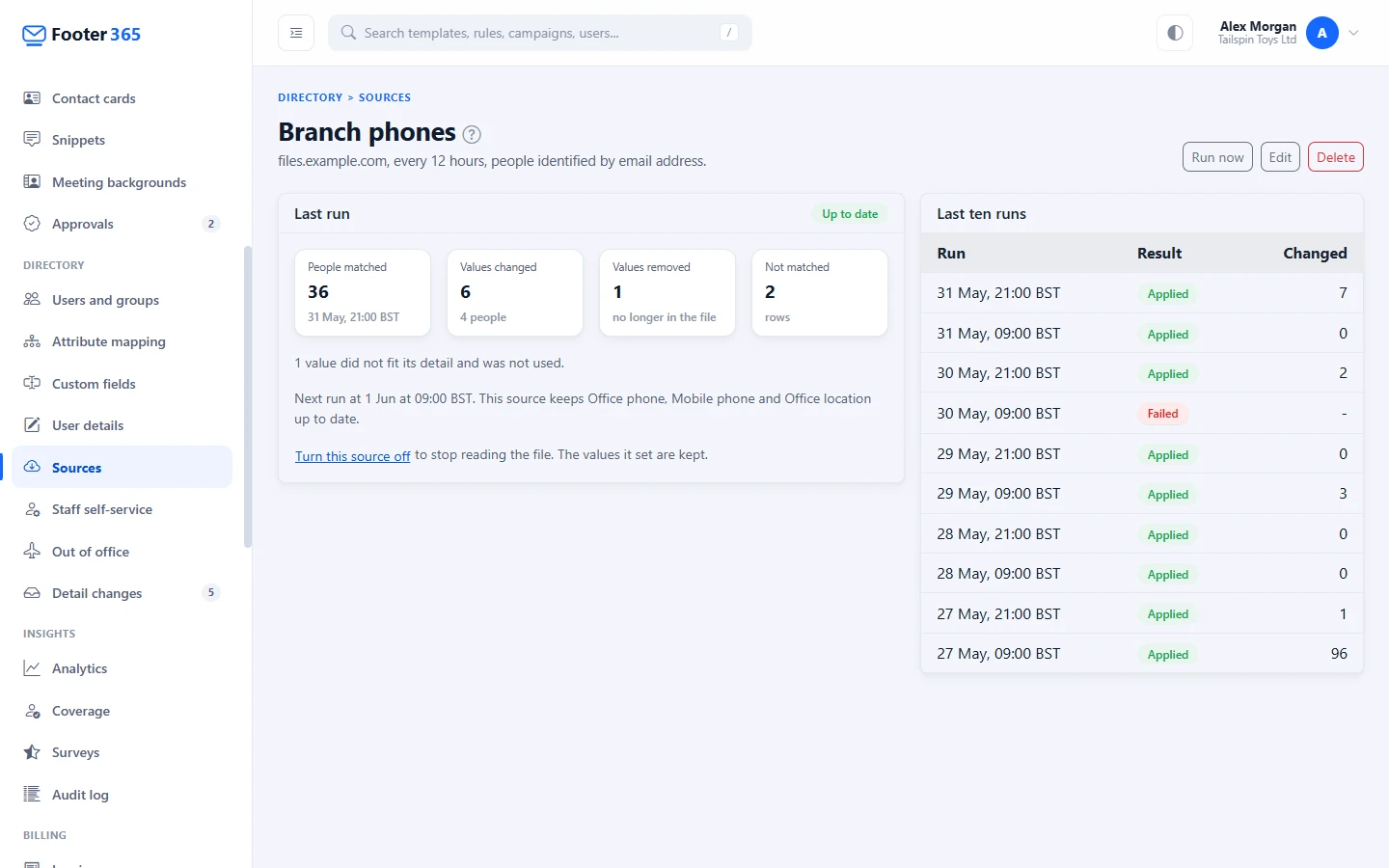
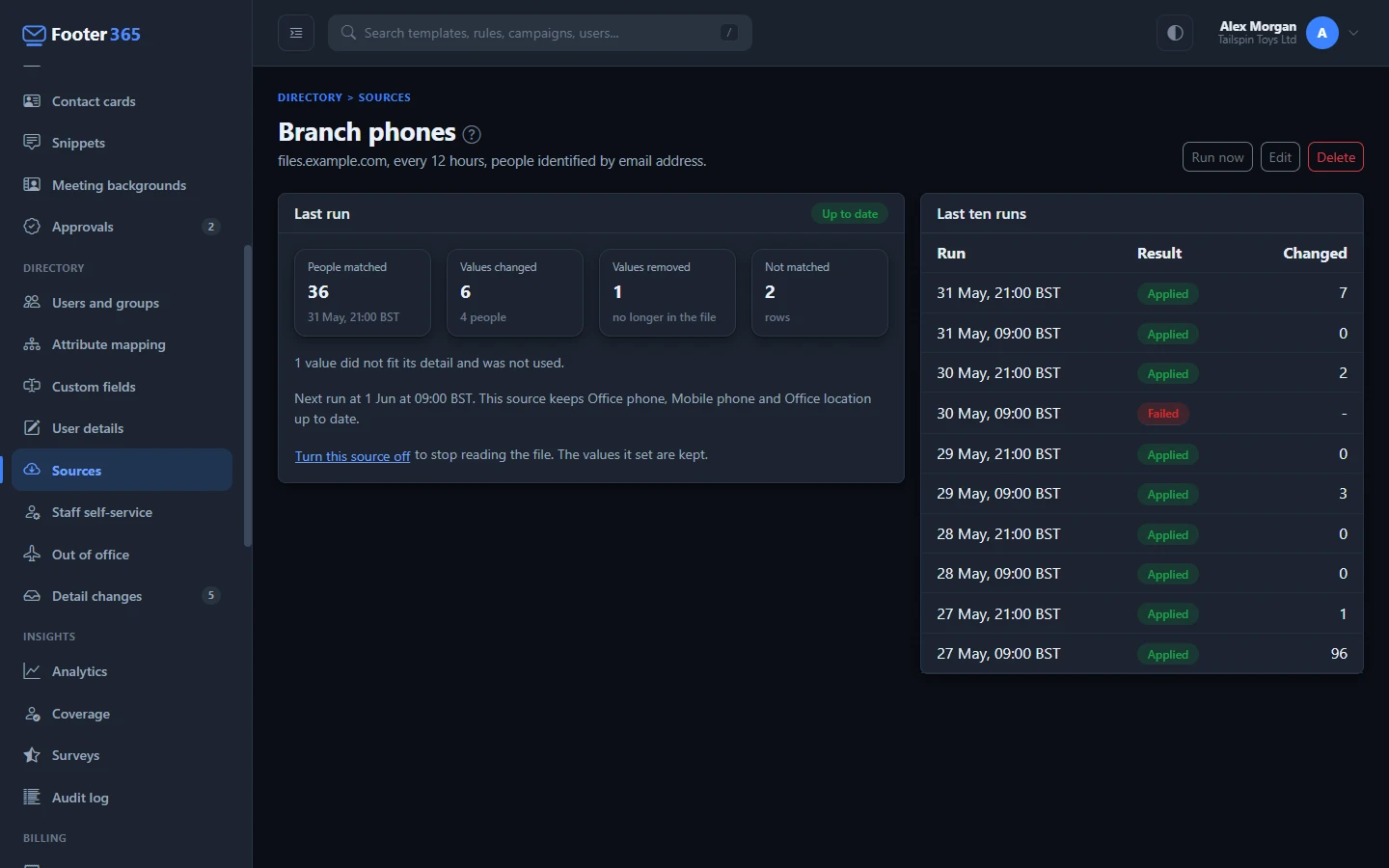
Select a source in the list to see how it is doing. The Last run card shows its status and the figures from that run: People matched, Values changed, Values removed and Not matched, with the details the source keeps up to date and when it is next due. Last ten runs lists the latest runs with what each came to. Point at Failed in the list to see why.
| Status | What it means |
|---|---|
| Up to date | The last run read the file and applied it. |
| Waiting for Run now | The last scheduled run would have changed more than half the people, so it stopped. |
| Failed | The last run could not read the file or apply it. |
| Not run yet | The source is on but has not been read yet. The first read starts within a few minutes of turning it on. |
| Off | The source is saved but not on, so it is not read on its schedule. |
If the file gains a column since you matched its columns, the page shows New in the file with the column's heading. The column is not used until you select Edit and choose the detail it holds, or leave it as Not used.
Run now, turn off, change and delete
- Run now reads the file straight away and applies it, whatever it would change. It is offered for a source that is on.
- Turn this source off stops it being read. The values it set are kept. To start again, select See what would change and then Turn on.
- Edit takes you through the three steps again with the settings filled in. Leave the credential blank to keep the one saved, or type a new one to replace it. If you change the address to another host you must type the credential again, because it goes only to the host it was saved with. For a source that is on, Save changes keeps your changes for the next run. For one that is off, choose Save or Save and turn on.
- Delete asks you to confirm. Delete source and its values removes the source, its history and every value it set, and each person's details go back to Microsoft 365's or to a value entered another way. Values entered on screen, imported from a spreadsheet or set by staff are not touched.
When a run fails
A run that cannot read the file, or cannot apply it, changes nothing. The values the source set stay as they were, the source shows Failed with the reason, and Footer365 tries again at the next scheduled time. If it is still failing a day after it started, Footer365 emails the person who added the source and your Super Admins, once. The failure is written to the audit log at most once a day.
| What the page says | What to do |
|---|---|
| The server answered 401 Unauthorized. Check the credential. | The credential is wrong or has expired. Select Edit and type it again. |
| The server answered 403 Forbidden. Check the credential, or that the token in the address has not expired. | The credential may not read the file, or the token in the address has expired. Get a new one, then select Edit and save it. |
| The server answered 404 Not Found. Check the address. | The file has moved or been renamed. Select Edit and correct the address. |
| The server answered 429 Too Many Requests. Fetch less often, or try again later. | Select Edit and choose a longer time under Fetch every. |
| The server answered 503 Service Unavailable. Try again later. | The server is down or busy. Nothing to change, unless it keeps failing. |
| The address returned a web page, not a file. | Use a link that downloads the file itself. |
| The column "Mobile" is no longer in the file. Edit the source to match its columns again. | The file's headings changed. Select Edit and match the columns again. |
| The file is larger than 20 MB. | Publish only the people and columns Footer365 needs. |
| The address points to a private network. A source must be on the public internet. | Footer365 cannot reach a server inside your network. Publish the file where it can be reached. |
| The server did not send the file within 60 seconds. | Publish a smaller file, or ask the server's owner to make it faster. |
Good to know
- Seeing Sources needs the View directory permission, and adding, changing, running and deleting a source needs Manage directory. A reseller's staff signed in to your portal can set one up too, and the audit log names them with the reseller.
- The address and the credential are encrypted. The list and the audit log show only the host of the address, and only someone who can change the source sees the full address when editing it.
- Adding, changing, turning on or off, running and deleting a source are recorded in the audit log, and so is every run that changes details, stops or fails. A run that changes details lists the value before and after for up to the first 50 people. Each run's figures are kept for 90 days.
- A source is not read while your organisation is disabled or its subscription has ended, and it is deleted with your account.
- Nothing a source sets is written to Microsoft 365.
Related articles
Still stuck?
Tell us what you were trying to do and what you saw. Include the sender, a recipient and roughly when a message was sent, and we can trace it.