

Earlier signatures and banners in long conversations
Take your organisation's own earlier campaign banners out of the quoted part of a reply, and keep, shorten or remove its earlier signatures, so a long conversation does not repeat them all the way down.
When someone replies to an email, their mail app quotes the earlier messages of the conversation underneath, each with the signature and any campaign banner Footer365 added to it. In a long conversation the same banner and the same signature can repeat a dozen times down the page. The Long conversations setting decides what happens to your organisation's own earlier ones when one of your people replies to a message or forwards it.
Footer365 makes this setting available to organisations gradually, so it may not be in your portal yet. See Early access pages and features.
By default, earlier campaign banners are taken out of the quoted part, and earlier signatures are kept, because each still says who wrote the message above it. Disclaimers are never taken out.
This is done by Footer365's mail flow, as the reply leaves your organisation. If your organisation uses the Outlook add-in only, no mail passes through Footer365 and nothing in a conversation is tidied: the card says so, and the setting takes effect only if mail flow is added, from Getting started. Using the Outlook add-in only
Change the setting
- Go to Account > Settings (open it). You need the Manage settings permission.
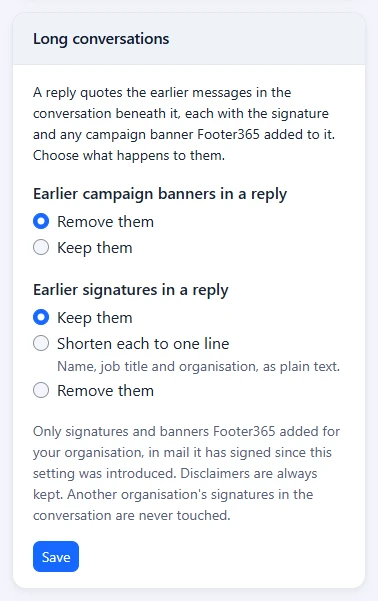
- In the Long conversations card, choose what happens to Earlier campaign banners in a reply and to Earlier signatures in a reply.
- Select Save in that card. You will see "Long conversations setting saved. It applies to email sent from now on."
The change applies to replies sent from then on, within a few minutes. Each change is recorded in the audit log, if your account has one, with the setting before and after.
The choices
Earlier campaign banners in a reply
- Remove them (the default): every campaign banner Footer365 added to your organisation's earlier messages is taken out of the quoted part, whether it was under the signature or above the message.
- Keep them: the quoted messages keep their banners as they were sent.
Earlier signatures in a reply
- Keep them (the default): the quoted messages keep their signatures as they were sent.
- Shorten each to one line: each earlier signature becomes one line of plain text with the name, job title and organisation it showed, for example "Sam Patel | Sales Manager, Contoso Ltd". Logos, photos, icons and links go. A signature that showed no job title gives a line without one, and a signature in which Footer365 could not find the person's name is kept as it was, rather than shortened to a line that says nothing.
- Remove them: earlier signatures are taken out of the quoted part.
When a signature is shortened or removed, a campaign banner inside it is removed or kept as the banner choice says, and a disclaimer inside it, from a template's Disclaimer element, stays where it was.
What is never changed
- Disclaimers. Neither a disclaimer from the Disclaimers page nor a template's Disclaimer element is ever taken out of a quoted message. Small print written into a template some other way, such as in a Text element or in the template's own HTML, is part of the signature, and goes with it when earlier signatures are shortened or removed. Disclaimers
- Another organisation's signatures and banners, including those of an organisation that also uses Footer365. Footer365 marks what it adds in a way only your organisation's Footer365 can, so another organisation's are never mistaken for yours.
- Anything a person wrote, in the reply or in the quoted messages. Only the signatures and banners Footer365 added are touched.
- Anything above the quoted part: the reply itself and its new signature.
- A signature or banner someone changed, for example by editing the quoted text before sending, or one that was cut in half. It is left exactly as it is.
- Mail signed while your organisation tidied nothing, which carries no marks to recognise: mail sent before this setting was introduced, before Footer365 gave your organisation the setting, or while both choices were Keep them. A conversation that started then keeps those earlier signatures and banners in full.
- A new message. Only replies and forwards are tidied, told apart from new messages as described in Which messages get a signature.
- A message Footer365 does not sign, such as one with a message keyword for no signature, a protected message, or any message while signatures are paused. Which messages get a signature
How Footer365 recognises its own
While your organisation tidies banners or signatures, Footer365 writes an invisible mark at the start and at the end of every signature, campaign banner and disclaimer it adds, in both the formatted and the plain-text version of the email. While both choices are Keep them, nothing is marked, so the email carries no hidden text at all. The marks are characters that take up no space and show in no mail app. Each start mark carries a check made with your organisation's own key over the words of what it marks: only your organisation's Footer365 can make one, and it no longer matches once those words are changed. When one of your people replies, Footer365 looks in the quoted part for complete pairs of marks whose check matches, and tidies those alone.
Mail apps rewrite a quoted message in different ways, and the marks are written to survive the ways Outlook on the web, the new Outlook, classic Outlook on Windows, Gmail and Apple Mail quote a message. Footer365 finds where the quoted part starts in the same way as it does to place a reply's signature, and also by the header classic Outlook on Windows writes above the message it quotes. Where it cannot find the quoted part, nothing is tidied.
Replies signed by the Outlook add-in
The Outlook add-in marks the signature, banners and disclaimers it puts in a message in the same way. A message the add-in has signed normally skips Footer365's mail flow. A reply or forward is the exception: when it quotes an earlier message Footer365 signed, and your organisation tidies banners or signatures, the add-in sends it through Footer365's mail flow so the quoted part can be tidied. The add-in's signature is not changed, and the message is not signed a second time.
To tell whether a reply quotes a Footer365 signature, the add-in looks for the marks in the body when the message is sent. It does this on the sender's device and never sends the body to Footer365.
See what was tidied
The processing log records, for each reply and forward, how many earlier banners were removed and how many earlier signatures were shortened or removed. Download it from Insights > Analytics, under Export the processing log: the Earlier messages tidied column reads, for example, "2 earlier banners removed, 1 earlier signature shortened". Analytics and signature coverage
Related articles
Still stuck?
Tell us what you were trying to do and what you saw. Include the sender, a recipient and roughly when a message was sent, and we can trace it.