

Removing "Sent from my iPhone" lines
Footer365 takes out the line a phone or mail app adds under the message, such as "Sent from my iPhone" or "Sent from Outlook for Android", so your signature takes its place. How it works and how to change it for everyone or for particular people.
Phones and many mail apps add a line of their own under what the sender wrote: "Sent from my iPhone", "Sent from Outlook for Android", "Sent from my Galaxy" and so on. Left in, it sits between the message and your signature, and says more about the sender's phone than about your organisation.
Footer365 takes that line out as the email leaves, so your signature follows the message directly. This is switched on for every organisation from the start, and applies to every email Footer365 signs, whether it is formatted or plain text.
The line is taken out by Footer365's mail flow. If your organisation uses the Outlook add-in only, mail from phones' own mail apps is not signed and these lines are not removed: the page says so, and the setting takes effect only if mail flow is added, from Getting started. Using the Outlook add-in only
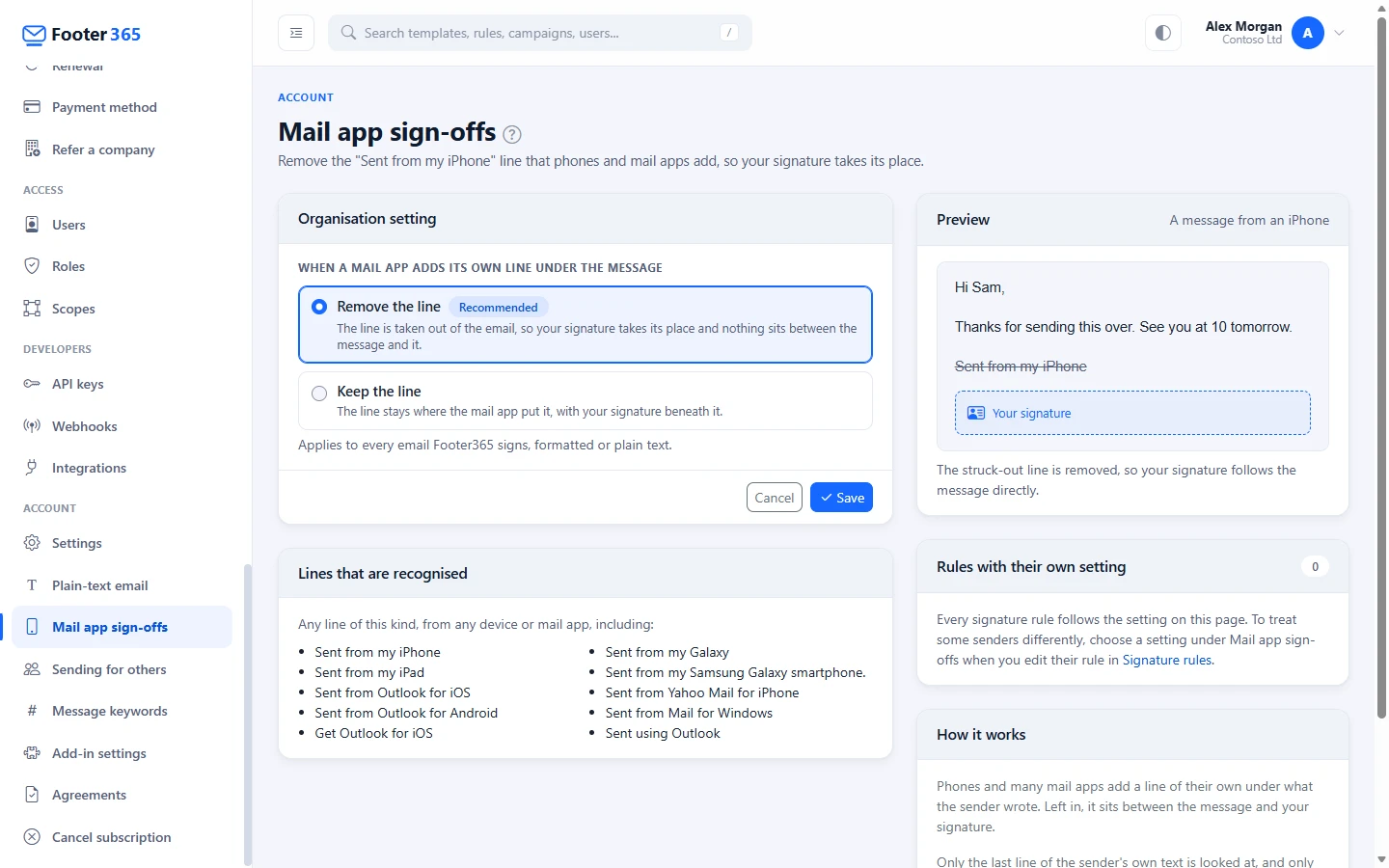
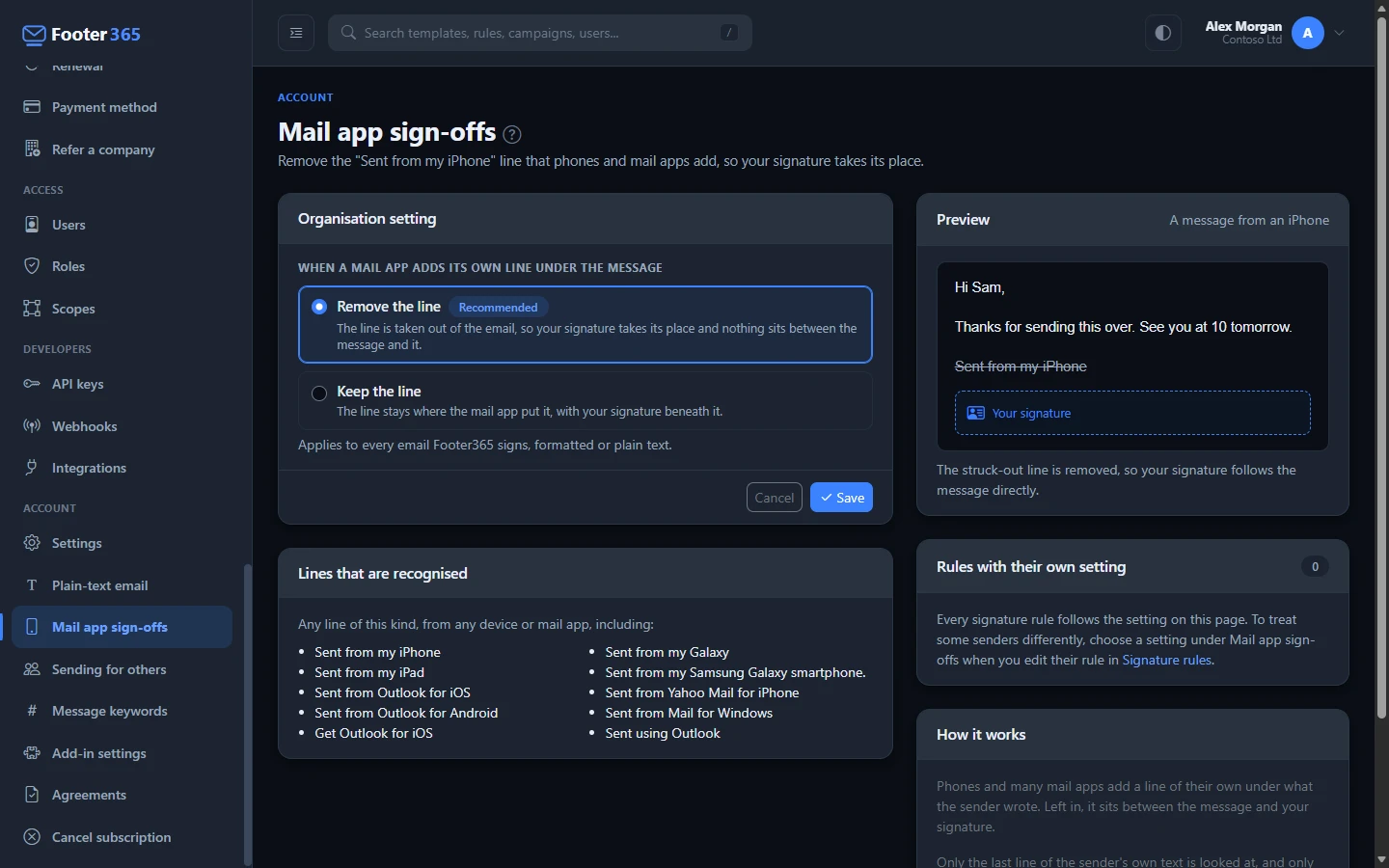
Which lines are taken out
Any line of this kind from any phone or mail app, for example:
- Sent from my iPhone, Sent from my iPad
- Sent from Outlook for iOS, Sent from Outlook for Android, Get Outlook for iOS, Sent using Outlook
- Sent from my Galaxy, Sent from my Samsung Galaxy smartphone.
- Sent from Yahoo Mail for iPhone, Sent from Mail for Windows
To keep ordinary writing safe, a line is only taken out when:
- it is the last line of what the sender wrote, and
- it is nothing but a short sign-off: "Sent from my" followed by a few words, or "Sent from", "Sent using", "Sent with" or "Sent via" followed by the name of a phone, a mail app or its maker. "Sent from London" is left alone, as is a long sentence and a line with a picture in it.
When someone replies or forwards, the message they are replying to is never changed, so its own "Sent from" line stays as the other person sent it.
Change the setting for everyone
- In the sidebar, under Account, select Mail app sign-offs.
- Under When a mail app adds its own line under the message, choose one:
- Remove the line (recommended): the line is taken out, so your signature takes its place.
- Keep the line: the line stays where the mail app put it, with your signature beneath it.
- Select Save.
The Preview card beside the setting shows a short message from an iPhone with your choice. The change applies to email sent from then on, within a few minutes.
The page, and its place in the sidebar, are for people whose role includes Manage mail app sign-offs, under Settings. It is a permission of its own, so you can let someone look after this without giving them the rest of the account settings. Roles and permissions
Treat some people differently
A signature rule can have its own setting, which wins over the one for everyone for the people that rule matches.
- Open Signature rules and edit the rule.
- Under Mail app sign-offs, change The "Sent from my iPhone" line a mail app adds from Follow the organisation setting to the setting you want.
- Save the rule.
This part of a rule has its own permissions, under Signatures. View a rule's mail app sign-offs shows it, and Manage a rule's mail app sign-offs lets someone who can manage signatures change it. Someone with neither does not see it on the rule at all.
Because rules can match a person, a group, a department, a job title or an email domain, this can be different for any of those. The Rules with their own setting card on the Mail app sign-offs page lists every rule that has its own setting. How rules work
Where you can see it
The Dashboard's Microsoft 365 connection card has a Mail app sign-offs line showing Removed or Kept, and how many rules have their own setting. With the Outlook add-in only, it shows Needs mail flow.
Related articles
Still stuck?
Tell us what you were trying to do and what you saw. Include the sender, a recipient and roughly when a message was sent, and we can trace it.