

Add your own signature fields
Add fields Microsoft 365 does not hold, such as working hours, pronouns or a booking link, or read fields your organisation added to Entra ID, give each a type and a default, and use them in templates and rules.
Microsoft 365 holds a fixed set of details for each person: name, job title, phone numbers, address and a few more. Custom fields lets you add your own, such as working hours, pronouns, a licence number or a booking link, or use fields your organisation has already added to Entra ID. Each field has a type, so a value is always the kind you expect, and a default for anyone without a value of their own. You use a field in a template like any other field, and in the conditions of a rule or a version of a row.
Footer365 makes the Custom fields page available to organisations gradually, so it may not be in your portal yet. See Early access pages and features.
Add a field
- Go to Directory > Custom fields (open it).
- Select Add field.
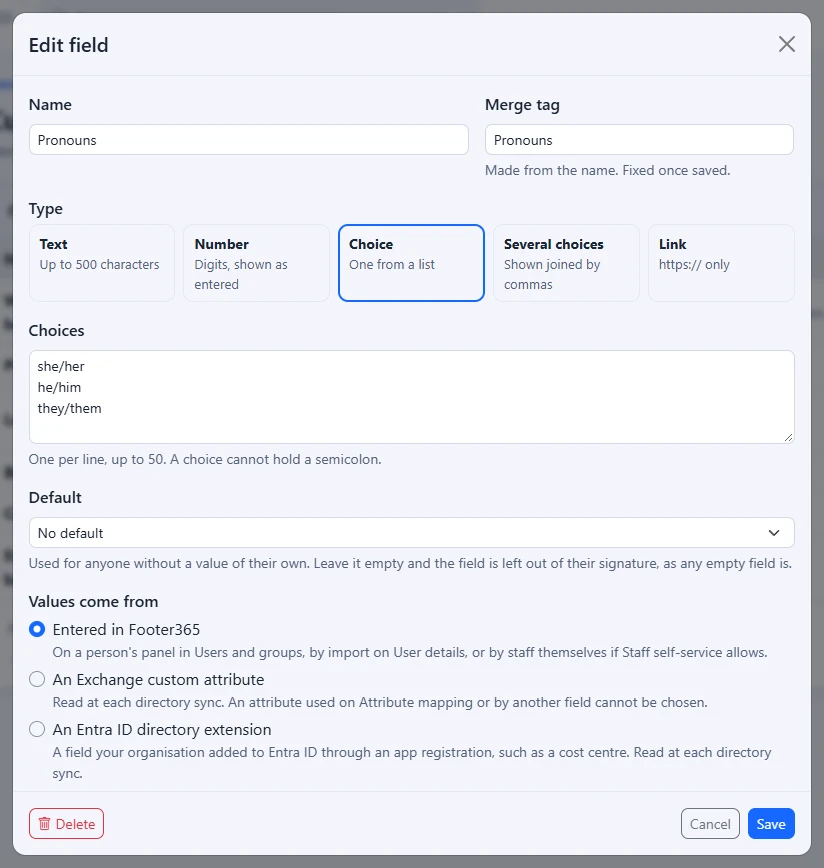
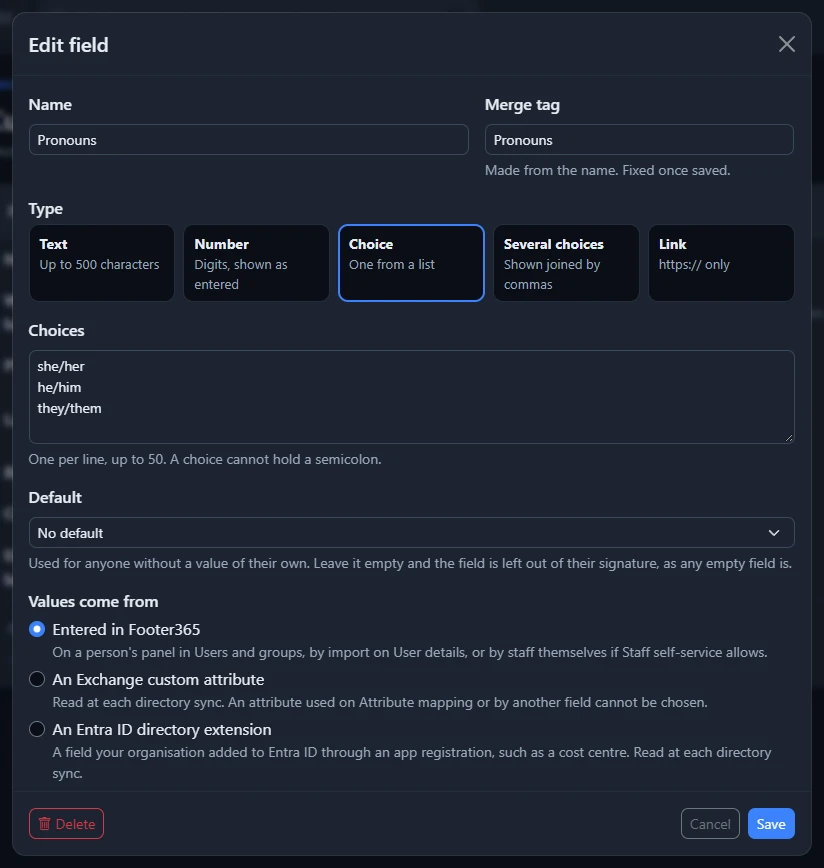
- Type a Name, such as Working hours. The Merge tag, such as
WorkingHours, is made from the name as you type. It is fixed once the field is saved, so you can rename the field later without changing any template that uses it. - Choose a type (see below). For Choice or Several choices, type the Choices, one per line.
- Optionally, set a Default: the value used for anyone without one of their own. Leave it empty, or choose No default for a field with choices, and the field is left out of the signature of anyone without a value, as any empty field is.
- Under Values come from, choose where each person's value comes from (see below).
- Select Add field. You will see a message naming the merge tag to place it with.
Start from an example
Footer365 is making starter content available to organisations gradually, so this may not be in your portal yet. Where it is, the Add field window opens with Start from an example. Choosing one fills in the name, the type and any choices:
| Example | Type | Choices |
|---|---|---|
| Working hours | Text | None: shown as entered, such as "Monday to Thursday, 9am to 5pm". |
| Pronouns | Choice | She/her, He/him, They/them |
| Licence number | Text | None: for a regulated profession's registration or licence number. |
| Booking link | Link | None: a page where people can book time, https:// only. |
| Languages spoken | Several choices | English, French, German, Spanish, Dutch |
An example whose name one of your fields already has is not listed. Choosing one adds nothing: change anything you need, then select Add field, and it is added and recorded in the audit log like any other field.
An organisation can have up to 50 custom fields, wherever their values come from. A field cannot have the name of a field signatures already use, such as Job title, or the name of a field on Attribute mapping.
The types
| Type | What a value can be |
|---|---|
| Text | Any single line of plain text, up to 500 characters. |
| Number | A number, such as 42, 1,250 or 3.5. It is shown as entered. |
| Choice | One of the field's choices. |
| Several choices | Any number of the field's choices. A signature shows them joined by commas, such as English, Welsh. |
| Link | A full address starting https://, such as a Microsoft Bookings page. |
Every value is plain text: the characters < and > are refused, and a signature shows each value as text, so a value can never add anything else to a signature. A Link value is used only when it is an https address, checked again each time a signature is built, so a plain http address or anything else is left out.
Where the values come from
- Entered in Footer365: you enter a person's value on their panel on Users and groups, or for many people at once with the spreadsheet on User details, or a source keeps it up to date from a file your HR system publishes. If you allow it on Staff self-service, people can enter their own.
- An Exchange custom attribute: the value is read from one of the fifteen Exchange custom attributes at each directory sync, and changed in Exchange rather than in Footer365. An attribute used on Attribute mapping or by another custom field cannot be chosen.
- An Entra ID directory extension: the value is read from a field your organisation added to Entra ID itself through an app registration, such as a cost centre an HR system writes, at each directory sync. It is changed in Entra ID rather than in Footer365. See below.
Read a field from Entra ID
Many organisations add their own properties to their people in Entra ID through an app registration, often written there by an HR system or by Microsoft Entra Connect. Microsoft calls these directory extensions. A custom field can read one, beside the Exchange custom attributes rather than instead of them.
- In the Add field window, under Values come from, choose An Entra ID directory extension.
- Choose the extension from the list. Each is shown by its own name, such as costCentre, with the app registration that owns it and the kind of value it holds. One already read by another field cannot be chosen.
- Choose a type. Only the types the extension can hold are offered:
| The extension holds | The field can be |
|---|---|
| Text | Text or Link |
| A whole number | Number or Text |
| Yes or no | Text, shown as Yes or No |
| A date | Text, shown as 14 Oct 2026 |
| A list of text | Several choices, shown joined by commas |
- Select Add field. Footer365 starts a directory sync at once, so the values arrive within a few minutes rather than at the next scheduled sync.
The list is read from the app registrations in your Microsoft 365 when the page opens, and kept for 10 minutes, so an extension added in the last few minutes may not be in it yet. An extension that belongs to an app made by another company is not in the list either. In either case, select Enter its name instead and type the extension's full name as Microsoft Graph shows it, such as extension_8f2c4b1e9a7d4c3b8e6f5a4d3c2b1a09_costCentre. Footer365 checks the name by reading it for a few people, and refuses one Microsoft 365 does not know. Select Choose from the list to go back to the list.
A field read from an extension has no choices of its own, because its values are whatever Entra ID holds; a default is typed, with several values separated by semicolons. Footer365 asks for no new permission to read extensions: it lists them with the permission it already holds to read app registrations, and reads their values with the one it holds to read people. See Permissions Footer365 asks for, and why.
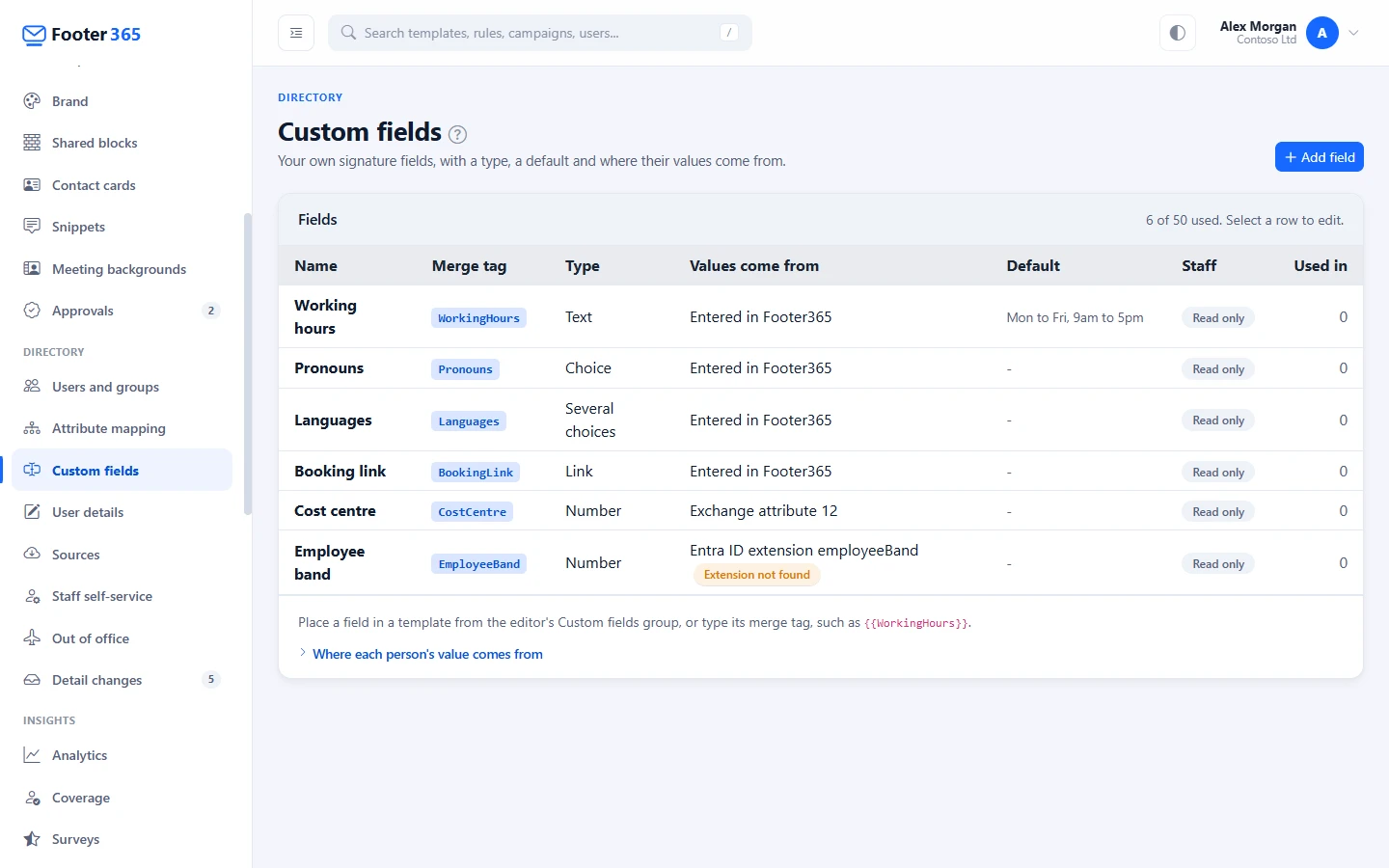
If the extension is deleted from Entra ID, or the app registration that owns it is removed, the directory sync shows Extension not found beside the field on the list, and the account owner and technical contact are emailed once. Until the extension is back, signatures use the field's default, or leave the field out where it has none. Each sync checks for it again, and reads it again as soon as it is back. If it has gone for good, choose another source for the field.
The list of fields
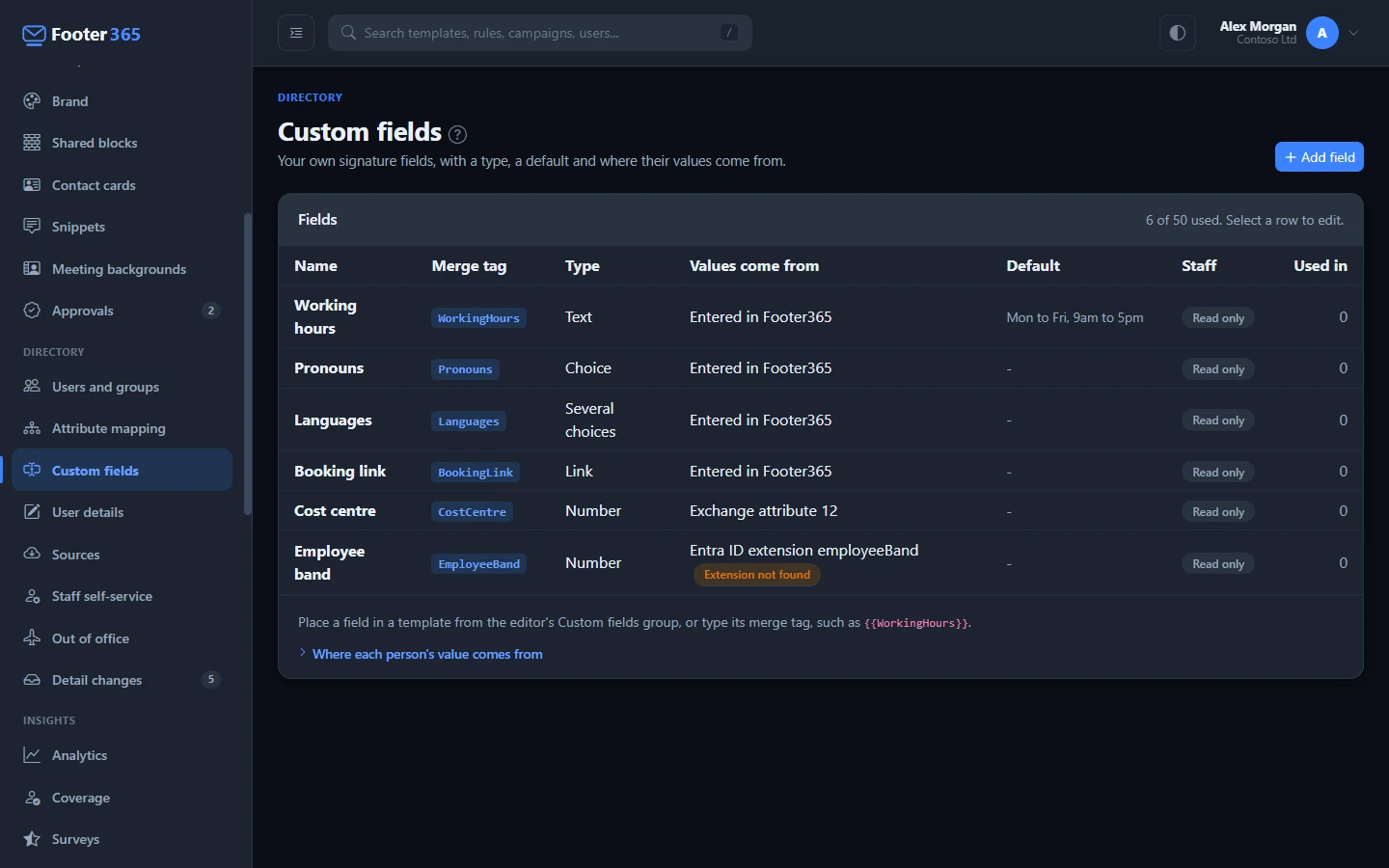
The page lists every field with its Merge tag, its type, where its values come from, its default, its policy on Staff self-service under Staff, and where it is Used in: the number of templates, rules, disclaimers and campaigns that name it. Point at the number to see their names. Select a row to edit the field.
Before custom fields, every signature had three free-text fields, Custom field 1 to 3. If your organisation used one, it is listed here marked From before, with every value it held. It works like any other field: you can rename it, give it a type and a default, or delete it, and its merge tag stays CustomField1, CustomField2 or CustomField3, so templates that use it are untouched.
Enter a person's value
Select the person on Users and groups and select Edit details. Your fields are under Custom fields in the panel. A Choice field is a drop-down, a Several choices field is a set of tick boxes, and anyone without a value of their own shows the field's default. A field read from Exchange shows Exchange beside its value, and one read from a directory extension shows Entra ID; each is changed there, not on the form. See Fix wrong or missing details.
To fill in many values at once, download the spreadsheet on User details: each field entered in Footer365 has a column headed with its name. See Fill in details Microsoft 365 does not hold.
To keep the values up to date from a file your HR system publishes, add a source on Directory > Sources (open it). Each field entered in Footer365 is in the list of details a column can fill, marked (custom field), and the choices in a Several choices field are separated by semicolons in the file. A field that reads its values from Exchange or Entra ID is not in the list. See Keep details up to date from a file.
Use a field in a signature
- In the editor, your fields are in the Custom fields group of the Insert panel. Drag one onto the canvas. A Link field can be shown as A link to the address. To put a link behind a button, use a Button element with the field's merge tag, such as
{{BookingLink}}, as its link. - In your own wording, type
{{in a Text element and pick the field from the Custom fields group, or type its merge tag. - In conditions, your fields are offered by name in a rule's And only when list, and in the conditions of a version of a row. A person without a value of their own is compared on the field's default.
See Merge fields and empty fields and Show different content to different people.
Change a field
Select its row, make the change and select Save. Signatures use the change from the next message.
If the change means some people's values no longer fit, such as a choice you removed, or reading the values from Exchange or Entra ID instead, the window tells you how many values are kept and how many will be cleared. Select Download them first to keep a copy in a spreadsheet, then tick the box to clear them and select Save again. Nothing is cleared until you do.
Delete a field
Select its row and select Delete. A field still named by a template, rule, disclaimer or campaign cannot be deleted: the window names each one, so you can remove the field from them first. Otherwise, the window says how many people's values are deleted with it, and Delete field deletes the field, those values, its policy on Staff self-service, and any change to it waiting on Detail changes.
Good to know
- Viewing this page needs the View directory permission. Adding, changing and deleting fields needs Manage directory.
- Every field you add, change or delete is recorded in the audit log, with the values before and after.
- A signature backup carries your fields, but never anybody's values.
- Values entered in Footer365 are used in signatures only, and are never written to Microsoft 365. Values read from Exchange or Entra ID are only ever read.
Related articles
Still stuck?
Tell us what you were trying to do and what you saw. Include the sender, a recipient and roughly when a message was sent, and we can trace it.