

Disclaimers
Keep your own list of disclaimers, each with its own wording, regional wordings and the senders, recipients and dates it applies to, and add them under every signature from one place.
A disclaimer is the small print under a signature: a confidentiality notice, a data protection statement, a company registration line and so on. Footer365 gives you two ways to add one:
Footer365 makes the Disclaimers page available to organisations gradually, so it may not be in your portal yet. See Early access pages and features.
- Your own list of disclaimers, on the Disclaimers page. Each has its own wording, and its own choice of senders, recipients and dates, and is added under the signature of every message it applies to, whichever template that message uses. Change the wording once and every message carries the new wording from then on.
- A Disclaimer element in a template, which puts the wording into that one design. See A disclaimer inside a template below.
The ready-written disclaimers are starter wording, not legal advice. Have your own legal or compliance team approve the wording before you use it.
The Disclaimers page
Go to Signatures > Disclaimers in the portal, or open Disclaimers.
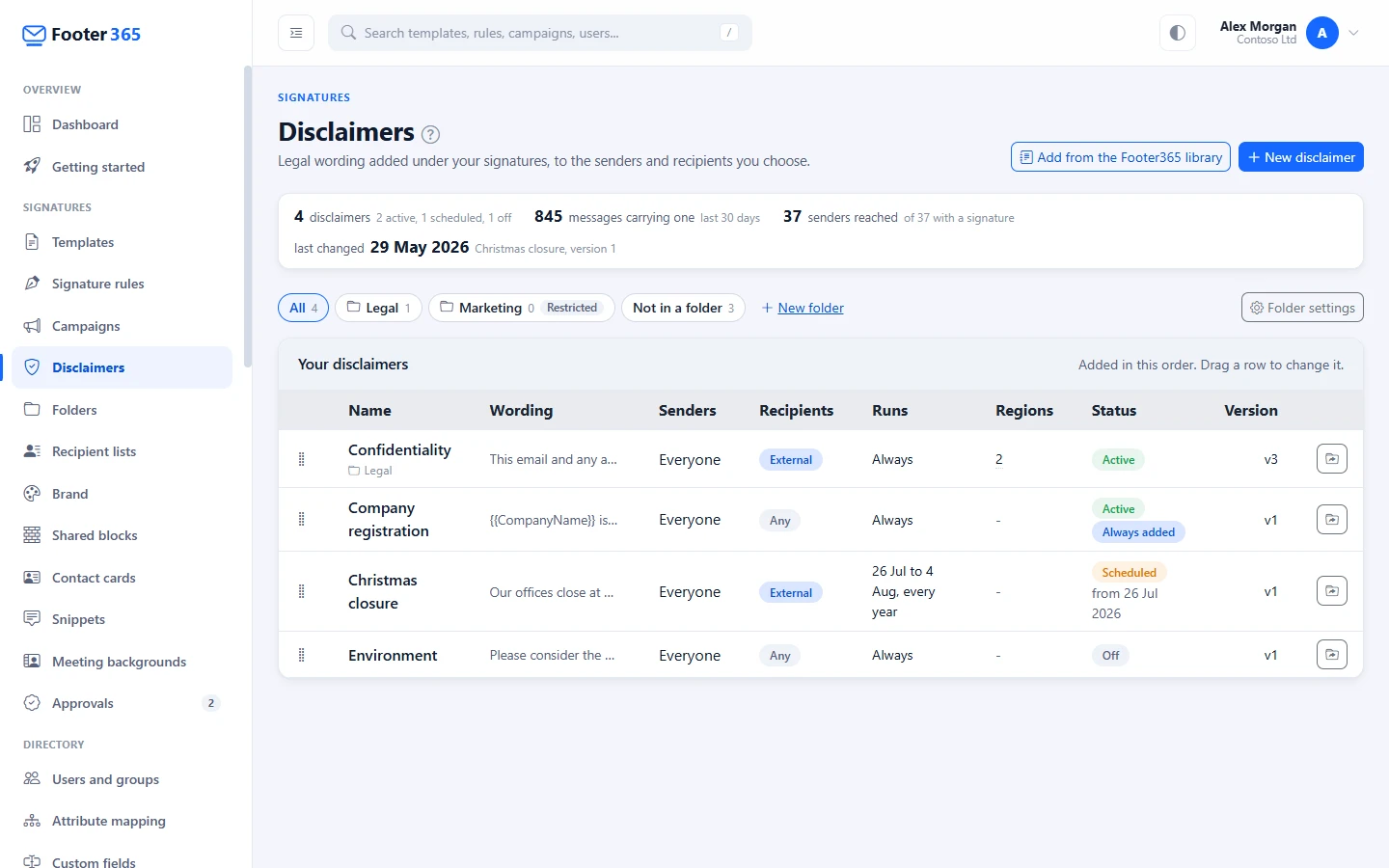
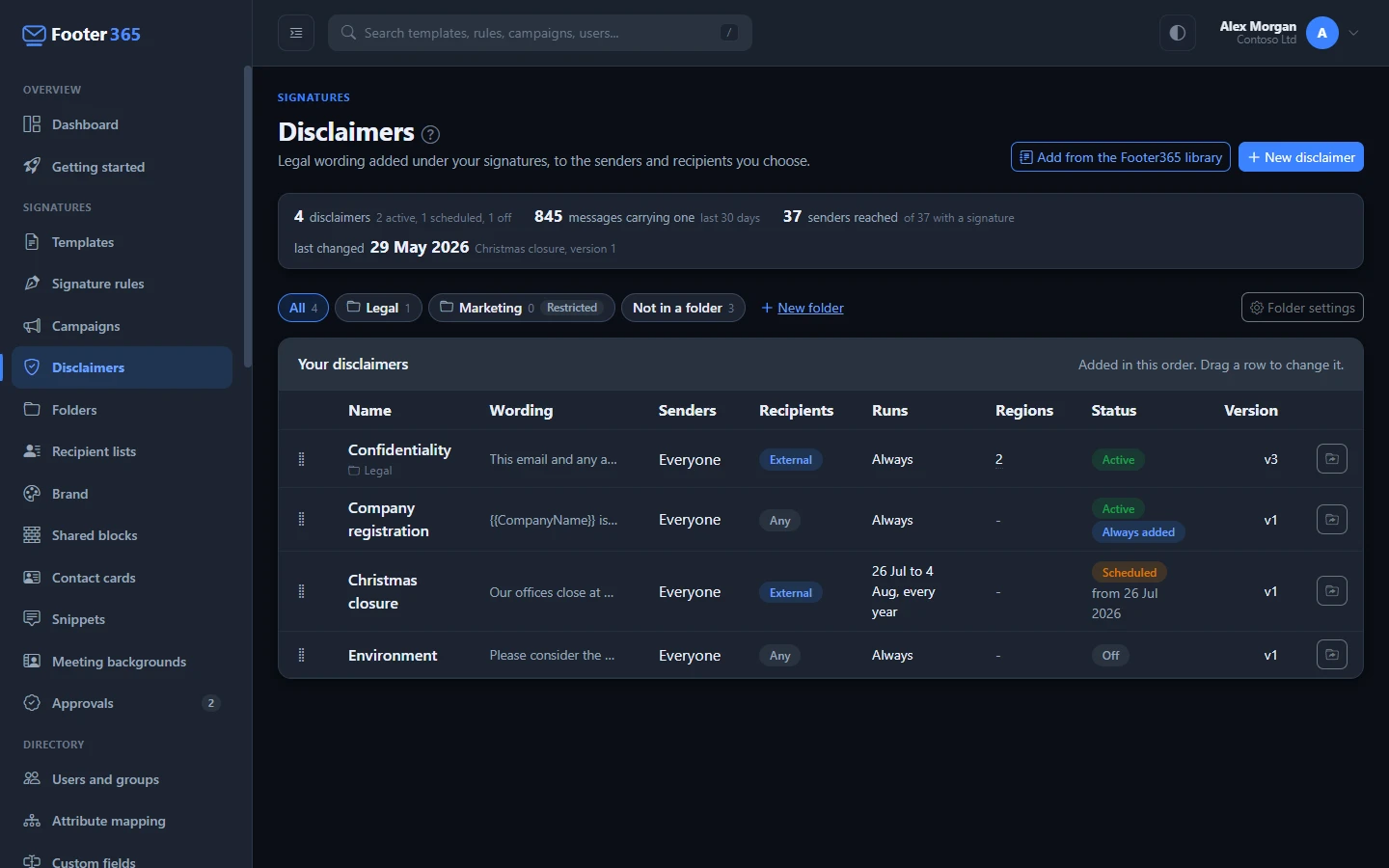
The figures at the top show how many disclaimers you have and how many are active, scheduled or off, how many messages carried at least one in the last 30 days, how many senders those messages came from, and which disclaimer was changed last.
Your disclaimers lists them in the order they are added to a message. Each row shows the start of the wording, the senders and recipients it is for, when it runs, how many regional wordings it has, its status and the version in use. Hover over a cut-off value to see all of it. Click anywhere on a row to open the disclaimer.
The status is Active, Scheduled (with the date it starts) for one waiting for its dates, Ended for one whose dates are over, or Off for one that is switched off.
To change the order, drag a row up or down. The new order is saved straight away, and it is the order the disclaimers appear in a message.
Disclaimers can be grouped in folders, with the folder bar above the list to show one folder at a time, and the first figure counts the disclaimers the list is showing. A folder never changes the order disclaimers are added in: when the list shows only some of them, the ones you drag swap places among themselves and the rest keep theirs. A disclaimer you add while a folder is chosen goes into that folder. See Folders and who can use them.
Start from the Footer365 library
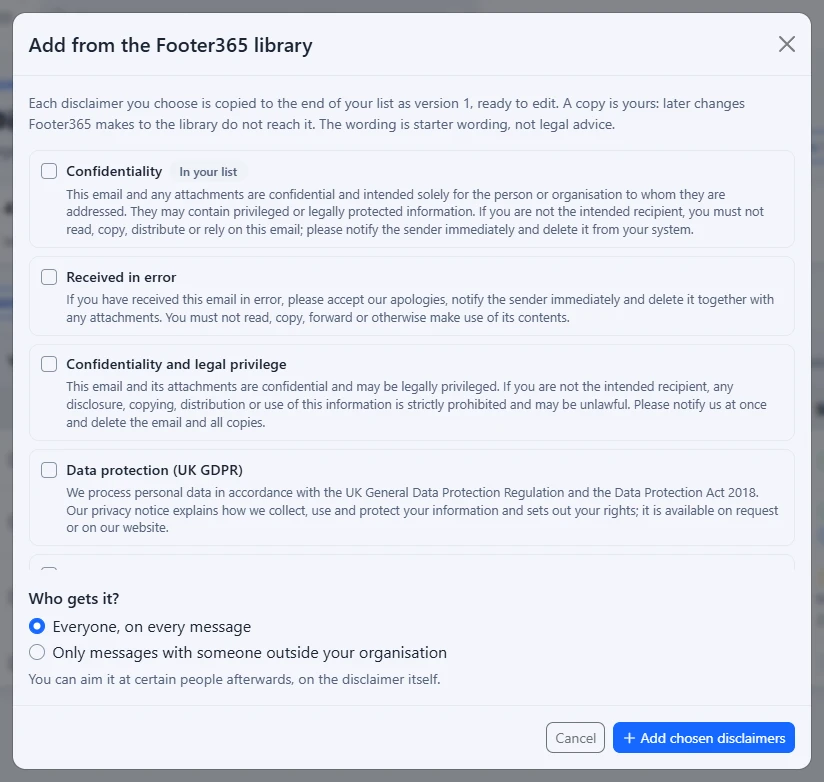
- Select Add from the Footer365 library.
- Tick each disclaimer you want. One you have already copied shows In your list. You can still add it again, for example to give one group of senders a different version, and the new copy is numbered, such as "Confidentiality (2)", because no two disclaimers can share a name.
- Select Add chosen disclaimers.
Each one is copied to the end of your list, switched on, as its version 1, and applies to every message until you change who it is for.
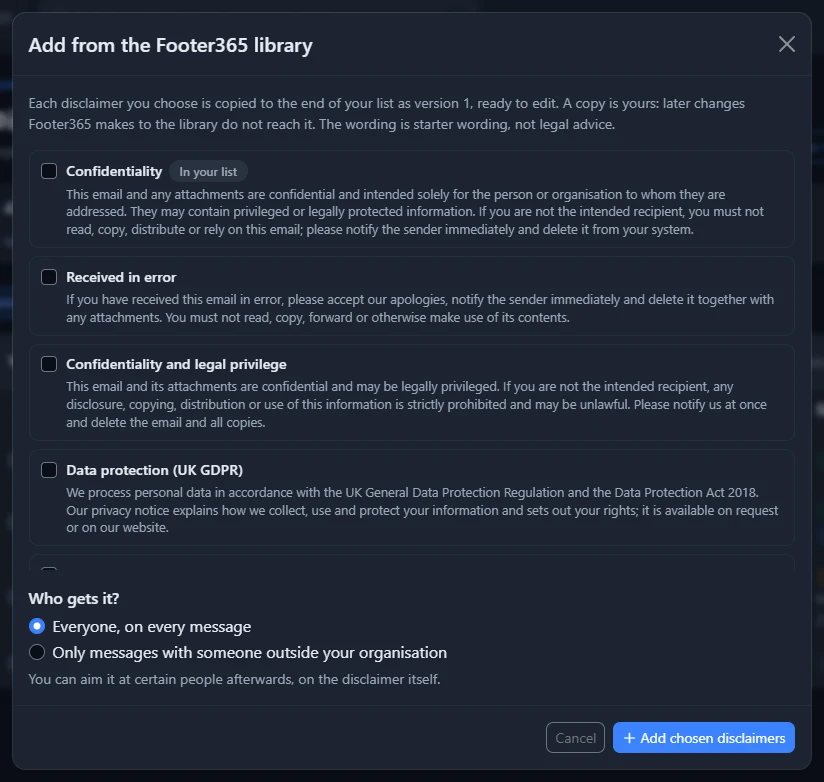
Footer365 is making starter content available to organisations gradually, so this may not be in your portal yet. Where it is, the window also asks Who gets it? before you add them: Everyone, on every message, as above, or Only messages with someone outside your organisation, which adds each one with its recipients set to any external recipient, so it is left off mail sent only to your own people. You can aim it at certain people afterwards, on the disclaimer itself. A copy is yours: later changes Footer365 makes to the library wording do not reach it, and its page says which library disclaimer it was started from.
Write or change a disclaimer
Select New disclaimer, or click a disclaimer in the list. Each disclaimer has a page of its own.
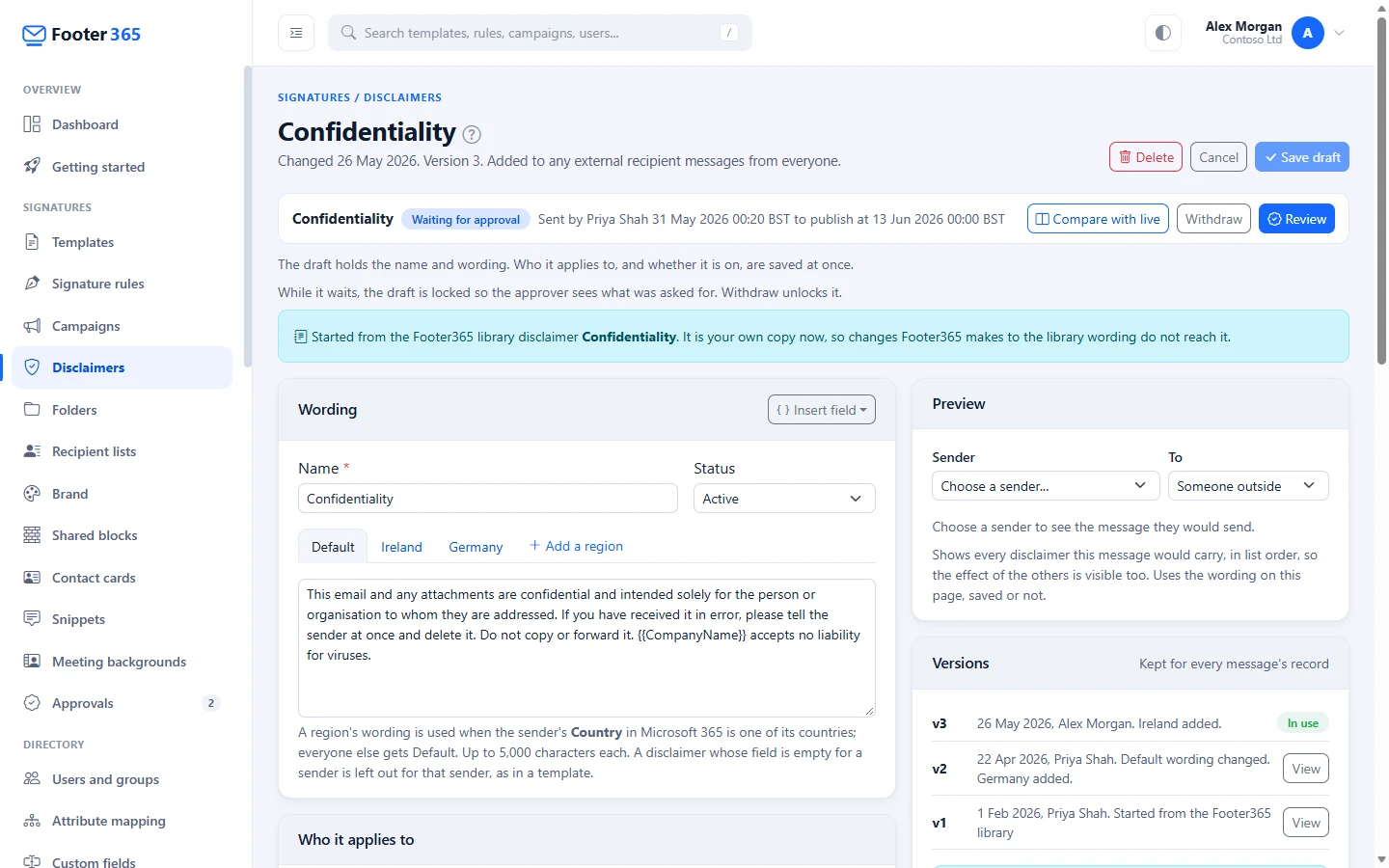
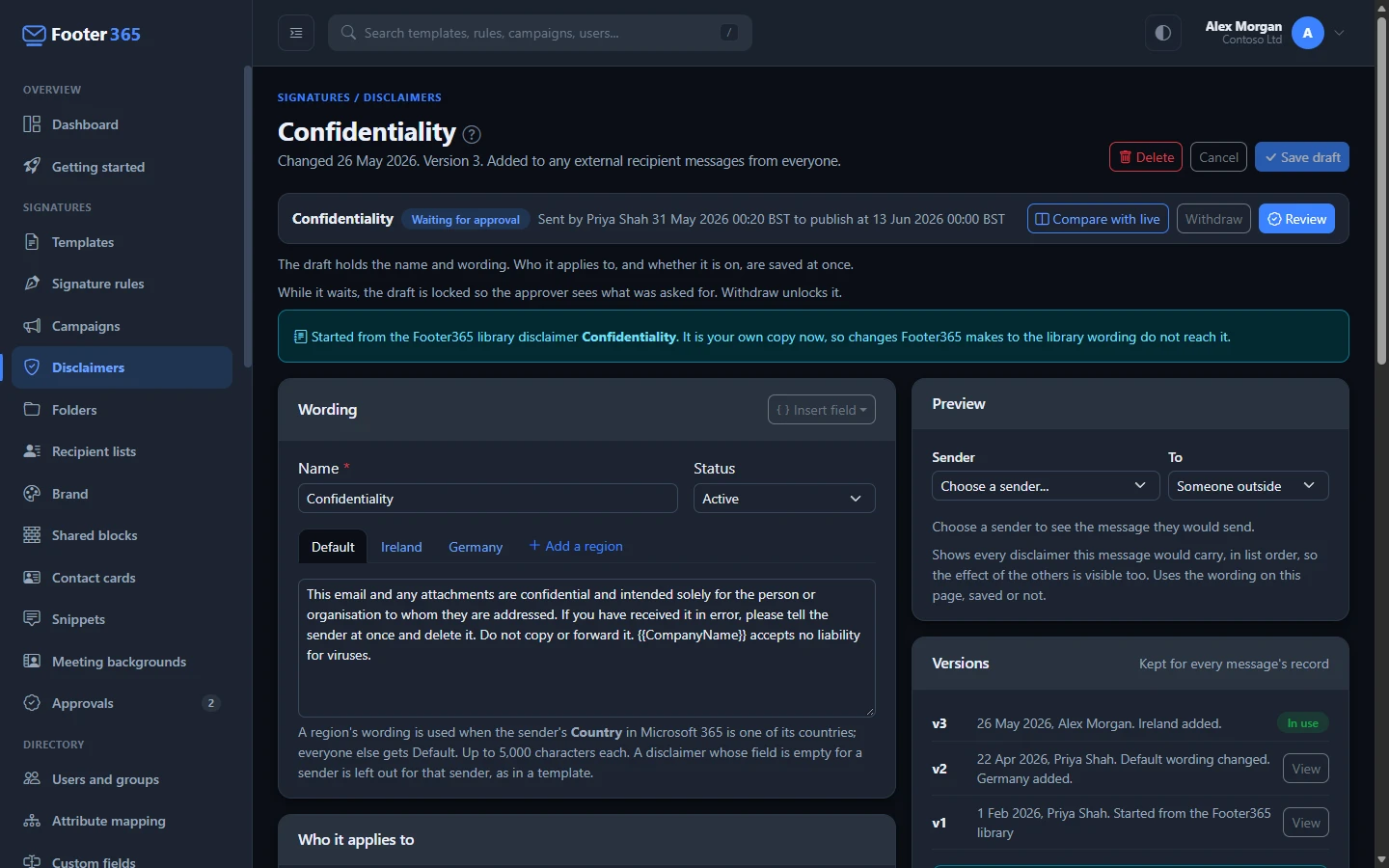
Wording
- Name is how the disclaimer is shown in the list and in the record of each message. Each disclaimer needs a different name.
- Status is Active or Off. An Off disclaimer is never added.
- The Default tab holds the wording most senders get. It is plain text, up to 5,000 characters, and a line break you type is kept.
- Insert field adds a detail from the sender's Microsoft 365 record, such as the company name, the address or the website, where the cursor is. It is filled in when the email is sent. If a sender has no value for a field the wording uses, the disclaimer is left out for that sender rather than sent with a gap, as it is in a template. Under Message, Time sent adds when the email was sent, marked At send, in your organisation's signature time zone; it always has a value, so it never leaves a disclaimer out. With the Outlook add-in only it cannot be filled in, and a disclaimer that uses it is then left out. See Merge fields and empty fields.
Regional wording
A disclaimer can have a different wording for senders in particular countries, chosen by the Country in each person's Microsoft 365 record.
- Select Add a region.
- Enter a Region name, such as Ireland. It is the tab's name.
- Choose each country it covers and select Add. A country can be in one region only.
- Write the region's Wording.
A sender whose Country is one of a region's countries gets that region's wording; everyone else gets Default. Country can hold the two-letter code or the country's name. To take a region away, open its tab and select Remove this region.
Who it applies to
This card is the same as a signature rule's, and works the same way:
- Who sends it: everyone, or chosen people, groups, email domains, a department or a job title, with optional conditions under And only when and senders it never applies to under Except these senders.
- Who it goes to: the Recipient type, such as any external recipient, and optional lists of recipient addresses, domains and wildcards under Only when recipients include and Except when recipients include, where you can also choose one of your saved recipient lists. See Keep lists of recipients to reuse.
- When: Runs Always or On a schedule, with dates, days, hours and a time zone. The schedule is checked as each message is signed, so it starts and stops to the minute.
Someone limited to a scope can change a disclaimer only when everyone it applies to is inside the scope, as for a rule, and cannot add one from the library, because that applies to everyone until it is aimed.
A disclaimer a limited administrator saves carries their scope and is added only to messages from senders inside it, checked each time a message is sent, so someone outside the scope who later joins a department or group it names is never given it. The page says "What you save here applies only to senders inside" their scope, and a Limited to pill with the scope's name shows beside the disclaimer in the list. Someone who sees the whole organisation who opens it reads "This disclaimer is limited to" the scope, and "Saving it here, as someone who sees the whole organisation, removes the limit." Switching it on or off and dragging it in the order leave the limit as it is. See Limit an administrator to part of the organisation.
A disclaimer has no email type of its own: it is added to new emails, replies and forwards alike. See Target by department, group or domain, Rules for particular recipients and Run a rule on a schedule for each part.
With a message keyword
A sender can type a message keyword such as #nosig in the subject to send one message without a signature. Such a message carries no disclaimers either, unless a disclaimer has Always add, even when a keyword removes the signature ticked. Tick it for wording you must include on every message, such as a legal notice. It is off until you turn it on, it only changes what happens with a keyword, and the disclaimer still follows its Who it applies to card. The list shows Always added beside a disclaimer that has it. See Message keywords.
Preview
Choose a Sender, and whether the email goes To Someone outside or A colleague. The preview shows the message that person would send: their signature, from the signature rule that matches them, then every disclaimer that would be added, in list order, so you see the effect of the others as well. It uses the wording and choices on the page as they are, so you can check a change before you save it. The preview needs permission to view the directory.
Select Save to keep your changes, or Cancel to leave without them.
A disclaimer that is on saves a change to its name or wording as a draft: Save draft keeps it beside the wording in use, which goes on being added to messages until the draft is published, and approved where your organisation requires it. Who it applies to and whether it is on still save straight away. See Drafts, publishing and approval.
Versions
Every time you save a change to a disclaimer's name or wording, it is kept as a new version. Versions lists them, newest first, with who saved each one and what changed. The one in use shows In use; select View on an earlier one to read its wording.
Each message's record names the version of every disclaimer it carried, so you can show which wording went out. In the Audit log, the entry for a signed email lists them under Disclaimers, by name and version. A change to who a disclaimer applies to, or to its status, is recorded in the Audit log with its values before and after.
How disclaimers are added to a message
- Under the signature. Disclaimers are added after the signature and any campaign banner, every one that applies, in the order of your list.
- Only with a signature. A disclaimer is added to a message that gets a signature. An email that no signature rule matches is sent without a signature and without disclaimers. The one exception is a message keyword that removes the signature: a disclaimer set to Always add, even when a keyword removes the signature is still added.
- Once per message. A reply carries its disclaimers once, with its new signature above the quoted message. A disclaimer whose wording is already in the template, because the template has a Disclaimer element with the same wording, is not added a second time.
- Never taken out of a reply. The Long conversations setting can take your organisation's earlier banners and signatures out of the quoted part of a reply, or shorten each signature to one line, but the disclaimers of the earlier messages always stay as they were sent, including a template's Disclaimer element inside a signature that is shortened or taken out. See Earlier signatures and banners in long conversations.
- Plain-text email gets the disclaimers as text under the text signature.
- The same in Outlook. The Outlook add-in adds the same disclaimers as Footer365 does when mail leaves your organisation, and counts them towards the size of the signature it inserts. The add-in can only see the domains of the recipients, so when a disclaimer that could apply names a single recipient address, the add-in leaves the email for Footer365 to sign as it is sent.
Delete a disclaimer
Open the disclaimer and select Delete, then confirm in the Delete Disclaimer window. It stops being added to messages straight away. Its versions are kept, so the record of messages that already carried it still names the wording they went out with.
Your disclaimers are included in a signature backup. See Back up and restore your signatures.
A disclaimer inside a template
You can also put a disclaimer into one template's design:
- In the editor, open Insert and drag Disclaimer (in Text and disclaimers) onto the canvas, usually at the bottom.
- With it selected, open the Disclaimer list under What it shows. Type into Search disclaimers... to narrow it down, and click the one you want.
- Check the wording in the Content box, and change it if you need to. Insert field adds a company detail; Reset to default appears once you have changed the wording, and puts back the original.
- Select Save.
A new disclaimer row starts as small, muted text across the full width of the email. Each disclaimer in the list can be used once per template. The wording is copied into the template when you add it, so later changes to the Footer365 list do not alter your templates. If the list shows Custom wording, the wording in the template no longer matches any disclaimer in the list; it is kept as it is. You can also write a notice of your own with a Text element, in Text and disclaimers.
A template's disclaimer stays part of that template only. For wording that should go under every signature, or only to some senders or recipients, use the Disclaimers page instead.
Related articles
Still stuck?
Tell us what you were trying to do and what you saw. Include the sender, a recipient and roughly when a message was sent, and we can trace it.