

One-click surveys, polls and ratings
Ask recipients to rate a sender's service or answer a quick poll with one click in the signature, and read the answers by option, person, department and day.
A survey puts one question in your signatures, such as "How did Sam do today?", with its answers drawn underneath as stars, faces, thumbs, a 0 to 10 scale or a poll's own options. A recipient answers with one click. Footer365 records the answer against the sender and the email it came from, shows a thank-you page, and reports the answers on the Surveys page under Insights.
Footer365 makes the Surveys page available to organisations gradually, so it may not be in your portal yet. See Early access pages and features.
Surveys are included on every plan. Votes go through the same scanner filtering as clicks on your campaign banners, so an email security scanner that follows every link in a message cannot cast a vote.
Who can do what
- Anyone with permission to view insights can open Insights > Surveys, read every survey's results and download the CSV.
- Creating, changing, closing or deleting a survey, and deleting a comment, needs permission to manage signatures, because a survey is something placed in your signatures. Without it, the New survey and Settings buttons are not shown.
Kinds of survey
| Kind | What recipients see |
|---|---|
| Stars, 1 to 5 | Five stars. Clicking the fourth gives four stars. |
| Faces, three | An unhappy, a neutral and a happy face. |
| Thumbs up or down | A thumbs up for yes and a thumbs down for no. |
| NPS, 0 to 10 | The numbers 0 to 10, for "How likely are you to recommend us?" |
| Poll | Your own two to six options, each up to 40 characters. |
Stars, faces and thumbs are drawn as small images, or as text links if you prefer. An NPS scale and a poll are always drawn as text links.
Create a survey
- Go to Insights > Surveys (open it) and select New survey.
- Give it a Name. Only you see the name; recipients see the question.
- Choose its Kind.
- Type the Question, up to 120 characters. Fields such as
{{FirstName}}fill in for each sender, so "How did {{FirstName}} do today?" reads "How did Sam do today?" in Sam's emails. - Change the Thank-you message if you like. It is shown on the page a recipient sees after answering.
- Set when it Starts and Ends, or leave them empty to start now and run with no end date. The end date is the last day answers are taken.
- For a poll, type its options under A poll's options. Select Add an option for a third, up to six.
- Tick Ask for a comment after the vote only if you will read the comments. It is off by default, because a comment box on a public page attracts spam and personal details.
- Select Create survey.
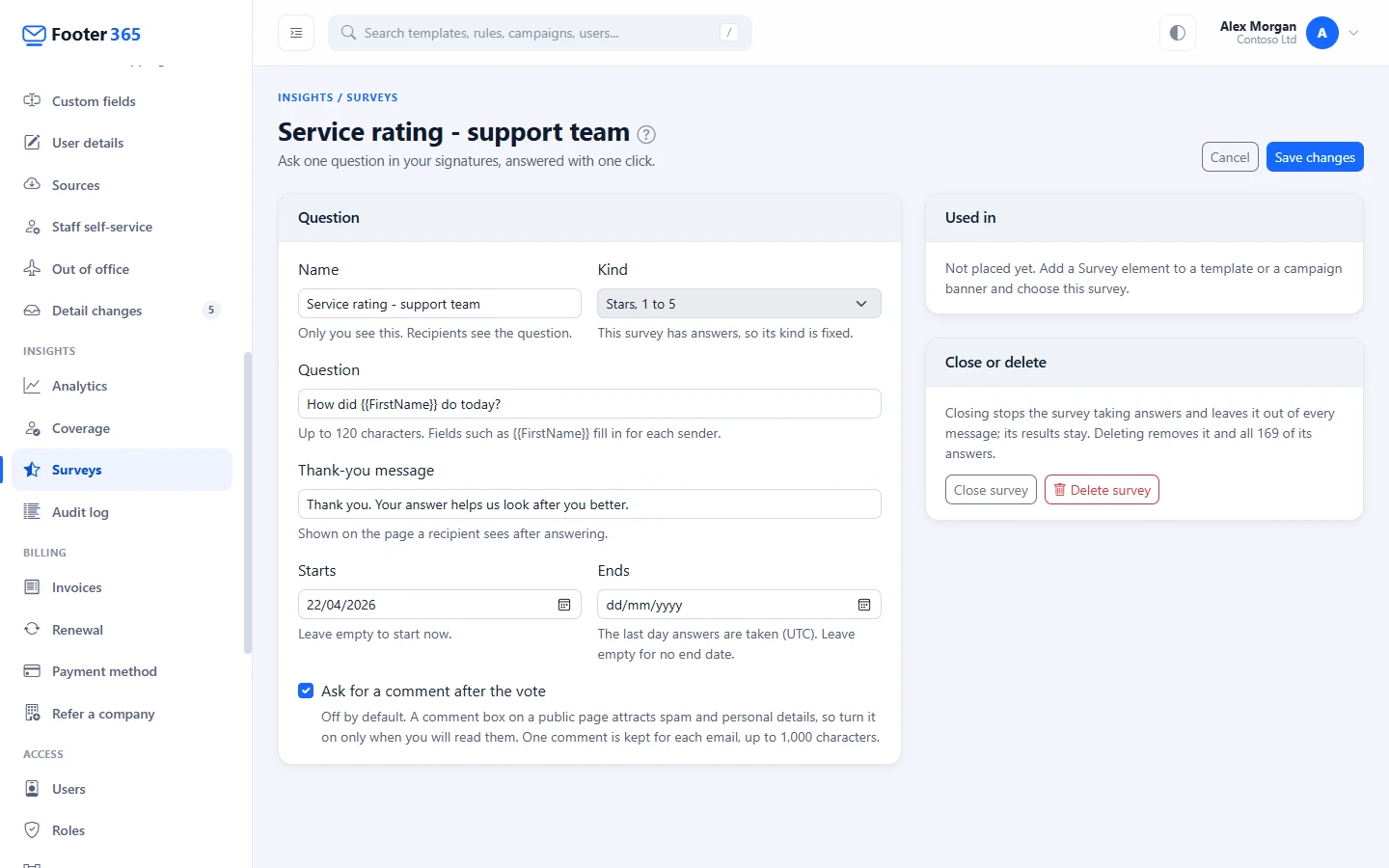
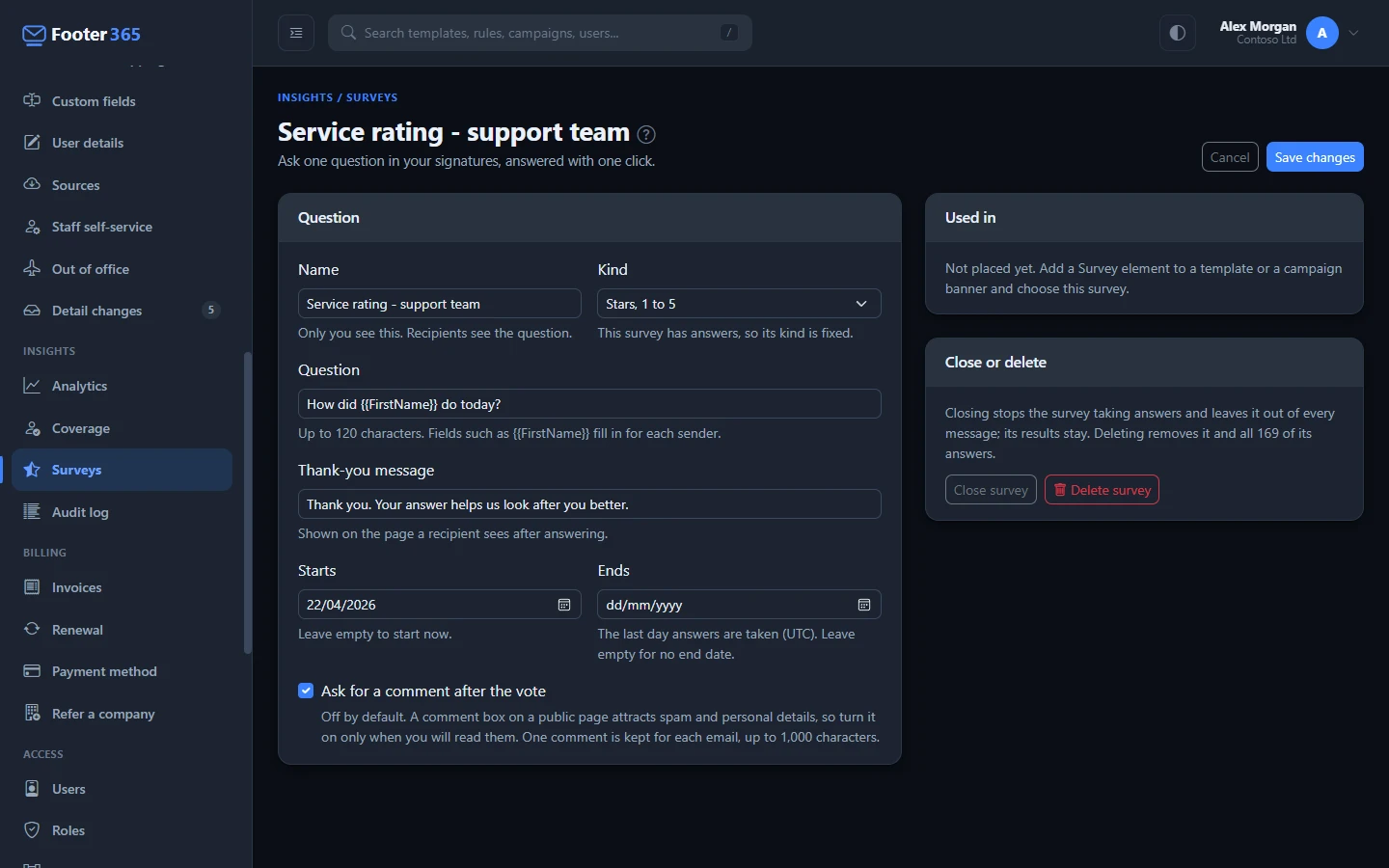
Once a survey has answers its kind cannot change, and a poll's options can be renamed but not removed, so earlier answers keep their meaning. Create a new survey instead.
Put the survey in a signature
A survey is set up once and placed with the editor's Survey element, so one survey can sit in several templates and a campaign banner with its results in one place.
- Open a template in Signatures > Templates, or a campaign's banner in Signatures > Campaigns.
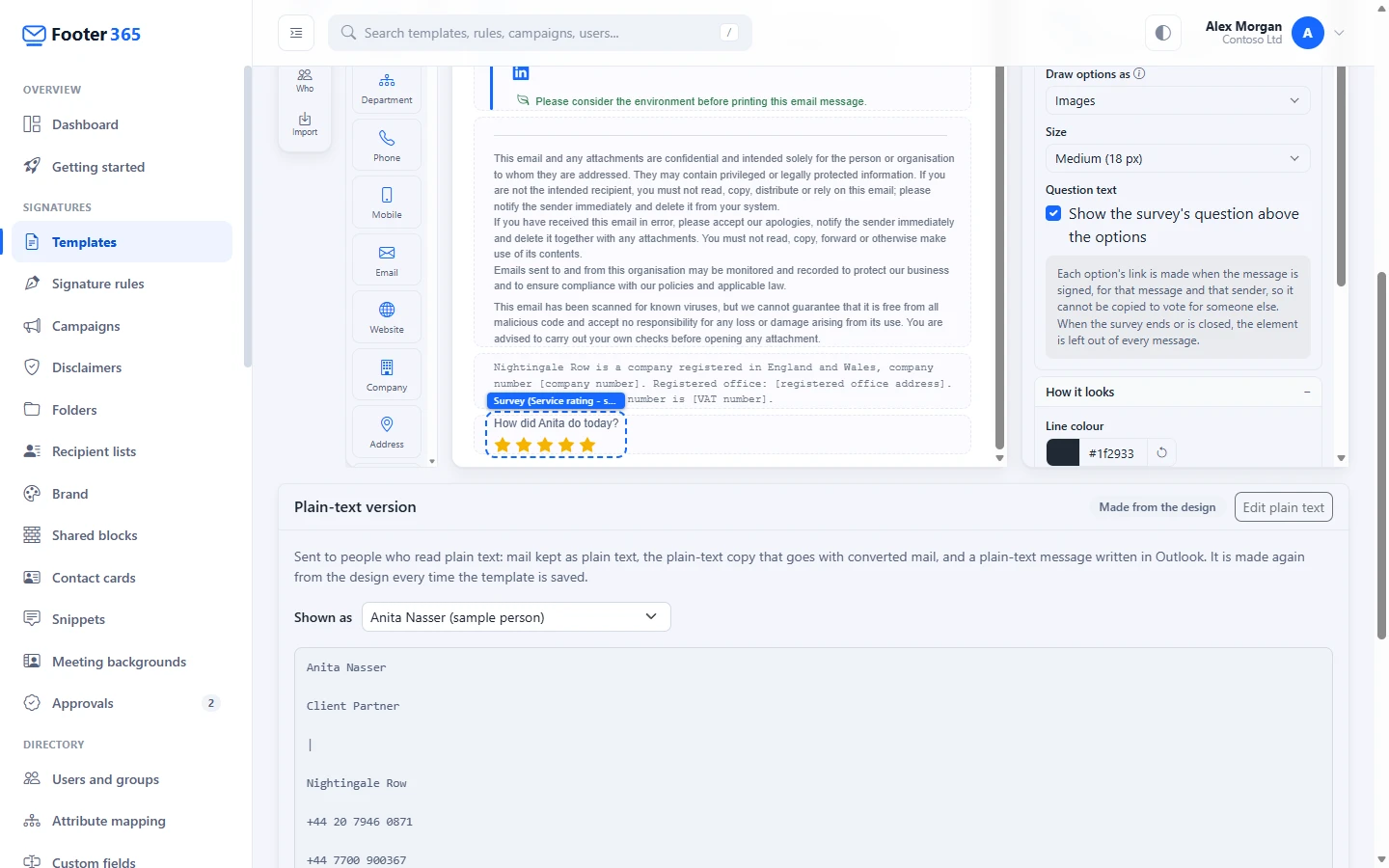
- Under Media and social in Insert, drag Survey onto the canvas where the question should go.
- With the element selected, choose the survey under Survey.
- Choose how to Draw options as: Images or Text links. Text links still show while a recipient's email program is blocking images.
- Choose the Size of the images.
- Untick Show the survey's question above the options under Question text if the wording around it already asks the question.
- Save the template or the campaign.
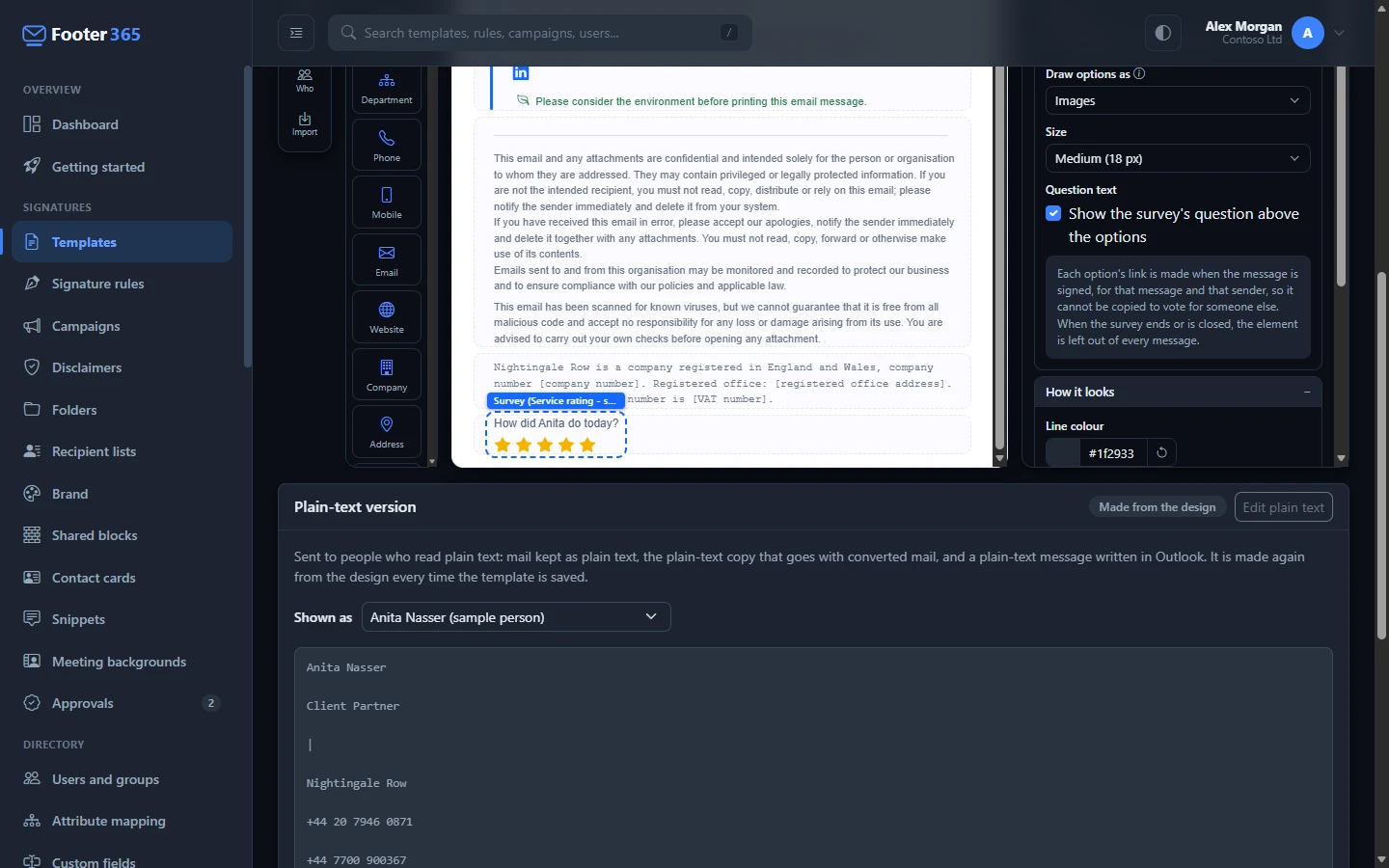
A running or scheduled survey that no template or banner holds says so at the top of its results, as Nobody is asked this yet., or Nobody is asked this now. once it has gone out before, with Open Templates and, where your organisation has campaigns, Open Campaigns to place it.
A template or banner cannot be saved while a Survey element shows Choose a survey: choose one, or remove the element. When a survey is closed, has ended or has not started yet, the canvas says it is not sent, and the element is left out of every message, as an empty field is. Changing a survey's question or dates needs no template saved again: each message is signed with the survey as it stands.
The survey is added to the HTML signature that the Outlook add-in or Microsoft 365 adds to each email. Plain-text emails, and a signature a sender picks by hand from the Outlook add-in's own list of signatures, do not carry it.
What a recipient sees
Each answer is its own link. Its address names the survey and the one email it was sent in, so it cannot be copied to vote for another sender, and it never names the recipient. When someone clicks an answer:
- They land on a thank-you page on Footer365's own address, for example "You gave Sam Taylor 4 stars.", followed by your thank-you message. The page carries no tracking and no scripts from anyone else.
- If the survey asks for a comment, the page has a box for one. One comment is kept for each email, up to 1,000 characters.
- Clicking another answer in the same email replaces the first one. One answer is kept for each email.
- After the survey closes, ends or is deleted, the page says the survey has closed, and nothing is recorded.
Scanners cannot vote
Many organisations' email security follows every link in a message as it arrives. A vote from software Footer365 recognises as a scanner is held, not counted, and the page asks the browser to confirm it. Only a person's browser confirming it moves it into the counts. Held votes are shown as one figure, Held as scanner clicks, and are marked in the CSV, so you can check the filter.
Read the results
Go to Insights > Surveys. The figures at the top cover the last 30 days, and Your surveys lists each survey with its kind, where it is Used in, whether it is Running, its Answers and its result.
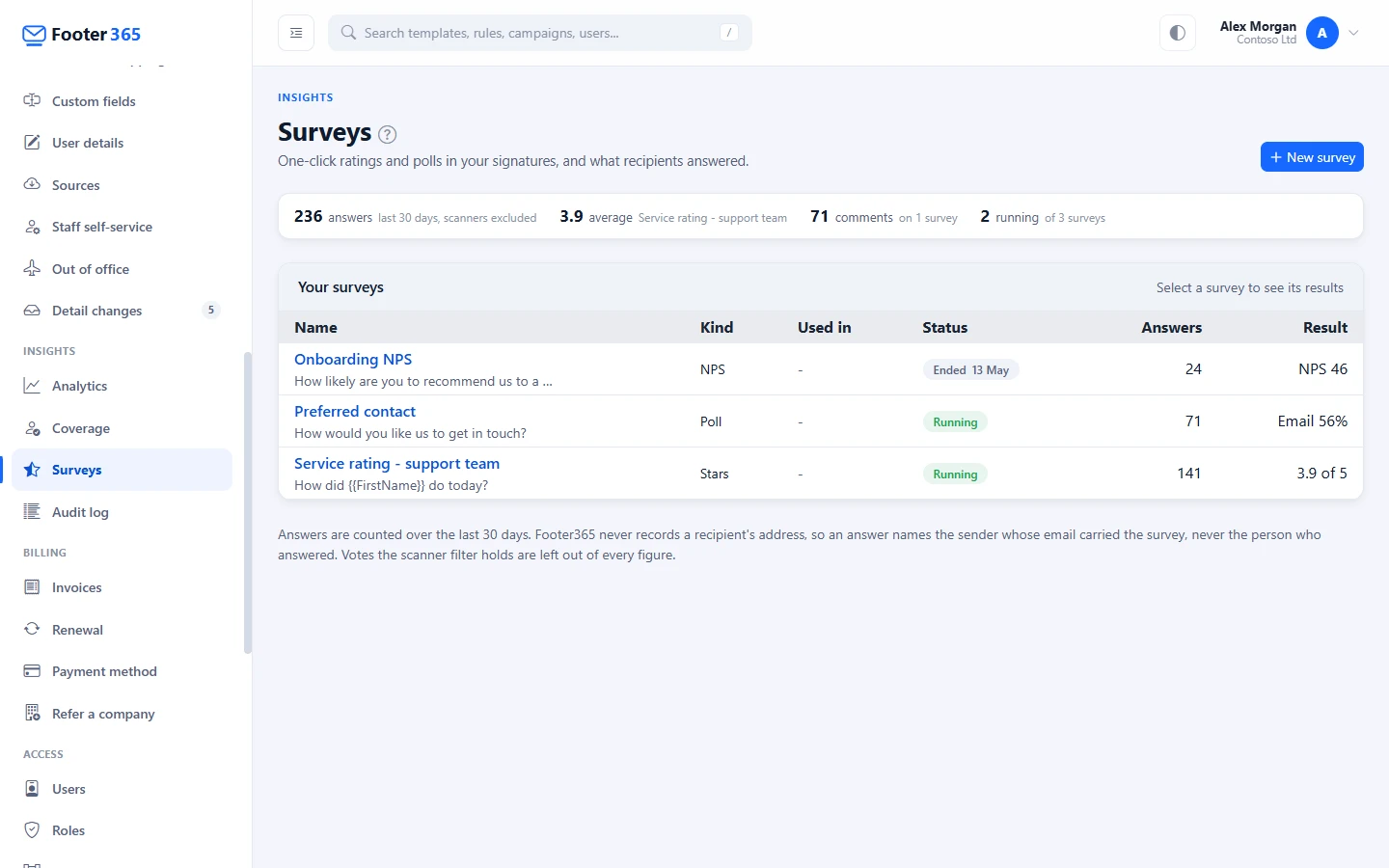
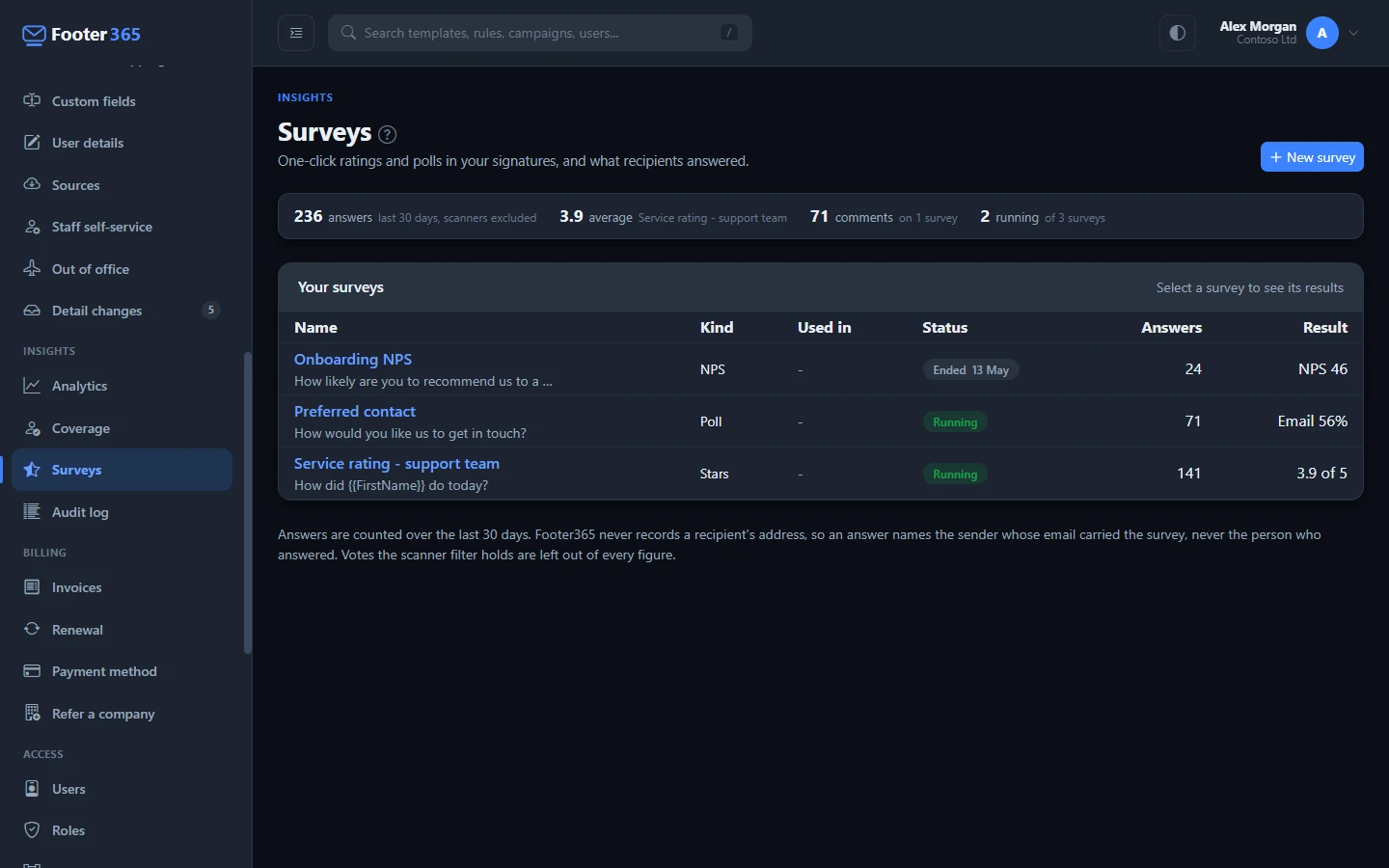
Select a survey's name to open its results. Choose 7, 30, 90 or 365 days at the top right.
| Part | What it shows |
|---|---|
| Answers | Answers from people in the period, and how many emails carried the survey. |
| Average, Answered yes or NPS | For stars and faces, the average answer; for thumbs, the share answering yes; for NPS, the Net Promoter Score: the percentage answering 9 or 10 less the percentage answering 0 to 6. Underneath is the change on the same length of time before. A poll shows its Leading option instead. |
| Low scores | One or two stars, the unhappy face, a thumbs down, or an NPS answer from 0 to 6. |
| Held as scanner clicks | Votes the scanner filter held. They are not counted anywhere else on the page. |
| By option | How many answers chose each option. |
| Answers over time | Answers per day. Hover over a day for its count and figure, or open Show as a table. |
| By person | Each sender's answers, figure, low scores and comments. A figure is shown from 5 answers, so one or two votes do not label a person. Someone who has left keeps their row under the name they had. |
| By department | The same, for each sender's department. |
| Comments | Each comment, newest first, with the answer it came with, the sender and the time. Comments are shown as plain text. Someone who can manage signatures can delete a comment, which is recorded in your audit log. |
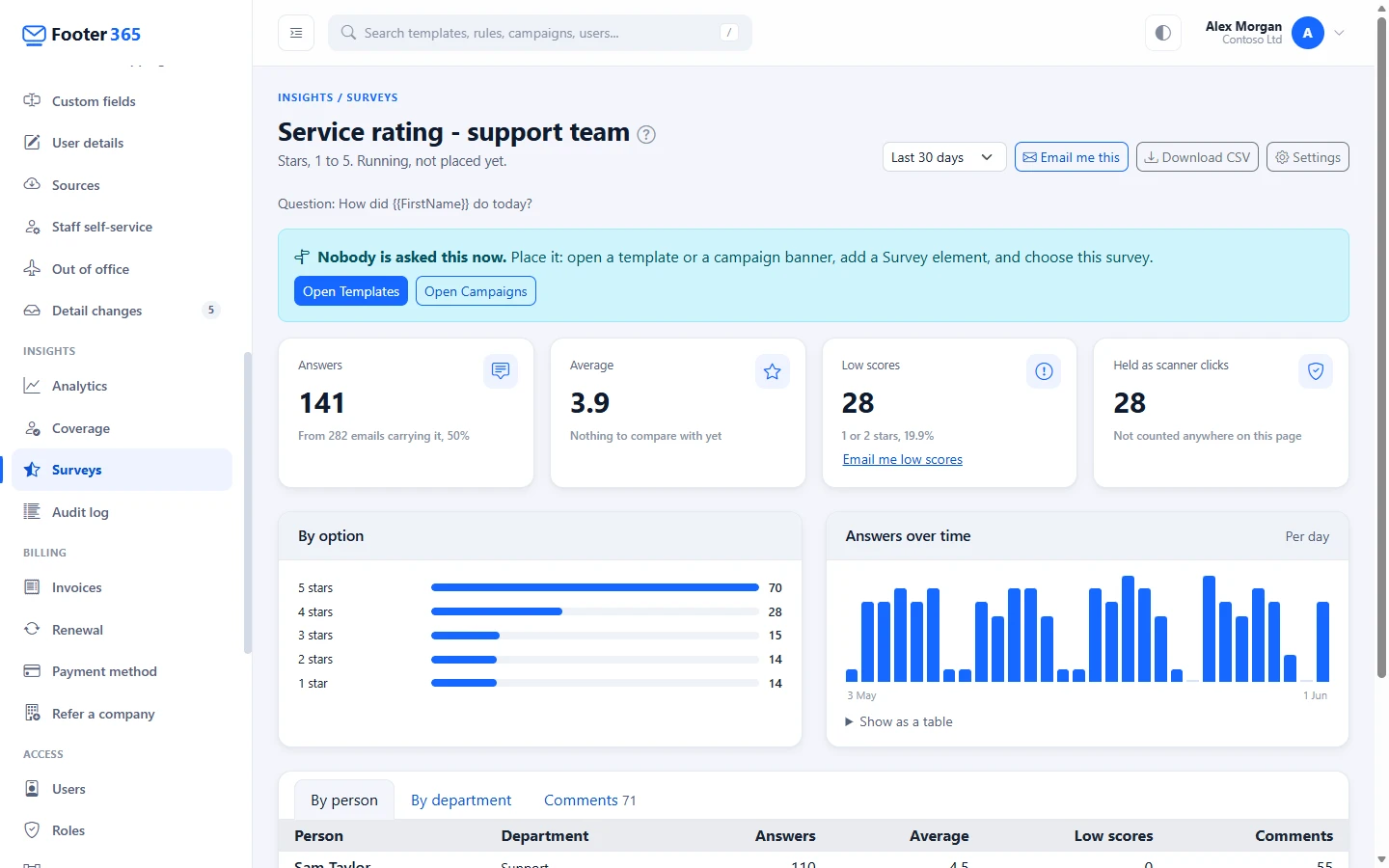
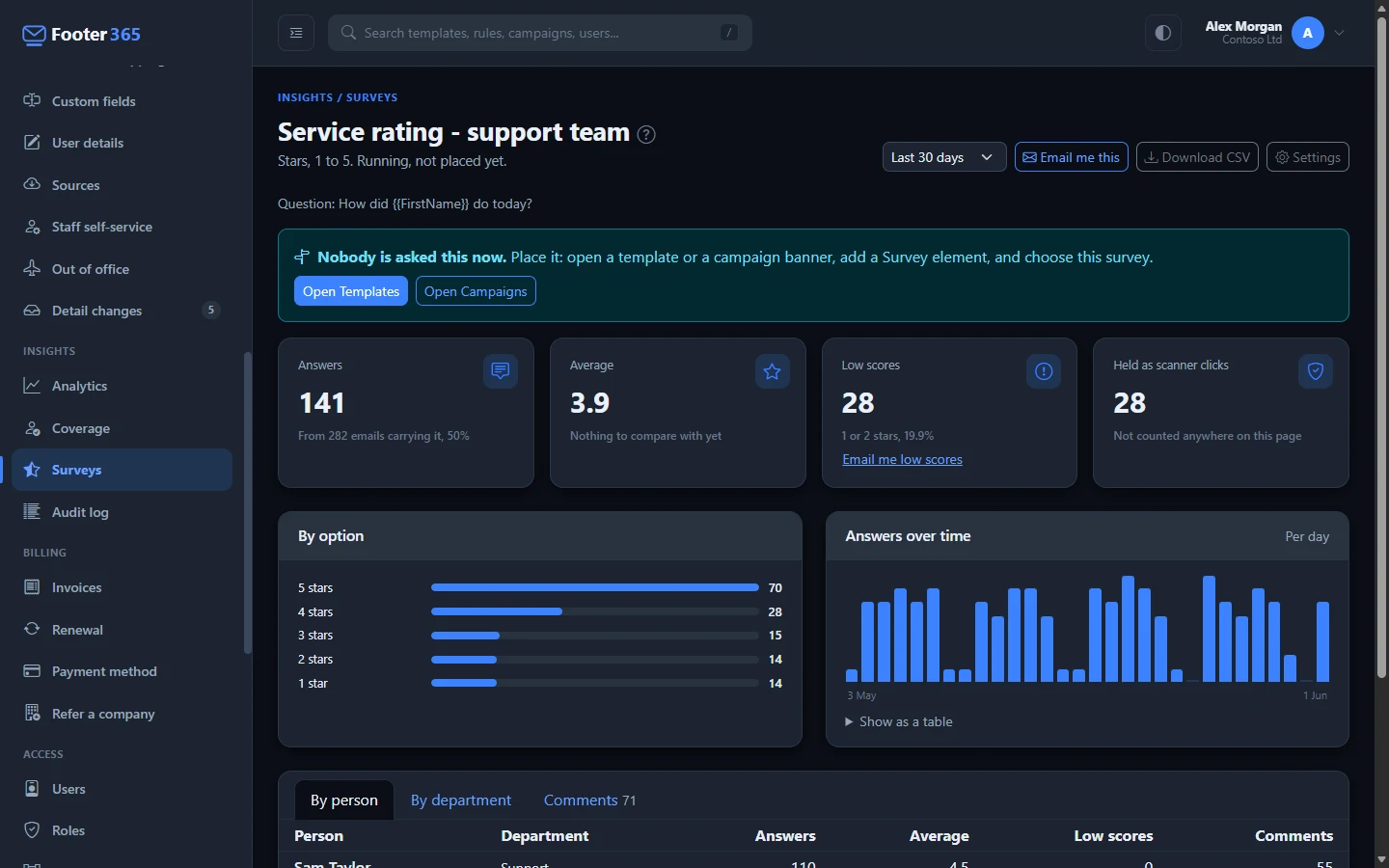
Select Download CSV for every answer in the period: when it was given, the survey, the answer, the sender, their email address and department, the template, any comment, and whether it was held as a scanner click.
Have the results emailed to you
- Email me this, at the top of the results, emails you the headline figures every Monday or on the 1st of each month, at 08:00 in your own time zone, with a link back to the results.
- Email me low scores, under Low scores, emails you at 08:00 on the morning after a day with low scores: how many, how many came from the emails of each department, and how many came with a comment. After a day with none, nothing is sent. A poll has no low scores, so it does not offer this.
Neither email names a sender or quotes a comment: those stay on the results page. Both stop by themselves after the survey ends, and a survey that has ended does not offer them. See Have reports emailed to you.
Close, reopen or delete a survey
On the survey's results, select Settings:
- Close survey stops it taking answers and leaves it out of every message. Its results stay. Reopen survey puts it back.
- Delete survey removes it and all its answers, after asking you to confirm. Links in emails already sent say the survey has closed.
Creating, changing, closing and deleting a survey, and deleting a comment, are recorded in your audit log with what changed.
Tell your staff
Results name the sender whose email carried the survey, by person and by department, because "how is this person's service rated" is usually the point. Tell your staff before you place a survey in their signatures, as you would for any feedback scheme.
Good to know
- Footer365 never records a recipient's email address. An answer names the email it came from and its sender, never the person who answered. A comment is whatever the recipient chose to type.
- Answers and comments are kept for as long as your account, and deleted with the survey or with your account. See Click data and privacy.
- An answer is matched to the email it came from, whose record Footer365 keeps for at most 90 days. A survey in an older email can no longer be answered, and the person sees a page saying the email may be too old to answer.
Related articles
Still stuck?
Tell us what you were trying to do and what you saw. Include the sender, a recipient and roughly when a message was sent, and we can trace it.