

Upload signature photos
Upload a person's signature photo, or many at once as a ZIP, choose whether photos come from Microsoft 365, and stop Microsoft 365 photos being used.
A template's Profile photo element shows each person's photo. Footer365 reads it from Microsoft 365 at each directory sync, and you can upload a different one in Footer365: for someone with no photo in Microsoft 365, or whose photo there is not one you want in their email. You can also stop Footer365 using Microsoft 365's photos, or use no photos at all.
You need the Manage directory permission to upload photos or change where they come from. Anyone who can view the directory can see the setting.
Upload a photo for one person
- Go to Directory > Users and groups (open it) and select the person.
- In their panel, under their name beside Edit details, select Upload photo, or Change photo if they already have one.
- Select Choose photo and pick a JPEG or PNG file.
- Drag the photo to place the face in the circle, with the eyes on the line and the head inside the outline, and use Zoom to fill it. The arrow keys move the photo too. The line and the outline are guides drawn over the photo so that everyone's photo is framed alike: they do nothing to the photo, and Footer365 does not look for a face in it.
- Select Save photo.
The photo must be at least 192 pixels square and no larger than 5 MB. A HEIC photo from an iPhone, a WebP or a GIF cannot be used: save it as a JPEG or PNG first. Footer365 saves the square you chose at 256 pixels. Each template's own shape, round, rounded or square, is applied when the signature is drawn.
The panel then shows Uploaded, with who uploaded it and when. Signatures use it from the next message, in Outlook and through Footer365 alike, and template previews show it too.
Which photo is used
An uploaded photo is used instead of the Microsoft 365 one until it is removed. Footer365 keeps the Microsoft 365 photo meanwhile, so removing the upload brings it straight back.
To go back, select Use the Microsoft 365 photo in the person's panel and confirm. The uploaded photo is deleted. While your organisation uses uploaded photos only, the button reads Remove the uploaded photo, and the person then has no photo until another is uploaded.
Upload many photos as a ZIP
- Name each photo with the person's email address, such as
[email protected], or the part before the @, such assam.patel.jpg. A photo named with an alias of the person's mailbox matches too. - Put the photos in one ZIP file. Up to 500 photos, and up to 100 MB.
- On Users and groups, select More, then Photos, then the Upload several tab.
- Drop the ZIP on Drop a ZIP file here, or select Choose file.
- Footer365 lists every file and what it found, without saving anything. For each photo that will be saved, Picture shows a small copy of the square that will be kept:
- Matched, or Replaces an uploaded photo for someone who already has one.
- No one with that address: check the file name.
- More than one person matches: the part before the @ is shared by two people, so name the file with the full address.
- Another file is for this person: only the first is used.
- Not a JPEG or PNG, a size below the minimum, or Larger than 5 MB: the file cannot be used.
- Check the list, then select Save with the number of photos. Only the matched photos are saved.
Each photo in a ZIP is cropped square. A photo as wide as it is tall, or wider, is cut around its middle. A photo taller than it is wide keeps a quarter of its spare height above the square rather than half, because a head usually sits above the middle of a portrait. Footer365 does not look for the face, so a person standing to one side of a wide photo can be cut off: check the Picture column before saving, and correct any photo afterwards with Change photo in the person's panel.
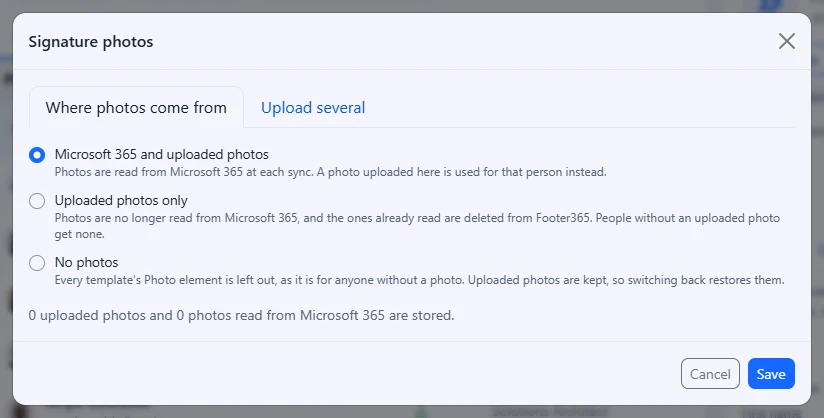
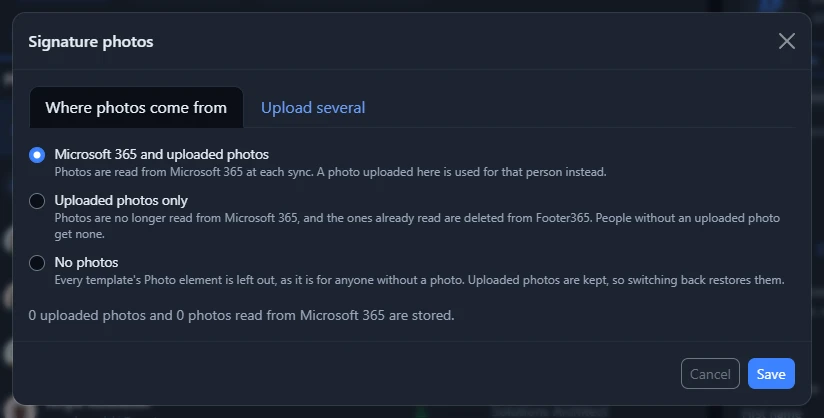
Choose where photos come from
On Users and groups, select More, then Photos. Under Where photos come from, choose:
| Choice | What happens |
|---|---|
| Microsoft 365 and uploaded photos | Photos are read from Microsoft 365 at each sync, and an uploaded photo is used instead for that person. This is where every organisation starts. |
| Uploaded photos only | Footer365 stops reading photos from Microsoft 365, and deletes the ones it already read. People without an uploaded photo get none. |
| No photos | Every template's Profile photo element is left out, as it is for anyone without a photo. Footer365 stops reading photos from Microsoft 365. Uploaded photos are kept, so switching back restores them. |
Select Save. When a change deletes the photos read from Microsoft 365, the window says how many before you save. Switching back to Microsoft 365 and uploaded photos starts a directory sync, which reads them again.
Someone limited to a scope can upload and replace photos for the people in it, and a ZIP matches photos only to those people. They can see this choice but not change it, because it covers the whole organisation, and the counts under it are for their people. See Limit an administrator to part of the organisation.
Staff changing their own photo
With staff self-service on, the Photo row in Field policies decides what people can do with their own photo. It is Read-only until you change it:
- Editable: they select Change photo on their own page or on the My details tab in Outlook, and the photo is used at once.
- Editable with approval: their new photo waits on Detail changes, where it is shown beside the photo in use, until someone approves or rejects it. A photo that is rejected or withdrawn is deleted.
On their own page they can also select Remove my uploaded photo to go back to their Microsoft 365 photo. The photo they upload in Outlook is cropped square the same way as a photo in a ZIP; on their page they choose the square, with the same guides, as you do.
Set uploaded photos in Microsoft 365 too
If write-back to Entra ID is on for staff self-service, you can also tick Also set uploaded photos in Microsoft 365 in the Write back to Entra ID card, so Teams, Outlook and SharePoint show the same photo. It is off by default. It covers photos uploaded on Users and groups, in a ZIP and by staff, for the people write-back covers, and uses the Footer365 Directory Write consent you already gave, with no new permission. A photo is usually set within a minute. Removing an uploaded photo in Footer365 does not change the photo in Microsoft 365. See Let staff edit their own details.
Good to know
- A photo already saved is never cut again: how a portrait photo is cropped applies to photos as they are uploaded. A photo read from Microsoft 365 is Microsoft's own 96 by 96 pixel picture and is used as it is.
- Footer365 never keeps the file you upload. It reads the picture and saves a new copy of it, so nothing else in the file, such as the place a phone photo was taken or the camera that took it, is stored or sent in an email.
- When someone leaves and their account is deleted in Microsoft 365, the next sync deletes every photo Footer365 holds for them: the Microsoft 365 one, an uploaded one and any waiting for approval.
- Uploaded photos are included when you export your organisation's data, and are deleted with your account.
- Every upload, removal, ZIP and change of setting is recorded in the audit log, naming who did it and whose photo it was.
Related articles
Still stuck?
Tell us what you were trying to do and what you saw. Include the sender, a recipient and roughly when a message was sent, and we can trace it.