

Choose how the Outlook add-in behaves for your people
Turn the Outlook add-in's automatic signature, its signature picker and preferred signatures on for everyone, for the people you choose or for nobody, with anyone you except, on the Add-in settings page.
The Outlook add-in does three things for your people on its own: it puts their signature in a message as soon as they start it, its Footer365 Signatures pane lets them put in another of the signatures their rules allow, and, if you allow it, they can choose their own default signature. On the Add-in settings page you decide who each of these is for: everyone, only the people you choose, or nobody, with anyone you except.
Footer365 makes the Add-in settings page available to organisations gradually, so it may not be in your portal yet. See Early access pages and features.
The add-in reads these settings with the request it already makes for the signature, so there is nothing to deploy again. Deploying the Outlook add-in
Open the page
In the portal's left-hand menu, under Account, select Add-in settings. Anyone who can view signatures can see the page; changing it needs permission to manage settings, as Message keywords does. An administrator limited to part of the organisation cannot open it, because the settings cover everyone. Roles and permissions
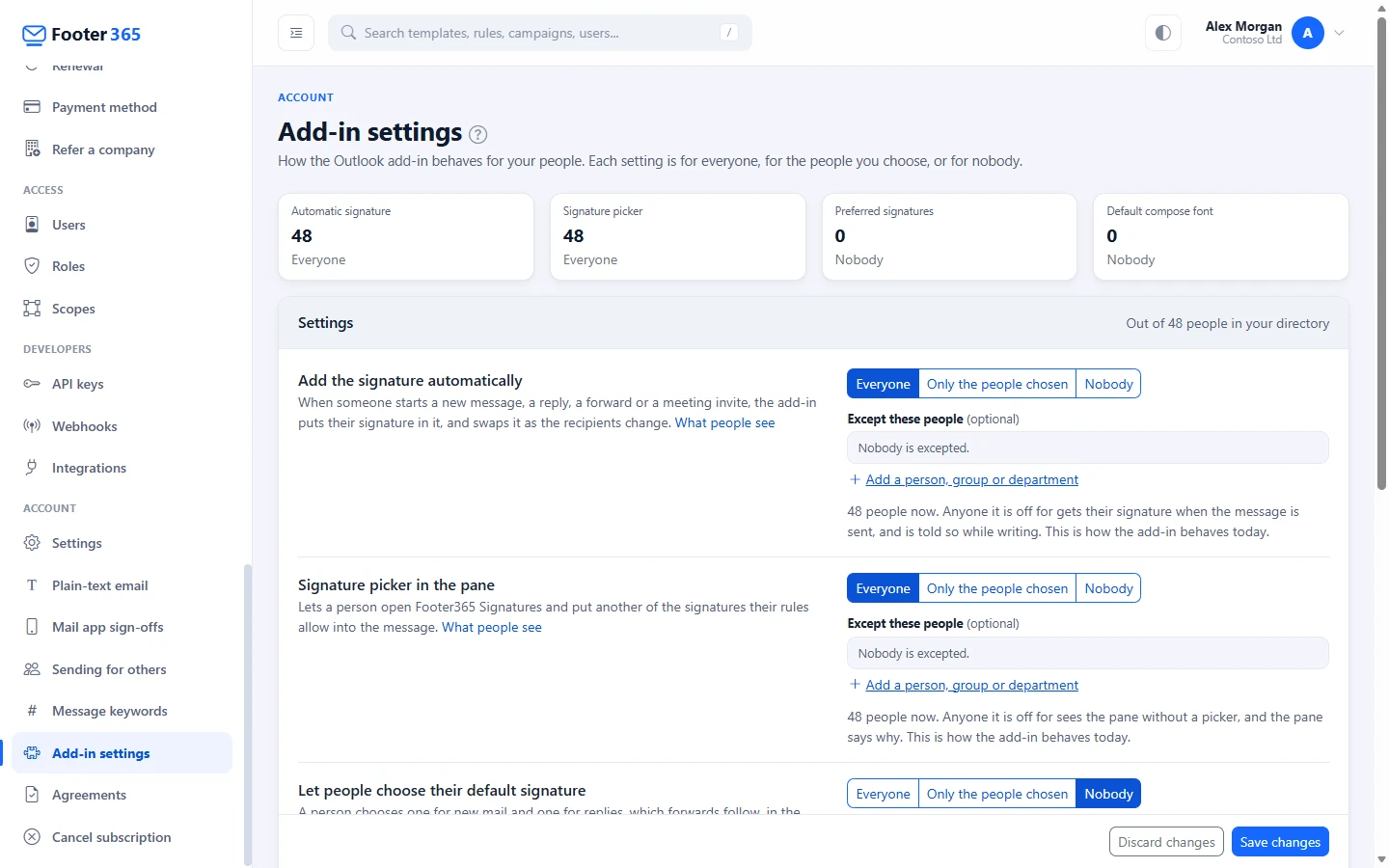
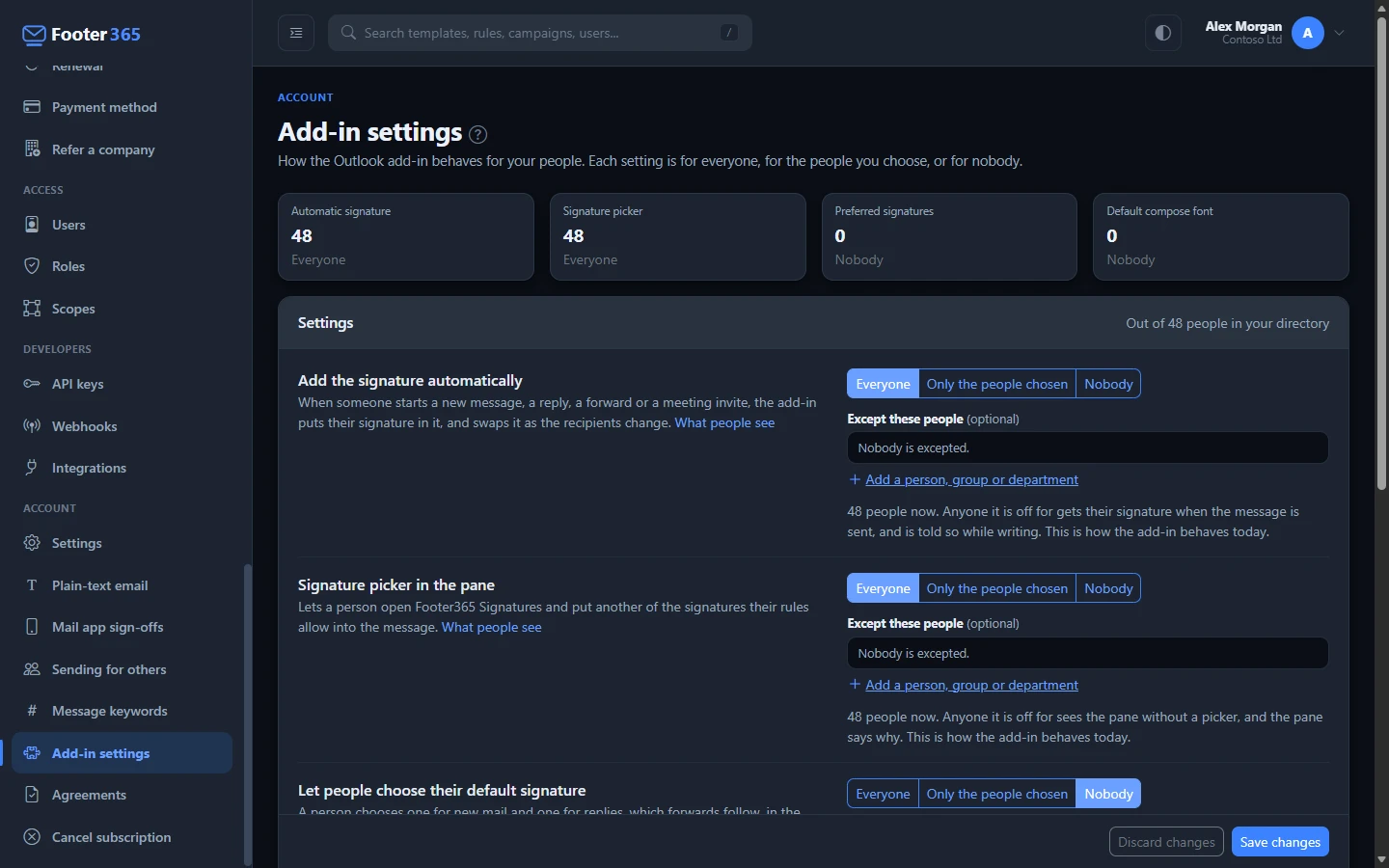
Until anyone saves the page, every setting is as the add-in has always behaved: the signature added automatically and the picker for everyone, and preferred signatures as they were set on Signature rules.
Choose who a setting is for
- Beside the setting, choose Everyone, Only the people chosen or Nobody.
- For Only the people chosen, select Add a person, group or department, choose a person, a group or a department, and select Add. Add as many as you need.
- To leave some people out, add them under Except these people in the same way. Someone in an excepted entry never gets the setting, whatever else they are in.
- Select Save changes, at the foot of the settings. It stays in view as you scroll, and says Unsaved changes once you have changed something. Discard changes puts the page back to what was saved.
People are chosen as they are for a message keyword or a rule's excepted senders. A person is matched by who is signed in to Outlook and writing the message, not by the mailbox in the From field, so a shared mailbox's signature is added or not according to whoever is writing. A group is matched by its members, and a department by the department each person has in Microsoft 365. A group that is deleted in Microsoft 365 stays in the list as Group no longer in the directory, so saving never drops it without you knowing, and it matches nobody.
Each setting shows how many people it reaches now. The figures count the user mailboxes in your directory, the people who sign in to Outlook.
Add the signature automatically
While this is on for a person, the add-in puts their signature in every new message, reply, forward and meeting invite they start, and swaps it as the recipients change, as it always has.
While it is off for them, the add-in puts nothing in the message while they write, does not swap anything as the recipients change, and the pane no longer puts their default signature in when it opens. What happens next depends on how your organisation adds signatures:
- With mail flow, the add-in says Footer365: your organisation adds your signature when the message is sent. Footer365 adds the signature as the message leaves Microsoft 365, as it does for mail sent from a phone. If the person puts a signature in from the pane, that one is kept and nothing is added on the way out.
- With the Outlook add-in only, nothing adds a signature on the way out, so the add-in says Footer365: your organisation adds no signature while you write. Choose one in Footer365 Signatures, or this message is sent without one. A message sent without one is counted on the Coverage page, as left unsigned because automatic signature is off. Using the Outlook add-in only
Signature picker in the pane
While this is off for a person, the pane lists no signatures and says Your organisation has turned the signature picker off. Your signature is added to your messages automatically. If automatic signature is off for them too, it says Your organisation has turned the signature picker off. Your signature is added when the message is sent. instead.
The Footer365 Signatures button stays on the ribbon, because Outlook does not let an add-in hide its own button for some people, and the My details tab is there as before when staff self-service is on.
Let people choose their default signature
This is the preferred signatures setting, which used to be a switch in the Preferred signatures window on Signature rules. That window now says who it is for and has an Open Add-in settings button. While it is on for a person, they can choose a default for new mail and one for replies, in the pane or on their My signature page. Let people choose their default signature
Turning it off for someone keeps any default they chose but stops using it, in the add-in and on mail Footer365 signs on the way out, and they cannot choose another. Turning it back on for them brings their choice back.
Default compose font
The page also holds the Default compose font, the font your people's new messages start in, in Outlook on the web. It is chosen for people in the same way, but it is not the add-in's: Footer365 sets it on each person's mailbox in Exchange Online, only a Super Admin can change it, and it needs mail flow. Set the default compose font
With the Outlook add-in only
With the Outlook add-in only, someone with automatic signature and the signature picker both off would have no way to get a signature. The page will not save settings that do that: it shows Not saved. and names the people who would be left without one. It checks everyone in your directory when you save. Turn one of the two on for them, or add mail flow from Getting started.
If people who would be left without a signature arrive later, for example someone new who is in neither list, or your organisation removes mail flow, the page warns you and names them.
Check a person
The Check a person card shows what the saved settings give one person. Choose them and select Check. Each setting is shown as on or off, and the compose font as the font set or Not set, with why: everyone, the entry they were chosen through, the entry that excepts them, or that they are not one of the people chosen. It is worked out by the same code the add-in asks, so it cannot disagree with what Outlook does. Choosing a person needs permission to view the directory.
Good to know
- A change reaches the next message a person starts. A message already being written keeps what it had. Someone whose Outlook still has an older copy of the add-in loaded gets the change once Outlook loads the current one.
- Signatures paused for billing stay paused, whatever these settings say. Signatures are paused
- Every change is recorded in the audit log with who made it and each setting before and after. Turning preferred signatures on, or to Nobody, is also recorded under the same entries as before the page existed.
- The settings are part of your organisation's data: they are in a data export and deleted with your account.
Related
Still stuck?
Tell us what you were trying to do and what you saw. Include the sender, a recipient and roughly when a message was sent, and we can trace it.