

Managing your templates
Create, activate, deactivate, duplicate and delete signature templates, and understand why a template in use by a rule is protected.
A template is one signature design. This article covers the Templates page, where you create templates and look after them. To change what a template looks like, see Using the signature editor.
Footer365 makes the Shared blocks page available to organisations gradually, so it may not be in your portal yet. See Early access pages and features.
The templates page
Go to Signatures and then Templates (open Templates).
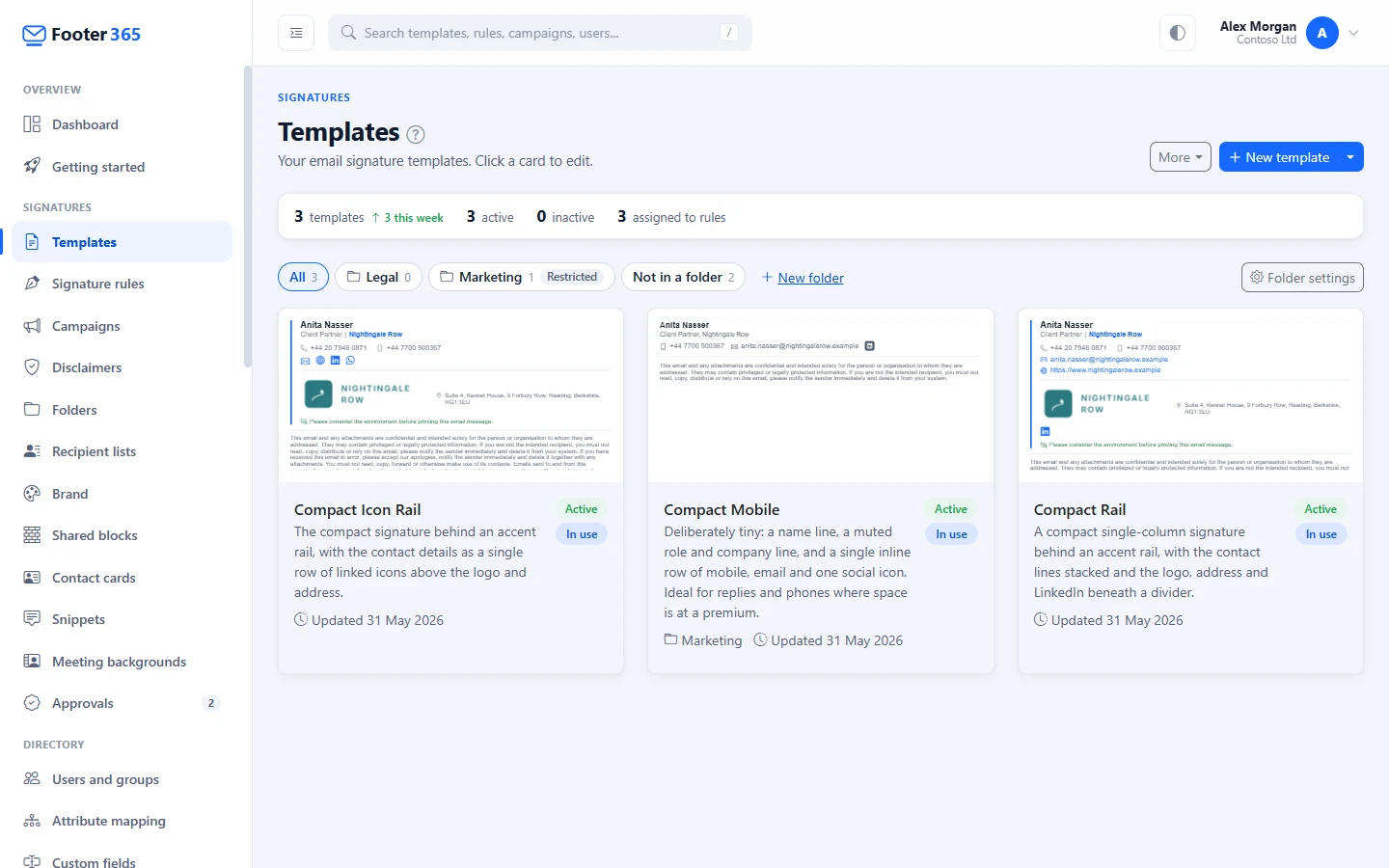
A line across the top counts your templates, how many are active and inactive, and how many are assigned to rules. Below it, each template is a card showing a preview filled in with a sample person, the same one on every card and in the editor, its name and description, the date it was last updated, and its status:
- Active means a signature rule can use it.
- Inactive means it is switched off. A rule cannot use it.
- In use means at least one signature rule is using it.
Click a card's preview or name to open it in the editor. Hover over a card to see its buttons. On a touch screen the buttons are always shown.
Between the figures and the cards is the folder bar. Choose a folder to see only the templates in it, All for every template you can see, or Not in a folder. A card in a folder names it beside the date it was updated. The figures count the templates the page is showing. See Folders and who can use them.
Create a template from scratch
If your organisation has the template wizard, New template opens it: see Build a template with the wizard. To start from scratch then, select the arrow beside New template and choose Start blank, or Duplicate a template to copy one of yours. Footer365 makes the wizard available to organisations gradually.
- Select New template.
- Enter a Template name. It must be unique among your templates and can be up to 200 characters.
- Optionally add a Description saying when to use it, up to 1000 characters.
- Select Create and edit. The editor opens with an empty design for you to build.
New templates start as Active. If your organisation has a default brand kit, the empty design starts on it, so its font and colours are the kit's. See Brand kits and the image library. To start from a finished design instead, use New from library. See Start from the template library.
A template you create while a folder is chosen in the folder bar goes into that folder, if you can manage it. If you can only manage templates through a folder, choose that folder first.
Move a template to another folder
Select ... on the card, then Move to folder, choose the folder and select Move. Moving changes who can see and change the template, not which messages it is used for.
Activate or deactivate a template
Select ... on the card, then Deactivate on an active template, or Activate on an inactive one. Deactivating is a way to keep a template without it being available to rules.
You cannot deactivate a template that a signature rule is using. The button is greyed out, and hovering over it shows Template is in use within a Signature Rule. Change the rule to use a different template first, then deactivate it. See How signature rules work.
Duplicate a template
Select ... on the card, then Duplicate. Footer365 creates a copy named after the original with "(Copy)" on the end. The copy:
- has the same design and description as the original's current version, and is in the same folder,
- starts as Inactive, so it cannot be picked up by a rule by accident,
- starts its own version history with a single version.
Open the copy, rename it under Template name, make your changes and save. Activate it when it is ready.
Delete a template
- Select ... on the card, then Delete.
- The Delete Template window asks you to confirm. Select Delete.
Deleting is permanent. The template leaves every list and cannot be recovered. Its saved versions go with it, apart from any version that signed email, which Footer365 keeps out of sight as the record of what that email carried (see "Versions that signed email" in Version history). Images you uploaded that were only used by the versions deleted are removed from storage too.
You cannot delete a template that a signature rule is using. As with deactivating, the button is greyed out. Remove the template from every rule that uses it, then delete it.
Not sure you will never need it again? Deactivate it instead, or download a backup first. See Back up and restore your signatures.
Shared blocks
A shared block is a whole row, such as an awards strip, an address panel or a set of social icons, that you keep once and use in many templates. Go to Signatures and then Shared blocks (open Shared blocks). Each block is a card with a preview filled in with a sample person, its version, how many templates use it, how many of those are Behind, and when it was last changed and by whom.
To make one, select New shared block, or select a row in the editor and choose Save as shared block (see Using the signature editor). Names are unique in your organisation, whatever the capitals. Making, changing and deleting blocks needs the Manage signatures permission for the whole organisation; anyone who can view signatures can see the page, and anyone who can change a template can add a block to it.
Change a block: Save and apply
Select Edit on a card. The Block tab is the signature editor with a single row: there is no adding another row, and a block cannot hold another shared block. Show with the colours of draws the row with the colours of one of your templates. A block names colours such as Accent rather than their values, so this changes nothing in the block.
There is one save, Save and apply. It first lists every template that uses the block and what will happen to each:
- Published again: the template gets a new version with the new block, noted "Shared block "Awards 2026" updated by" and your name. It can be put back from its version history.
- Draft for approval: where the template's folder or your organisation requires approval, a draft is made and sent for approval in your name.
- Left as it is, with the reason: the template has a draft someone is working on, a change waiting for approval or set to publish at a time, or is in a folder you cannot manage.
Confirming saves the block as its next version, with your change note, and works through the templates in the background, twenty at a time. You can leave the page while it does. For a block that no template uses yet, the window says that saving changes no signature, and its button reads Save. If someone else saved the block while you were editing it, your save is refused so that their change is not lost: open it again to see theirs.
What an approver approved is what goes live. A draft that was sent for approval, or set to publish at a time, before the block changed goes live with the version it was sent with. A draft that is only saved takes the newest version of the block when it is published, sent for approval or set to publish at a time. When an approver reviews a draft, the comparison says which shared block it changes and between which versions.
Used in and Behind
The Used in tab lists every template whose live version or draft holds the block, with the version it holds and its state: Up to date, Behind (it still sends an earlier version, with the reason) or Waiting for approval. It is worked out from the templates each time, not stored. Bring templates up to date lists what would happen to the templates that are behind now, and applies the current version to them once you confirm.
Versions
The Versions tab lists every saved version with who saved it, when, the change note and how many templates send it now. The last 25 are kept. Preview shows a version, and Compare with current, in the ... menu on an earlier version's row, shows it beside the current one. Restore, in the same menu, makes an earlier version the current one, as restoring a template's version does: it first lists the templates that use the block and what happens to each, and Restore and apply (or Restore, when no template uses it) saves that version as a new version, noted "Restored from version" and its number, and applies it to them straight away.
Delete a block
On the Shared blocks list, select ... on the block's card, then Delete, and confirm with Delete shared block. The templates that use it keep the row exactly as it is, as an ordinary row, so nothing they send changes. The block's versions are deleted with it; the templates' own versions are not touched.
Putting back an older version of a template that held a shared block which has changed since takes the row off the block, with a note, so the restore is not undone by the newest block.
Pictures from the image library and backups
A picture a block takes from the image library follows the library. Replacing that image on the Brand page changes the picture in the block's current version straight away, without making a new version, so no template is marked Behind, and the templates that hold the block are brought up to date with the image. The block's earlier versions keep the picture they had. See "Replace an image everywhere" in Brand kits and the image library.
Shared blocks are part of a backup. Restored into another organisation, a block's pictures are copied into that organisation's own storage. See Back up and restore your signatures.
Editor canvas settings
Some accounts see Editor canvas under More at the top of the page. It only appears when your account has been given control of these settings and you are allowed to manage portal access. It sets two things for everyone in your organisation who opens the editor:
- Name pills: whether a small label naming the selected element appears above it on the canvas.
- Sample details: whether the canvas fills each element with sample details (for example a sample name) or shows the element's own name.
For each, Use what we set follows whoever manages your account, and On or Off decides it for your company. Select Save settings. These change the editing canvas only. The preview and the signatures your people send are not affected.
Good to know
- A template in use saves as a draft. Once a signature rule uses a template, Save draft keeps a change beside the live version until it is published, and approved where your organisation requires it. See Drafts, publishing and approval.
- View only. If you can view a template but not manage it, by your role or by its folder, the card's first button reads View instead of Edit, and the other buttons are not shown.
- Import and backup, under More at the top of the page, takes you to import, backup and restore. It needs the Manage signatures permission in your role, as a folder's own access does not reach it. See Import a signature from another provider.
Related articles
Still stuck?
Tell us what you were trying to do and what you saw. Include the sender, a recipient and roughly when a message was sent, and we can trace it.