

Analytics and signature coverage
See how much of your email carries a signature, which mailboxes are sending without one, and how your campaigns, signature links and QR codes are doing.
The Analytics page shows how Footer365 handled your organisation's outgoing email over the last 30 days. Use it to check that everyone who should have a signature is getting one, and to see how your campaigns are performing.
Go to Insights > Analytics (open it). You need the View insights permission.
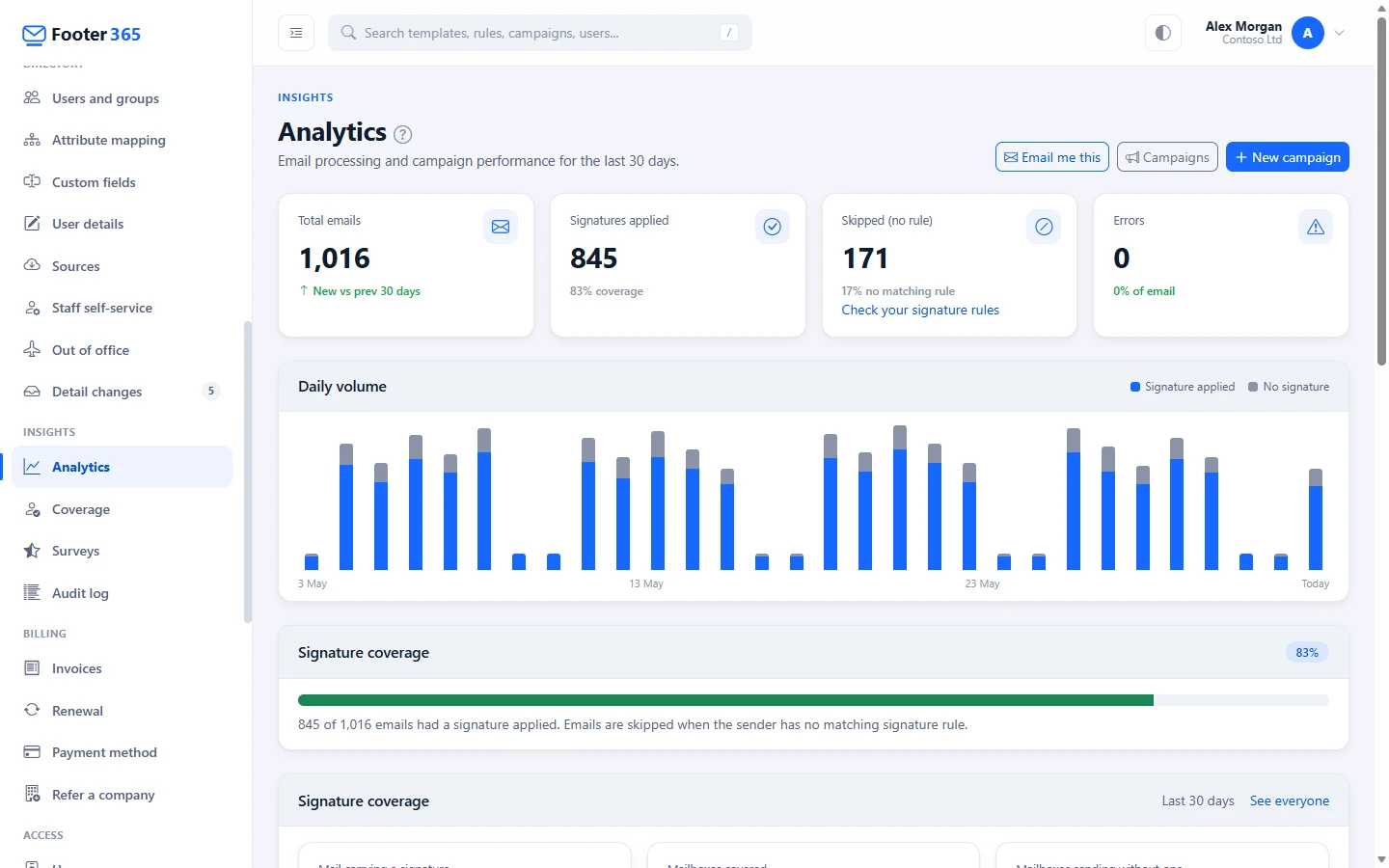
The four figures at the top
| Card | What it counts |
|---|---|
| Total emails | Every email Footer365 handled in the last 30 days, compared with the 30 days before. |
| Signatures applied | Emails that had a signature added. The percentage under it is your coverage. |
| Skipped (no rule) | Emails Footer365 passed on without a signature. |
| Errors | Emails where something went wrong while adding the signature. |
Coverage is shown in green at 90% or more, and highlighted as a warning below 50%.
What "Skipped (no rule)" includes
Most skipped emails are ones where no signature rule matched the sender. The same figure also includes emails Footer365 deliberately leaves alone, for example:
- encrypted or digitally signed email, which cannot be changed without breaking it (see Encrypted or signed mail)
- email sent while signatures are paused for an outstanding payment
- email from a sender Footer365 could not find in your directory
So a small number of skipped emails is normal, even when every person has a rule. When there are skipped emails, the card links to Check your signature rules.
Daily volume
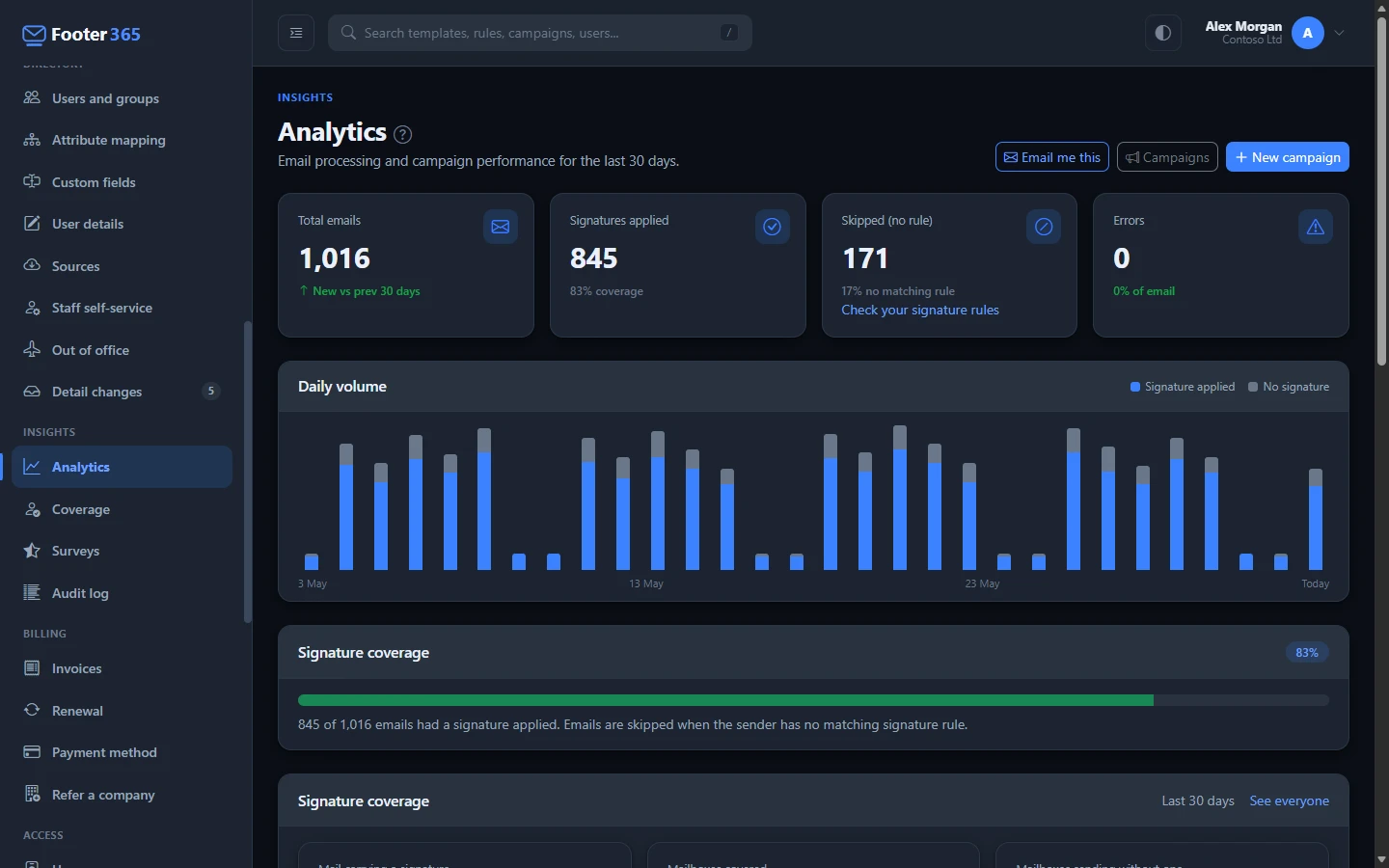
The Daily volume chart has a bar for each of the last 30 days. The blue part is Signature applied and the grey part is No signature. Hover over a bar to see the figures for that day. Days are counted in UTC. Until any email has been counted, the chart says that emails are counted once mail flow or the Outlook add-in is set up, and that Getting started shows what is left to set up.
Find mailboxes sending without a signature
Further down, the Signature coverage section breaks the figures down by mailbox:
- Mail carrying a signature: the share of messages that had one.
- Mailboxes covered: how many mailboxes sent at least one signed message.
- Mailboxes sending without one: how many mailboxes sent email in the period and never had a signature added.
Under these, Footer365 lists the mailboxes that sent email with no signature at all. This usually means no signature rule matches them, and it also means nothing they send carries a campaign banner.
To fix a mailbox on the list:
- Check whether it should have a signature. A system mailbox, such as one used by a scanner or an application, may not need one.
- If it should, go to Signatures > Signature rules and check which rule ought to cover it. A shared mailbox, for example, may not be in the group your rule targets.
- Add the mailbox, or its group, to a rule, or make sure you have a fallback rule for everyone else. See The fallback rule.
- Use Test a rule to confirm which rule now applies to that address.
The list fills up again as new email arrives, so a mailbox you have fixed drops off once it sends signed email and the 30 days move on.
To see everyone rather than only the mailboxes with nothing signed, select See everyone at the top of the section. It opens the Coverage page, which lists each person with when they last sent, whether the Outlook add-in or the mail flow signed their email, their Outlook and add-in version, and why any of it went unsigned. See Coverage: who sends with their signature.


Campaign performance
The Campaign performance table lists your campaigns with their status, start and end dates and Total clicks. Select a campaign name or Report to open its full report. See The campaign report.
Total clicks counts clicks made by people. Many organisations run link scanners that follow every link in every message they receive. Those visits are recorded but not counted as clicks. See Click counts look wrong.
Signature links
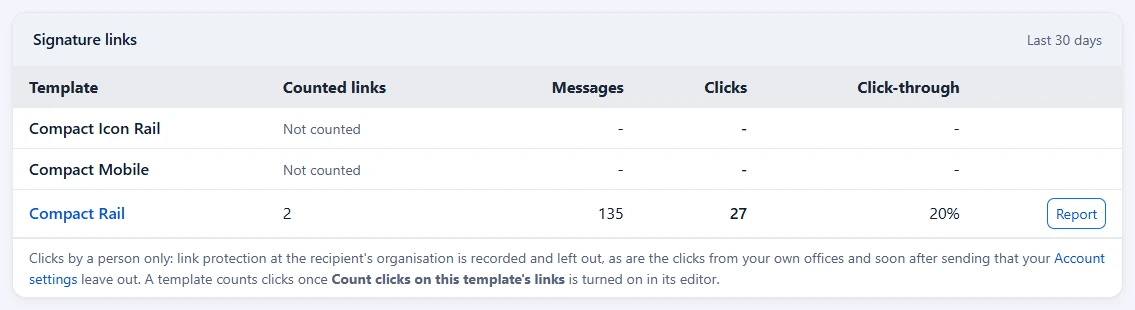
Under Campaign performance, the Signature links card does the same for the links in the signature itself, such as the website, the social icons and a booking button. Each template is listed with its Counted links, the messages sent with them, clicks by people and the click-through rate. A template that does not count clicks on its links shows Not counted; counting is off for every template until it is turned on in the template's editor. Select a template's name or Report to open its report. See Count clicks on your signature's links.
QR code scans
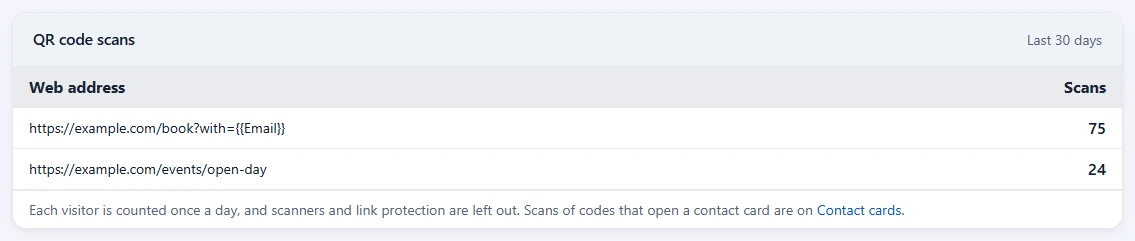
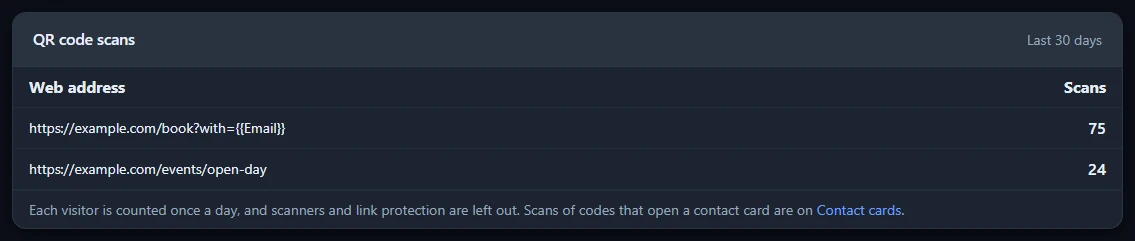
Under Signature links, the QR code scans card lists each web address a signature's QR code opens, as the template holds it, with how many times it was scanned in the last 30 days. Only a QR code whose Code opens is set to A web address is listed here. Each visitor is counted once a day, and link checkers and mail security scanners are left out. Scans of QR codes that open a contact card are on the Contact cards page. See Social icons, WhatsApp, Teams, booking and QR codes and Contact cards.
Export the processing log
The figures above are worked out from the processing log, which records one row for each email Footer365 handled. To download the log itself:
- At the bottom of the page, under Export the processing log, choose the first and last day in From and To. Days are in UTC, and one download covers up to 91 days. Each email's record is kept for at most 90 days, and the card says for how long, so the earliest day you can choose is that many days ago. After that Footer365 keeps only the number of emails handled each day. See Data and privacy.
- Select Download CSV.
Each row gives the time the email was processed, the sender, whether a signature was added and, if not, why, the email type, the number of recipients, the rule, template and campaigns used, the Message-ID, the Footer365 relay ID, the IP address of the server that sent it to Footer365, any error, how long it took, and how many times it was delivered. For a reply or forward, Earlier messages tidied says what was taken out of the quoted part or shortened, such as "2 earlier banners removed, 1 earlier signature shortened". See Earlier signatures and banners in long conversations. No message content and no recipient addresses are recorded, so none are in the file. The export is recorded in the audit log.
Have it emailed to you
Select Email me this at the top of the page to have the headline figures emailed to you every Monday or on the 1st of each month, at 08:00 in your own time zone. The email counts the week or month before it, with the change on the one before that, and links back to this page. See Have reports emailed to you.
Good to know
- All figures cover the last 30 days, up to and including today. The export covers the days you choose.
- The page only reads what Footer365 has recorded. It does not read the content of your email.
- With the Outlook add-in only, Footer365 records only the email the add-in handled, so mail sent from phones and other programs is not in any figure, and the add-in's own reasons, such as a signature too large for Outlook, are among the emails without a signature. Using the Outlook add-in only
- If you see a steady number of Errors, check the status page and see Signature not added.
- An administrator limited to part of the organisation does not see this page, because its figures cover everyone. They have Coverage, built for the people in their scope. See Limit an administrator to part of the organisation.
Related articles
Still stuck?
Tell us what you were trying to do and what you saw. Include the sender, a recipient and roughly when a message was sent, and we can trace it.