

Plain-text email and iPhone Mail
How Footer365 makes sure email written in plain text, such as a new message from the Mail app on an iPhone, still carries your full signature, and how to change what happens for everyone or for particular people.
Email comes in two kinds. HTML email can show a logo, links, colours and a campaign banner. Plain-text email is just words. The Mail app on an iPhone or iPad, and most other phone mail apps, send a new message as plain text unless something in it is formatted, and there is no setting on the phone to change that.
A plain-text email cannot show your logo or banner, so on its own it would only get the text version of your signature. To stop that, Footer365 converts plain-text email to HTML on the way out, so it carries your full signature like everything else your organisation sends. This is switched on for every organisation from the start.
The conversion is done by Footer365's mail flow. If your organisation uses the Outlook add-in only, the page says so and the setting takes effect only if mail flow is added, from Getting started. Mail from iPhone Mail and other phone mail apps is not signed with the add-in only. Using the Outlook add-in only
What happens to a converted email
- The words the sender wrote are kept exactly, line for line, in the font and size you choose. Web addresses and email addresses become links.
- Your full HTML signature is added, with any campaign banner.
- A plain-text copy goes with it, signed with the text version of your signature, for the few recipients whose mail app prefers plain text. You can write that text version yourself: see Edit the plain-text version of a template, below.
- In a reply, the message being replied to stays underneath, with each level of quoting shown as a quote, and your signature goes above it, just as in a reply written in Outlook.
- Email that already has any formatting, which includes nearly everything sent from Outlook, is never changed by this setting.
Change the setting for everyone
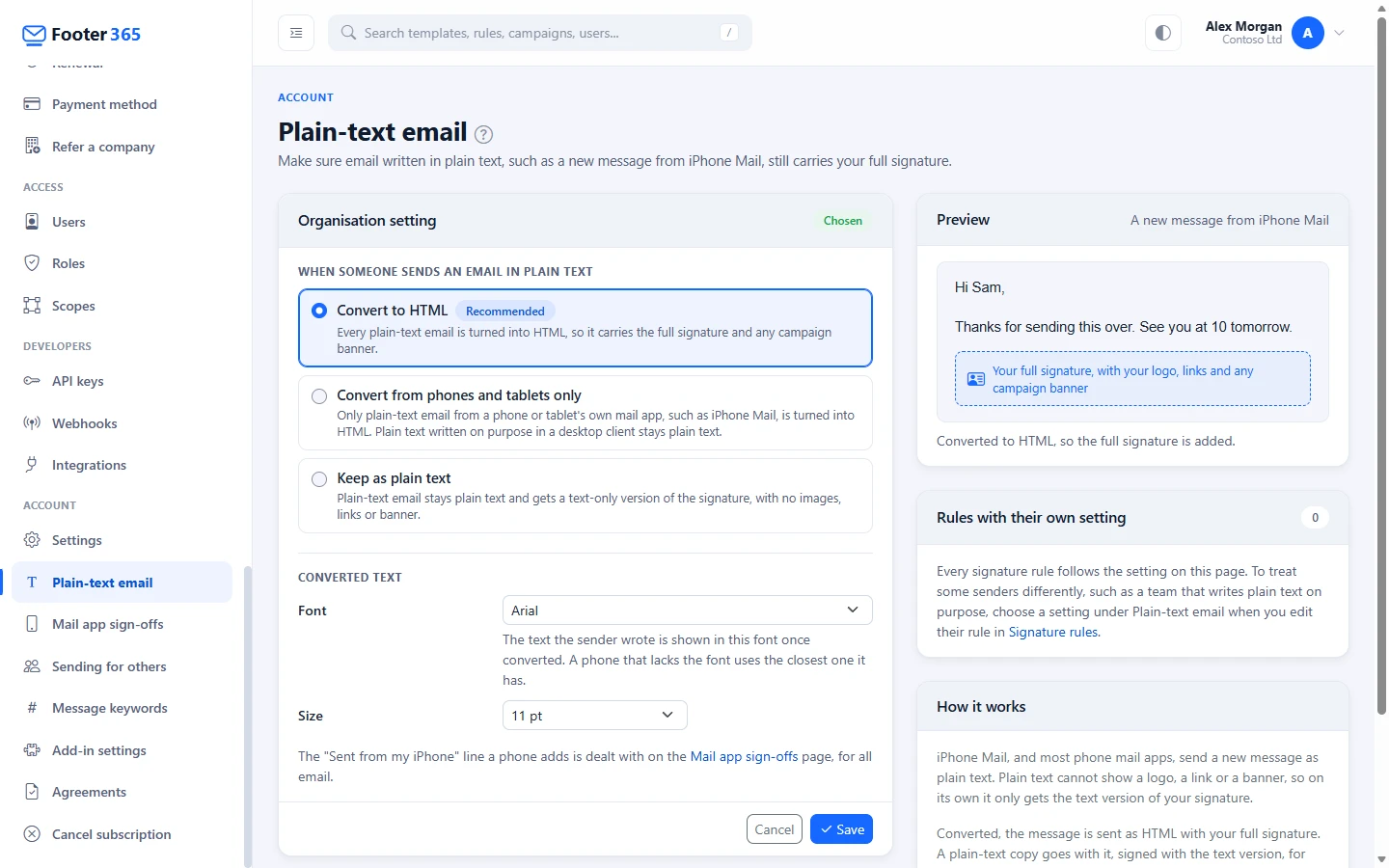
- In the sidebar, under Account, select Plain-text email.
- Under When someone sends an email in plain text, choose one:
- Convert to HTML (recommended): every plain-text email is converted and gets the full signature.
- Convert from phones and tablets only: only plain text from a phone or tablet's own mail app, such as iPhone Mail, is converted. Someone who writes plain text on purpose in a desktop mail app keeps it. How a phone is recognised, below, explains what this can and cannot tell apart.
- Keep as plain text: plain-text email stays plain text and gets the text version of your signature, with no images, links or banner. The text version is made from the design unless you have written it yourself.
- Under Converted text, choose the Font and Size the sender's words are shown in. If a phone does not have the font, it uses the closest one it has.
- Select Save.
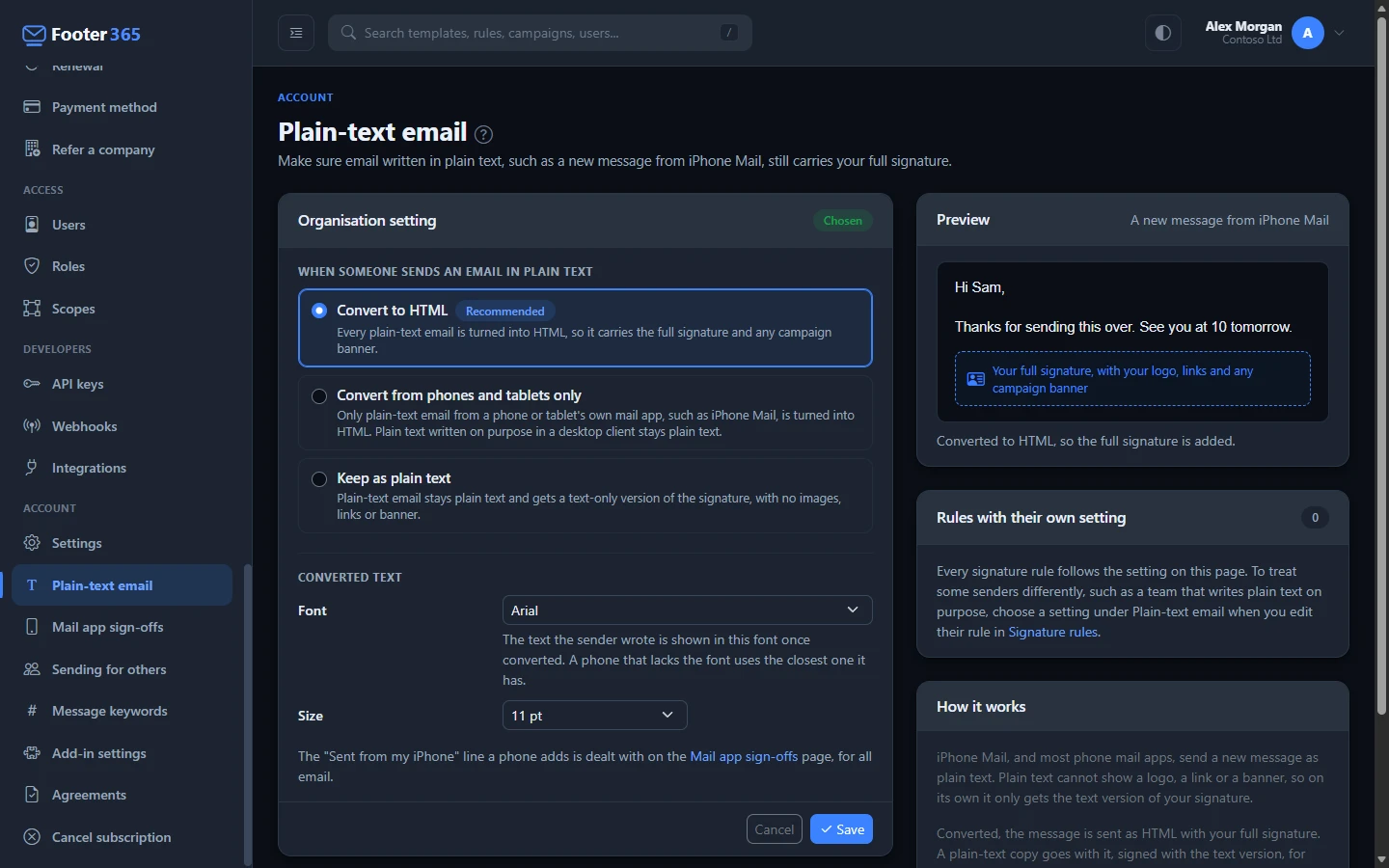
The Preview card beside the settings shows a short message from an iPhone as it will look with your choices. The change applies to email sent from then on, within a few minutes.
The page, and its place in the sidebar, are for people whose role includes Manage plain-text email, under Settings. It is a permission of its own, so you can let someone look after this without giving them the rest of the account settings. Roles and permissions
How a phone is recognised
This only matters if you choose Convert from phones and tablets only.
An iPhone or iPad set up with your Microsoft 365 account does not name itself in the email: Microsoft 365 writes the message on its behalf. Footer365 recognises it instead by the way Apple's Mail app numbers every message it sends. Apple Mail on a Mac numbers its messages the same way, so plain text from a Mac is converted as well. Plain text from a Mac is rare, because Apple Mail on a Mac sends formatted email unless someone turns that off.
Other phone mail apps are recognised when they name themselves in the email, which most do only when set up with a personal account rather than a Microsoft 365 one. Outlook on a phone always sends formatted email, so it never needs converting.
If you want to be sure every plain-text email gets the full signature, whatever sent it, choose Convert to HTML.
Treat some people differently
A signature rule can have its own setting, which wins over the one for everyone for the people that rule matches. That lets you, for example, keep plain text for a team that sends it on purpose, while everyone else's is converted.
- Open Signature rules and edit the rule.
- Under Plain-text email, change When the sender writes in plain text from Follow the organisation setting to the setting you want.
- Save the rule.
This part of a rule has its own permissions, under Signatures. View a rule's plain-text email shows it, and Manage a rule's plain-text email lets someone who can manage signatures change it. Someone with neither does not see it on the rule at all.
Because rules can match a person, a group, a department, a job title or an email domain, this setting can be different for any of those. The font and size are set once for everyone. The Rules with their own setting card on the Plain-text email page lists every rule that has its own setting. How rules work
Where you can see it
- The Dashboard's Microsoft 365 connection card has a Plain-text email line showing Converted to HTML, Phones converted or Kept as plain text, and how many rules have their own setting. Until someone has confirmed the setting, it also shows Review, which opens the page, to people who can manage plain-text email. With the Outlook add-in only, it shows Needs mail flow.
- Getting started has it as step 7, marked Not needed for add-in only if your organisation uses the add-in only. The Getting started page
Edit the plain-text version of a template
Each template has a text version, used wherever plain text goes out: an email kept as plain text, the plain-text copy that goes with a converted email, and a plain-text message written in Outlook with the add-in. My signature shows it too. Footer365 makes it from the design for each person, every time. A link keeps its words but not its address (apart from a Microsoft Teams link, which is written out after its label), an image gives nothing, a handwritten sign-off gives its words, and the cell beside a logo can leave stray spaces at the start of a line.
If you want to tidy it, you can write the text version yourself:
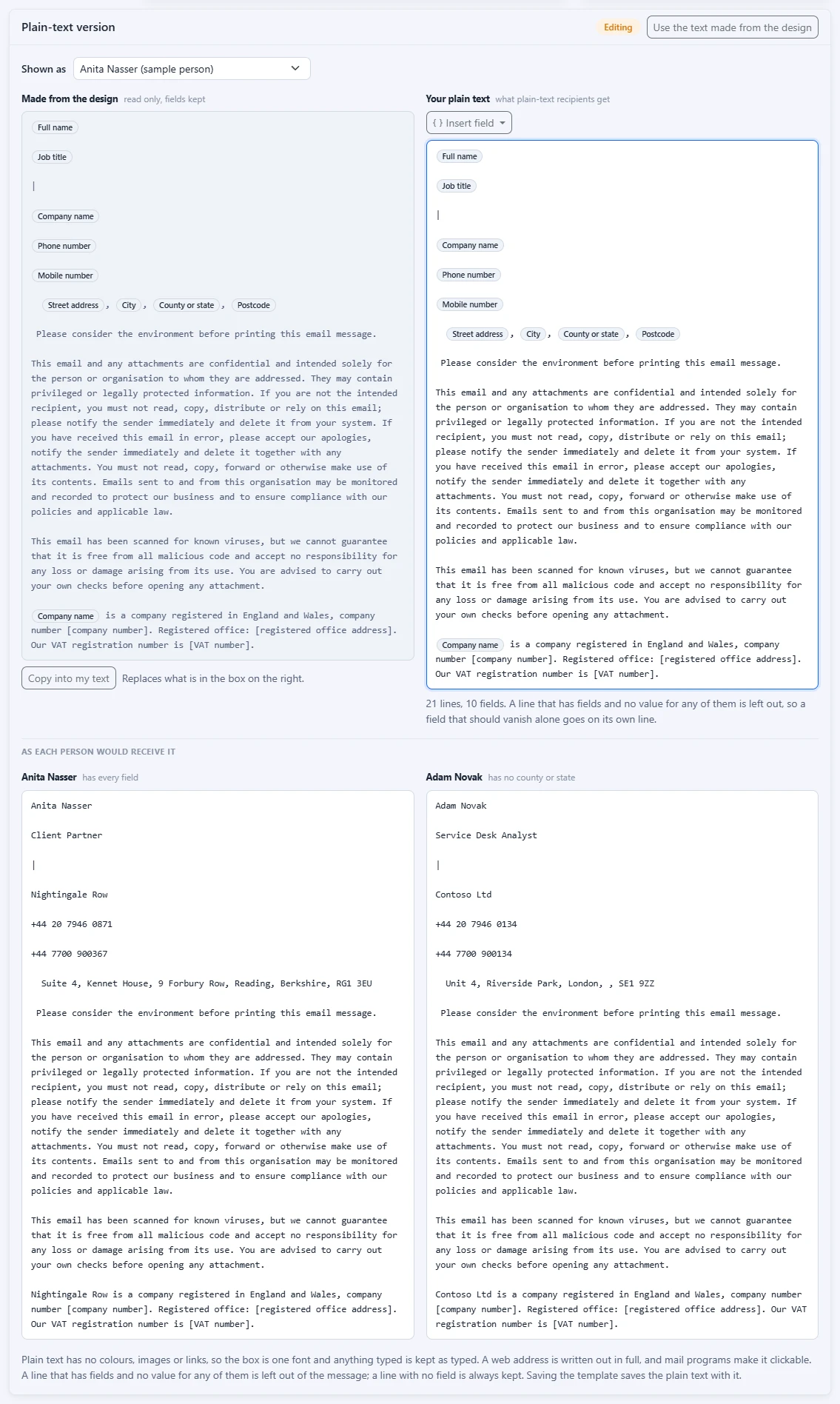
- Open the template in Templates. Under the editor is the Plain-text version card, showing the text for the person chosen in Shown as.
- Select Edit plain text. The text made from the design appears on the left, with its merge fields shown as pills, and a copy of it in your own box on the right.
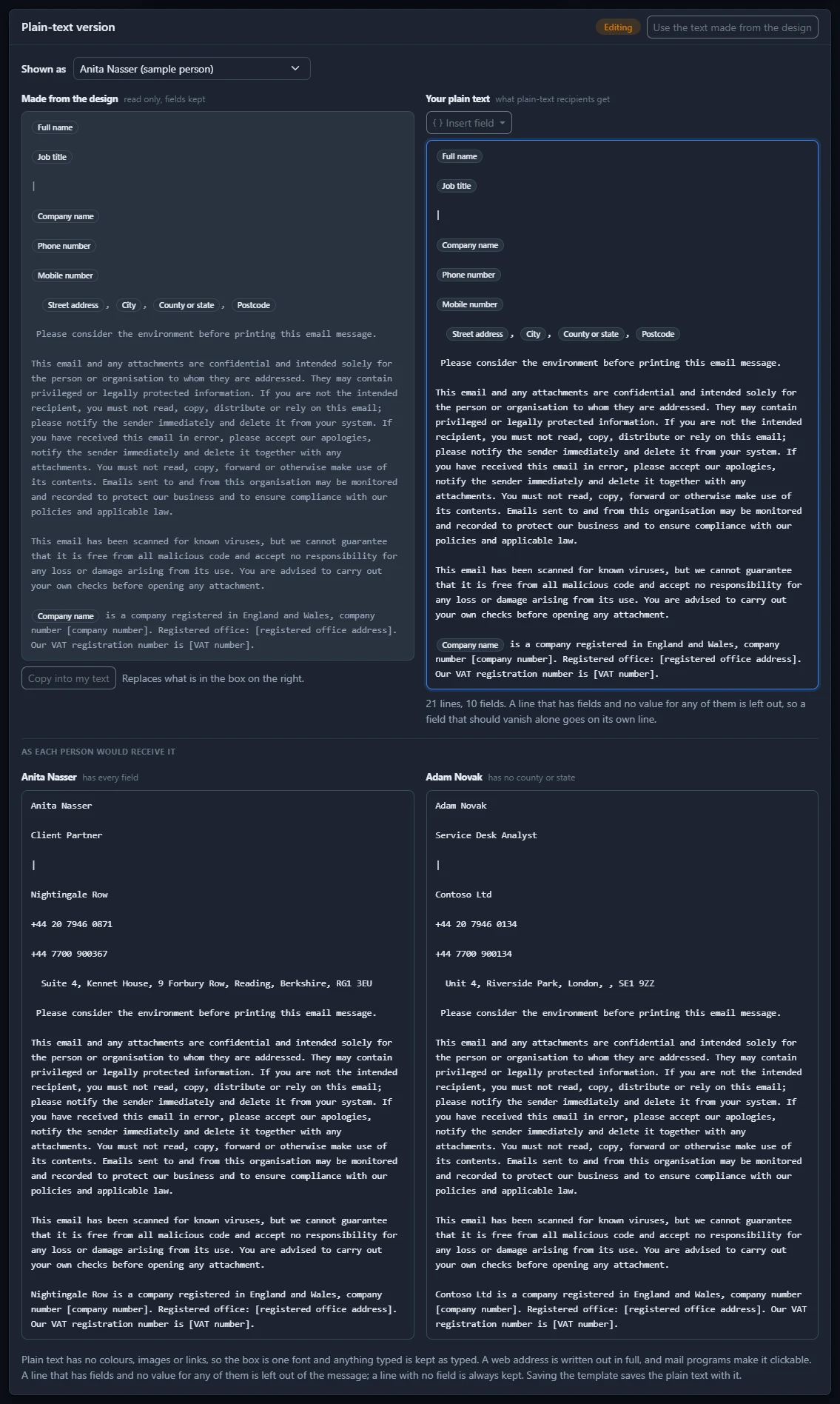
- Change your box as you like. Use Insert field to add a merge field: it offers the same fields as a text element in the editor, including your organisation's own fields. Under the boxes, As each person would receive it shows the text for the person in Shown as and, beside it, for someone from your directory whose fields differ, such as a person with no mobile number, so you can see a line being left out. Each is headed with the person's name and the fields they have no value for.
- Save the template. The plain text is saved with it, as part of the same version, or of the draft when the template saves to a draft.
How your text is made for each person:
- Each field is filled in with the person's value as plain text. Nothing you type is read as formatting.
- A line that has fields and no value for any of them is left out, so a line reading
M: {{MobilePhone}}disappears for someone with no mobile number. A line with several fields stays while any one of them has a value, so put a field that should vanish on its own line. A line with no field is always kept. - Runs of blank lines become one.
- A web address is not added for a link. If you want one, type it, for example
Book a meeting: https://www.contoso.example/book. Mail programs make it clickable.
A field Footer365 does not know, such as a misspelt one, is named under the box with the nearest real field, and the template cannot be saved until it is fixed. If you save an empty box, the template goes back to the text made from the design.
To go back to the text made from the design at any time, select Use the text made from the design. Copy into my text replaces your box with the text made from the design, and asks first if you have changed the box.
When the design changes after the text was edited
Your text is never changed for you, so Footer365 tells you when the design changes in a way that changes the text made from it, such as a line added or a phone number removed. Changes that leave the text the same, such as a colour or a spacing, are not mentioned.
- The card shows Check the text, and says the design has changed since the text was edited. Show what changed lists the lines the design now has (in green) and the lines it no longer has (in red).
- Keep my plain text records that you have seen the change, when you next save. The warning does not come back until the design changes again.
- Use the text made from the design drops your text.
- If you save without doing either, Footer365 asks once, showing what your text is missing. Save anyway saves exactly as before, and Review plain text takes you to the card.
Until you choose, people who receive plain text go on getting your text.
Each version keeps its own plain text, so restoring a version, or copying it to the draft, brings back the plain text it was saved with, and Compare shows the difference in the plain text. A copy of a template keeps it too. A template added from the template library starts with the text made from the design. Someone with view-only access sees the text but cannot edit it. Drafts and approval
The "Sent from my iPhone" line
The line a phone or mail app adds under the message is a separate setting, because it applies to every email, formatted or plain text. Removing "Sent from my iPhone" lines
Related articles
Still stuck?
Tell us what you were trying to do and what you saw. Include the sender, a recipient and roughly when a message was sent, and we can trace it.