

Back up and restore your signatures
Download every signature template, rule, campaign and disclaimer in your account as one zip file with its images, and add them back to this or another account.
You can download all of your signature templates, signature rules, campaigns, disclaimers, brand kits, library images and shared blocks as a single backup file, and put it back later. It is a sensible step before a big redesign, and a way to copy your signatures into another Footer365 account.
You need permission to manage signatures to use this page. See Roles and permissions.
Download a backup
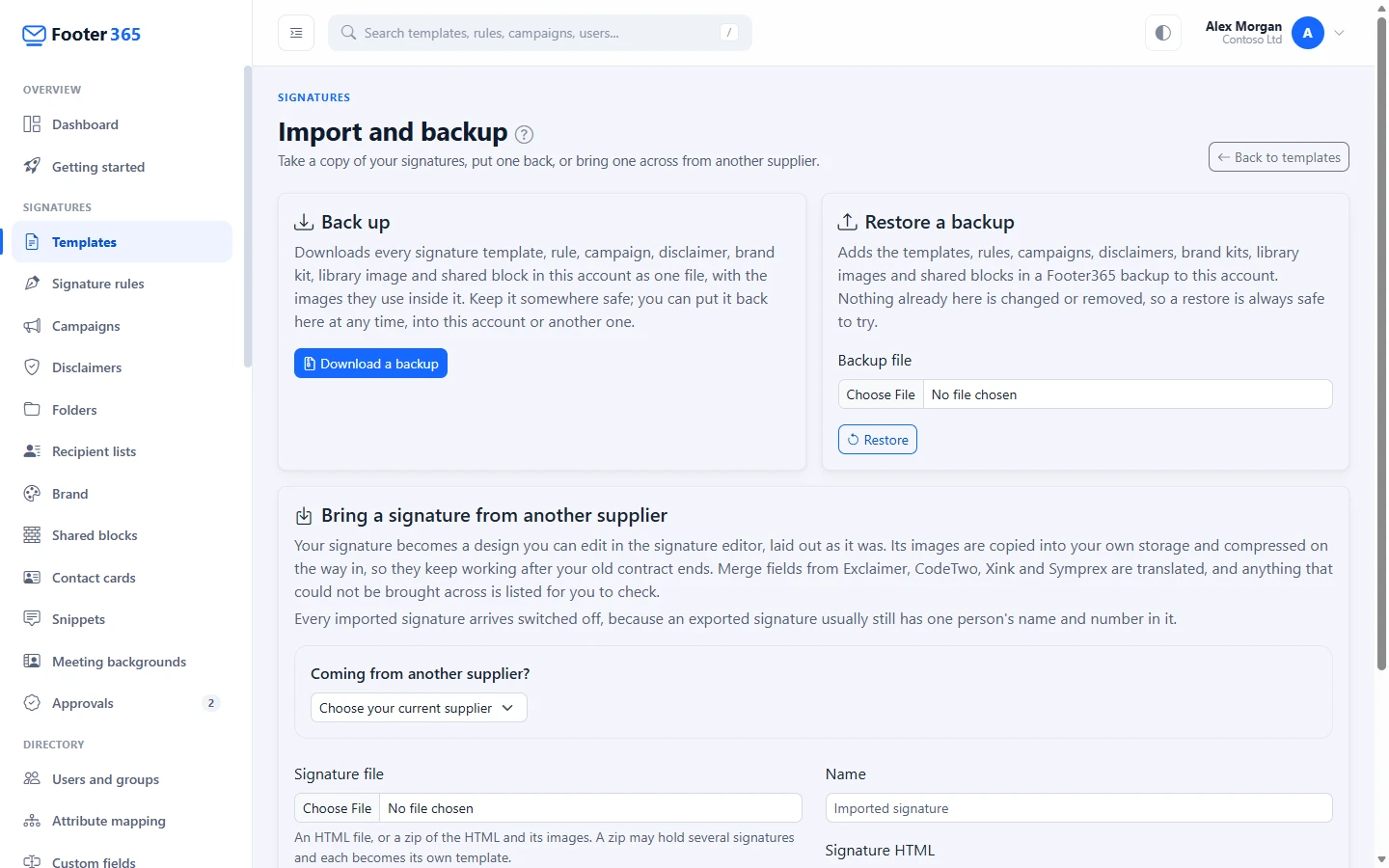
- Go to Signatures and then Templates, select More and then Import and backup (open Import and backup).
- Under Back up, select Download a backup.
- Your browser saves a zip file named with today's date, such as footer365-signatures-2026-09-29.zip. Keep it somewhere safe.
What is in a backup
- Every template, as its current version, with its name, description and whether it is active. Earlier versions from the history are not included.
- Every signature rule, with its priority, who it applies to and whether it is switched on.
- Every campaign, with its banner, its start and end dates, its UTM settings, the rules it runs with, and its own recipients, exceptions and schedule. Excepted people are kept by email address and groups by name, as a rule's are; one that is not in the account it is restored into is left out, and the page says so. Its click history is not included; export that from the campaign's report instead (see Campaign report). If an A/B test is running, only banner A is included.
- Every disclaimer on the Disclaimers page, in list order, with its wording, its regional wordings, who it applies to and whether it is switched on. Its earlier versions are not included: a restored disclaimer starts again at version 1. See Disclaimers.
- Every brand kit, with its name, whether it is the default, and its colours, font and size. A template or campaign that follows a kit is still linked to it in the backup. See Brand kits and the image library.
- Every library image, with its name, the kit it belongs to and what it is for in that kit, such as the logo, and its picture.
- Every shared block, with its name, its description and its current version. A template that holds a block is still linked to it in the backup. Earlier versions of a block are not included. See "Shared blocks" in Managing your templates.
- The images your templates and banners use that are stored in your Footer365 account, inside the zip, so the backup does not depend on the account it came from.
- The name of the folder each template, rule, campaign and disclaimer is in. A folder's access list is not included, because it names people and groups of this account.
A backup holds only what you can see. Anything in a folder you cannot open is left out of it, so a backup is never a way round a folder's own access list. See Folders and who can use them.
A backup does not hold the scope a rule, disclaimer or campaign was saved under by an administrator limited to part of the organisation. Backing up and restoring are for people who see the whole organisation, so what a restore adds carries no limit. See Limit an administrator to part of the organisation.
Restore a backup
- On the same page, under Restore a backup, choose the zip file in Backup file.
- Select Restore.
- A message confirms how many templates, rules, campaigns, disclaimers and images were restored. If anything needs attention, or brand kits or library images were added, it is listed on the page.
A restore only ever adds. Nothing already in the account is changed or removed.
Each item goes back into the folder of the same name. Where there is no folder of that name, one is created, following the Signatures permissions until it is given its own access list, and the page says which. Where the folder exists but you cannot manage it, the item is restored in no folder, and the page says so.
What is checked before a restore
A backup is a file that can be opened and changed, so every template and campaign banner in it is checked before anything is saved, against the same rules as the editor's Import:
- A template or banner built in the editor is restored from its design, and its HTML is built again from that design rather than taken from the file. Any imported HTML element in the design is checked, and so is the HTML built from the whole design, because the wording of any element could carry code written into the file.
- A template or banner that is HTML only is checked and cleaned as HTML typed under Advanced: edit HTML is, and restored as the cleaning leaves it when it passes. See Edit the HTML.
If any of them would be refused, the whole restore is refused, nothing is saved, and the page names each template or campaign with the reason. Content that only an attack would carry, such as a script or a disguised link, counts against your organisation as an attempt to import it would. See "Why an import can be refused" in Import HTML into the editor.
Restored campaigns are drafts, whatever they were doing when the backup was taken, and start no earlier than the next hour. They run with the restored copies of their rules, and their links are checked again, as any new link is, before they can be activated. A restored campaign whose name is already used in the account is named with "(restored)" after it. Check each one, then activate it under Campaigns.
Restoring into the same account creates a second copy of every template and every rule in the backup, alongside the ones already there, with the same names. Restored rules that were switched on in the backup are switched on again. After a restore, go to Signature rules and switch off or delete the copies you do not need, so the same people are not covered twice.
How rules are matched up
A backup names the people and groups a rule applies to by email address and group name, not by internal identifiers, so it can be restored into a different account.
- A rule aimed at people or groups is matched to the people and groups with the same email address or name in the account you restore into.
- If any of a rule's people or groups cannot be found, the rule is still restored, but switched off, and the page lists who was missing. Correct the rule, then switch it on.
- A rule aimed at a department, job title or domain is restored with the same value.
- A rule whose template is not in the backup is not restored.
- Disclaimers are matched up the same way, and go after any disclaimers already in the account. One with the same name as a disclaimer already there is numbered, such as "Confidentiality (2)". One whose people or groups cannot all be found is restored switched off, and the page lists who was missing.
When restoring into a new account, make sure its directory sync has finished first, so its people and groups are there to be matched. See How directory sync works.
How brand kits and library images are restored
Kits and library images go back first, so the templates and campaigns restored with them follow them again.
- A kit with the same name as one already in the account is not replaced. The one in the account is kept, and the restored templates and campaigns that followed the kit follow that one. A library image with the same name in the same kit is kept in the same way.
- A restored kit is the default only if the backup's kit was and the account has no default kit already.
- A kit or an image that is not valid, an image whose picture is missing from the backup, and anything that would take the account past its limit of 100 kits and 1,000 images is left out, and the page lists it. A template or campaign that followed it keeps the colours and pictures it held.
- An image whose kit was not restored is added to the library without a kit.
How shared blocks are restored
Shared blocks go back after the kits and images, and before the templates, so a restored template that held a block holds it again.
- Each block is added as version 1 of a new block. A block with the same name as one already in the account is not replaced: the one in the account is kept, and the restored templates that held the block hold that one.
- A block that is not valid, or that would take the account past its limit of 500 blocks, is left out, and the page lists it. A template that held it keeps the row as it is, as an ordinary row.
Pictures from another organisation
A design keeps the addresses of its own pictures. When you restore a backup into a different Footer365 account, every picture a restored shared block, template or campaign uses that is stored in the account the backup came from is copied into the account you restore into, and the restored designs use the copies. Nothing you restore then depends on files the other account could delete. The page says how many pictures were copied.
- Only pictures stored in Footer365 for the other account are copied. A picture linked from another website, such as your own, is left as it is.
- Only pictures uploaded for signatures, such as library images and pictures added in the editor, are copied. Any other file stored for the other account, such as a profile photo or a web font, is never copied, and a design that names one has that picture left empty.
- Restoring into the account the backup came from copies nothing: every picture is already that account's own.
- A picture that cannot be copied is left empty rather than pointing at the other account's file, and the page names the block, template or campaign it was in. This happens when the file is no longer there or cannot be read, when it is larger than 15 MB, or when the pictures copied would take the restore past 50 MB or 2,000 files. Open the design afterwards and add the picture again.
Limits
- A backup file can be up to 50 MB.
- A backup made by a newer version of Footer365 than the one you are restoring into cannot be read.
- A file that is not a Footer365 signature backup is refused, and nothing is saved.
Related articles
Still stuck?
Tell us what you were trying to do and what you saw. Include the sender, a recipient and roughly when a message was sent, and we can trace it.