

Using the signature editor
Find your way around the drag-and-drop editor, add and arrange elements, set your brand colours, undo mistakes and save your changes.
The signature editor is where you design a template. You build the signature by adding elements to a canvas, by clicking them or dragging them, then click any part of it to change how it looks. You do not need to know any HTML.
Open it from Signatures and then Templates (open Templates) by clicking a template card.
The parts of the screen
- Top bar. The back arrow to the Templates page, the template's name and status, then History, Send a test and Save. If you have changed anything since the last save, the back arrow asks Leave without saving? first.
- Name and description. Change the template's name and description here.
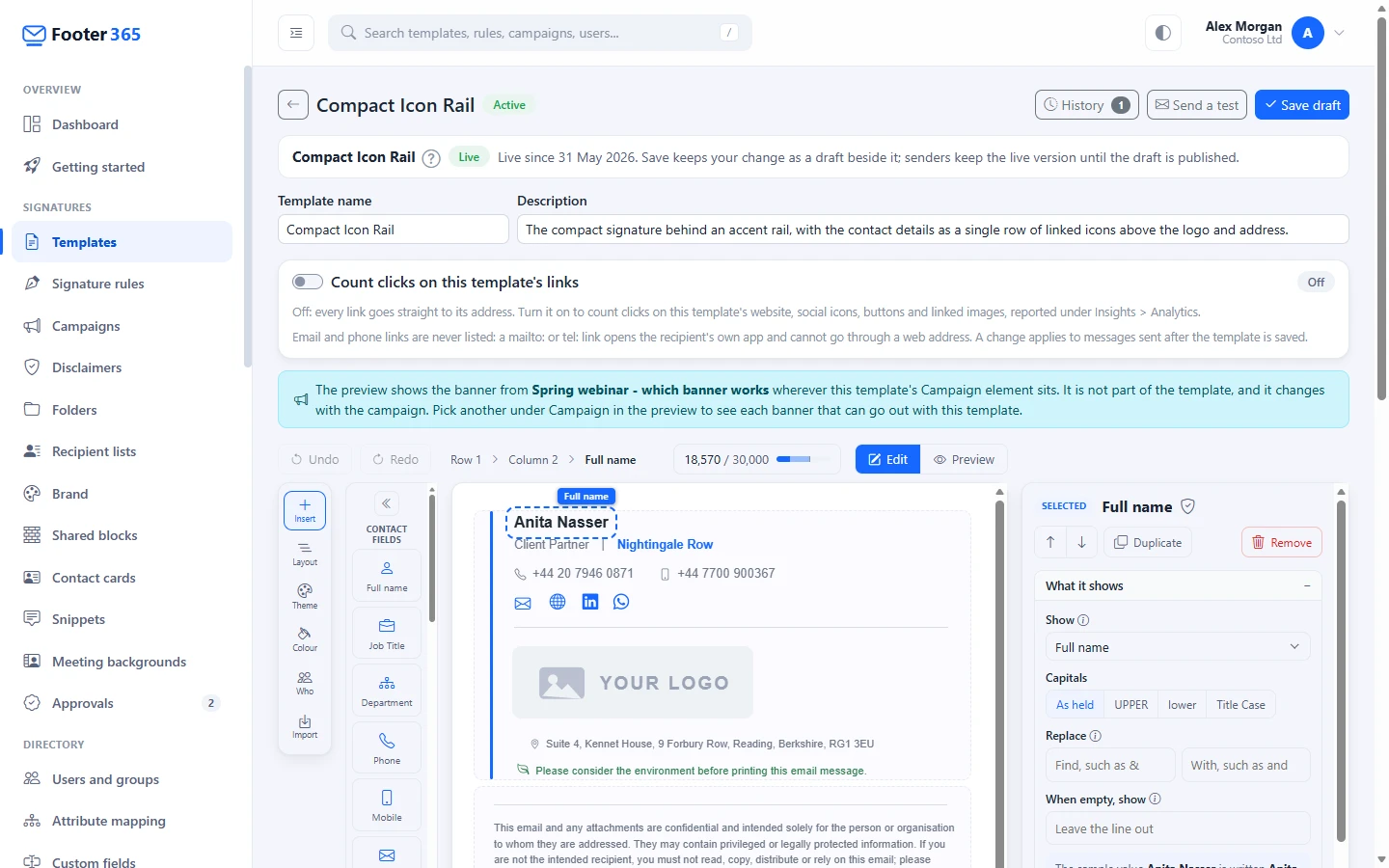
- Toolbar. Undo and Redo, a path showing where your selection sits (for example Row 1, Column 1, Name), the Outlook Add-In size meter, and the Edit and Preview switch.
- The rail on the left, with the panels Insert, Layout, Theme, Colour, Who and Import. Select a button to open its panel, and select it again to close it. The editor opens with Insert showing the elements. Switching to Preview closes the open panel, and switching back to Edit reopens it.
- The canvas in the middle: your signature.
- The settings panel on the right, for whatever you have selected.
- Under the editor, the Plain-text version card, which shows the text version of the signature that people who read plain text get, with Edit plain text to write it yourself. See Edit the plain-text version of a template. Below it is Advanced: edit HTML.
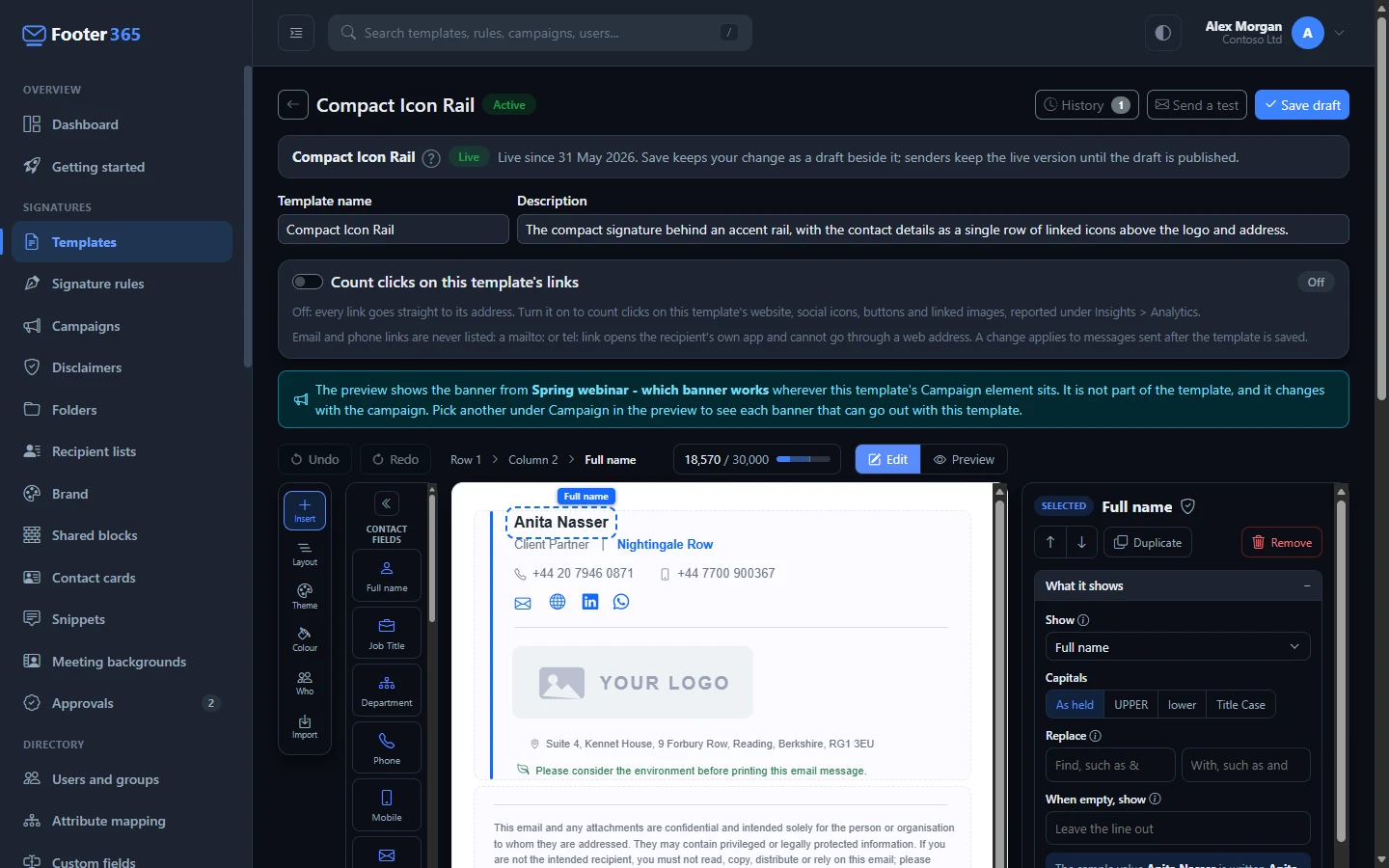
On a smaller screen
When the editor has less room, on a smaller screen or in a narrower window, it makes more room in steps, so that the canvas is never squeezed:
- First, Insert shows the elements as a narrow column, one to a line, each still with its name under its icon. Search elements and the hint at the top are left out to make the room. The button at the top of the panel switches to icons alone, and from there to the full list with names and Search elements; once you have pressed it the editor keeps your choice whatever the screen size.
- With less room, the portal's own menu on the left folds to icons, and opens out again when the window is wide enough. Use the button at the top left of the page to fold or open the menu yourself, and the editor then leaves it as you set it.
- With less room still, the rail moves up into the top bar, and Undo and Redo move to its right-hand end.
- When the toolbar runs short of room, Undo, Redo, Edit, Preview and the rail's buttons show their icons only, and the size meter shows its figure without "/ 30,000". With less room again, the size meter shows its coloured bar alone. Hover over any of them to see its name, or the meter's figure.
- The controls along the top of Preview do the same: Email clients, Dark mode, My details and the Campaign list keep only their icons, and a long name in the list is cut short, with the full name shown when you hover over it. With less room again, the list moves to a line of its own.
Add an element
- Select Insert on the rail if it is not already open.
- Find the element. They are grouped into Contact fields, Layout, Shared blocks, Media and social, Text and disclaimers, and Campaign. You can also type into Search elements. If the panel is showing icons only, hover over one to see its name, or switch to the full list with the button at the top to search.
- Click it, or drag it onto the canvas and drop it where you want it.
A click adds the element below the element you have selected, in the same column; at the end of the column, if a column is selected; or on a row of its own below the selected row. With nothing selected it goes into the first empty column, which a new template has, and otherwise on a new row at the end. Row, Two columns, Spacer and Divider always add a row. From the keyboard, move to an element with Tab and press Enter or Space to add it.
Survey, under Media and social, places one of your organisation's surveys, polls or ratings: choose which under Survey in its settings. The question and its options are set up under Insights > Surveys, and the canvas shows Choose a survey until one is chosen. See One-click surveys, polls and ratings.
Social feed, under Media and social after Survey, shows your organisation's latest posts from your website's news feed as pictures that link to them: choose which feed under Source in its settings. The feed is added on Developers > Integrations, and the canvas shows Choose a source until one is chosen. See Show your latest posts in signatures.
Sign-off, under Media and social after Image, draws a name or a short phrase in a handwriting style as a picture, filled in for each sender. See Logos, images and photos.
QR code, under Contact fields, can open each sender's contact card, open a web address, hold their details or hold some text, and Contact card, under Media and social, adds a button, link or icon that opens the sender's card. See Social icons, WhatsApp, Teams, booking and QR codes and Contact cards.
To put something beside an existing item rather than under it, drop it next to that item. You can also change it later with Placement in the element's settings, which switches between own line and side by side. A disclaimer set side by side also offers a paragraph button, which carries on the previous disclaimer's paragraph so the two read as one; press it again to turn it off. The Row and Two columns layout items give you a structure to drop elements into.
Select and change something
- Click an element to change just that element.
- Click a row or column to change everything in it at once. The path in the toolbar lets you jump from an element to the column or row that holds it.
- Click an empty part of the canvas to clear the selection.
The settings panel groups its controls into three sections: What it shows, How it looks, and Spacing and border. A selected row has When it shows above its other sections, where you can give the row versions for different people, such as one line for Sales and another for Support; see Show different content to different people. A row with versions has tabs above it on the canvas: select one to show and edit that version. Select a heading to open or close it. For an element that shows text, How it looks includes Line height: the height of each line as a multiple of the font size, from 0.8 to 3. At 1.45 the lines are 1.45 times as tall as the text, which suits a block of several lines such as an address or a disclaimer. Leave it blank to let the email client decide. An element with an icon before it, such as a phone number, mobile number, email address or website, or a button with an icon, has Icon size and Icon colour under How it looks. Icon colour lets the icon stand out from the text beside it, for example a brand-coloured phone icon beside grey text. Left blank it shows Text, and the icon is the same colour as the text. To put it back, empty the box, or select the swatch and then the cross in the colour picker. A selected row or column has its own Line height too, which everything inside it follows unless it sets its own: an element's wins over its column's, and a column's over its row's. A border given to a row or a column under Spacing and border shows on the canvas where the email draws it, inside the dashed outline the canvas puts round each row, so an accent bar beside a column or a rule under a row is there while you edit. Above them are the actions for the selection: move up and down, Duplicate and Remove. A selected row also has buttons to add a row or a column.
Move things around
- Drag an element, row or column on the canvas to a new place.
- Or open Layout on the rail. It lists every row, column and element in order. Click an entry to select it, and use its arrows to move it up or down one place at a time. This also works from the keyboard.
Shared blocks: rows you keep once
A shared block is a whole row, such as an awards strip or an address panel, that your organisation keeps once and uses in many templates. When it is changed under Signatures and then Shared blocks, every template that uses it is brought up to date. See Managing your templates for that page.
Save a row as a shared block
- Select the row on the canvas.
- In its settings, open the Shared block section at the bottom and select Save as shared block.
- Give it a Name, which must be unique in your organisation, and optionally a Description.
- Leave Use the shared block in this template in place of this row ticked to link the row to the new block where it is. Untick it to keep an ordinary copy of the row here as well.
- Select Save as shared block.
The block is made at once, as version 1. The template itself changes when you save or publish it, like any other edit. Saving a block needs the Manage signatures permission for the whole organisation: someone limited to part of the organisation can use shared blocks but not make them.
Add a shared block to a template
Insert has a Shared blocks group after Layout. Drag a block onto the canvas, or click it to add it below the selected row. It brings the block's current version. Search elements finds a block by its name, and Manage shared blocks opens the Shared blocks page in a new tab.
A block that holds a social network or a disclaimer this template already has is greyed out, and hovering over it says which, because each social network and each disclaimer can be used once in a template. Remove that one first.
A shared row in a template
A shared row has a blue outline and a tag naming the block and the version it holds, such as "Shared block: Awards 2026, version 4". Its content cannot be changed in the template. Clicking anywhere in it selects the row, and its settings offer:
- Move up and down, Duplicate (the copy is another use of the same block) and Remove.
- Edit shared block, which opens the block on its own page in a new tab, so your unsaved changes here stay where they are.
- Detach, which asks first and then makes the row an ordinary row of this template, with the content it has now. It no longer changes when the block does. The block and the other templates that use it are not affected.
The block takes its colours from this template's theme, so a block that uses Accent shows this template's accent colour. In Preview and in the signature that is sent, a shared row looks like any other row. Layout lists it by its block's name.
When the tag is amber, the template holds an older version of the block than the current one. It takes the current version when it is published, or when its draft is sent for approval or set to publish at a time.
Set fonts and brand colours for the whole signature
- Theme opens Template defaults: font, font size (in points, the unit Outlook uses), font style, font colour, link colour, alignment, the colour palette, the template width and the outer padding. Anything you have not set on an individual element follows these.
- Every Font family list, in Template defaults and on a row, column or element, offers eight web-safe fonts. When your organisation has added web fonts from Google Fonts, they are listed first under Your web fonts, each drawn in its own font with what it falls back to, above the Web-safe fonts, and the canvas draws them. Under the template's font and size a note says which mail programs show the web font and which show its fallback. See Web fonts.
- When your organisation has brand kits, Theme starts with Brand kit. Choose Use brand kit and a kit's name, and the template follows the kit's colours, font and size, which then cannot be changed here. Unlink takes the template off the kit, and Open Brand opens the Brand page. A new blank template starts on your default kit. See Brand kits and the image library.
- Colour recolours the whole signature from one colour. Type your brand colour as a hex code (for example #1668ff) and select Use, or choose one of the ready-made colours. The other shades are worked out from it so the result stays consistent. A template that follows a brand kit is not recoloured: its panel offers Unlink from the brand kit instead.
- A colour chosen on a row, column or element that is exactly one of the template's colours is taken to be that colour, and changes with it: when you recolour the signature, change a colour in the palette or link the template to a brand kit, an icon or a band drawn in the old brand colour is drawn in the new one. A colour that two palette entries shared stays when you change only one of them, and the background colour is never carried this way, so white stays white. Any other colour you chose stays as it is.
See who receives the template
Who opens Who gets this: the signature rules that use this template, each marked Live or Paused, with a link to manage your rules. It is worth checking before you change a template that is already in use.
Bring in a design you already have
Import opens Import HTML, which turns a signature you already have as HTML into rows and elements on the canvas, from a file or pasted in. It is shown to people who can change templates. See Import HTML into the editor.
Undo and redo
Use Undo and Redo in the toolbar, or Ctrl+Z to undo and Ctrl+Shift+Z or Ctrl+Y to redo. While you are typing in a box, those keys undo your typing instead.
Edit and Preview
Edit is where you build. Preview shows the finished signature filled in with sample details, and adds options to try your own details, email clients, mobile and dark mode. See Dark mode and email client previews.
When the template has versions of a row, or an image with other pictures for some senders, the preview's header also has a Show as list. Pick a version or a logo to see the signature as someone it applies to would get it.
The Outlook Add-In size meter
Outlook accepts at most 30,000 characters for a signature that the Outlook add-in writes. The size meter, just left of Edit and Preview, shows how many of them this template takes, for example "18,400 / 30,000", with a small bar beneath. It is green while there is plenty of room, amber from 80% of the limit, and red once the signature is over it. It measures again a moment after each change.
The figure is not an estimate. Footer365 builds the signature with the add-in's own code, for the longest sender in your directory: a person made of the longest name, job title, address, phone number and every other field held for anyone in your organisation, each with 10% added to allow for a new starter with a longer one, and the largest profile photo. The largest campaign banner that can appear in this signature is included too.
Hover over the meter to open Outlook Add-In size. It breaks the figure down into:
- Template: the signature's own wording and layout, with every field filled in.
- Embedded images: images included inside the email rather than linked to.
- Campaign banner: the largest banner that can appear in this signature, or nothing if no campaign reaches it. When your organisation allows more than one banner per message, it is the largest stack of banners that could go out together, if that is larger. See Run several campaigns on one email.
- Add-In marker: a short marker the add-in adds so it can recognise its own signature.
- Room left: what is still free.
A survey's question and answers are not part of the figure, because they are drawn from the survey when each message is signed.
In Preview, a second meter sits at the left of the preview's own controls, beside My details. It measures the signature with the campaign banner the preview uses, rather than the largest banner that could appear, so you can see how big the signature is as you are looking at it. Its flyover names the campaign. If no campaign reaches this template, it measures the signature without a banner. It measures once you open Preview, and again after each change.
When more than one campaign banner can go out with this template, Preview also has a Campaign list beside the meter. It lists every campaign aimed at a signature rule that uses this template, each banner of a running A/B test as "(banner A)" and "(banner B)", and each banner in a rotation. Pick one to see the signature with that banner where the Campaign element sits, and the meter measures again with it. The note above the editor names the banner shown. With only one banner, or none, the list is not shown. When your own email would carry several banners, the preview opens on that stack, named with a "+" between the campaigns, and the note says so.
If the signature is over the limit even without a banner, senders see no signature while they write, and it is added when the message is sent instead. With the Outlook add-in only, nothing adds it at send, so the message goes without a signature. Hosting large images rather than embedding them, or removing repeated elements, brings it back under. See Logos, images and photos.
The campaign editor has the same meter, measuring the banner inside the largest signature the campaign appears in. See How the campaign banner is sent.
Send yourself a test
Send a test in the top bar sends you a real email with the template in it, so you can open it in your own Outlook, on your phone or in webmail and see how it really looks.
- Select Send a test.
- Under Signed as, choose whose details fill the template. It starts on you. Choosing someone else needs permission to view the directory.
- Choose the Email type.
- Choose The draft on screen, which is what the editor shows now, unsaved changes included, or The live version, the one in use.
- Select Send.
The email goes to the address you are signed in with, and only to you. It comes from Footer365's own address, with a subject starting "[Footer365 test]" and a line at the top saying it is a test. The template is built exactly as Footer365 builds it for real mail, with the person's details, photo and images. No rule is applied, so it carries no campaign banner or disclaimer: to see the whole message a person would send, with the rule, banners and disclaimers, use Send me this as a test in Test a rule. Its links are not counted, and each person can send 10 tests an hour.
Save your changes
- Select Save in the top bar. The Save template window opens.
- Optionally type a short Change note describing what you changed. It appears in the template's history.
- Select Save in the window.
Each save becomes a new version, with the plain-text version as it stands in the Plain-text version card. If you have written the plain text yourself and the design has changed since, Footer365 asks once before saving. To leave without saving, select the back arrow and then Leave. See Version history.
The editor keeps a copy of unsaved work on your computer. If you leave without saving, or your sign-in expires, the next time you open the template a bar offers Restore them or Discard.
Once saved, the new version is the one Footer365 uses for this template. Your people only receive it if the template is active and a signature rule uses it.
Related articles
Still stuck?
Tell us what you were trying to do and what you saw. Include the sender, a recipient and roughly when a message was sent, and we can trace it.