

Let staff edit their own details
Turn on staff self-service so people can correct and add their own signature details in Outlook and on the web, within limits you set, with your approval where you want it.
Staff self-service lets the people in your organisation see the details their signature is built from, and correct or add the ones you open up to them: a new job title, a mobile number, an office. They do it in the Outlook add-in or on a web page of their own, and you decide, field by field, whether a change is used at once or waits for your approval.
Footer365 makes staff self-service, its Detail changes page, people's own My signature page and write-back to Entra ID available to organisations gradually, so they may not be in your portal yet. See Early access pages and features.
It is off for every organisation until one of your Super Admins turns it on, so Microsoft 365 stays the only source of your signature details until you choose otherwise.
Turn it on
Only a Super Admin can turn staff self-service on or off, or change any of its settings. Everyone else who can view the directory sees the page read-only, with the names of your Super Admins. A session opened by your reseller or by Footer365 on your behalf can look but never change anything here.
- Go to Directory > Staff self-service (open it).
- Turn on the switch in the Self-service card.
- Choose who can edit their details, and set each field's policy (see below). Every field starts read-only, so nothing can be changed until you open a field up.
- Select Save.
Everything on the page is saved together with one Save, and every change is recorded in the audit log with its before and after values.
Set it up with the wizard
Where Footer365 has given your organisation the staff self-service wizard, the page opens as the wizard until staff self-service has been turned on for the first time. It is the same settings, one step at a time, and the same Save behind them. There are five steps, or four without write-back to Entra ID, when Back to Microsoft 365 is left out and Check and turn on is step 4:
- What staff can change. Pick a starting point: Phones and job title, with approval, Everything but name and email, with approval, or Pick fields myself. The field policies beneath change to match, and you can still change each one.
- Who can use it. All users, all groups, specific users or specific groups, and anyone to leave out.
- Approval. What happens to a change that waits for approval, and who can approve it.
- Back to Microsoft 365, where your organisation has write-back to Entra ID. Turn it on, then continue to Microsoft saves your answers first and then opens Microsoft's consent, so nothing is lost on the way. You can leave it for later.
- Check and turn on. Everything you chose, in plain words, and Turn it on.
Select a step you have reached to go back to it, or use Back. Open the full form instead leaves the wizard for the form. Once staff self-service has been turned on, the page opens on the form, and Set it up again with the wizard at the top opens the wizard again.
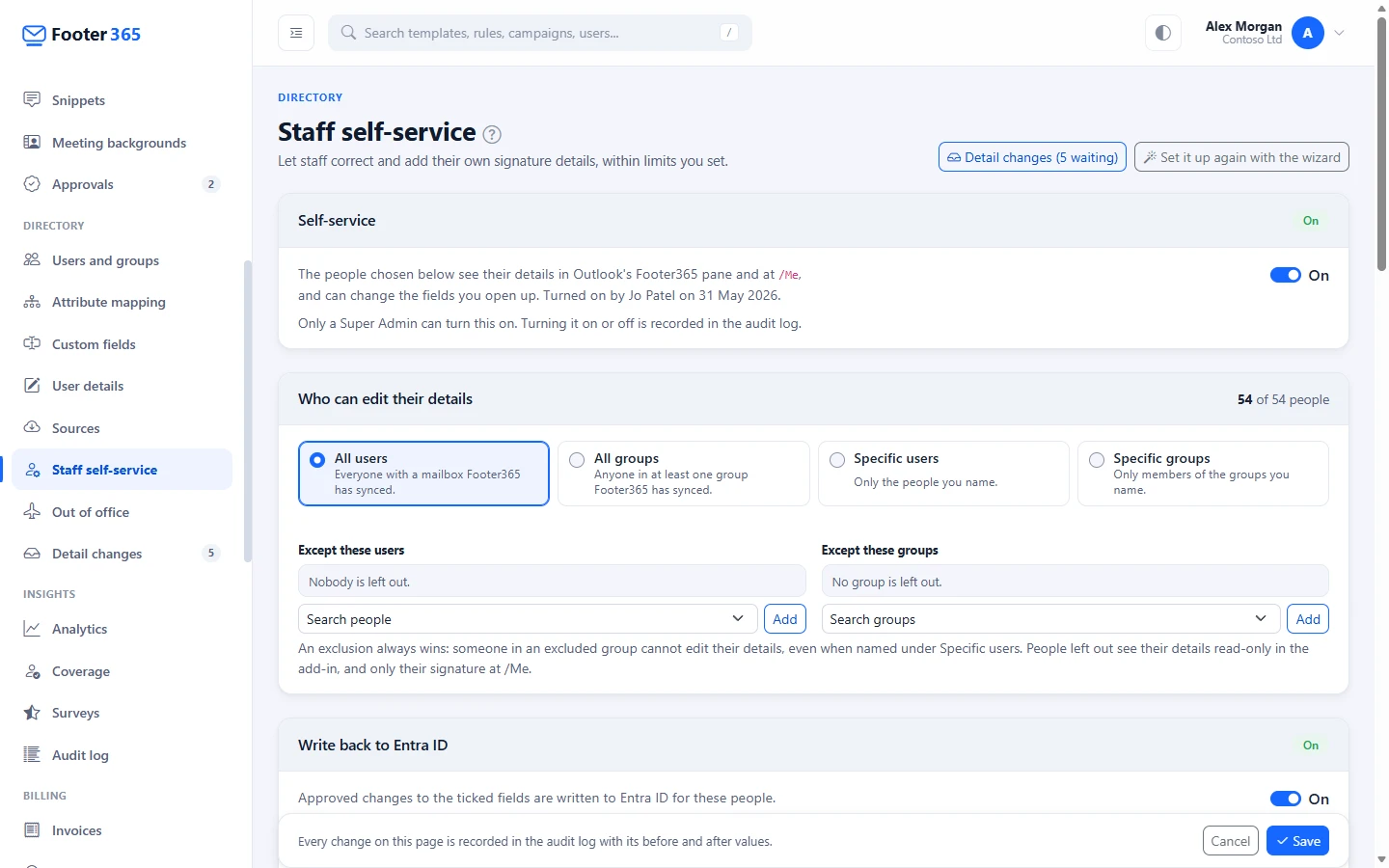
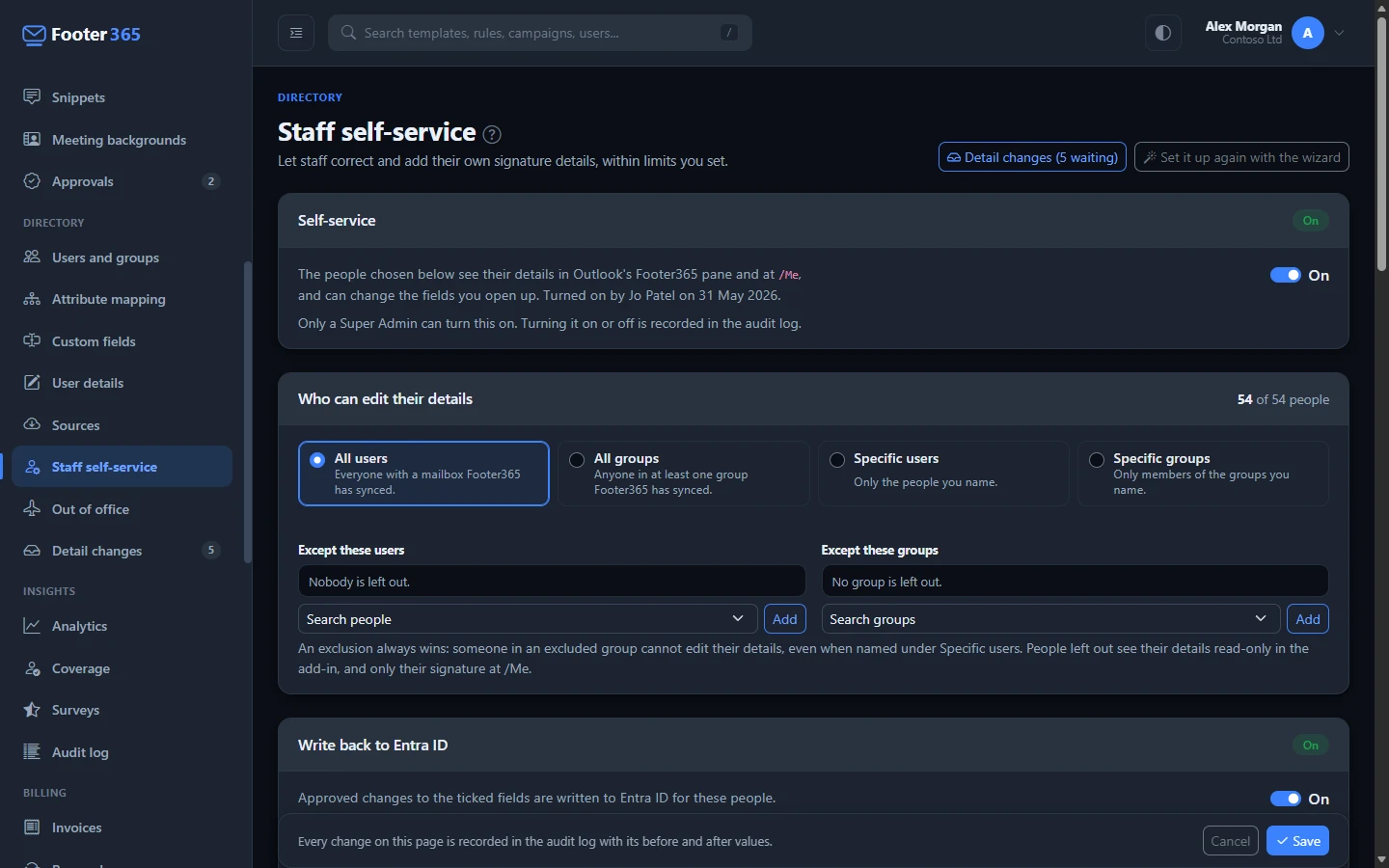
Choose who can edit their details
Under Who can edit their details, choose one of:
- All users: everyone with a mailbox Footer365 has synced.
- All groups: anyone in at least one group Footer365 has synced.
- Specific users: only the people you name.
- Specific groups: only members of the groups you name.
Then name anyone to leave out under Except these users and Except these groups. An exclusion always wins: someone in an excluded group cannot edit their details, even if you named them under Specific users. The card shows how many people can edit as it was last saved.
People who are left out still see their details in the Outlook add-in, read-only, and see only their signature on their own page.
Set each field's policy
The Field policies table lists every detail a signature uses. For each one, choose:
| Policy | What the person can do |
|---|---|
| Read-only | See it, not change it. Every field starts here. |
| Hidden | Nothing: the field is not shown to them at all. |
| Editable | Change it, and the change is used at once. |
| Editable with approval | Ask for a change, which waits on Detail changes until someone approves it. |
| Choice from a list | Pick one of your own values. Anything else is refused. Select Edit list under the field to add, remove and order the choices. |
For a field they can change, also choose what their value does:
- Fills an empty value only: their value is used only while Microsoft 365 has nothing for that field. If Microsoft 365 already holds a value, the field shows as read-only to them, marked Set in Microsoft 365, because their value would never be used. The exception is a field written back to Entra ID, described below.
- Replaces the directory value: their value is used in signatures in place of the one Microsoft 365 holds. Microsoft 365 itself is not changed unless you turn on write-back.
Second office phone and Third office phone are a person's second and third business numbers. Microsoft 365 holds only one business number, so they come from Entered in Footer365, a person's value for them is Always used, and they are never written back: the Write to Entra ID column says Not in Entra ID for them. See Merge fields and empty fields.
Your own fields from Custom fields are listed after the Microsoft 365 fields. Microsoft 365 holds no value for them, so there is nothing for a person's value to fill or replace: their value is simply theirs, and anyone without one gets the field's default. A Choice field is offered to staff as its own list of choices, changed on Custom fields rather than with Edit list. A Number or Link field can be Editable or Editable with approval, and the value must fit its type, so a link must start https://. A field that reads its values from Exchange or from an Entra ID directory extension, or a Several choices field, can only be Read-only or Hidden. See Add your own signature fields.
Photo is the person's signature photo. It can be Read-only, Hidden, Editable or Editable with approval. A photo is uploaded rather than typed: people select Change photo on their own page or on the My details tab in Outlook, and their photo is used instead of their Microsoft 365 one until it is removed. A photo waiting for approval is shown on Detail changes beside the photo in use. A photo change is taken back by removing the uploaded photo on Users and groups rather than with Undo. See Upload signature photos.
The email address is Always read-only, because mail is routed on it. Own values counts the people whose signature uses their own value for the field now.
A value is plain text of up to 200 characters on one line. Footer365 refuses the characters < and >, and every value is shown as text in signatures, so a value can never add anything else to a signature.
Where staff change their details
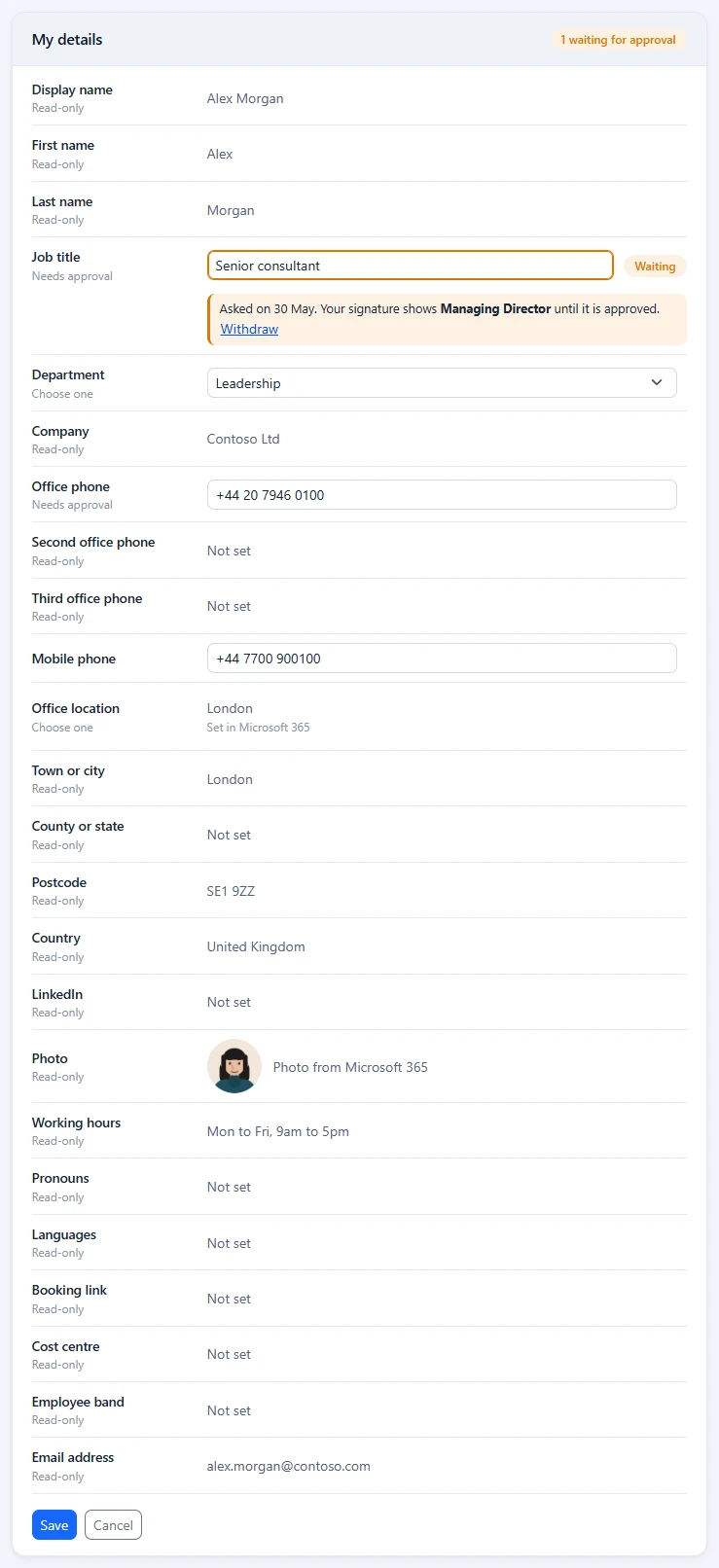
- In Outlook. When staff self-service is on, the Footer365 pane in Outlook has a My details tab beside the signatures. It shows their details and lets them change the fields you opened up. While it is off, the tab is not there at all and the pane is as it has always been. See Deploy the Outlook add-in.
- On the web. Anyone in your organisation can open their own page at https://app.footer365.net/Me and sign in with their Microsoft 365 account, whether or not they have any access to the portal. It shows My signature and, while staff self-service is on and they can edit, My details. While your organisation lets people choose their default signature and their rules give them more than one, it also has a My default signature card. See Let people choose their default signature. People who use the portal also reach it from My signature in the account menu.
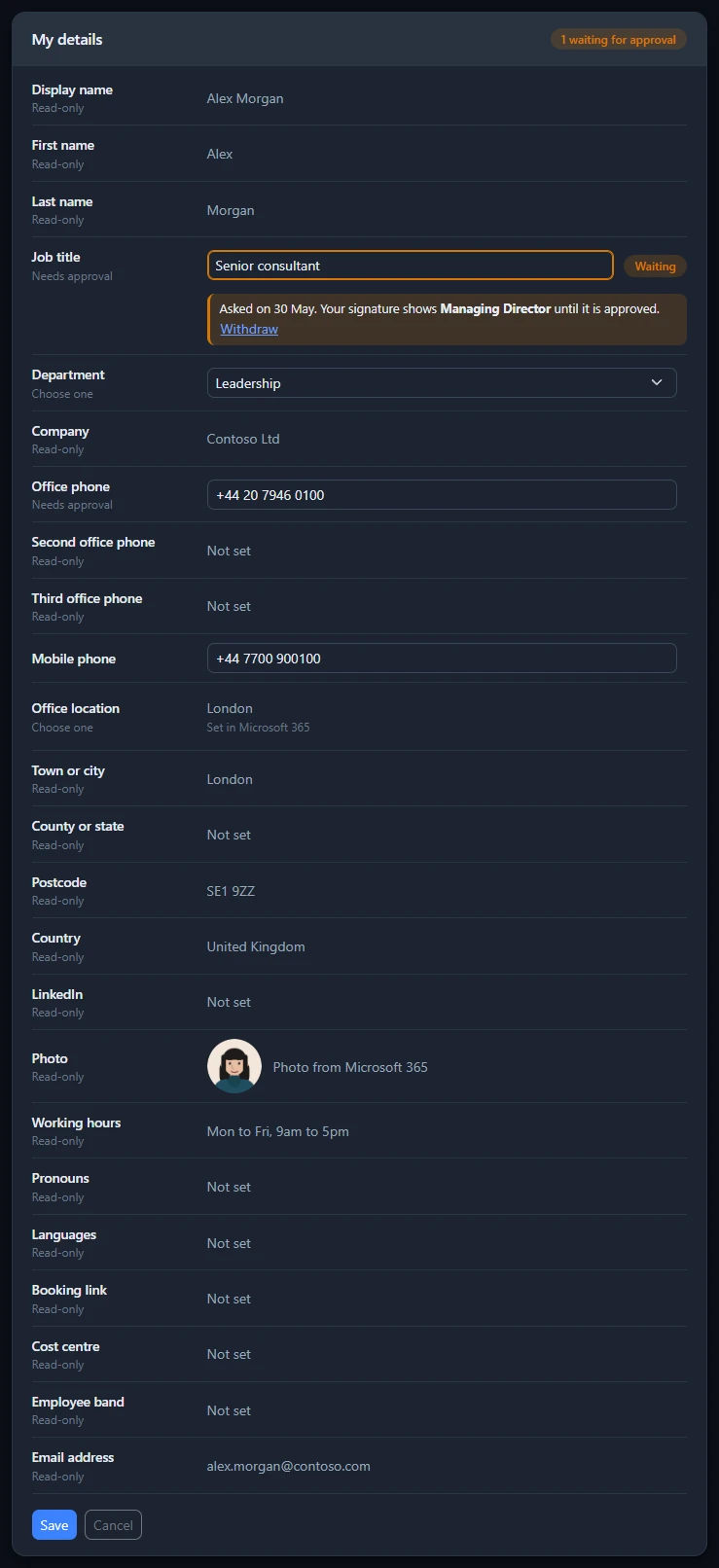
On both, each change's state is shown under its field, and the field is outlined in the same colour: amber while it waits for approval, with Withdraw to take it back; red when it was not approved, with the note from whoever rejected it; green once it is in their signature. The green outline shows the next time they open their details after the change was applied, and is plain from then on. The tab in Outlook shows a count of changes waiting or not approved.
The page only ever shows the person's own record. Nobody can use it to see or change anyone else's details.
In the person's own language
What staff see is available in French, German, Spanish and Dutch as well as English. The Outlook pane follows the language Outlook is shown in. Their own page uses the language they choose under Language on the page, then their Microsoft 365 preferred language, which Footer365 reads when it syncs your directory, then their browser's, and English for any other. The administrator portal, the signature editor and the emails Footer365 sends stay in English.
The Language card on the page offers Automatic, which follows their Microsoft 365 language and then their browser's, English, and each language that is on. It is shown only while there is a language to choose besides English. The rest of the page is in that language too, so a button or heading this article names in English has its own name there. The names of your own fields, and the choices you offered for them, are always shown as you wrote them.
Copy a signature for another mail app
The My signature card shows the person's signature with their details as signatures use them now. Copy for a computer copies it as it looks, for a mail app Footer365 does not sign. With the Outlook add-in only, Copy for a phone copies its text and links for a phone's mail app, because mail from a phone is not signed otherwise. How to add it shows where to paste it in each app. A change still waiting for approval is not in the copy yet. See Add your signature to other mail apps.
Approve or reject changes
Changes that need approval wait on Directory > Detail changes (open it). The menu item shows how many are waiting, and appears while staff self-service is on or there is a history of changes.
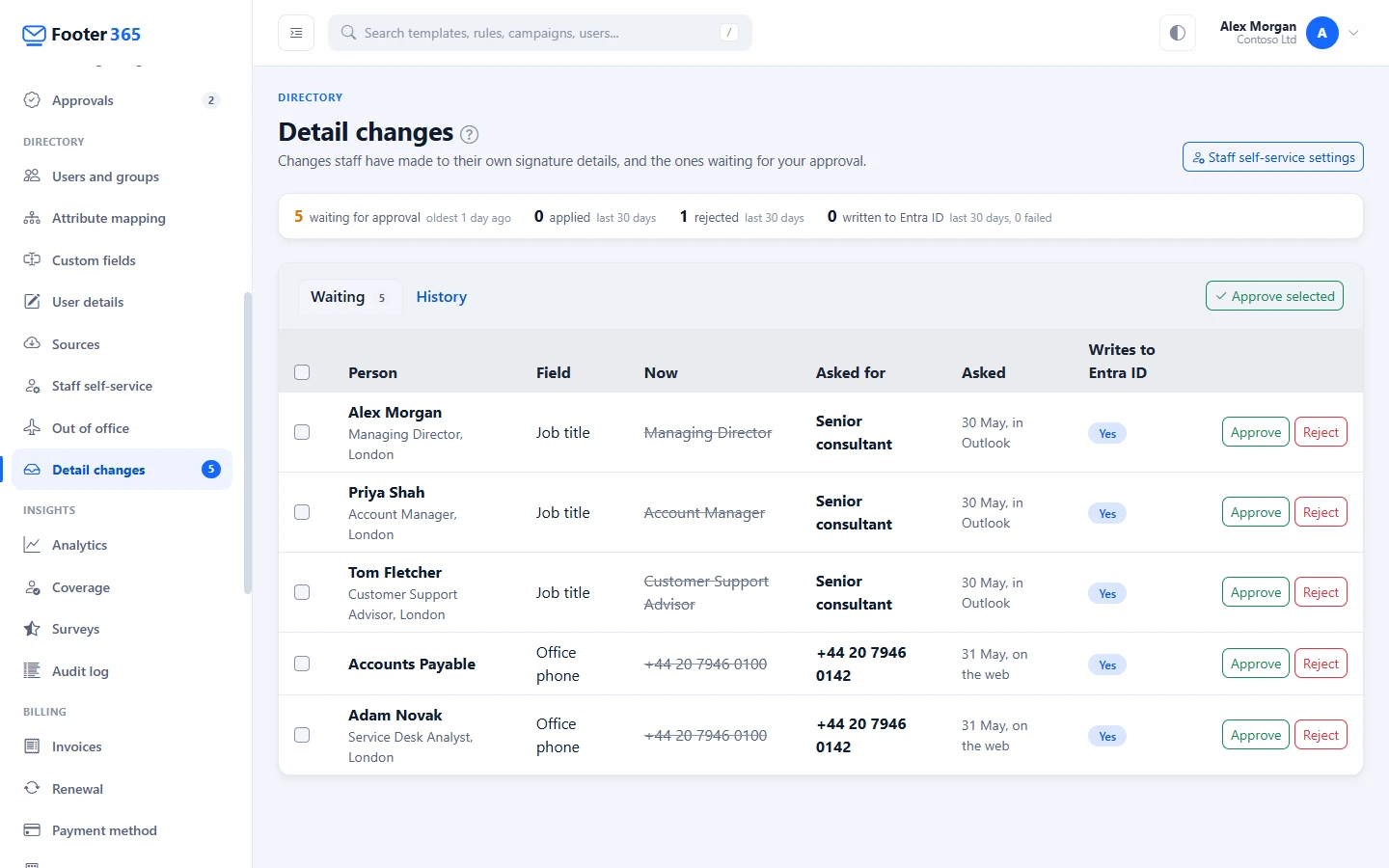
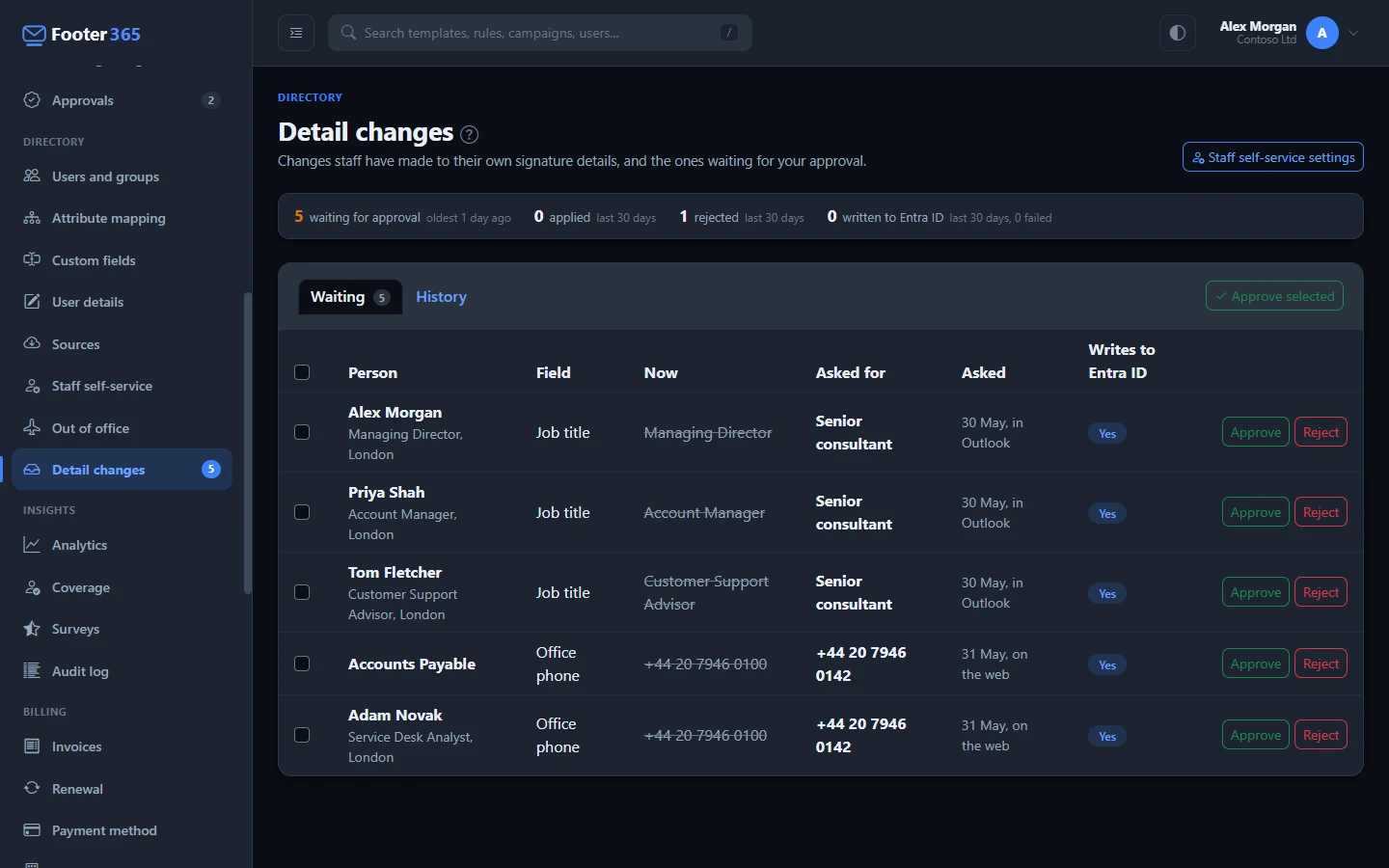
- Approve puts the change in the person's signature from their next message. Tick several and select Approve selected to approve them together.
- Reject asks for an optional note, up to 500 characters, which the person sees under the field in Outlook and on their page. Their signature is not changed.
- A person has at most one waiting change per field. Asking again replaces the earlier one.
While changes wait, your Super Admins and the people with the Manage directory permission get one email a day listing them. The email goes to people given portal access by name, not to the members of a portal group.
Someone limited to a scope sees and decides only the changes of the people in it, and their email names only those people and is not sent on a day when none of them has a change waiting. The Staff self-service settings themselves belong to the whole organisation. See Limit an administrator to part of the organisation.
The History tab lists every change in the period you choose: applied, rejected and withdrawn, and who decided each. Undo puts the earlier value back in the person's signature and is itself recorded as a change. Only the latest applied change to a field for a person can be undone.
Viewing Detail changes needs the View directory permission. Approving, rejecting and undoing need Manage directory, and are never open to a session opened on your behalf.
Turn it off
Turning the switch off and saving asks first when changes are waiting: they are withdrawn. Staff then see nothing in Outlook and only their signature on their own page. Values already applied stay in signatures until you undo them on Detail changes. Your choices of who can edit and the field policies are kept, and come back when you turn it on again.
Changing a field away from Editable with approval withdraws the changes waiting for that field.
Write back to Entra ID
Changes staff make are used in their signatures, and Microsoft 365 keeps its own values. If you want an applied change to reach the person's profile in Microsoft Entra ID as well, so Teams, the address book and other apps show it too, turn on write-back. It is off by default, and only a Super Admin can set it up or change it.
Give consent first
Write-back uses a separate application, Footer365 Directory Write, that is used for nothing else. It holds one permission, User.ReadWrite.All as an application permission, which lets it read and change the profile of any user in your organisation. Footer365 uses it only to write an applied change to the fields you tick, for the people you choose. Because only organisations that turn write-back on ever consent to it, it never appears on the main Footer365 consent screen, and the main Footer365 application never holds this permission.
- On Directory > Staff self-service, find the Write back to Entra ID card. Before consent it shows Not set up.
- Select Continue to Microsoft. Footer365 checks again that you are one of your organisation's Super Admins, signed in with your own Microsoft 365 account, asking you to sign in if it needs to, then opens Microsoft's consent screen.
- A Global Administrator of your organisation approves the permission. Microsoft brings you back to Staff self-service, and Footer365 checks with Microsoft that the consent is in place before it records it.
Turn it on and choose what is written
Once consent is recorded, the card has its own switch:
- Turn on the switch in the Write back to Entra ID card.
- Under Write back for, choose All users, All groups, Specific users or Specific groups, and name anyone to leave out under Except these users and Except these groups. Write-back only ever reaches people who can edit their details, so the exclusions in Who can edit their details apply here too, and an exclusion always wins.
- In the Field policies table, tick Write to Entra ID for each field to write. It is offered only for fields Entra ID holds and only for fields people can change: the email address is never written, and LinkedIn, which comes from your attribute mapping, shows Not in Entra ID.
- Optionally, tick Also set uploaded photos in Microsoft 365 in the card, so a photo uploaded in Footer365, by an administrator or by the person, becomes their photo in Teams, Outlook and SharePoint too. It is off by default, and covers the same people. Removing an uploaded photo in Footer365 does not change the photo in Microsoft 365.
- Select Save.
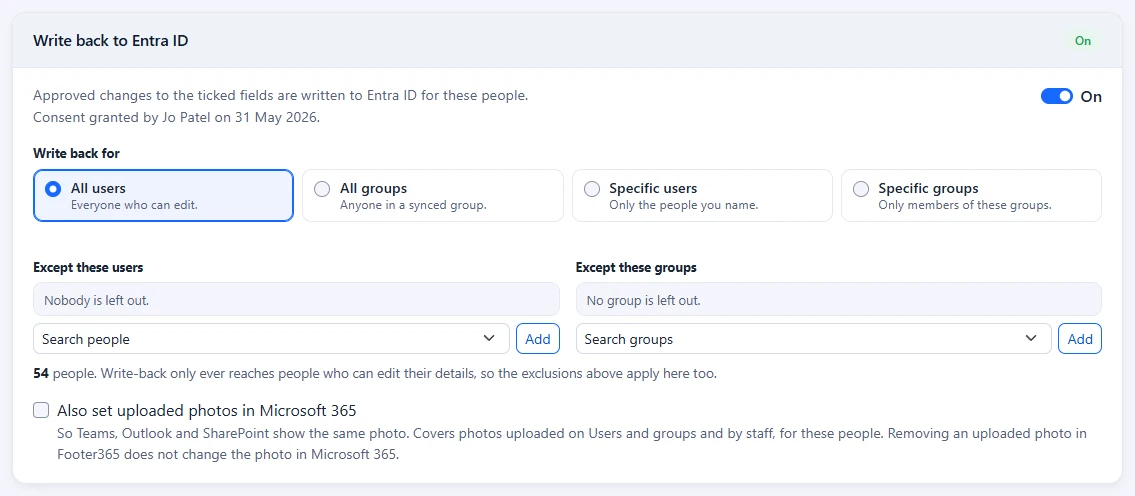
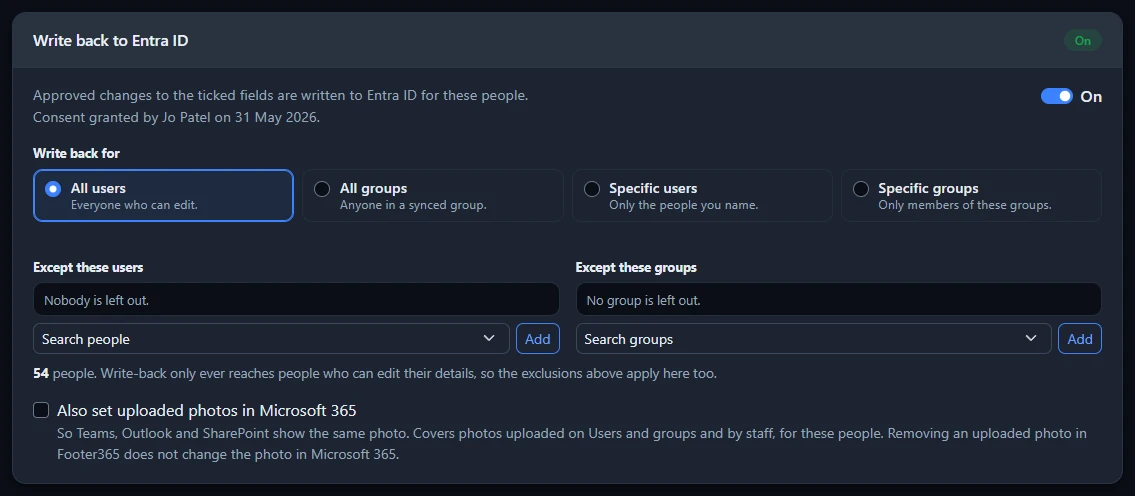
From then on, when a change to a ticked field is applied for someone in scope, either because the field needs no approval or because someone approved it, Footer365 writes it to their Entra ID profile, usually within a minute. A change that clears a person's own value is not written, because clearing it means "use the value Microsoft 365 holds". When a field that Fills an empty value only is written back, the person can change it even though Microsoft 365 already holds a value, because their change becomes the value Microsoft 365 holds.
After a write, the value in Footer365 and the value in Entra ID agree, so the next directory sync keeps it rather than changing it back.
See what was written
On Detail changes, the History tab shows each applied change's write as Written to Entra ID, Writing to Entra ID, Entra ID write failed or Not written to Entra ID. Point at it to see when it was written, or why it was not. While write-back is on, the Waiting tab shows whether approving each change Writes to Entra ID, and a summary figure counts the writes of the last 30 days.
- A write Microsoft refuses still leaves the value in the signature. Common reasons are a person synced from an on-premises Active Directory, whose details Entra ID only accepts from Active Directory, and some details of an administrator account, which Entra ID does not let an application change. Select Retry to try again once the cause is fixed. Only the latest applied change to a field for a person can be retried.
- A passing fault at Microsoft, such as throttling, is retried by itself, five times over a little more than an hour, before it is shown as failed.
- Undo on a change that was written to Entra ID puts the earlier value back in Entra ID as well. A change undone before it was written is not written.
- If you turn write-back off, untick a field or leave a person out before a change is written, it is not written.
Every write, and every failed write with Microsoft's reason, is recorded in the audit log.
Remove it
- Turn the switch in the Write back to Entra ID card off and select Save. Nothing more is written.
- To take away the permission as well, a Global Administrator deletes Footer365 Directory Write from Enterprise applications in the Microsoft Entra admin centre. This does not affect the main Footer365 application, your signatures or the rest of staff self-service.
If the consent is removed while write-back is on, the next write fails with a reason saying so, and the card shows Consent missing with Continue to Microsoft to grant it again. The writes that failed in the meantime can then be retried from Detail changes.
Good to know
- A value a person sets for themselves is theirs: an import on User details and a source both leave it as they set it. See Fill in details Microsoft 365 does not hold.
- If you change a field between Fills an empty value only and Replaces the directory value here, the values people have already set for it follow the new choice. Values your administrators entered on Users and groups or imported follow the separate setting on User details instead, which anyone who can manage the directory can change.
- An administrator can still correct a person's value with Edit details on Users and groups. The latest value is used, and the panel there marks a person's own value Staff.
- Every change asked for, approved, rejected, applied, withdrawn and undone is recorded in the audit log, if your account has one, naming the person, the field and both values.
Related articles
Still stuck?
Tell us what you were trying to do and what you saw. Include the sender, a recipient and roughly when a message was sent, and we can trace it.